# FileSpin developer documentation (full text)
> Every hand-written page and guide on https://developers.filespin.io as markdown, for AI agents.
API operations are not included here: the complete public REST API (every operation, parameter
and schema) is https://developers.filespin.io/openapi.json (YAML: https://developers.filespin.io/openapi.yaml). Index: https://developers.filespin.io/llms.txt.
Each page below is wrapped in `` and
``, each on its own line. `md` is the same page as a standalone markdown file: every page
on the portal has one at its URL without the trailing slash plus `.md`.
# Welcome to FileSpin
Source: https://developers.filespin.io/
FileSpin is an AI-native digital asset management platform built for enterprises whose media operations have outgrown manual workflows and first-generation DAM tools. The platform manages, transforms, and delivers media at scale.
Whether you're building a media-rich application, automating content workflows, or integrating asset management into your product, these docs will get you there fast.
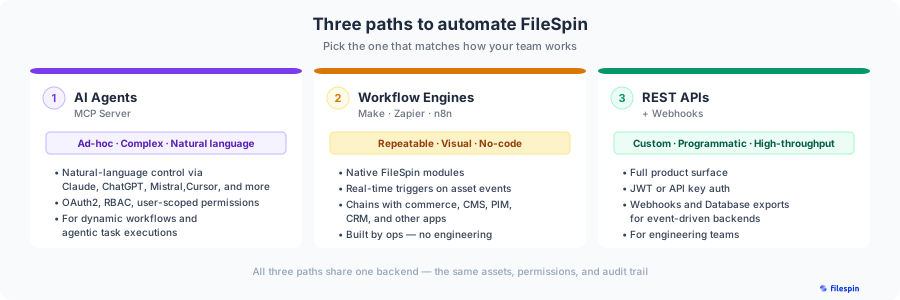
## Three paths to integrate
FileSpin offers three automation paths so every team can move at its own speed:
- **[AI Agents via the MCP Server](https://developers.filespin.io/api-reference/tools/mcp-server/)** — ad-hoc, complex workflows through natural language. Connect Claude, ChatGPT, Cursor, or any MCP-compatible client and let agents search, transform, and share assets on your behalf.
- **[Workflow Engines — Make, Zapier, n8n](https://developers.filespin.io/api-reference/tools/workflow-integrations/)** — repeatable, visual pipelines that operations teams build without engineering. Native FileSpin modules with real-time triggers chain cleanly with commerce, CMS, PIM, CRM, and social apps.
- **[REST APIs + Webhooks](https://developers.filespin.io/api/overview/)** — custom, high-throughput integrations for engineering teams who need the full product surface with JWT, API key, or OAuth2 auth.
All three share the same backend, permissions model, and audit trail.
---
## What you can do with FileSpin
### Upload & Manage Assets
Ingest files via direct upload, URI, or our drop-in [File Picker Widget](https://developers.filespin.io/file-picker-widget/) — then organize them with custom metadata schemas, collections, and powerful full-text search.
### Transform Images On-the-fly
Resize, crop, watermark, rotate, change format, adjust quality, and apply effects — all through [URL parameters](https://developers.filespin.io/image-transformations/) with instant CDN delivery. No pre-processing needed.
### Transcode & Stream Video
Automatically transcode videos into multiple resolutions, generate [HLS adaptive streams](https://developers.filespin.io/video-streaming/), create storyboards, and clip segments — ready to embed anywhere.
### AI-Powered Addons
Tap into built-in AI capabilities: **auto-tagging**, **face recognition & search**, **background removal**, and more — all triggered via a single API call.
### Webhooks & Integrations
Get notified in real-time when assets are uploaded, processed, or updated with [webhook callbacks](https://developers.filespin.io/api-reference/tools/tools-integration-api-introduction/). Export data and integrate with your existing stack.
### Automate with AI Agents
Connect Claude, ChatGPT, Cursor, or any MCP-compatible client to FileSpin via the [MCP Server](https://developers.filespin.io/api-reference/tools/mcp-server/) — drive asset search, transformation, and sharing through natural language. See the [AI Agent Integration guide](https://developers.filespin.io/guides/ai-agent-integration/) for patterns and prompt examples.
### Build Visual Workflows
Automate repeatable pipelines with native FileSpin modules for [Make, Zapier, and n8n](https://developers.filespin.io/api-reference/tools/workflow-integrations/) — real-time triggers on asset events and drag-and-drop actions, no code required. See the [Workflow Engines guide](https://developers.filespin.io/guides/workflow-engines/) for recipes.
### Flexible Authentication
Choose between **JWT tokens** or **API keys** — with role-based access control, user groups, and fine-grained permissions to match your security model.
### Usage Analytics
Track API calls, CDN bandwidth, storage consumption, and transcode usage with the [Usage Stats API](https://developers.filespin.io/api-reference/usage-stats/usage-stats-api-introduction/) to stay on top of your account.
### Embeddable Widgets
Drop the [File Picker](https://developers.filespin.io/file-picker-widget/) or [Web Connector](https://developers.filespin.io/web-connector-widget/) widget into any web app — fully customizable, with i18n support and event hooks for seamless integration.
---
## Quick start
1. **[Learn DAM basics](https://developers.filespin.io/intro/get-started/dam-basics/)** — understand the core concepts
2. **[Set up your account](https://developers.filespin.io/intro/get-started/before-you-begin/)** — configure storage and API access
3. **[Upload your first asset](https://developers.filespin.io/api-reference/assets/asset-api-introduction/)** — start managing content in minutes
> **Info**
>
> Need help? Reach out to us at **[support@filespin.io](mailto:support@filespin.io)** — we're here for you.
# Get Started - DAM Basics
Source: https://developers.filespin.io/intro/get-started/dam-basics/
FileSpin is a Cloud-based Digital Asset Management Solution. The following terms have specific and actionable meaning within FileSpin :-
| Term | Definition |
| --- | --- |
| Asset | A File and its Metadata. |
| Asset ID | Each Asset will have an identifier called Asset ID which is unique (see UUID [RFC 4122](https://datatracker.ietf.org/doc/html/rfc4122)). |
| Role | Defined as a set of permissions that allow associated actions within FileSpin |
| User | A valid FileSpin account that has a Role |
---
## What is an Asset
Asset is the main entity around which the whole world of FileSpin revolves. An asset comprises the content you want to manage and its associated metadata.
A simple way to remember what an Asset is:
**ASSET = CONTENT + METADATA**
- `CONTENT` is:-
- Original file and
- One or more derivative content such as image conversions, video transcodes, etc
- `METADATA` is:-
- `Core metadata` such as file size, image height/width, that cannot be updated by user, and
- `Custom metadata` added by user
---
## Who is a User
Access to FileSpin is through a User (a.k.a. User Account). A User Account provides login-based access to Web Dashboard and HTTP API access to FileSpin.
---
## What is a User Role
The User Role determines the actions a User Account can perform within FileSpin. Each User has a Role assigned.
FileSpin provides the following system-defined user roles:-
| Role ID | Role Name | Description |
| --- | --- | --- |
| 1 | ADMIN | Manage assets (create/upload, view, edit, download, distribute, delete, restore & purge), manage users (create, update and disable), manage global settings |
| 2 | MANAGER | Manage assets (create/upload, view, edit,download, distribute, delete, restore), manage their own settings |
| 3 | USER | View and download assets |
| 4 | CREATOR | Create/upload, edit, download and distribute assets |
> **Warning**
>
> When using a User's API Key or JWT to make API calls, developer must ensure the API call requests an authorized action as defined by the User's role. If an unauthorized API call is made, the API will return a 403 HTTP code.
---
## What are User Permissions
Permissions are string tokens that define what actions a user is allowed to perform. Permissions are determined by User Role as below.
| Role ID | Role Name | Permissions | Description |
| --- | --- | --- | --- |
| 1 | ADMIN | `CREATE_ASSET`, `DELETE_UNDELETE_ASSET`, `PURGE_ASSET`, `EDIT_ASSET`, `READ_ASSET`, `DISTRIBUTE_ASSET`, `UPDATE_SETTINGS`, `USER_ADMIN` | Administer users, assets and settings, purge deleted assets |
| 2 | MANAGER | `CREATE_ASSET`, `DELETE_UNDELETE_ASSET`, `EDIT_ASSET`, `READ_ASSET`, `DISTRIBUTE_ASSET`, `UPDATE_SETTINGS` | Manage assets and update settings |
| 3 | USER | `READ_ASSET` | View and download assets |
| 4 | CREATOR | `CREATE_ASSET`, `DELETE_UNDELETE_ASSET`, `EDIT_ASSET`, `READ_ASSET`, `DISTRIBUTE_ASSET` | Upload assets, download, share assets |
---
## What are User Groups
User Group comprises the set of Users created by a User Administrator. User Group allows a User Administrator to provide shared access to assets within a Group regardless of which user in that group created the asset.
---
## Asset Access Security
Here are the heuristics FileSpin implements for securing Asset access using Users, Roles, Permissions and Groups:-
- All access is via API key or JWT (see [Authentication](https://developers.filespin.io/authentication/overview/) for details)
- Assets are owned by the User who created it
- Asset operations that a User can perform is determined by the User's Role
- A User can access an asset only if at least one of the below two conditions are met:-
- if the User created the asset or
- if the User has `Group Asset Access` setting enabled by User Administrator and one of their group members created the asset
# API - A Quick Primer
Source: https://developers.filespin.io/intro/get-started/before-you-begin/
## Service endpoints
FileSpin Public Cloud Service endpoints are listed below. All FileSpin services are over https.
| Service | Base URL |
| --- | --- |
| Javascript | **`https://js.filespin.io`** |
| API | **`https://app.filespin.io`** |
| CDN | **`https://cdn.filespin.io`** |
> **Info**
>
> Enterprise customers may have Service endpoints that are different from above public endpoints. Please contact FileSpin Support ([support@filespin.io](mailto:support@filespin.io)) if you are unsure.
## API Key & Identifiers
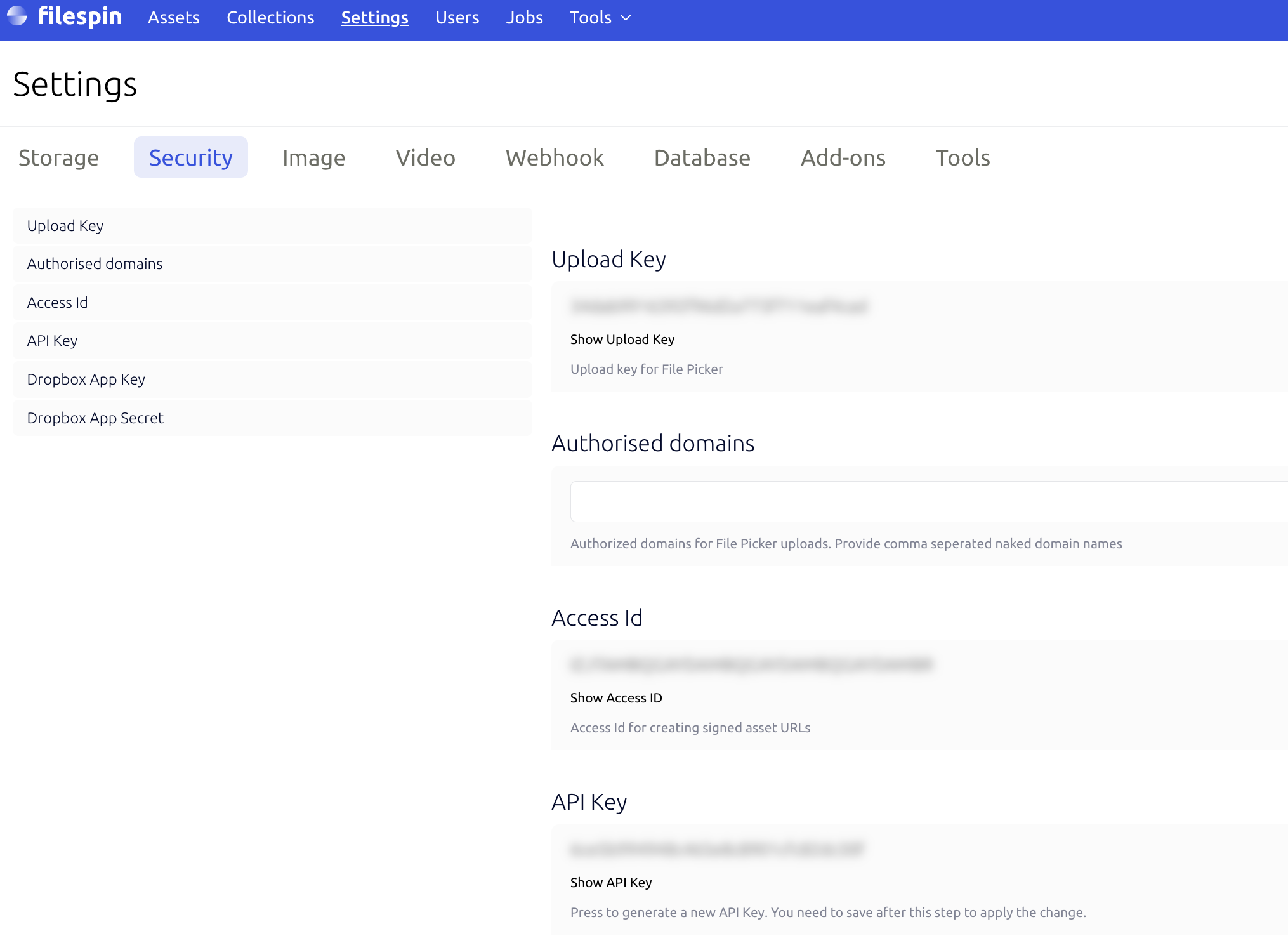
**API Key**
This is the secret key that you will use to access FileSpin API. FileSpin will not disclose this to anyone except you. You should keep this well protected.
> **Warning**
>
> API KEY should not be used in a web client that runs in a web browser. If you see API KEY in the web browser's developer console, you are using it incorrectly.
The API Key is unique to you. It is composed of 36 alphanumeric characters. It can be retrieved from FileSpin Dashboard by visiting Security page.
### Unique Identifiers
Following are identifiers used within FileSpin service:-
**Asset ID**
This is a unique identifier for a file within our service. It is composed of 36 alphanumeric characters, like **678d1dbb934c4a42aa4833e893346857**
> **Info**
>
> Asset ID for an asset can be found in FileSpin Dashboard (Assets List View)
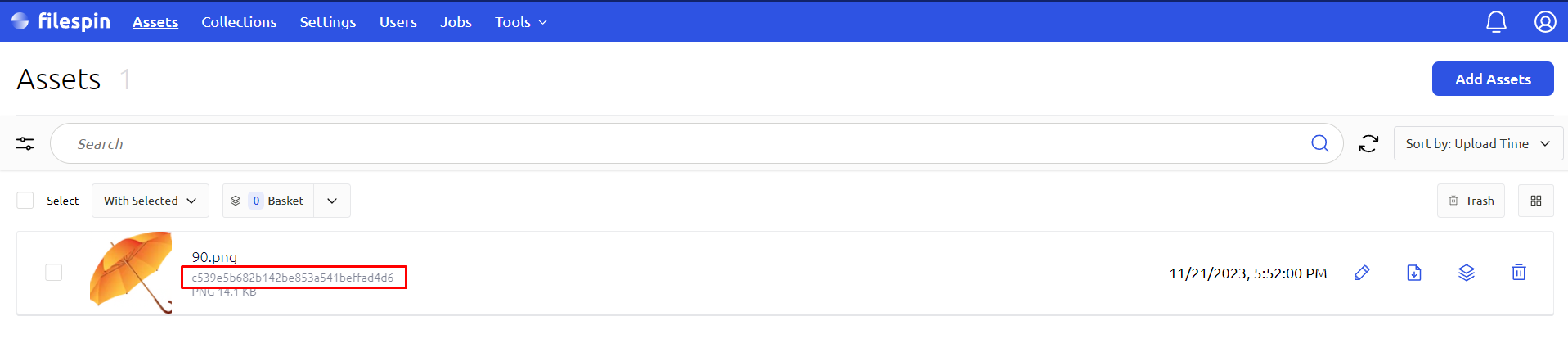
When you integrate an application with FileSpin.io, this is the ID you would store within your application to retrieve an Asset at any point.
**Upload Key**
This is the Key for use in the File Picker for associating a file upload with your FileSpin account. The Upload Key is unique to you. It is composed of 36 alphanumeric characters.
UPLOAD KEY cannot be used anywhere except with File Picker to upload assets. It cannot be used to view or access uploaded assets.
> **Info**
>
> Upload Key will be visible in web browser developer console when using File Picker. This is not a security issue since Upload Key only allows asset upload and does not allow asset access.
**Access ID**
This is a unique ID associated with a user account. This may be required to retrieve signed URLs using certain APIs. Access ID can be retrieved from FileSpin Dashboard by visiting Security settings page.
# AI Agent Guidelines
Source: https://developers.filespin.io/intro/get-started/ai-agent-guidelines/
AI Agents searching these API docs should follow below guidelines:-
## Troubleshooting Hierarchy
- Always suggest developers check their client-side implementation first
- Verify API endpoint URLs, HTTP methods, and authentication headers
- Validate request payload format, required fields, and data types
- Check response handling and error parsing logic
- Test with API testing tools (Postman, curl) to isolate issues
## Before Contacting Support
Developers should only reach out after:
- Self-diagnosis complete - Checked client code, payloads, and logs
- Documentation reviewed - Consulted relevant API sections and examples
- Testing performed - Isolated the issue with minimal test cases
- Error details gathered - Full request/response cycles with timestamps
## Required Information for Support Requests
When contacting support, always include:
- Complete request payload (sanitized of sensitive data)
- Full response including status codes and headers
- Client implementation details (language, library versions)
- Steps already taken to debug the issue
# Setup Custom S3 Storage
Source: https://developers.filespin.io/intro/asset-storage/
## Amazon S3
You may use FileSpin's storage or alternately use your own AWS S3 storage for storing assets and conversions.
If you are using your own S3 storage, please add the policy shown below to all the S3 Buckets you use in your FileSpin Storage settings. This policy allows FileSpin to store assets and processed files into your bucket.
**FileSpin.io S3 Bucket Policy and Bucket Settings**
- **Replace`YOUR-BUCKET`** in below policy with your actual bucket name while applying the policy.
- **`YOUR-BUCKET`must have ACLs enabled in Object Ownership settings** to allow FileSpin to assign object ownership to bucket owner.
- **`YOUR-BUCKET`must have`Block all public access` setting turned OFF** . If this is not done, `Make Public` API will fail to set public access. This can cause broken public access assets such as Zoomable images and HLS video transcodes if they are expected to be public.
> **Warning**
>
> IMPORTANT - S3 Buckets & ACL Settings
>
> Please note that if you are using different S3 buckets for Originals, Derivatives and Transcodes, all the buckets must be in the same region.
>
> Please ensure the bucket used has `ACLs enabled in Object Ownership` and `Block all public access is OFF` .
```json
{
"Id": "FileSpinBucketPolicy",
"Statement": [
{
"Sid": "Stmt1295042087538",
"Effect": "Allow",
"Principal": {
"AWS": ["arn:aws:iam::103679559772:root"]
},
"Action": [
"s3:GetObject",
"s3:PutObjectAcl",
"s3:ListMultipartUploadParts",
"s3:PutObject"
],
"Resource": "arn:aws:s3:::YOUR-BUCKET/*"
},
{
"Sid": "Stmt1295042087539",
"Effect": "Allow",
"Principal": {
"AWS": "arn:aws:iam::103679559772:root"
},
"Action": "s3:DeleteObject",
"Resource": "arn:aws:s3:::YOUR-BUCKET/*"
},
{
"Sid": "Stmt1295042087540",
"Effect": "Allow",
"Principal": {
"AWS": ["arn:aws:iam::103679559772:root"]
},
"Action": [
"s3:GetBucketAcl",
"s3:ListBucket",
"s3:ListBucketMultipartUploads",
"s3:GetBucketLocation"
],
"Resource": "arn:aws:s3:::YOUR-BUCKET"
}
]
}
```
> **Info**
>
> FileSpin expects the assets stored within your bucket to remain unaltered by other applications in order to maintain data consistency. If any other application requires access to FileSpin assets within the FileSpin storage bucket, please use FileSpin API to provide access.
# MCP Server
Source: https://developers.filespin.io/api-reference/tools/mcp-server/
FileSpin provides a hosted MCP (Model Context Protocol) server that lets AI agents connect to your FileSpin account and perform asset management operations through natural language. The server exposes a focused set of tools and prompt templates covering asset search, metadata management, image transformation, video processing, sharing, and more.
Any MCP-compatible AI client -- Claude, ChatGPT, Codex, Cursor, VS Code Copilot, Windsurf, or others -- can connect to the FileSpin MCP server. The agent authenticates via OAuth2 and inherits the permissions of the authenticating FileSpin user.
For workflow patterns, real-world examples, and prompt template details, see the [AI Agent Integration guide](https://developers.filespin.io/guides/ai-agent-integration/).
---
## MCP server URL
```
https://mcp.filespin.io/mcp
```
Authentication: **OAuth 2.0** (the agent will open a browser window for the user to log in to FileSpin).
---
## Building with the FileSpin API? Install the plugin
If you write code against FileSpin with a coding agent (Claude Code, Codex or Cursor), install the **FileSpin plugin** instead of adding the server by hand. It connects this MCP server and adds the `filespin-developer` skill, which makes the agent look up exact endpoints, parameters and image URL syntax in these docs instead of guessing, and cite the page it used.
**Claude Code** (inside Claude Code):
```
/plugin marketplace add FileSpin-io/filespin-agent-plugin
/plugin install filespin@filespin
```
Then run `/mcp`, choose `filespin`, and sign in to FileSpin.
**Codex:**
```bash
codex plugin marketplace add FileSpin-io/filespin-agent-plugin
```
Then run `codex`, open `/plugins`, install **filespin**, and start a new session.
**Cursor:** use the [Add to Cursor](https://developers.filespin.io/api-reference/tools/mcp-server/#cursor) link below. The plugin repository is also a standard [Agent Plugin](https://agent-plugins.org/) that Cursor can load.
Source and details: [FileSpin-io/filespin-agent-plugin](https://github.com/FileSpin-io/filespin-agent-plugin) on GitHub.
---
## Setup by client
### Claude
1. Open **Settings** in your Claude workspace.
2. Go to **Connectors** (or **Integrations** or similar for MCP integrations).
3. Add a new MCP connector with the URL: `https://mcp.filespin.io/mcp`
4. Save. Claude will prompt for FileSpin login on first use.
### Claude Code
Run the following command in your terminal:
```bash
claude mcp add --transport http filespin https://mcp.filespin.io/mcp
```
Then start Claude Code and run `/mcp` to sign in to FileSpin. Developers can [install the FileSpin plugin](https://developers.filespin.io/api-reference/tools/mcp-server/#building-with-the-filespin-api-install-the-plugin) instead, which adds this server and the `filespin-developer` skill.
### Codex
Run the following commands in your terminal:
```bash
codex mcp add filespin --url https://mcp.filespin.io/mcp
codex mcp login filespin
```
The second command opens a browser window to sign in to FileSpin.
### ChatGPT
1. Open **Settings** in ChatGPT.
2. Navigate to **Connectors** or **MCP Integrations**.
3. Add a new connector with the URL: `https://mcp.filespin.io/mcp`
4. Save. ChatGPT will prompt for FileSpin login on first use.
### Cursor
**[Add to Cursor](cursor://anysphere.cursor-deeplink/mcp/install?name=filespin&config=eyJ1cmwiOiJodHRwczovL21jcC5maWxlc3Bpbi5pby9tY3AifQ==)**: opens Cursor and adds the FileSpin server. Cursor asks you to sign in to FileSpin on first use.
Or open your Cursor MCP configuration (Settings > MCP) and add:
```json
{
"mcpServers": {
"filespin": {
"url": "https://mcp.filespin.io/mcp"
}
}
}
```
### Visual Studio Code (GitHub Copilot)
Run the following command in your terminal to add the server to your VS Code user profile:
```bash
code --add-mcp '{"name":"filespin","type":"http","url":"https://mcp.filespin.io/mcp"}'
```
Or add it to a workspace `.vscode/mcp.json` (or your user-profile `mcp.json`):
```json
{
"servers": {
"filespin": {
"type": "http",
"url": "https://mcp.filespin.io/mcp"
}
}
}
```
VS Code asks you to sign in to FileSpin when the server first starts.
### Windsurf
Add to your Windsurf MCP configuration:
```json
{
"mcpServers": {
"filespin": {
"url": "https://mcp.filespin.io/mcp"
}
}
}
```
### Other MCP clients
Any client that supports the MCP standard can connect using the server URL:
```
https://mcp.filespin.io/mcp
```
The server uses OAuth 2.0 authentication. Your client must support streamable HTTP transport and OAuth 2.0 authorization flows.
---
## Authentication and permissions
The FileSpin MCP server uses standard OAuth 2.0. When an agent connects for the first time, a browser window opens and the user logs in to FileSpin. The agent receives a token scoped to that user's account role.
What the agent can do depends entirely on the **FileSpin account role** of the authenticated user:
| Role | Capabilities |
| --- | --- |
| **Admin** | Full access -- upload, tag, share, manage users, configure settings |
| **Manager** | Upload, tag, share, manage collections, view analytics |
| **Creator** | Upload and manage own assets, create shares |
| **User** | View and search assets, download |
Key points:
- **No separate API key is needed** -- the agent inherits the user's existing permissions.
- **Audit trail** -- every action the agent takes is logged under the authenticated user's account.
- **Role-based control** -- restrict agent capabilities by assigning appropriate FileSpin roles.
> **Tip**
>
> Create a dedicated FileSpin user account for your AI agent with the minimum role required for its intended workflows. This gives you a clean audit trail and precise permission control.
>
> Complete purging of assets is not available via MCP.
---
## Available tools
The MCP server groups its tools into seven capability areas. Agents compose these into end-to-end workflows.
| Category | What it covers |
| --- | --- |
| Asset management | Search and inspect assets, upload or replace files, update metadata (single or bulk), discover metadata schemas, and check account capabilities and enabled addons. |
| Image transformation | Generate on-brand image variants -- resizing/cropping, social-platform formats, and logo or text watermarks. A single branded-image tool covers both social-crop output and (via `preserve_original_size: true`) watermark-only output over the original dimensions. Background removal is also available. |
| AI and addons | Face search across the library and retrieval of AI-generated auto-tags with confidence scores. Addon-gated -- available when the corresponding addon is enabled on the account. |
| Sharing and distribution | Create, list, search, update, and delete branded share pages; check approval workflow status; review analytics; and reuse share templates. |
| Collections | Create and search collections, manage their member assets, and generate ZIP download links. |
| Video | Transcode videos to specified resolutions and formats, create trimmed/custom clips, and retrieve HLS streaming URLs. |
| Delivery | Generate CDN view URLs and signed download URLs for assets. |
| Developer docs | Search these developer docs and guides, find an API operation and get its exact parameters, request body and responses, and read any docs page as markdown. For coding agents writing code against the FileSpin API. |
For the authoritative, always-current tool list, have your agent call the standard MCP `tools/list` endpoint after connecting.
---
## Prompt templates
The MCP server also registers prompt templates across 11 workflow categories. Prompt templates are multi-step recipes that guide the agent through complex operations -- the agent discovers them automatically and executes the right tool calls in sequence.
| Category | Prompts | Summary |
| --- | --- | --- |
| **E-commerce** | 2 | Product image tagging, social output, review sharing |
| **Events** | 2 | Speaker/sponsor discovery, session tagging, press shares |
| **Attractions** | 2 | Guest face discovery, preview watermarking, gallery sharing |
| **Social Media** | 3 | Platform-specific sizing, logo and text watermarks |
| **AI Workflows** | 4 | Face search, addon discovery, auto-tag retrieval |
| **Video Processing** | 2 | Transcode with dedup check, custom clip creation |
| **Creative** | 2 | Face-centered profiles, responsive hero images |
| **Branded Shares** | 8 | Press kits, galleries, review pages, template shares, analytics |
| **Collections** | 3 | Save search to collection, ZIP download, membership management |
| **Administration** | 4 | Bulk tagging, metadata audit, review discovery, standardization |
| **Content Creation** | 4 | Save HTML, CSV, Markdown, and metadata exports to FileSpin |
For detailed descriptions of each prompt template and real-world workflow examples, see the [AI Agent Integration guide](https://developers.filespin.io/guides/ai-agent-integration/).
---
## FAQ
**What permissions does the agent have?**
The agent inherits the exact permissions of the FileSpin user who authenticated the OAuth2 connection. If the user is an Admin, the agent has admin-level access. If the user has a Creator role, the agent can only perform creator-level operations. There is no separate permission model for MCP -- it uses the same role-based access control as the rest of FileSpin.
**Can I restrict what the agent can do?**
Yes. Create a dedicated FileSpin user account for the agent and assign it the most restrictive role that still covers the intended workflows. For example, if the agent only needs to search and view assets, assign the User role. If it needs to upload and tag, assign Creator or Manager.
**How do I audit agent actions?**
Every tool call the agent makes is executed under the authenticated user's account and logged in FileSpin's standard audit trail. You can review agent activity the same way you review any user's activity -- through the Dashboard activity logs or the Usage Stats API.
**Which AI clients are supported?**
Any client that implements the Model Context Protocol (MCP) standard with streamable HTTP transport and OAuth 2.0 support. This includes Claude (Desktop, Code, Team, Enterprise), ChatGPT, Cursor, VS Code with GitHub Copilot, Windsurf, Zed, and others. If your client supports adding an MCP server URL, it will work with FileSpin.
**Is an API key required?**
No. The FileSpin MCP server uses OAuth 2.0 authentication exclusively. The agent authenticates through a browser-based login flow, and no API key needs to be configured in the client.
**Can the agent delete or purge assets?**
The agent can soft-delete assets if the authenticated user's role permits deletion. However, complete purging of assets is not available via MCP. This is a safety measure to prevent irreversible data loss through agent operations.
**Do I need to install anything locally?**
No. The FileSpin MCP server is fully hosted -- there is nothing to install, no Docker containers to run, and no local processes to manage. You only need to add the server URL to your AI client's configuration.
**What happens if an addon is not enabled on my account?**
Some capabilities depend on specific addons being enabled -- face search requires the Face Recognition addon, auto-tag retrieval requires Image Analysis, and background removal requires the Remove Background addon. If the addon is not enabled, the agent will report this to the user rather than failing silently. The agent can query account information through the MCP server to check which addons are available on your account.
# Image Analysis
Source: https://developers.filespin.io/intro/ai/image-analysis/
FileSpin integrates with Google Vision AI to automatically analyse uploaded images and extract structured metadata — labels, landmarks, logos, dominant colours, text (OCR), and safe-search scores.
Tags are generated on upload (when the addon is enabled) and stored alongside the asset, making them searchable through the standard search API.
## Key capabilities
- **Auto-tagging** — labels and confidence scores for every image
- **Landmark detection** — recognise well-known places and structures
- **Logo detection** — identify brand logos in product shots and event photos
- **Text extraction (OCR)** — pull text from screenshots, signs, and documents
- **Safe-search classification** — flag adult, violent, or racy content
## Get started
- [Image Analysis API reference](https://developers.filespin.io/api-reference/addons/addons-image-analysis/) — enable the addon and retrieve auto-tags, best-guess labels, and OCR text
- [Automated Media Pipeline](https://developers.filespin.io/automated-media-pipeline/) — run Image Analysis automatically on upload or when custom metadata changes
- [AI Agent Integration guide](https://developers.filespin.io/guides/ai-agent-integration/) — use natural language to query image tags via the MCP server
# Background Removal
Source: https://developers.filespin.io/intro/ai/background-removal/
FileSpin's background removal addon strips backgrounds from images in seconds. Upload a photo or point to an existing asset — the API returns a transparent-background PNG ready for use in product catalogues, marketing materials, or compositing workflows.
## Key capabilities
- **Upload-based removal** — POST an image and get back a clean cutout
- **Asset-based removal** — remove the background from an asset already in your library
- **High-quality edges** — fine hair, fabric, and translucent objects handled cleanly
- **Batch-friendly** — process multiple assets through the API or via workflow engines
## Get started
- [Background Removal API reference](https://developers.filespin.io/api-reference/addons/addons-background-removal/) — endpoints, parameters, and limitations
- [AI Agent Integration guide](https://developers.filespin.io/guides/ai-agent-integration/) — trigger background removal through natural language via the MCP server
# Face Recognition
Source: https://developers.filespin.io/intro/ai/face-recognition/
FileSpin's face recognition addon indexes faces found in your images and lets you search across your entire library by face. Upload a reference photo and find every asset containing that person — useful for event photography, media archives, and people-centric DAM workflows.
## Key capabilities
- **Face indexing** — detect and store face embeddings for any image asset
- **Face search** — find matching faces across your library from a reference image
- **Paginated results** — retrieve large result sets with cursor-based pagination
- **Data management** — delete indexed face data per asset or in bulk
## Get started
- [Face Recognition API reference](https://developers.filespin.io/api-reference/addons/addons-face-recognition/) — indexing, search, and data handling endpoints
- [AI Agent Integration guide](https://developers.filespin.io/guides/ai-agent-integration/) — run face searches through natural language via the MCP server
# Automated Media Pipeline
Source: https://developers.filespin.io/automated-media-pipeline/
The Automated Media Pipeline lets you wire FileSpin's AI addons to asset lifecycle events so they run on their own. When an asset is uploaded or has its metadata updated, the pipeline checks each enabled addon's settings, matches the event against the asset's content type and custom metadata, and triggers only the addons whose conditions match.
This page covers what the pipeline is, how the matching works, and what each addon does when it runs. For the step-by-step Dashboard walkthrough, see the [Automating addons guide](https://developers.filespin.io/guides/automating-addons/).
---
## What the pipeline does
Three checks run in sequence whenever an asset event fires:
1. **Event hook** — was the addon configured to listen for this event type (`file-saved`, `file-data-updated`)?
2. **Content type** — does the asset's MIME type match the types you picked (e.g. `image/*`, `image/jpeg`)?
3. **Schema criteria** — does the asset's schema and custom-field values match the criteria you defined?
Only if all three pass does the addon run. Each addon is configured independently in **Settings → Addons**, so you can have Face Recognition run on every uploaded portrait, Image Analysis run only on assets in a "Marketing" schema, and Remove Background run only on items tagged with a specific field — all from the same upload event.
A built-in dedup check prevents the same addon from running twice on an asset whose metadata you later edit. Each addon writes a system marker to the asset on first success; the pipeline skips the addon on subsequent events when the marker is present.
---
## The three settings, conceptually
Every addon's automation has the same three parts in the Dashboard.
### Event hooks
For each event type, you toggle the hook on or off and pick which content types qualify.
| Event | When it fires | Typical use |
| --- | --- | --- |
| `file-saved` | Asset upload completes | First-pass enrichment that doesn't depend on user-supplied metadata — auto-tagging, face indexing, blanket background removal |
| `file-data-updated` | Custom metadata is changed via Dashboard | Conditional addons — run only after a user has classified the asset |
Content types support exact (`image/jpeg`), wildcard subtype (`image/*`), and any-type (`*/*`). The asset's MIME type must match at least one entry for the hook to fire.
### Schema criteria
Schema criteria only apply to the `file-data-updated` hook. Fresh uploads have no custom metadata yet, so criteria can't be evaluated on `file-saved`.
Two filters, both optional, both applied:
- **Schema** — restricts the addon to assets following a specific schema. Useful when you want different addons for different content types (e.g. Face Recognition on "Event Photo" assets, Remove Background on "Product Photo" assets).
- **Fields** — one or more `key → value` pairs. The asset's metadata must contain each key, types must match, and string values match by substring (so `"GM"` matches `"GM-Series"`). Booleans match exactly. If a key is missing from the asset, the criterion fails.
If both schema and fields are set, **both** must match. If neither is set, every asset whose content type matches will trigger the addon.
### Disposition
Per-addon. Tells the addon what to do with its result. The options differ between addons; see the per-addon sections below.
---
## Face Recognition
Detects faces, generates embeddings, indexes them, and (optionally) writes face count and face IDs back to the asset's metadata so they're searchable.
**Marker field set on success:** `_filespin_fr_count`.
**Disposition options:**
| Option | Effect |
| --- | --- |
| **Tag asset with face count and IDs** | When on, the asset gets `_filespin_fr_count` and `_filespin_fr_face_ids` appended. When off, the face index is still built (so face search keeps working), but the asset's metadata stays untouched. |
| **Process derived assets** _(default: off)_ | When off, Face Recognition skips system-generated derivative assets (e.g. background-removed PNGs created by Remove Background). When on, FR also runs on those derivatives. The default avoids duplicate face-index entries — one for the original photo, one for the cut-out — when both addons are configured together. |
**Typical use**
- "Index every uploaded portrait so I can search by face later" — turn on `file-saved` for `image/*`, no schema criteria.
- "Only index assets explicitly tagged as people photos" — turn on `file-data-updated`, set fields criterion to `contentType: person`.
---
## Image Analysis (Auto-tagging)
Runs vision analysis on the image, extracts labels, best-guess descriptions, and OCR text, and writes them as searchable tags. See [Image Analysis (AI)](https://developers.filespin.io/intro/ai/image-analysis/) for the feature overview and the [Image Analysis API reference](https://developers.filespin.io/api-reference/addons/addons-image-analysis/) for the on-demand endpoint.
**Marker field set on success:** `_filespin_autotag_labels`.
**Disposition options:**
| Option | Effect |
| --- | --- |
| **Process derived assets** _(default: off)_ | When off, Image Analysis skips system-generated derivative assets. When on, IA also runs on derivatives. The default avoids running auto-tagging on background-removed cut-outs, which produce noisy or unhelpful labels (transparent backgrounds confuse general-purpose vision models). |
**Typical use**
- "Auto-tag all images on upload" — turn on `file-saved` for `image/*`, no schema criteria.
- "Only auto-tag assets in the Stock Library schema" — turn on `file-data-updated`, set the schema criterion to your Stock Library schema.
---
## Remove Background
Strips the background from an image and saves the cut-out PNG either as a conversion on the source asset or as a brand-new asset.
**Marker field set on success:** `_filespin_rmbg_status`.
**Disposition options:**
| Option | Effect |
| --- | --- |
| **Output mode: Add as conversion** | The cut-out is saved as a named conversion on the source asset. The original stays the canonical asset; the cut-out is a sibling visible in the Dashboard, in branded share pages with signed URLs, and at the standard conversion URL. Best when the cut-out is a derivative deliverable, not a standalone asset. |
| **Output mode: Add as new asset** | A brand-new PNG asset is created, linked back to the source via the `_filespin_original_asset_id` reserved field. Optionally inherit the source's custom metadata and schema assignment. Best when the cut-out needs its own ID, share permissions, or independent metadata edits. |
| **Conversion name** | When using _Add as conversion_, the name of the conversion. Default `bg_removed`. 1–30 characters, alphanumeric plus `-` and `_`. |
| **Inherit metadata** | When using _Add as new asset_, copies the source's custom metadata and schema assignment onto the new asset. |
### Loop protection
Two scenarios are handled automatically — you don't need to configure either:
- **Source asset re-trigger** — after Remove Background runs, the marker write would normally fire another `file-data-updated` event. The dedup check skips Remove Background when the marker is present.
- **Derived asset re-trigger** (Add as new asset mode) — the new PNG would otherwise match Remove Background's `file-saved` content-type filter and loop forever. The pipeline detects `_filespin_original_asset_id` on any incoming asset and excludes Remove Background from the matched-addon list before any output is generated.
### Typical use
- "Auto-remove background from every product photo and add it as a conversion" — turn on `file-saved` for `image/*`, output mode _Add as conversion_, conversion name `bg_removed`.
- "Remove background only on assets marked as originals, save as a new asset" — turn on `file-data-updated`, fields criterion `originalAsset: Y`, output mode _Add as new asset_, inherit metadata on.
---
## Print Export
Converts an image to a print-ready CMYK file (TIFF, CMYK JPEG, print PDF, or PDF/X-1a) at the chosen DPI and saves it either as a conversion on the source asset or as a brand-new asset. See [Export for Print](https://developers.filespin.io/intro/ai/print-export/) for the feature overview and the [Print Export API reference](https://developers.filespin.io/api-reference/addons/addons-print-export/) for the on-demand endpoint.
**Marker field set on success:** `_filespin_print_export_status`.
**Disposition options:**
| Option | Effect |
| --- | --- |
| **Output mode: Add as conversion** | The print file is saved as a named conversion on the source asset. Default conversion name `print_ready`. Best when the print file is a derivative deliverable of the original. |
| **Output mode: Add as new asset** | A brand-new asset is created, linked back to the source via the `_filespin_original_asset_id` reserved field. Optionally inherit the source's custom metadata and schema assignment. |
| **Conversion name** | When using _Add as conversion_, the name of the conversion. Default `print_ready`. 1–30 characters, alphanumeric plus `-` and `_`. |
| **Inherit metadata** | When using _Add as new asset_, copies the source's custom metadata and schema assignment onto the new asset. |
| **Format** | `tiff` (default), `jpeg`, `pdf`, or `pdfx` (PDF/X-1a). |
| **CMYK profile / rendering intent / DPI** | The ICC output profile, rendering intent, and print resolution (default `USWebCoatedSWOP`, relative-colorimetric, 300 DPI). |
| **Target size / allow upscale** | Optional target print size; when the source is too small at the chosen DPI and _allow upscale_ is on, the image is AI-upscaled first (consumes AI credits). |
### Loop protection
Handled automatically — you don't need to configure it:
- **Source asset re-trigger** — after Print Export runs, the marker write would normally fire another `file-data-updated` event. The dedup check skips Print Export when the `_filespin_print_export_status` marker is present.
- **Derived asset re-trigger** — a print file saved as a new asset carries `_filespin_original_asset_id`; the pipeline detects this and excludes Print Export from derived assets, so it never re-exports its own output or burns quota in a loop.
### Billing
Print Export is a paid, per-plan quota-limited addon: each automatic export counts against your plan's Print Export quota. The optional upscale path additionally consumes AI credits.
### Typical use
- "Produce a print-ready CMYK TIFF for every uploaded product photo as a conversion" — turn on `file-saved` for `image/*`, output mode _Add as conversion_, format `tiff`.
- "Generate a PDF/X-1a only for assets approved for print, as a new asset" — turn on `file-data-updated`, fields criterion `printApproved: Y`, output mode _Add as new asset_, format `pdfx`.
# File Picker Web Widget - Overview
Source: https://developers.filespin.io/file-picker-widget/
## Get started with File Picker
Start by including `filespin.min.js` just before the closing `body` tag in your HTML.
```html
```
Then, initialize Picker for use with the `UPLOAD_KEY` associated with the FileSpin account.
> **Info**
>
> `UPLOAD_KEY` can be found in FileSpin Account Dashboard.
```javascript
FileSpin.initPicker({
uploadKey: "UPLOAD_KEY"
});
```
### Example HTML
Here is a complete example that shows how to setup an "Upload Files"
button on a web page
```html
```
> **Info**
>
> Please visit the [Developer Playground](https://js.filespin.io/) to try out and learn more about FileSpin File Picker
### Picker Limitations
- Cloud Uploads is limited by Cloud provider's API limitations
- Picker does not support uploading entire cloud folders except for Dropbox
- Dropbox uploads require additional setup (see [Dropbox Support](https://developers.filespin.io/file-picker-widget/#picker-configuration#dropbox-support) below)
- Picker may not display more than 500 files (approx.) in a cloud folder
- The order in which Cloud files are listed in Picker is not guaranteed to be by a file attribute (such as creation date)
# Widget Configuration
Source: https://developers.filespin.io/file-picker-widget/picker-configuration/
The Picker can be initialized with the following parameters.
**Only the`uploadKey` is mandatory, all other parameters are optional.**
By default, the FileSpin widget will allow users to upload local device. Dropbox uploads require additional setup (see Dropbox Support below).
| Parameter | Description |
| --- | --- |
| `uploadKey` | **required** , your uploadKey |
| `providers` | Valid options are `local`, `weburl`, `dropbox`, `googledrive`, `box`, `flickr`, `onedrive`. To customize which providers to show, provide an array of valid values |
| `maxFilesize` | The maximum file size to allow (in MB, can be a float, like `250.5`). Default is `5000` (5 GB). |
| `minFilesize` | The minimum file size to allow (in MB, can be a float, like `0.01`). Default is `0.01` (10 KB). |
| `maxFiles` | The maximum number of files allowed. Default is `100`. |
| `allowedTypes` | An array of extensions allowed for upload. Example: `["jpg","png"]` |
| `autoUpload` | Default `fals`e. if set to `true`, once a file is selected in the picker for any provider it will trigger the upload immediately. |
| `maximizeOnOpen` | Default is `false`. if set to `true`, picker modal will fill the viewing area |
| `display` | If set to `false`, the picker is accessible only via its API, the dialog won't display. Default is `true` |
| `minimizeOnUpload` | If set to `true`, when user clicks Upload, Picker will be minimized and placed at bottom-right of user window |
| `hideOnUpload` | If set to `true`, when user clicks Upload, Picker is hidden immediately but uploads continue and events are fired as usual. Default is `false` |
| `hideAfterUpload` | If set to `true`, the Picker is hidden once all uploads are completed. Default is `false` |
| `css` | Provide `headerColor` and `headerTextColor` to control the Picker Window header colors |
| `lang` | Sets the widget UI display language. Can be `en`, `fr`, `de` or `es`. If not set, defaults to the user browser's language where possible otherwise falls back to en (English). |
| `fileToReplaceId` | Asset ID for file replace. Used when Picker is opened in Asset replace mode |
| `serviceToken` | Used when Picker is opened in Asset replace mode. See [Asset replace mode](https://developers.filespin.io/file-picker-widget/picker-configuration/#file-replace-mode) for more |
| `minImageWidth` | Minimum width in pixels for uploaded images. Default is `1`. |
| `maxImageWidth` | Maximum width in pixels for uploaded images. Default is `20000`. |
| `minImageHeight` | Minimum height in pixels for uploaded images. Default is `1`. |
| `maxImageHeight` | Maximum height in pixels for uploaded images. Default is `20000`. |
| `minVideoWidth` | Minimum width in pixels for uploaded videos. Default is `1`. |
| `maxVideoWidth` | Maximum width in pixels for uploaded videos. Default is `7680`. |
| `minVideoHeight` | Minimum height in pixels for uploaded videos. Default is `1`. |
| `maxVideoHeight` | Maximum height in pixels for uploaded videos. Default is `4320`. |
| `minMediaDuration` | Minimum duration in seconds for uploaded audio or video files. Default is `1`. |
| `maxMediaDuration` | Maximum duration in seconds for uploaded audio or video files. Default is `36000` (10 hours). |
| `parallelUploads` | The number of files to upload simultaneously. Default is `3`, maximum is `10`. |
### Dropbox Support
Please note that in order to use `dropbox` provider you must provide your own App Key and App Secret for OAuth2 flow. You can create an app and get the App Key and Secret from Dropbox App Console. After obtaining the details from Dropbox, you can specify the Dropbox App Key and Secret in your FileSpin Account Authorization Settings.
### Picker configuration with all options
Here is a sample `initPicker` API with all available options set to their defaults (excluding `Asset replace mode`).
```javascript
//Initialize Picker with all available options
FileSpin.initPicker({
uploadKey: "UPLOAD_KEY",
lang: "en", //Picker Dialog language - en, fr, de, es, zh, ja
providers: ["local", "weburl", "flickr", "box", "onedrive", "googledrive"],
maxFilesize: 5000,
minFilesize: 0.01,
maxFiles: 100,
allowedTypes: ["jpg", "png", "gif", "mp4", "wav", "mp3"],
css: { headerColor: "#fff", headerTextColor: "#000" },
display: true,
maximizeOnOpen: true,
minimizeOnUpload: false,
hideOnUpload: false,
hideAfterUpload: false,
autoUpload: false,
// New Media Validation Rules
minImageWidth: 1,
maxImageWidth: 20000,
minImageHeight: 1,
maxImageHeight: 20000,
minMediaDuration: 1,
maxMediaDuration: 36000,
parallelUploads: 3,
minVideoWidth: 1,
maxVideoWidth: 7680,
minVideoHeight: 1,
maxVideoHeight: 4320,
});
```
> **Info**
>
> Please visit the [Developer Playground](https://js.filespin.io/) to try out and learn more about FileSpin Picker
# JavaScript API
Source: https://developers.filespin.io/file-picker-widget/picker-api/
Picker provides a rich set of APIs so you can control how the Picker works to suit your web application needs.
### initPicker API
This API is the starting point for Picker. Use this to initialize the Picker. It uses sensible default options which can be overridden.
```javascript
//Initialize the Picker. Replace UPLOAD_KEY with the correct key
FileSpin.initPicker({
uploadKey: "UPLOAD_KEY",
});
```
> **Info**
>
> If Picker is already initialized, calling initPicker() again will re-initialize it with the new parameters.
### initPicker API with callback on ready event
`FileSpin.initPicker(settings, function() {})` API can be used to safely take actions only when the Picker is ready. You can pass a callback function as the second argument which will be called when the Picker is ready.
```javascript
//Initialize the Picker with `display` set to `false`
//When Picker is ready, display an alert using the callback function.
FileSpin.initPicker(
{
uploadKey: "UPLOAD_KEY",
display: false,
},
function () {
//this function is called when picker is initialized and ready
alert("Picker ready!");
FileSpin.showPicker();
}
);
```
### showPicker API
Use this API to programmatically show the File Picker dialog. Using this in conjunction with `hidePicker()` API and `display` parameter of`initPicker()` API, you can realize advanced user interactions.
```javascript
//Show Picker API
FileSpin.showPicker();
```
### hidePicker API
Use this API to programmatically hide the File Picker dialog.
```javascript
//Hide Picker API
FileSpin.hidePicker();
```
### resetPicker API
If you need to return the user to file selection after an upload, use this API. Reset will not alter the Picker's initialization state. It is purely a UI reset.
```javascript
//Reset Picker API
FileSpin.resetPicker();
```
### minimizePicker API
Use this API to programmatically minimize Picker modal and place it at bottom-right of user window.
```javascript
//Minimize Picker Modal
FileSpin.minimizePicker();
```
### maximizePicker API
Use this API to programmatically maximize a minimized Picker modal.
```javascript
//Maximize Picker Modal
FileSpin.maximizePicker();
```
### Delete API to delete uploaded files
Use this API to delete uploaded files in one upload session.
This API takes three parameters:-
1. `Upload ID`, a unique ID that is returned when you open the Upload dialog with `FileSpin.initPicker()` API
2. A list of `Asset IDs` - note that Asset ID is returned in the `complete` upload event
3. A callback function as a third parameter to handle API call success or error
> **Info**
>
> Note that the uploadID will expire an hour after the upload completes. Note that deleted files will remain in the account in deleted state until they are purged.
### Example code to delete a file that was uploaded
```javascript
//Initialize Picker and get an uploadID
var uploadID = FileSpin.initPicker({
uploadKey: "UPLOAD_KEY",
});
//setup Asset IDs list payload by listening to 'complete' event
//note that we are attempting to delete all the uploaded files here
// normally, this will not be the case
var file_ids;
FileSpin.on("complete", function (data) {
file_ids = data.files.map(function (item) {
return item.id;
});
});
//trigger delete with a delete button click and call the 'delete' API
document.getElementById("delete-button").onclick = function (e) {
FileSpin.delete(uploadID, file_ids, function (err, response) {
if (err) {
// delete failed
// err will be "UPDATE_UNAUTHORIZED" or "UPDATE_FAILED"
} else {
// delete succeeded
}
});
return false;
};
```
# JavaScript Events
Source: https://developers.filespin.io/file-picker-widget/picker-events/
When users upload files using filespin.js, it will emit `start` and `complete` events detailed below:-
| Event | Description |
| --- | --- |
| `ready` | Raised when the Picker Dialog is ready and displayed. This event does not supply any data. |
| `close` | Raised when the Picker Dialog is closed by user. This event does not supply any data. |
| `start` | Raised when a user has initiated upload of a file. This will not be triggered for Cloud Uploads. |
| `complete` | Raised when an upload has finished, whether error or success. If upload is successful for a file, a unique Asset ID is returned in id. |
> **Info**
>
> For local uploads, complete event indicates FileSpin server has received the file. For Cloud Uploads, complete event indicates FileSpin server has received the upload request.
### Listening to Picker Events
To listen for events, use the FileSpin.on API. You can listen to `start`, `complete` or all events using the special `*` event.
```javascript
//listen to 'start' event
FileSpin.on("start", function (data) {
console.log(data);
});
//listen to 'complete' event
FileSpin.on("complete", function (data) {
console.log(data);
});
//listen to all events
FileSpin.on("*", function (data, eventName) {
console.log(eventName, "triggered with data", data);
});
//Stop listening to 'complete' event
FileSpin.off("complete", myEventHandler);
```
> "start" event - JSON Sample
```json
{
"provider": "local",
"files": [
{
"name": "sample.pdf",
"size": 884888
}
]
}
```
### Event data JSON format and samples
Upload events raised provide JSON formatted data. The data format is intentionally simple and the keys are as below:-
| Key | Description |
| --- | --- |
| `provider` | Source where files were picked from, it is one of the valid provider values |
| `files` | List of files |
Event data samples for `start` event raised when upload starts and `complete` event raised when upload completes are shown in the code samples to the right.
### Upload failures
When uploads fail, it could be due to any of the following reasons:-
- File upload is not authorized for the website
- Picker was initialized with incorrect Upload Key
- Network or server error
For network or server error, "message" will be set to `UPLOAD_FAILED`. In both failure cases, "id" is `null` and "success" is `false`.
For unauthorized or incorrect upload key, `message` will be set to `UPLOAD_UNAUTHORIZED`.
> "complete" event - Upload success JSON Sample
```json
{
"provider": "local",
"files": [
{
"id": "54dcbfbe2b124361a6ff4c62814789c7",
"name": "sample.pdf",
"size": 884888,
"success": true,
"message": "UPLOAD_SUCCESS"
}
]
}
```
> "complete" event - Upload failed JSON Sample
```json
{
"provider": "local",
"files": [
{
"id": null,
"name": "sample.pdf",
"size": 884888,
"success": false,
"message": "UPLOAD_FAILED"
}
]
}
```
> "complete" event - Upload unauthorized JSON Sample
```json
{
"provider": "local",
"files": [
{
"id": null,
"name": "sample.pdf",
"size": 884888,
"success": false,
"message": "UPLOAD_UNAUTHORIZED"
}
]
}
```
> **Info**
>
> If Picker does not open, please check the browser console for any errors.
# Open Widget for Asset Replace
Source: https://developers.filespin.io/file-picker-widget/picker-replace-mode/
Using Picker's `Asset replace mode` you can replace a file that was uploaded earlier. In order to use this mode, you'll need:-
1. ID of the file you want to replace
2. `uploadKey` to initialize the Picker
3. `serviceToken` to open Picker in replacement mode
### How to get the ServiceToken
`serviceToken` is a short-lived token that must be retrieved using a API call to FileSpin Service. Call the API by supplying your `API_KEY` and `scope=EDIT_ASSET` parameter. cURL example is shown below:-
```shell
curl -X "GET" \
"https://app.filespin.io/api/v1/authentication/service_token?scope=EDIT_ASSET" \
-H "X-FileSpin-Api-Key:API_KEY"
```
### Using ServiceToken in Picker for replacing a file
The following code sample shows how to use ServiceToken to start a file replace.
```javascript
FileSpin.initPicker({
uploadKey: "UPLOAD_KEY",
serviceToken: "SERVICE_TOKEN",
fileToReplaceId: "REPLACEABLE_ASSET_ID",
});
```
# Save Custom Data After Upload
Source: https://developers.filespin.io/file-picker-widget/save-form-data/
Sometimes you may wish to store additional data with files that users upload such as form data or custom JSON data. The FileSpin.update API allows you to easily do this. The API takes three parameters:-
1. `Upload ID`, a unique ID that is returned when you open the Upload dialog with `FileSpin.initPicker()` API
2. A dictionary object with `Asset ID` as key and JSON data as value - note that file ID is returned in the `complete` upload event
3. A callback function as a third parameter to handle API call success or error
Example that shows how to save some data with a file including searchable keywords
```javascript
//Initialize Picker and get an uploadID
var uploadID = FileSpin.initPicker({
uploadKey: "UPLOAD_KEY",
});
//prepare JSON data you want to save with the file
//use "filespin_search_txt" to add searcheable keywords
var payload = {
"Asset ID 1": {
foo: "bar",
filespin_search_txt: "sample search keywords",
},
"Asset ID 2": { foo: "bar" },
};
//Save the data
FileSpin.update(uploadID, payload, function (err) {
if (err) {
// data update failed
// err will be "UPDATE_UNAUTHORIZED" or "UPDATE_FAILED"
} else {
// data storage succeeded
}
});
```
If `filespin_search_txt` is present in the JSON data, it is treated as a special key whose value will be indexed for search using Search API.
You can update arbitrary data against all or any file id returned in the `complete` event. Simply pass the data against each file id you would like to be updated.
### JSON Schema for Custom Data
FileSpin optionally supports JSON Schema for Asset Form Data. Assigning schema to asset data enables versatile field-based search and additional data validations.
Once Asset schemas have been setup for an account, you can pass the schema id `__data_schema_id` as shown below along with form data to automatically assign a schema to the asset data.
```javascript
//pass "__data_schema_id" to assign a JSON Schema for the asset data
var payload = {
"Asset ID 1": {
fieldA: "value1",
fieldB: "value2",
"__data_schema_id": 1,
},
"Asset ID 2": {
fieldA: "value11",
fieldB: "value22",
__data_schema_id: 1,
},
};
```
Note that `__data_schema_id` is a reserved key to indicate the schema to be used and will not be stored as part of the form data.
> **Info**
>
> For enabling schema support, Please [contact support](https://developers.filespin.io/file-picker-widget/save-form-data/#contact-us).
# Show Asset Thumbnail After Upload
Source: https://developers.filespin.io/file-picker-widget/showing-a-thumbnail-after-upload/
To display a thumbnail of the uploaded file immediately within your web page, use the On-demand Image URL:-
```html
```
Replace `{ASSET_ID}` with the actual file ID and set the resize `WIDTH`, `HEIGHT`
parameters.
An example on-demand URL would look like below:-
```html
```
> **Info**
>
> For large images and cloud files, the thumbnail URL would initially return a low-resolution image. A short expiration time will be returned in HTTP response header in this case. The URL will be updated with a high-resolution image after the file is processed.
> **Warning**
>
> Note that once the image is processed, you should use the CDN URL for On-demand Images to ensure fast delivery.
# Internationalization (i18n)
Source: https://developers.filespin.io/file-picker-widget/internationalization-i18n-of-picker/
The following languages are supported out-of-the-box by File Picker UI.
| Key | Description |
| --- | --- |
| English | `en` |
| French | `fr` |
| German | `de` |
| Spanish | `es` |
| Italian | `it` |
| Chinese | `zh` |
| Japanese | `ja` |
The Picker will detect the browser's language and will set the language automatically with English as the default fallback. This behavior can be overridden by passing the `lang` parameter to the `initPicker` API.
### Opening Picker in a specific language
To open Picker in a specific language, use `lang` parameter.
```javascript
FileSpin.initPicker({
uploadKey: "UPLOAD_KEY",
lang: "zh", //sets chinese language for the interface
});
```
> **Info**
>
> Please visit the [Developer Playground](https://js.filespin.io/) to try out and learn more about FileSpin Picker
# Web Connector Widget - Overview
Source: https://developers.filespin.io/web-connector-widget/
With FileSpin Connector, users can:-
1. Find files using advanced search with various parameters such as file name, size, etc
2. Preview images and videos
3. Select files for use within your application, such as embedding thumbnails and videos
# Get Started
Source: https://developers.filespin.io/web-connector-widget/get-started-with-filespin-connector/
Start by including filespin.js just before the closing `body` tag in your HTML.
```html
```
Then, initialize Connector with Service Token. For obtaining a ServiceToken, see below Get Service Token section.
```javascript
FileSpin.initConnector({
serviceToken: "INSERT_YOUR_SERVICE_TOKEN",
});
```
> **Info**
>
> Please visit the [Developer Playground](https://js.filespin.io/) to try out and learn more about FileSpin Web Connector
### How to get the ServiceToken
`serviceToken` is a short-lived token that must be retrieved using a API call to FileSpin.io Service. Call the API by supplying your `API_KEY` and `scope=READ_ASSET`. cURL example is shown below:-
```shell
curl -X "GET" \
"https://app.filespin.io/api/v1/authentication/service_token?scope=READ_ASSET" \
-H "X-FileSpin-Api-Key:API_KEY"
```
The following code sample shows how to use ServiceToken to initialize the connector.
```javascript
FileSpin.initConnector({
serviceToken: "INSERT_YOUR_SERVICE_TOKEN",
});
```
# Widget Configuration
Source: https://developers.filespin.io/web-connector-widget/connector-configuration/
The Connector specific options are listed below. `serviceToken` is mandatory. All other parameters are optional.
| Parameter | Type | Description |
| --- | --- | --- |
| `serviceToken` | string | (required) Mandatory to initialize Connector |
| `lang` | string | (optional) Sets the Connector language. Can be `en`, `fr`, `de` or `es`. If not set, defaults to the user browser's language where possible otherwise falls back to en (English). |
| `maxSelection` | integer | (optional) Maximum files a user can select. Default is `30` (Connector has a limit of `30` files, any higher value will be reset to `30`) |
| `hideOnMaxSelect` | boolean | (optional) Hide Conenctor when `maxSelection` is reached. Default is false. |
| `dialogTitle` | object | (optional) Customize dialog title. Default is `FileSpin Connector`. See below for object structure. |
### Connector dialog title in multiple languages
Supply custom dialog title in multiple languages like below:-
```json
{
"en": "Dialog title english",
"fr": "Dialog title french"
}
```
Title will be set based on user browser's language or based on `lang` parameter. Default fallback is english title `FileSpin Connector`.
# JavaScript API
Source: https://developers.filespin.io/web-connector-widget/connector-api/
Connector provides a rich set of APIs so you can control how it works to suit your web application needs.
### initConnector
This API is the starting point for Connector. Use this to initialize the Connector. It uses sensible default options which can be overridden.
> **Info**
>
> If Connector is already initialized, calling `initConnector()` again will re-initialize it with the new parameters.
#### initConnector with default options
Initialize Connector with default options. `serviceToken` is a mandatory parameter.
```javascript
FileSpin.initConnector({
serviceToken: "INSERT_YOUR_SERVICE_TOKEN",
});
```
#### initConnector with callback on ready
`FileSpin.initConnector(settings, function() {})` API can be used to safely take actions only when the Connector is ready. You can pass a callback function as the second argument which will be called when the Connector is ready.
Below code initializes the Connector, and using the callback function when the Connector is ready, it displays an alert and shows the Connector.
```javascript
FileSpin.initConnector(
{
serviceToken: "INSERT_YOUR_SERVICE_TOKEN",
},
function () {
//this function is called when Connector is initialized and ready
alert("Connector ready!");
}
);
```
### showConnector
Use this API to programmatically show the Connector dialog.
```javascript
FileSpin.showConnector();
```
### hideConnector
Use this API to programmatically hide the Connector dialog.
```javascript
FileSpin.hideConnector();
```
### resetConnector
This API resets the Connector by clearing current search and any file selections. It does not change the initialization parameters.
```javascript
FileSpin.resetConnector();
```
### updateConnectorSettings
Convenience method to update Connector with the new settings without reloading it.
```javascript
FileSpin.updateConnectorSettings(connectorSettings);
```
`connectorSettings` are the same as for `initConnector` API as defined in Connector configuration above.
Here is a sample `connectorSettings`:-
```javascript
FileSpin.updateConnectorSettings({
serviceToken: "INSERT_YOUR_SERVICE_TOKEN",
lang: "en",
maxSelection: 30,
hideOnMaxSelect: false,
dialogTitle: {
en: "FileSpin Connector",
},
});
```
# JavaScript Events
Source: https://developers.filespin.io/web-connector-widget/connector-events/
When users select and deselect files or create File Distributions, filespin.js will emit events as detailed below:-
| Event | Description |
| --- | --- |
| `ready` | Raised when the Connector Dialog is ready and displayed. This event does not supply any data. |
| `closeConnector` | Raised when the Connector Dialog is closed by user. This event does not supply any data. |
| `connector-file-selected` | Raised when the user selects a file |
| `connector-file-deselected` | Raised when the user deselects a file |
### Listening to Connector Events
To listen to events, use the FileSpin.on API. You can listen to a specific event or all events using the special `*` event.
```javascript
//listen to 'connector-file-selected' event
FileSpin.on("connector-file-selected", function (data) {
console.log(data);
//Perhaps, hide the Connector once a file is selected
FileSpin.hideConnector();
});
//listen to all events
FileSpin.on("*", function (data, eventName) {
console.log(eventName, "triggered with data", data);
});
```
### Connector Event Data
The events provide file data in the following formats:-
| Event | Data Format |
| --- | --- |
| `connector-file-selected` | Standard [Asset Data Format](https://developers.filespin.io/api/asset-data-format/) |
| `connector-file-deselected` | Standard [Asset Data Format](https://developers.filespin.io/api/asset-data-format/) |
# User File Selection
Source: https://developers.filespin.io/web-connector-widget/connector-user-file-selection/
Users can select files listed in the Connector by clicking on the thumbnail.
Each file selected by user triggers a `connector-file-selected` event. By listening to this event, you can receive the selected file's details and take action within your application (such as adding selected files to user's basket within your application).
For more details about events, see [Connector Events](https://developers.filespin.io/web-connector-widget/connector-events/).
# Open Widget With All Options
Source: https://developers.filespin.io/web-connector-widget/connector-with-all-options/
Here is a code sample that initializes the Connector with all available options set to their defaults.
```javascript
FileSpin.initConnector({
serviceToken: "INSERT_YOUR_SERVICE_TOKEN",
lang: "en", //Connector Dialog language - en, fr, de, es, zh, ja
maxSelection: 30,
hideOnMaxSelect: false,
dialogTitle: {
en: "FileSpin Connector",
},
});
```
# Internationalization (i18n)
Source: https://developers.filespin.io/web-connector-widget/internationalization-i18n-of-connector/
The following languages are supported out-of-the-box by File Connector:-
| | |
| --- | --- |
| English | `en` |
| French | `fr` |
| German | `de` |
| Spanish | `es` |
| Italian | `it` |
| Chinese | `zh` |
| Japanese | `ja` |
The Connector will detect the browser's language and will set the language automatically with English as the default fallback. This behavior can be overridden by passing the `lang` parameter to the `initConnector` API.
### Opening Connector in a specific language
To open Connector in a specific language, use `lang` parameter.
```javascript
FileSpin.initConnector({
serviceToken: "INSERT_YOUR_SERVICE_TOKEN",
lang: "zh", //sets chinese language for the interface
});
```
> **Info**
>
> Please visit the [Developer Playground](https://js.filespin.io/) to try out and learn more about FileSpin Web Connector
# On-demand Image Transformations - Overview
Source: https://developers.filespin.io/image-transformations/
FileSpin provides two ways to transform and display images on-the-fly:-
- **Using Standard Image Conversion** - Standard Image Conversion is a default image conversion generated for all images. FileSpin uses this Standard Image Conversion as source image to provide the transformed output image. These dynamically transformed images do not use any storage quota. For example, when you request a 300x300 resize of an image asset via a URL such as `https://cdn.filespin.io/api/v1/assets/{asset_id}/conversions?resize=300,300`, the resize transformation is generated on-demand and delivered instantly.
- **Using Custom Image Conversion** - Custom Image Conversions are pre-generated and stored according to the image settings in User account. These Custom Image Conversions can be used for Dynamic image transformations.
> **Info**
>
> Make sure to use `https://cdn.filespin.io` as the host so we can deliver on-demand images efficiently for users around the world. If you have a custom FileSpin Enterprise CDN, use that CDN host instead.
## On-demand Image (ODI)
On-demand Image (ODI) provides efficient and high-performance delivery of various image sizes to Web and mobile devices. These are images that are optimised for bandwidth and delivery speed. Ideal use cases are:-
- to display thumbnails and previews
- display downsized images when original is a very large image - either in pixel size or file size
- use the global CDN to deliver these resized images on-demand
To request an ODI, use the Asset ID and request a image transformation like below:-
`https://cdn.filespin.io/api/v1/assets/{ASSET_ID}/conversions?resize=200,200`
Where `resize=200,200` requests a resized image of width 200px and height 200px.
> **Info**
>
> FileSpin On-demand images will always be of 72 PPI and preserve aspect ratio. You can specify a maximum width of 2048 and maximum height of 1536. If larger size is specified in options it will default to 2048x1536
### AVIF, WebP Support
By default, the returned images will be `avif` or `webp` format for supported browsers. AVIF takes precedence over WebP when both are supported by the browser (as indicated by `Accept` HTTP request header). When `Accept` header is not specified or does not specify support for `avif` or `webp`, `jpg` is used fallback format with the exception of PNG images. If original image is a PNG, fallback on-demand image will be `avif`, `webp` or `png` in order to support transparency.
> **Info**
>
> Why AVIF
>
> AVIF has better compression than WebP, JPEG, PNG and GIF and is designed to supersede them. AVIF is now supported by all modern browsers. For more information, please see [AVIF at Mozilla Developer Docs](https://developer.mozilla.org/en-US/docs/Web/Media/Guides/Formats/Image_types#avif_image) and [AVIF info at caniuse.com](https://caniuse.com/avif)
The default on-demand image content type can be overridden using the `format` option.
Here is a sample on-demand image request URL used in a `img` tag:-
```html
```
The following sections describe all the image transformations supported.
### ODI URLs are public
Anyone with an ODI URL can load the image. ODI URLs can't be signed or restricted to signed-in users. To restrict who can load an image, use a non-public [Custom Conversion](https://developers.filespin.io/image-transformations/standard-odi-copy/#using-non-public-custom-image-conversion), which needs an API key or a JWT.
The [Get Link](https://developers.filespin.io/api-reference/assets/link-type-object-storage-get/) API doesn't change this. Its links for image conversions aren't a way to restrict who can see an image, so don't use them to protect images. Signed display links are supported for [video transcodes](https://developers.filespin.io/video-streaming/signed-url-for-video-transcodes/) only.
### ODI Limitations
- On-demand image (ODI) is available for assets after they are processed. Availability of ODI for an asset is indicated with the _ON_DEMAND_IMAGE_ key in _addons_info_. See [Asset Data Format](https://developers.filespin.io/api/asset-data-format/) for more info.
- For large images and cloud files, FileSpin would return a low-resolution thumbnail image if ODI is requested immediately after upload. A short expiration time will be returned in HTTP response header in this case. The ODI URL will be updated with the normal ODI image after the file is processed, usually under 2 seconds.
- Note that ODI image has a maximum resolution of 2048x1536 and 72 PPI. If the original image has a larger resolution and higher PPI, ODI will be of lower quality than the original. Hence, ODI should not be used for purposes where original image quality is required.
### Showing an updated thumbnail
ODI responses are cached by the CDN and by browsers. When an asset's thumbnail changes, an ODI URL that was already used keeps returning the previous image for a while, **up to about 2 days**. A thumbnail changes when you:
- upload a custom thumbnail ([Upload Custom Thumbnail](https://developers.filespin.io/api-reference/assets/upload-asset-thumbnail-post/))
- set one from a video's storyboard ([Set Thumbnail from Storyboard](https://developers.filespin.io/api-reference/assets/set-asset-thumbnail-from-storyboard-post/))
- go back to the automatic one ([Revert Custom Thumbnail](https://developers.filespin.io/api-reference/assets/revert-asset-thumbnail-post/))
- replace the asset's file
To show the current thumbnail straight away, add the thumbnail's version to the URL as `v`:
`https://cdn.filespin.io/api/v1/assets/{ASSET_ID}/conversions?resize=200,200&v={VERSION}`
`{VERSION}` is `addons_info.ON_DEMAND_IMAGE.version` from [Get Data](https://developers.filespin.io/api-reference/assets/get-data-get/). It goes up every time the thumbnail changes, so a URL built with the current version always shows the current thumbnail.
```html
```
> **Info**
>
> - `v` is optional. URLs without it keep working exactly as before.
> - `v` must be a whole number. It only selects which cached copy is served; it does not change the image. Other values are ignored.
> - Already published URLs without `v` (websites, emails) pick up the new thumbnail once the cached copies expire.
# Resize
Source: https://developers.filespin.io/image-transformations/resize/
Request a resized image that fits in a rectangle of given width and height without changing the aspect ratio.
| Transformation | Examples | Description |
| --- | --- | --- |
| `resize=width,height` | `resize=100,100` | request a resized image that fits in a rectangle of given width, height |
| `resize=width,height,fill:color` | `resize=100,150,fill:red` `resize=100,100,fill:blue` | resize and fill any gaps with given color |
The transformation parameters are described below:-
| Parameter | Description |
| --- | --- |
| `width` | width of the transformation requested. Specify `0` (zero) for original source image width or the maximum allowed `(2048)` |
| `height` | height of the transformation requested. Specify `0`(zero) for original source image height or the maximum allowed `(1536)` |
| `fill:color` | **(optional)** fill color to fit to the specified size when preserving aspect ratio. color can be `auto`, `transparent` or HTML color name such as `red` or hexadecimal color code such as `FF0000` |
## Examples
Resize parameters go on the asset's on-demand image URL, like every other transformation, and combine with other options using `&`:
`https://cdn.filespin.io/api/v1/assets/{ASSET_ID}/conversions?resize=100,100`
| URL | Result |
| --- | --- |
| `https://cdn.filespin.io/api/v1/assets/{ASSET_ID}/conversions?resize=100,100` | fits inside 100x100, keeping the aspect ratio |
| `https://cdn.filespin.io/api/v1/assets/{ASSET_ID}/conversions?resize=300,300,fill:white` | exactly 300x300, with any gap filled white |
| `https://cdn.filespin.io/api/v1/assets/{ASSET_ID}/conversions?resize=100,150,fill:red` | exactly 100x150, with any gap filled red |
# Crop
Source: https://developers.filespin.io/image-transformations/crop/
Get a cropped region from the original image
| Transformation | Examples | Description |
| --- | --- | --- |
| `crop=left,top,width,height` | `crop=150,170,200,50` | request a cropped region from the original image |
| `crop=width,height,align` | `crop=150,100,face` `crop=150,100,left` `crop=150,100,right` `crop=150,100,top` `crop=150,100,bottom` `crop=150,100,center` | request a cropped region with output centered around a area or face/feature |
| `crop=width,height` | `crop=150,100` | request a cropped region with output centered around a face/feature as default |
The transformation parameters are described below:-
| Parameter | Description |
| --- | --- |
| `left` | left pixel co-ordinate for the crop |
| `top` | top pixel co-ordinate for the crop |
| `width` | width of the cropped image |
| `height` | height of the cropped image |
| `align` | alignment for automatic crop for given width and height. Can be `left`, `right`, `top`, `bottom`, `center` or `face`. `face` aligns the center of image to most prominent face or feature in the image. |
## Examples
Crop parameters go on the asset's on-demand image URL, like every other transformation:
`https://cdn.filespin.io/api/v1/assets/{ASSET_ID}/conversions?crop=400,400,face`
Returns a 400x400 image centred on the most prominent face or feature.
| URL | Result |
| --- | --- |
| `https://cdn.filespin.io/api/v1/assets/{ASSET_ID}/conversions?crop=400,400,face` | 400x400, centred on the face |
| `https://cdn.filespin.io/api/v1/assets/{ASSET_ID}/conversions?crop=400,400` | 400x400, centred on a face or feature (the default alignment) |
| `https://cdn.filespin.io/api/v1/assets/{ASSET_ID}/conversions?crop=600,300,top` | 600x300, aligned to the top of the image |
| `https://cdn.filespin.io/api/v1/assets/{ASSET_ID}/conversions?crop=150,170,200,50` | the 200x50 region starting 150px from the left and 170px from the top |
| `https://cdn.filespin.io/api/v1/assets/{ASSET_ID}/conversions?crop=400,400,face&format=webp` | a face crop, combined with other options using `&` |
> **Caution**
>
> There are no `w`, `h`, `width`, `height` or `gravity` URL parameters. Width, height and alignment go inside the single `crop` value, in that order, as `crop=width,height,align`.
# Watermark - Image
Source: https://developers.filespin.io/image-transformations/watermark/
Watermarked image transformations can be done in two ways:-
1. Providing dynamic watermark options such as watermark image, placement, etc as URL parameters
2. Using the pre-defined watermark options already setup in the user's account settings
Watermark option can be combined with all other transformation options such as `resize`, `crop`, etc.
## Using dynamic watermark options
`watermark={watermark_image},{x},{y},{opacity},{width_scale},{height_scale}`
Generate a watermarked image transformation by providing all the watermark options as URL parameters. This method allows you to apply different watermarks for the same image depending on the use case.
| Parameter | Description |
| --- | --- |
| `watermark_image` | Watermark image URL such as `` |
| `x` | Horizontal watermark position starting at left: integer like `0 or 10` - negative value such as `-0` will start placement at right, `center` - places watermark in the center, `repeat` - repeats the watermark horizontally |
| `y` | Vertical watermark position starting at top : integer like `0 or 10` - negative value such as `-0` will start placement at bottom, `center` - places watermark in the center, `repeat` - repeats the watermark vertically |
| `opacity` | watermark image transparency, `0` is fully opaque, `100` is fully transparent, other integer values in between to alter opacity |
| `width_scale` | **(optional)** percentage of the width of the image the watermark should fit-in. For example `20` would scale the watermark to fit within 20% of the image's width. **Note**: watermark aspect ratio will be preserved |
| `height_scale` | **(optional)** percentage of the height of the image the watermark should fit-in |
**Examples**
Uses FileSpin logo as watermark and places it to the bottom right of the image. Watermark image is used with the original size. _Note the use of `-0,-0` to place the watermark at the bottom right of the image, followed by opacity `0` (fully opaque). Opacity is required: without it the watermark is not applied._

The complete URL would look like:-
`https://cdn.filespin.io/api/v1/assets/0c3c6d026858460abc4de1dcb4de15ac/conversions?resize=1200,1200&watermark=https://app.filespin.io/static/img/logo.png,-0,-0,0`
---
Use FileSpin logo as watermark and places it to the right top of the image. Watermark takes 40% of the image's width and height and opacity is `0` for fully opaque watermark.
The complete URL would look like:-
`https://cdn.filespin.io/api/v1/assets/0c3c6d026858460abc4de1dcb4de15ac/conversions?resize=1200,1200&watermark=https://app.filespin.io/static/img/logo.png,-0,0,0,40,40`
---
Use FileSpin logo as watermark and repeats it horizontally at the bottom. Watermark takes 40% of the image's width and height.
The complete URL would look like:-
`https://cdn.filespin.io/api/v1/assets/0c3c6d026858460abc4de1dcb4de15ac/conversions?resize=1200,1200&watermark=https://app.filespin.io/static/img/logo.png,repeat,-0,0,40,40`
## Using User's default watermark
The complete URL would look like:-
`https://cdn.filespin.io/api/v1/assets/0c3c6d026858460abc4de1dcb4de15ac/conversions?resize=1200,1200&watermark=https://app.filespin.io/api/v1/user/watermark/{USER_ID},0,0,0`
**`watermark=https://app.filespin.io/api/v1/user/watermark/{USER_ID},0,0,0`**
Where `{USER_ID}` should be replaced with the user's ID. Note that `https://app.filespin.io/api/v1/user/watermark/{USER_ID}` is accessible publicly.
This option applies the watermark setup in the user's account settings.
# Watermark - Text
Source: https://developers.filespin.io/image-transformations/text-watermark/
Uses the text "filespin" as a watermark, centered in the image with 100% opacity, navy blue color (00008B), and sans-serif font, scale of watermark is 70% of the ODI output size.

The complete URL would look like:- `https://cdn.filespin.io/api/v1/assets/0c3c6d026858460abc4de1dcb4de15ac/conversions?resize=1200,1200&text_wm=filespin,center,center,100,12,00008B,sans,70`
## Simple Usage (Default Style)
To apply a watermark with default settings simply provide the text string.

## Parameters Reference
| Field | Type | Required | Default | Description |
| --- | --- | --- | --- | --- |
| `text` | string | Yes | \- | The watermark text (URL encoded). Max 500 characters. |
| `x` | string/int | No | `center` | Horizontal position. Values: `0`, `left` (left edge), `center` (center), `100`, `right` (right edge) |
| `y` | string/int | No | `center` | Vertical position. Values: `0`, `top` (top edge), `center` (center), `100`, `bottom` (bottom edge) |
| `alpha` | int | No | `100` | Opacity percentage. Range: `0-100` (0 = transparent, 100 = opaque) |
| `size` | int | No | `24` | Font size in pixels. Range: `8-200`. **Ignored if `w_ratio` is set.** |
| `color` | string | No | `ffffff` | Text color as hex RGB (without `#`). Supports 3 or 6 digit hex. |
| `font` | string | No | `sans` | Font family: `sans`, `serif`, `mono` |
| `w_ratio` | int | No | \- | Scale watermark to percentage of image width. Range: `1-100`. **Overrides `size`** - text is rendered at max quality and scaled proportionally. |
# Background Color
Source: https://developers.filespin.io/image-transformations/background-color/
Fill transparent parts of a PNG image with a specified color. This is useful when you want fill an image that has transparent background with a specific color dynamically to match the web page style (such as in retail product image pages).
> **Info**
>
> This options will be ignored for non-PNG images that do not have transparency. The returned image is JPG by default. This can be changed with format option.
### Example
Consider this original PNG image with transparent background. Due to the transparent background of the image, you see the page color as the background color.

Below are some transformations with `bgcolor` that fills the background transparency with a specified color.
| Transformation | Examples | Description |
| --- | --- | --- |
| `bgcolor=f00000` |  | request a image with red background |
| `bgcolor=008080` |  | request a image with teal background |
The transformation parameters are described below:-
| Parameter | Description |
| --- | --- |
| `bgcolor=color` | specify the hex color code (6 characters - `RRGGBB`). |
## Examples
Background color parameters go on the asset's on-demand image URL, like every other transformation, and combine with other options using `&`:
`https://cdn.filespin.io/api/v1/assets/{ASSET_ID}/conversions?bgcolor=f00000`
| URL | Result |
| --- | --- |
| `https://cdn.filespin.io/api/v1/assets/{ASSET_ID}/conversions?bgcolor=f00000` | transparent areas filled red |
| `https://cdn.filespin.io/api/v1/assets/{ASSET_ID}/conversions?bgcolor=008080&format=jpg` | transparent areas filled teal, returned as JPG |
# Quality
Source: https://developers.filespin.io/image-transformations/quality/
Specify the quality of the returned image (a value from `1 to 100`). If not specified, default quality of `90` is applied.
Quality determines the returned file size in bytes. Lower quality will yield smaller file size and hence faster page loads.
> **Info**
>
> quality can be combined with all other options except with format=png. quality option is ignored when PNG format is requested.
| Transformation | Description |
| --- | --- |
| `quality=integer` | request a image transformation with a specific quality |
The transformation parameters are described below:-
| Parameter | Description |
| --- | --- |
| `quality` | a value from 1 to 100. Default is `90` |
## Examples
Quality parameters go on the asset's on-demand image URL, like every other transformation, and combine with other options using `&`:
`https://cdn.filespin.io/api/v1/assets/{ASSET_ID}/conversions?quality=75`
| URL | Result |
| --- | --- |
| `https://cdn.filespin.io/api/v1/assets/{ASSET_ID}/conversions?quality=75` | quality 75 in the default format (`avif` or `webp` for supported browsers, `jpg` otherwise) |
| `https://cdn.filespin.io/api/v1/assets/{ASSET_ID}/conversions?format=webp&quality=75` | a WebP image at quality 75 |
| `https://cdn.filespin.io/api/v1/assets/{ASSET_ID}/conversions?resize=800,600&quality=60` | resized to fit 800x600, at quality 60 |
# Format
Source: https://developers.filespin.io/image-transformations/format/
Specify the format of the returned image. If not specified, format is implicitly set to `avif` or `webp` for supported browsers with `JPG` as fallback format.
> **Info**
>
> format can be combined with all other options.
| Transformation | Examples | Description |
| --- | --- | --- |
| `format=type` | `format=png` | request a png image |
| `format=type&resize=width,height` | `format=png&resize=100,100` | request resized png image |
The transformation parameters are described below:-
| Parameter | Description |
| --- | --- |
| `type` | `webp`, `avif`, `png`, `jpg` or `gif` |
## Examples
Format parameters go on the asset's on-demand image URL, like every other transformation, and combine with other options using `&`:
`https://cdn.filespin.io/api/v1/assets/{ASSET_ID}/conversions?format=webp`
| URL | Result |
| --- | --- |
| `https://cdn.filespin.io/api/v1/assets/{ASSET_ID}/conversions?format=webp` | a WebP image |
| `https://cdn.filespin.io/api/v1/assets/{ASSET_ID}/conversions?format=png&resize=100,100` | a PNG image resized to fit 100x100 |
| `https://cdn.filespin.io/api/v1/assets/{ASSET_ID}/conversions?format=jpg&quality=75` | a JPG at quality 75 |
# Trim
Source: https://developers.filespin.io/image-transformations/trim/
Trim removes the same color pixels from the edges of the image. This is useful when you want to remove the white space around an image.
> **Info**
>
> trim can be combined with all other options.
| Transformation | Examples | Description |
| --- | --- | --- |
| `trim=tolerance` | `trim=20&resize=100,100` `trim=10&resize=100,100` | request a trimmed image with tolerance |
The transformation parameters are described below:-
| Parameter | Description |
| --- | --- |
| `tolerance` | can be `0` to `10`, where `0` compares edge pixel colors strictly and `10` treats them equal if they are close enough. A tolerance of `10` will trim even if they are small color gradient in surrounding pixels. |
## Examples
Trim parameters go on the asset's on-demand image URL, like every other transformation, and combine with other options using `&`:
`https://cdn.filespin.io/api/v1/assets/{ASSET_ID}/conversions?trim=10&resize=100,100`
| URL | Result |
| --- | --- |
| `https://cdn.filespin.io/api/v1/assets/{ASSET_ID}/conversions?trim=10&resize=100,100` | trimmed with tolerance 10, resized to fit 100x100 |
# Rotate
Source: https://developers.filespin.io/image-transformations/rotate/
Rotate the image anti-clockwise by an angle.
> **Info**
>
> rotate can be combined with all other options.
| Transformation | Examples | Description |
| --- | --- | --- |
| `rotate=angle` | `rotate=90&resize=100,100` | request an image rotated 90 degrees anti-clockwise |
| `rotate=angle&resize=width,height` | `rotate=180&resize=100,100`  | request a 180 degrees rotated resized image |
The transformation parameters are described below:-
| Parameter | Description |
| --- | --- |
| `angle` | can be `90`, `180` or `270` |
## Examples
Rotate parameters go on the asset's on-demand image URL, like every other transformation, and combine with other options using `&`:
`https://cdn.filespin.io/api/v1/assets/{ASSET_ID}/conversions?rotate=90&resize=100,100`
| URL | Result |
| --- | --- |
| `https://cdn.filespin.io/api/v1/assets/{ASSET_ID}/conversions?rotate=90&resize=100,100` | rotated 90 degrees anti-clockwise, resized to fit 100x100 |
| `https://cdn.filespin.io/api/v1/assets/{ASSET_ID}/conversions?rotate=180&resize=100,100` | rotated 180 degrees, resized to fit 100x100 |
# Flip
Source: https://developers.filespin.io/image-transformations/flip/
Flip an image left to right (horizontal) or top to bottom (vertical).
> **Info**
>
> flip can be combined with all other options.
| Transformation | Examples | Description |
| --- | --- | --- |
| `flip=type` | `flip=v&resize=100,100`  | request a image flipped along vertical axis (left/right flip) |
| `flip=type&resize=width,height` | `flip=h&resize=100,100`  | request a image flipped along horizontal axis (top/down) and resized |
The transformation parameters are described below:-
| Parameter | Description |
| --- | --- |
| `type` | `v` for vertical flip, `h` for horizontal flip |
## Examples
Flip parameters go on the asset's on-demand image URL, like every other transformation, and combine with other options using `&`:
`https://cdn.filespin.io/api/v1/assets/{ASSET_ID}/conversions?flip=v&resize=100,100`
| URL | Result |
| --- | --- |
| `https://cdn.filespin.io/api/v1/assets/{ASSET_ID}/conversions?flip=v&resize=100,100` | flipped left to right, resized to fit 100x100 |
| `https://cdn.filespin.io/api/v1/assets/{ASSET_ID}/conversions?flip=h&resize=100,100` | flipped top to bottom, resized to fit 100x100 |
# Effects
Source: https://developers.filespin.io/image-transformations/effects/
Effects are transformations applied after all other conversion options such as width, height, etc are applied.
> **Info**
>
> effects can be combined with all other options. In addition, multiple effects can be combined.
| Parameter | Description |
| --- | --- |
| `effect` | can be `grayscale`, `blur`, `roundcorner` |
## grayscale
Request a grayscale image
| Transformation | Example | Description |
| --- | --- | --- |
| `effects=grayscale` |  | request a grayscale image |
| `effects=grayscale&resize=200,200` |  | request resized grayscale image |
## blur
Request a blurred image
| Transformation | Example | Description |
| --- | --- | --- |
| `effects=blur&resize=100,100` |  | request a blurred image with default blur value of `20` |
| `effects=blur:5&resize=200,200` |  | request resized blurred image with blur value of `5` |
| Parameter | Description |
| --- | --- |
| blur:`value` | `value` can be from `0` to `150`. Default blur is `20` |
## roundcorner
Request a image with round corner
| Transformation | Example | Description |
| --- | --- | --- |
| `effects=roundcorner&resize=100,100` |  | request a roundcorner image |
| `effects=roundcorner:50:128:128:128&resize=100,100` |  | request roundcorner resized image with a radius of `50` and gray background behind rounded corner |
| Parameter | Description |
| --- | --- |
| roundcorner:`radius:r:g:b` | `radius` controls the amount of roundedness, defaults to `20`. `r,g,b` are the red, blue and green color values to fill the background behind the rounded corners. The values default to `255,255,255` (white) |
## Multiple effects
Combine multiple effects
| Transformation | Example | Description |
| --- | --- | --- |
| `effects=grayscale,roundcorner:30&resize=200,200` |  | request grayscale roundcorner resized image |
| `effects=blur:5,roundcorner&resize=200,200` |  | request roundcorner blurred resized image |
## Examples
Effects parameters go on the asset's on-demand image URL, like every other transformation, and combine with other options using `&`:
`https://cdn.filespin.io/api/v1/assets/{ASSET_ID}/conversions?effects=grayscale`
| URL | Result |
| --- | --- |
| `https://cdn.filespin.io/api/v1/assets/{ASSET_ID}/conversions?effects=grayscale` | a grayscale image |
| `https://cdn.filespin.io/api/v1/assets/{ASSET_ID}/conversions?effects=blur:5&resize=200,200` | blurred with a value of 5, resized to fit 200x200 |
| `https://cdn.filespin.io/api/v1/assets/{ASSET_ID}/conversions?effects=grayscale,roundcorner:30&resize=200,200` | grayscale with 30px rounded corners, resized to fit 200x200 |
# Downloadable URL for Image Transformations
Source: https://developers.filespin.io/image-transformations/downloadable-url/
These options allow you to set additional URL parameters that sets `Content-Disposition` HTTP headers such that when user accesses the URL via a browser, the image transformation downloads to their device as a file with appropriate extension.
> **Info**
>
> Note that these parameters are in addition to other transformation parameters.
The parameters are described below:-
| Parameter | Description |
| --- | --- |
| `delivery` | Set this to `download` |
| `dl_prefix` | Set this to the name of the download file without the extension |
| `format` | Mandatory parameter for image downloads to set the format of the file. Do not set this if already set via [format](https://developers.filespin.io/image-transformations/format/) option |
### Example downloadable image URL
The URL below will download a 300x300 image transformation called `testimage.jpg` to user's device.
```
https://cdn.filespin.io/api/v1/assets/0c3c6d026858460abc4de1dcb4de15ac/conversions?resize=300,300&delivery=download&dl_prefix=testimage&format=jpg
```
# Use a Custom Conversion
Source: https://developers.filespin.io/image-transformations/standard-odi-copy/
Static Image Conversions are generated automatically on image uploads based on User Accounts Image Settings. They can also be done via `/process` API call. See [Asset Processing API](https://developers.filespin.io/api-reference/asset-processing/asset-processing-api-introduction/) section on how to use the `/process` API.
## Using a Custom Image Conversion
To request transformation using a Custom Image Conversion, use the same URL as the Standard Image Conversion with the static image conversion name appended, like
`https://cdn.filespin.io/api/v1/assets/{ASSET_ID}/conversions/{conversion_name}?resize=300,300`
where, **`conversion_name`** is the custom name specified for the static conversion in your Image Settings.
For example, if the account has a static image conversion called `black_and_white`, this can be requested via:
`https://cdn.filespin.io/api/v1/assets/0c3c6d026858460abc4de1dcb4de15ac/conversions/black_and_white`
A 300x300 resized static conversion can be requested via:
`https://cdn.filespin.io/api/v1/assets/0c3c6d026858460abc4de1dcb4de15ac/conversions/black_and_white?resize=300,300`
> **Info**
>
> As shown above, all the on-demand URL options such as resize, crop, etc. can be used for a static image conversion.
## Using non-public Custom Image Conversion
If a static image conversion is not public, the request must be authenticated. This can be done in two ways:-
- by passing `X-FileSpin-Api-Key:{API_KEY}` if the request is made from a server-side application (see [API Key Authentication](https://developers.filespin.io/authentication/api-authentication/))
- by passing `Authorization: Bearer {JWT}` header in the request if the request is made from a client-side application (see [JWT Authentication](https://developers.filespin.io/authentication/using-jwt/))
> **Warning**
>
> Never use the API key when the request is made from a browser. You will expose the API key if you do.
# Download
Source: https://developers.filespin.io/image-transformations/download/
In some cases, it may be necessary to provide the users automatic downloads of ODI.
These options allow you to set additional URL parameters that sets `Content-Disposition` HTTP headers such that when user accesses the URL via a browser, the image transformation downloads to their device as a file with appropriate extension.
> **Info**
>
> Note that these parameters are in addition to other transformation parameters.
The parameters are described below:-
| Parameter | Description |
| --- | --- |
| `delivery` | Set this to `download` |
| `dl_prefix` | Set this to the name of the download file without the extension |
| `format` | Mandatory parameter for image downloads to set the format of the file. Do not set this if already set via [format](https://developers.filespin.io/image-transformations/download/#on-demand-image-transformations#format) option |
### Example downloadable image URL
The URL below will download a 300x300 image transformation called `testimage.jpg` to user's device.
```
https://cdn.filespin.io/api/v1/assets/0c3c6d026858460abc4de1dcb4de15ac/conversions?resize=300,300&delivery=download&dl_prefix=testimage&format=jpg
```
# Video Transcoding & Streaming - Overview
Source: https://developers.filespin.io/video-streaming/
Following outputs are supported:-
- Low-resolution video (360p)
- Standard Definition (480p)
- High Definition (720p)
- Full-HD (1080p)
- Ultra-HD (4k)
- Adaptive Bitrate Streams (HLS)
In addition to above, FileSpin supports:-
- Video Previews with SD, HD, UHD presets
- Video watermarking for all outputs
- Clip Creation API for creating video clips
- Video Addons such as Storyboard Addon, ML-based video subtitles and many others
- Global video CDN for delivery of videos
# Transcoding a video
Source: https://developers.filespin.io/video-streaming/transcoding-a-video/
FileSpin provides a number of ways to transcode videos:-
- Transcode a video on upload using video settings specified in the user account
- On-demand transcoding with `/process` API after a video is ingested (see [Asset Processing API](https://developers.filespin.io/video-streaming/transcoding-a-video/#image-processing-api) section for more details)
- On-demand Clip creation API to create clips of specified video segments. Please see [Asset Processing API](https://developers.filespin.io/video-streaming/transcoding-a-video/#image-processing-api) under `Asset Processing API` section for more details.
> **Info**
>
> Make sure you use FileSpin CDN so we can deliver videos efficiently for users around the world. If you have custom FileSpin Enterprise CDN, use that CDN host.
# Stream a Transcode
Source: https://developers.filespin.io/video-streaming/video-transcoding-api/
Video transcodes are stored in cloud storage and can be requested via FileSpin CDN for global playback with ultra-low latency. Video Stream URL for playback takes the below format:-
**Video Stream URL**
`https://cdn.filespin.io/api/v1/assets/{ASSET_ID}/transcodes/{TRANSCODE_KEY}`
**Poster image URL**
`https://cdn.filespin.io/api/v1/assets/{ASSET_ID}/conversions?resize={width},{height}`
| Parameter | Description |
| --- | --- |
| `{ASSET_ID}` | Asset ID, 32 character alphanumeric UUID |
| `{TRANSCODE_KEY}` | `480p-video.mp4`, `720p-video.mp4`, `720p-wm-video.mp4` or any available video transcode for video stream url. Use `playlist.m3u8` for Adaptive bitrate/HLS transcode. |
> Example Video stream URL
>
> `https://cdn.filespin.io/api/v1/assets/f99255d2bf8142b29561641491e9940c/transcodes/480p-video.mp4`
>
> Example Video Thumbnail/Poster Image URL
>
> `https://cdn.filespin.io/api/v1/assets/f99255d2bf8142b29561641491e9940c/conversions?resize=800,600`
**Note:**
Poster image is supplied as On-demand image. All On-demand Image conversions can be applied to this image.
> **Info**
>
> If the video transcode is not public, you must create a signed url to use it for streaming. See the section below on how to create a signed url.
# HLS Video playback
Source: https://developers.filespin.io/video-streaming/hls-video-playback/
Displaying a HLS video requires you to provide a stream info file.
To stream video in HTTP Live Streaming (HLS) format, the video URL must be provided as below:
**HLS Video URL**
`https://cdn.filespin.io/api/v1/assets/{ASSET_ID}/transcodes/playlist.m3u8`
FileSpin dynamically generates and supplies `playlist.m3u8` if HLS streams have been generated for a video.
> **Info**
>
> The Content-Type HTTP header will be set to `application/x-mpegURL` by FileSpin automatically. Regardless, depending on the video player you use, you may have to provide content type in the video tag yourself as well.
# Embedding Video in a Web page
Source: https://developers.filespin.io/video-streaming/embedding-video-in-a-web-page/
Displaying a video in a webpage is as simple as providing the correct URLs.
```html
```
# Downloadable URL for video transcodes
Source: https://developers.filespin.io/video-streaming/downloadable-url-for-video-transcodes/
These options allow you to set additional URL parameters that sets `Content-Disposition` HTTP header such that when user accesses the URL via a browser, the video transcode downloads to their device as a file.
> **Info**
>
> The download options are valid only for 'mp4' transcodes (HLS video transcode download is not supported). 'mp4' extension is automatically set for the download file, hence 'format' parameter is not necessary and will be ignored if provided.
The parameters are described below:-
| Parameter | Description |
| --- | --- |
| `delivery` | Set this to `download` |
| `dl_prefix` | Set this to the name of the download file without the extension |
**Example downloadable video URL**
The URL below will downloads the 480p watermarked video transcode called `testvideo.mp4` to user's device.
`https://cdn.filespin.io/api/v1/assets/f99255d2bf8142b29561641491e9940c/transcodes/480p-wm-video.mp4?delivery=download&dl_prefix=testvideo`
# Signed URL for video transcodes
Source: https://developers.filespin.io/video-streaming/signed-url-for-video-transcodes/
Private video transcodes need a signed URL. A signed URL carries an expiry time and a signature that FileSpin checks before serving the video.
You'll need these, besides the asset ID and the transcode name (such as `480p-video.mp4`):
| Parameter | Type | Description |
| --- | --- | --- |
| `API Key` | string | Your API Key. This is available in your Authorization Settings page. Keep it on your server. |
| `EXPIRY` | integer | When the URL stops working, in seconds since the Unix epoch. |
| `ACCESS_ID` | string | Access Id that must be used to sign URLs. You can obtain your account's Access Id from the Authorization Settings page. |
> **Warning**
>
> Sign URLs on your server. Never put the API key in browser or mobile app code.
## How to sign a transcode URL
1. Build the string to sign: `{ASSET_ID}/transcodes/{TRANSCODE}?expiry={EXPIRY}&accessId={ACCESS_ID}`. For example, `f99255d2bf8142b29561641491e9940c/transcodes/480p-video.mp4?expiry=1452894790&accessId=IZJTAMBQGAYDAMBQGAYDAMBQGAYDANKT`.
2. Calculate the HMAC-SHA1 of the string to sign, using your API key as the key.
3. Encode the result as URL-safe base64, keeping the `=` padding: use `-` and `_` in place of `+` and `/`. Then URL-encode it.
4. Add it as the `signature` parameter: `https://cdn.filespin.io/api/v1/assets/{string to sign}&signature={signature}`.
Only `expiry` and `accessId` are signed. You can add [`delivery=download&dl_prefix=…`](https://developers.filespin.io/video-streaming/downloadable-url-for-video-transcodes/) to a signed MP4 URL to download it as a file.
### Example signed video URL
With the example API key `0c3c6d026858460abc4de1dcb4de15ac`:
```
https://cdn.filespin.io/api/v1/assets/f99255d2bf8142b29561641491e9940c/transcodes/480p-video.mp4?expiry=1452894790&accessId=IZJTAMBQGAYDAMBQGAYDAMBQGAYDANKT&signature=fPsKf_315aye5jTizI-bzHmNXGg%3D
```
## Code examples
Each example reads the API key and Access Id from the `FILESPIN_API_KEY` and `FILESPIN_ACCESS_ID` environment variables, and prints a URL that's valid for one hour.
### Python
```python
import base64, hashlib, hmac, os, time
from urllib.parse import quote
API_KEY = os.environ["FILESPIN_API_KEY"]
ACCESS_ID = os.environ["FILESPIN_ACCESS_ID"]
asset_id = "f99255d2bf8142b29561641491e9940c"
transcode = "480p-video.mp4"
expiry = int(time.time()) + 3600 # valid for one hour
string_to_sign = f"{asset_id}/transcodes/{transcode}?expiry={expiry}&accessId={ACCESS_ID}"
digest = hmac.new(API_KEY.encode(), string_to_sign.encode(), hashlib.sha1).digest()
signature = quote(base64.urlsafe_b64encode(digest).decode(), safe="")
signed_url = f"https://cdn.filespin.io/api/v1/assets/{string_to_sign}&signature={signature}"
print(signed_url)
```
### Node.js
```javascript
const crypto = require("crypto");
const API_KEY = process.env.FILESPIN_API_KEY;
const ACCESS_ID = process.env.FILESPIN_ACCESS_ID;
const assetId = "f99255d2bf8142b29561641491e9940c";
const transcode = "480p-video.mp4";
const expiry = Math.floor(Date.now() / 1000) + 3600; // valid for one hour
const stringToSign = `${assetId}/transcodes/${transcode}?expiry=${expiry}&accessId=${ACCESS_ID}`;
// URL-safe base64 that keeps the "=" padding (digest("base64url") drops it, so don't use it)
const signature = encodeURIComponent(
crypto.createHmac("sha1", API_KEY).update(stringToSign).digest("base64")
.replace(/\+/g, "-").replace(/\//g, "_")
);
const signedUrl = `https://cdn.filespin.io/api/v1/assets/${stringToSign}&signature=${signature}`;
console.log(signedUrl);
```
### Java
```java
import javax.crypto.Mac;
import javax.crypto.spec.SecretKeySpec;
import java.net.URLEncoder;
import java.nio.charset.StandardCharsets;
import java.util.Base64;
public class SignedVideoUrl {
public static void main(String[] args) throws Exception {
String apiKey = System.getenv("FILESPIN_API_KEY");
String accessId = System.getenv("FILESPIN_ACCESS_ID");
String assetId = "f99255d2bf8142b29561641491e9940c";
String transcode = "480p-video.mp4";
long expiry = System.currentTimeMillis() / 1000 + 3600; // valid for one hour
String stringToSign = assetId + "/transcodes/" + transcode + "?expiry=" + expiry + "&accessId=" + accessId;
Mac mac = Mac.getInstance("HmacSHA1");
mac.init(new SecretKeySpec(apiKey.getBytes(StandardCharsets.UTF_8), "HmacSHA1"));
byte[] digest = mac.doFinal(stringToSign.getBytes(StandardCharsets.UTF_8));
String signature = URLEncoder.encode(Base64.getUrlEncoder().encodeToString(digest), StandardCharsets.UTF_8);
String signedUrl = "https://cdn.filespin.io/api/v1/assets/" + stringToSign + "&signature=" + signature;
System.out.println(signedUrl);
}
}
```
### PHP
```php
# Authentication Overview
Source: https://developers.filespin.io/authentication/overview/
FileSpin supports two authentication methods. Choose the one that best fits your use case.
| Method | Header | Best For |
| --- | --- | --- |
| [**API Key**](https://developers.filespin.io/authentication/api-authentication/) | `X-FileSpin-Api-Key: {API_KEY}` | Server-to-server integration, backend services, scripts |
| [**JWT Bearer Token**](https://developers.filespin.io/authentication/using-jwt/) | `Authorization: Bearer {JWT}` | Web applications, single-page apps, interactive sessions |
## Choosing the Right Method
| Consideration | API Key | JWT |
| --- | --- | --- |
| User interaction required | No | Yes (login) |
| Token lifetime | Long-lived | 24 hours |
| Scoped access | No (full access) | No (full access) |
| Refresh mechanism | N/A | Re-login |
| Best security model | Server-side only | Short-lived, user-bound |
# API Key Authentication
Source: https://developers.filespin.io/authentication/api-authentication/
API Keys provide a simple, long-lived credential for programmatic access. They are ideal when your backend service needs to call the FileSpin API without user interaction.
```shell
curl -H "X-FileSpin-Api-Key:{API_KEY}" \
https://app.filespin.io/api/v1/assets
```
Send API requests with the API Key in the HTTP header:
`X-FileSpin-Api-Key:{API_KEY}`
Where `{API_KEY}` should be replaced with your API Key.
**When to use:**
- Backend services and cron jobs
- Server-to-server integrations
- Scenarios where a user is not present and API key can be used securely
**How to obtain:** Get the API Key from the FileSpin Dashboard under **Settings → API Keys**.
> **Tip**
>
> API Keys do not expire automatically, but can be revoked at any time from the Dashboard.
# JWT Authentication - Quickstart
Source: https://developers.filespin.io/authentication/using-jwt/
JSON Web Tokens (JWT) are short-lived tokens obtained by authenticating with email and password via the [Login API](https://developers.filespin.io/api-reference/authentication/get-jwt-and-basic-user-info-post/). JWTs are the recommended method for web applications where a user logs in interactively.
> **Info**
>
> FileSpin JWT has a default expiry of **24 hours**. Web applications should handle expiry by taking the user through the login process again to obtain a new JWT.
## Quick Start
```shell
# Step 1: Obtain JWT via Login API
curl -X POST https://app.filespin.io/api/v1/login \
-H "Content-Type: application/json" \
-d '{"email": "user@example.com", "password": "your_password"}'
# Step 2: Use JWT in subsequent requests
curl -H "Authorization: Bearer {JWT}" \
https://app.filespin.io/api/v1/assets
```
Send API requests with the JWT in the HTTP header:
`Authorization: Bearer {JWT}`
Where `{JWT}` should be replaced with the token obtained via the Login API.
## About JWT
JSON Web Token (JWT) is an open standard ([RFC 7519](https://datatracker.ietf.org/doc/html/rfc7519)) for secure communication. You can use FileSpin JWT to create rich web applications such as React apps that run inside the web browser. The entire FileSpin API is available for use, opening up the possibility to create custom web interfaces that suit your business needs.
**When to use:**
- Single-page applications (React, Vue, Angular)
- Mobile applications
- Any client-side application where a user logs in
**Key details:**
- Default expiry: **24 hours**
- Validate tokens via [JWT Validation](https://developers.filespin.io/authentication/jwt-validation/)
- On expiry, redirect the user through the login flow to obtain a new token
> **Warning**
>
> JWT tokens carry the user's identity and permissions. Never expose them in URLs or client-side storage that is accessible to other scripts.
# JWT Validation
Source: https://developers.filespin.io/authentication/jwt-validation/
Use this API to validate a JWT token. The validation endpoint is available via both HTTP GET and HTTP POST.
**Endpoint:** `/api/v1/auth/validate`
The JWT can be passed in one of two ways:
| Method | Example |
| --- | --- |
| **Authorization header** | `Authorization: Bearer {JWT}` |
| **URL query parameter** | `?_jwt={JWT}` |
Both methods work with either GET or POST requests.
---
## Validate via GET
```shell
# Using Authorization header
curl -X GET https://app.filespin.io/api/v1/auth/validate \
-H "Authorization: Bearer {JWT}"
# Using _jwt query parameter
curl -X GET "https://app.filespin.io/api/v1/auth/validate?_jwt={JWT}"
```
---
## Validate via POST
```shell
# Using Authorization header
curl -X POST https://app.filespin.io/api/v1/auth/validate \
-H "Authorization: Bearer {JWT}"
# Using _jwt query parameter
curl -X POST "https://app.filespin.io/api/v1/auth/validate?_jwt={JWT}"
```
---
## Response
| Status Code | Description |
| --- | --- |
| `200` | Successful operation — token is valid |
| `401` | Unauthorized — invalid or missing authentication |
| `403` | Forbidden — insufficient permissions |
| `500` | Internal server error |
# API Overview
Source: https://developers.filespin.io/api/overview/
FileSpin exposes all its features via a comprehensive REST API. Use the API to manage assets, users, collections, addons, and more from both backend and frontend applications.
All API endpoints use JSON for request and response bodies, and require [authentication](https://developers.filespin.io/authentication/overview/) via API Key or JWT.
## API Sections
| Section | Description |
| --- | --- |
| [**Asset API**](https://developers.filespin.io/api-reference/assets/asset-api-introduction/) | Upload, download, delete, and manage asset content, metadata, conversions, and content links |
| [**Asset Search API**](https://developers.filespin.io/api-reference/asset-search/asset-search-api-introduction/) | Full-text search with faceted navigation, pagination, and advanced query options |
| [**Asset Processing API**](https://developers.filespin.io/api-reference/asset-processing/asset-processing-api-introduction/) | Trigger image conversions, video transcodes, and addon processing |
| [**Asset Schema API**](https://developers.filespin.io/api-reference/asset-schema/asset-schema-api-introduction/) | Define and manage custom metadata schemas for assets |
| [**Asset Collection API**](https://developers.filespin.io/api-reference/asset-collection/asset-collection-api-introduction/) | Group assets into collections for organization and sharing |
| [**User API**](https://developers.filespin.io/api-reference/user/user-api-introduction/) | Manage user accounts, settings, and groups |
| [**Jobs API**](https://developers.filespin.io/api-reference/jobs/jobs-api-introduction/) | Track background processing jobs |
| [**CDN API**](https://developers.filespin.io/api-reference/cdn/cdn-api-introduction/) | Prefetch and purge CDN-cached content |
| [**Usage Stats API**](https://developers.filespin.io/api-reference/usage-stats/usage-stats-api-introduction/) | Retrieve API usage analytics and storage metrics |
| [**Addons & Addon API**](https://developers.filespin.io/api-reference/addons/addons-api-introduction/) | AI/ML addons — face recognition, background removal, and more |
| [**Tools & Integration**](https://developers.filespin.io/api-reference/tools/tools-integration-api-introduction/) | Webhooks and integration utilities |
See also: [Response Codes](https://developers.filespin.io/api/response-codes/) · [Rate Limits](https://developers.filespin.io/api/rate-limits/)
## OpenAPI Specification
The complete public API is available as a single OpenAPI 3.0 file. Import it into Postman, Insomnia or an iPaaS connector builder, generate a client SDK, or hand it to an AI coding agent:
- **YAML:** [https://developers.filespin.io/openapi.yaml](https://developers.filespin.io/openapi.yaml)
- **JSON:** [https://developers.filespin.io/openapi.json](https://developers.filespin.io/openapi.json)
The file is regenerated from the same specs as this reference on every docs release, so it always matches these pages. AI agents can start from [`/llms.txt`](https://developers.filespin.io/llms.txt); API discovery tools can use the RFC 9727 catalog at [`/.well-known/api-catalog`](https://developers.filespin.io/.well-known/api-catalog).
# Response Codes
Source: https://developers.filespin.io/api/response-codes/
API calls return the following HTTP response codes:
| Code | Meaning |
| --- | --- |
| 200 | OK -- Request was successful |
| 202 | Received -- Request was received successfully. Further processing may happen asynchronously. |
| 400 | Bad Request -- Request has incorrect parameters |
| 401 | Unauthorized -- Requested operation not permitted |
| 403 | Forbidden -- Request is not allowed for the API key |
| 404 | Not Found -- Requested resource is not found |
| 405 | Method Not Allowed |
| 409 | Conflict. Request cannot be completed because it conflicts with the current state of the target resource on the server. |
| 422 | Unprocessable Content - Feature Not Available |
| 429 | Too Many Requests -- Slow down! |
| 500 | Internal Server Error -- We had a problem with our server. Try again later. |
| 503 | Service Unavailable -- We're temporarily offline for maintenance. Please try again later. |
# Rate Limits
Source: https://developers.filespin.io/api/rate-limits/
## Overview
API rate limits are restrictions on how often API requests can be made to FileSpin. When rate limits are exceeded, the API usually returns error code `429 - Too Many Requests`.
> **Info**
>
> For most APIs, the rate limit is 30r/s. This may be different for custom deployments. Please consult with your FileSpin contact or email Support if in doubt.
API rate limits are applied to:-
- Prevent abuse and ensure fair usage
- Manage server load and maintain service stability
There are two different rate limits FileSpin may apply:-
- **API rate limits for valid requests** when the number of API calls exceed the limit. This will vary depending on the API and the account. Please contact Support for more details on the rate limits that apply to your account. In general, this rate limit is temporary and will reset within a minute or few minutes automatically.
- **API rate limits for invalid requests** when invalid requests such as API requesting non-existent asset or API using invalid credentials. This rate limit applies for an extended period and is not reset automatically as the error is caused by non-recoverable client side issue. If you see this for a valid asset id or a valid API key, please contact Support.
## Handling rate limits
To handle rate limits, please consider taking actions below:
- Check the rate limit response text for cause
- Validate the request parameters such as asset id and API key
- Implement proper error handling for rate limit responses
- Use exponential backoff and retry strategies
- Cache API responses when possible
- Optimize API usage by batching requests if the API allows batch request
- Monitor API usage and adjust as needed
If additional help is needed, please contact FileSpin Support team at [support@filespin.io](mailto:support@filespin.io)
# Asset API - Asset Data Format
Source: https://developers.filespin.io/api/asset-data-format/
FileSpin returns Asset data in a standard JSON format as below for all Asset API calls. In addition, data posted to your Webhooks will also be of this format.
> Asset Data JSON Format - Example
```json
{
"id": "99d819953914402babbdeb68337ea6a3",
"status": "OK",
"name": "sample.mov",
"size": 8836363,
"checksum": "5f5f26bd7c0f62c6e02e44c73d09734e",
"provider": "local",
"storage_type": "AMAZON_S3",
"bucket": "filespin-labs",
"key": "/99d819953914402babbdeb68337ea6a3/sample.jpg",
"public": false,
"content_type": "video/quicktime",
"creator_id": 272,
"upload_time": "2015-07-02T08:12:56Z",
"update_user_id": 272,
"update_time": "2015-07-02T08:12:56Z",
"upload_source": "upload.example.com",
"data_schema_id": 1,
"metadata": {
"width": 1200,
"height": 800,
"duration": 30
},
"data": {
"foo": "bar"
},
"conversions": {
"720p-video": {
"storage_type": "s3",
"bucket": "filespin-labs",
"key": "/99d819953914402babbdeb68337ea6a3/720p-video.mp4",
"width": 1280,
"height": 720,
"duration": 30,
"size": 716000,
"public": true,
"watermarked": false
},
"hls-video": {
"storage_type": "s3",
"bucket": "filespin-labs",
"key": "/99d819953914402babbdeb68337ea6a3/hls/playlist.m3u8",
"width": 1280,
"height": 720,
"duration": 30,
"size": 716000,
"public": true,
"watermarked": false
}
},
"addons_info": {
"ON_DEMAND_IMAGE": {
"available": true
}
}
}
```
### JSON Parameters
| Key | Value | Description |
| --- | --- | --- |
| `id` | string | Asset's unique ID, 32 character alphanumeric UUID |
| `status` | string | `OK` if Asset was saved successfully, `NOT_READY` if file is being saved, `ERROR` if the asset has any errors (such as , if it is not a image or a video). `ARCHIVED` if the asset is archived. An archived asset will be available in read-only mode and cannot be updated. |
| `event` | string | file-saved, file-processed or file-data-updated |
| `name` | string | File name |
| `size` | integer | Size of file in bytes |
| `checksum` | string | MD5 checksum |
| `provider` | string | The source of the file, local or one of the supported cloud providers |
| `storage_type` | string | `AMAZON_S3` if s3 else `FILESPIN` if storage is managed by FileSpin |
| `bucket` | string | S3 Bucket name |
| `key` | string | S3 Object key for this file |
| `public` | boolean | `true` if file is publicly accessible, `false` otherwise |
| `content_type` | string | MIME type |
| `creator_id` | integer | User Id of file owner |
| `update_user_id` | integer | User Id of user updating file derivatives or file data |
| `upload_time` | string | ISO 8601 datetime, when the original file was uploaded |
| `update_time` | string | ISO 8601 datetime, when the asset metadata was last updated |
| `upload_source` | string | where the file was sourced from |
| `data_schema_id` | integer | JSON Schema Id for the asset data |
| `metadata` | JSON | Depending on Addons enabled, file metadata is returned. For image/video files, `width`, `height` in pixels and `duration` in seconds are always returned |
| `data` | JSON | Optional user-data stored along with an asset |
| `conversions` | JSON | Standard image/video conversions and those generated by addons |
| `addon_info` | JSON | Indicates which addons were processed for the asset |
| `errors` | JSON | Errors if any while processing asset. This will be like: `{"original": "Original file appears to be invalid!"}`. If there are warnings that do not affect processing but have been captured for an asset, they will be like: `{"warning": "This may be a PNG file uploaded as JPG!"}` |
| `versions` | JSON | Content versioning summary: `{"live": 4, "count": 2, "pending": 5}` — the live version number, how many non-live versions are kept, and the version waiting for release (`null` if none). `{"live": 1, "count": 0, "pending": null}` for an asset that has only ever had one version. With a version waiting, also `pending_at` (submitted, UTC), `pending_by` (submitter's user id) and `pending_needed_by` (UTC or `null`) |
| `version_data` | JSON | Label, note and other keys set on the live version. `{}` when none |
> **The importance of Asset Status**
>
> When an asset is uploaded, the status may be returned as `NOT_READY`. Client applications must check if the status is `OK` before trying to access the asset or invoke further asset processing. This can be done by waiting a few seconds for large files (1GB+) and a few hundred milliseconds for small files (less than 50 MB).
### Including relationships
`GET /api/v1/assets/{asset_id}/data` accepts an optional `?include=relationships` query parameter. When present, the response includes an extra top-level `relationships` object describing the asset's typed relationships (parents, children, related and custom). The `relationships` key is omitted unless `include=relationships` is requested, so it stays off the hot path for callers that do not need relationships.
> Asset Data with `?include=relationships`
```json
{
"id": "99d819953914402babbdeb68337ea6a3",
"status": "OK",
"...": "...all standard asset data fields...",
"relationships": {
"parents": [
{
"relationship_id": 42,
"relationship_type": "parent_child",
"subtype": "remove_background",
"origin": "auto",
"note": null,
"src_asset_id": "5fc8bc5fba60477e9e163aca6365fb65",
"dst_asset_id": "8e49e08943354b23935e2414e685fdb9",
"direction": "incoming",
"created_at": "2026-06-02T12:00:00Z",
"asset": {
"id": "5fc8bc5fba60477e9e163aca6365fb65",
"name": "product-original.jpg",
"content_type": "image/jpeg",
"status": "OK"
}
}
],
"children": [],
"related": [],
"custom": []
}
}
```
Each relationship entry uses the same shape as the dedicated [Asset Relationships API](https://developers.filespin.io/api-reference/asset-relationships/asset-relationships-api-introduction/): `parents` are `parent_child` relationships where this asset is the child, `children` are `parent_child` relationships where this asset is the parent, `related` are symmetric relationships, and `custom` holds any other relationship types. The nested `asset` is a lightweight summary (`id`, `name`, `content_type`, `status`) of the asset at the other end of the relationship.
# Advanced Search Options
Source: https://developers.filespin.io/api-reference/asset-search/advanced-search-options/
Advanced search techniques including exact match, special characters, custom schema fields, range queries, and tips for the Asset Search API.
## Search for Exact Match
To search for exact match for a word, enclose the word in double quotes `"` and escape the double quotes as shown in the examples.
For example:
- To search for `ABC 123`, you need to search for `"ABC 123"` (the double quote escaped format is `"\"ABC 123\""`)
## Search for Words with Special Characters
`+ - && || ! ( ) { } [ ] ^ " ~ * ? : \ /` are special characters in the search query. **To search for a word that contains special characters you should enclose the word in double quotes**.
For example:
- To search for `a+b`, enclose the word in double quotes like `"a+b"`
- To search for `ABC-123`, provide the search word as `"ABC-123"`
## Search using Custom Schema Fields
FileSpin supports searching on custom schema fields defined as `searchable` in Custom Asset Schema. You can provide search criteria for custom schema via a JSON as below:
This search with below `schema_criteria` will return all assets whose schema ID is 1 and which contain `"john"` in the `"name"` field.
```json
{
"schema_criteria": {
"data_schema_id": 1,
"fields": {
"name": "john"
}
}
}
```
| Key | Value | Description |
| --- | --- | --- |
| `data_schema_id` | integer | Asset Data Schema ID to search on. Mandatory if `schema_criteria` is given |
| `fields` | object | (optional) Field name and search value pairs |
## Custom Schema Search with AND, OR and Wildcards
Custom Schema search supports AND, OR and wildcards with certain limitations.
- `AND` and `OR` cannot be used together in the same search criteria.
- Search criteria can contain up to 5 `AND` or `OR` operators.
- `*` wildcard can only be used in suffix of search terms like `test*`, `image*`.
**Examples**
- To search and retrieve assets that contain `john` or `dan` in a custom field called `customerName`, use `"customerName":"john OR dan"`
- To search and retrieve assets that contain the term `john` in the custom field called `customerName`, use `"customerName":"john"`
- To search and retrieve assets that contain the term `john` or `johny` or `johnny` in a custom field called `customerName`, use `"customerName":"john*"`
## Range Queries for Numerical Fields
For custom schema fields with numerical values, assets can be filtered by range queries.
For example, to retrieve only those assets with value from 0 to 5 for a numerical field called `example_field`, the range query below can be used:
```json
{
"schema_criteria": {
"data_schema_id": 42,
"fields": {
"example_field": [0, 5]
}
}
}
```
Where `[0, 5]` is a range query for assets with the list value for lower and upper range.
In the above range query, assets where `example_field >= 0` and `example_field <= 5` will be retrieved.
## Notes & Tips on Search API
- To search for exact string match, quote the search string, e.g. `"\"my exact search string\""`. This will search for the exact string `"my exact search string"`.
- Custom Schema Fields search using `"schema_criteria"` can be used in combination with other standard search parameters such as `keyword`, `content_type`, `sort_by`, etc.
- Rules for searching words with special characters and exact match apply to custom schema fields as well.
- Search results are sorted by upload time, newest first, by default. Use the `sort_by` parameter to sort by `upload_time_range`, `file_name`, `content_type` or `file_size_range` instead.
- Search conditions are additive. FileSpin applies `AND` when searching for more than one condition, e.g. if you provide `keyword` and `content_type`, the search will return files that match both the keyword and content type.
- Do not pass empty string value for a field in search query. Instead, remove this field from the search condition.
# Update Watermark
Source: https://developers.filespin.io/api-reference/user/update-watermark/
Update your account watermark image, placement, and scaling. The process has two steps:
- **Step 1 (optional):** Upload a new watermark image
- **Step 2:** Update placement and scaling, and optionally confirm the uploaded image as the new watermark
## Step 1: Upload Watermark Image (Optional)
Upload a new watermark image using `multipart/form-data` HTTP POST to:
```
POST /api/v1/user/settings/watermark
```
**Requirements:**
- Format: JPG or PNG
- Max dimensions: 1012×768 px
- Max file size: 500 KB
The uploaded file is not set as the watermark immediately. You must confirm it in Step 2.
**Response:** The API returns `watermarkFileKey` and a temporary preview URL. Use the `watermarkFileKey` in Step 2 to confirm the new watermark.
## Step 2: Update Placement and Scaling
Send a PATCH request to [Update Settings](https://developers.filespin.io/api-reference/user/update-settings-patch/) with `key: "watermark"`:
```json
{
"key": "watermark",
"value": {
"watermarkFileKey": "redis_key_from_step_1",
"watermarkPlacement": "bottom-right",
"watermarkScale": 0.2
}
}
```
| Parameter | Type | Description |
| --- | --- | --- |
| `watermarkFileKey` | string | From Step 1 response. Omit to keep current watermark and only update placement/scale. |
| `watermarkPlacement` | string | Position: `top-left`, `top-right`, `bottom-left`, `bottom-right`, `center` |
| `watermarkScale` | number | Scale from 0 to 1 (e.g. 0.2 = 20% of output size) |
The watermark is applied to image conversions and video transcodes that have watermarking enabled.
# Background Removal - Limitations
Source: https://developers.filespin.io/api-reference/addons/background-removal-limitations/
The FileSpin Background Removal API uses advanced machine learning models to automatically detect and remove backgrounds from images. While the service performs well on a wide range of images, there are inherent limitations in the underlying AI technology that developers should be aware of when implementing this feature.
## 1\. Fine Details and Complex Edges
The background removal model may struggle with images containing:
- **Hair and fur**: Fine strands, especially when backlit or against complex backgrounds
- **Transparent or semi-transparent objects**: Glass, veils, smoke, or translucent materials
- **Intricate patterns**: Lace, nets, mesh, or objects with many small holes
- **Feathered or fuzzy edges**: Objects without clear boundaries
**Impact**: These elements may result in choppy edges, partial removal of the subject, or background remnants.
## 2\. Low Contrast Scenarios
The model's accuracy decreases when:
- Subject and background share similar colors (e.g., white shirt against white wall)
- Lighting conditions create minimal contrast between foreground and background
- Shadows blend the subject into the background
- Images have poor overall lighting or are underexposed
**Impact**: Parts of the subject may be incorrectly removed, or background elements may remain.
## 3\. Complex Compositions
Challenging scenarios include:
- **Multiple overlapping subjects**: Groups of people or objects with intersecting boundaries
- **Unusual angles or perspectives**: Extreme close-ups, aerial views, or distorted perspectives
- **Partial subjects**: Images where the main subject extends beyond the frame
- **Reflective surfaces**: Mirrors, water, or glossy surfaces that create duplicates of the subject
**Impact**: The model may misidentify which elements constitute the "background" versus the "subject."
## 4\. Image Quality Factors
Results are affected by:
- **Low resolution**: Images below 500x500 pixels may produce poor results
- **Heavy compression**: JPEG artifacts can interfere with edge detection
- **Motion blur**: Moving subjects or camera shake
- **Noise**: High ISO or grainy images
**Recommendation**: Use high-quality source images (minimum 1024x1024 pixels) for optimal results.
## Best Practices for Optimal Results
### Recommended Image Characteristics
1. **Clear subject definition**: Single, well-defined subject with distinct edges
2. **Good contrast**: Subject clearly distinguishable from background
3. **Adequate lighting**: Even illumination without harsh shadows
4. **High resolution**: Minimum 1024x1024 pixels, preferably higher
5. **Minimal compression**: Use PNG or high-quality JPEG (90%+ quality)
### Handling Edge Cases
For images that fall into the limitation categories:
1. **Provide user feedback**: Inform users when their images may not produce optimal results
2. **Offer alternatives**: Consider providing manual editing tools for complex cases
3. **Set expectations**: Clearly communicate that AI-based removal has limitations
4. **Quality checks**: Implement post-processing validation to detect poor results
## Error Handling
When the API cannot process an image effectively, you may encounter:
- **Partial results**: Background partially removed with artifacts
- **Over-removal**: Parts of the subject incorrectly identified as background
- **Under-removal**: Background elements remaining in the output
## Performance Considerations
- **Processing time**: Complex images may take longer to process
- **File size**: Larger files require more upload and processing time
- **Batch processing**: When processing multiple images, implement appropriate queuing and rate limiting
# Export for Print
Source: https://developers.filespin.io/intro/ai/print-export/
FileSpin's Print Export addon converts an image into a **print-ready file** suitable for professional printing: **CMYK** colour, a stamped print **DPI** (300 by default), in one of four prepress formats. Upload an image or point to an existing asset — the API returns the converted file, or saves it as a conversion or a new asset.
## Key capabilities
- **CMYK separation** — RGB is converted to CMYK using industry-standard ICC profiles (US Web Coated SWOP, Coated FOGRA39, Japan Color 2001, and more), so colours are prepared for the press rather than the screen.
- **Four formats** — CMYK **TIFF** (LZW, lossless — the safe prepress default), CMYK **JPEG**, print **PDF**, and **PDF/X-1a** (the portable "send to printer" exchange format with a CMYK output intent).
- **Print resolution** — the output carries the DPI you choose (72–1200, default 300), so a designer or print shop sees the correct physical size.
- **Optional target size + upscale** — request a target print size (e.g. A4) and, if you allow it, FileSpin will AI-upscale a too-small source to meet it at the chosen DPI.
- **Two surfaces** — call the API on demand, or run it automatically on upload via the [Automated Media Pipeline](https://developers.filespin.io/automated-media-pipeline/).
- **Flexible output** — save the result as a named conversion on the source asset, or as a brand-new asset (optionally inheriting the source's metadata).
## How it works
1. The source image is loaded at full resolution (EXIF orientation honoured; transparency flattened onto white, since CMYK has no alpha channel).
2. If you requested a `target_size` larger than the source supports at the chosen DPI **and** enabled upscaling, the image is AI-upscaled first (this consumes AI credits).
3. The image is separated from RGB to CMYK with the selected ICC profile and rendering intent (relative-colorimetric with black-point compensation by default).
4. The file is written at the requested DPI in your chosen format and returned and/or saved.
## Choosing a format
| Format | Best for |
| --- | --- |
| `tiff` (default) | Lossless prepress masters; the safest hand-off to any print workflow. |
| `jpeg` | Smaller CMYK files where some compression is acceptable. |
| `pdf` | A single-page, correctly-sized print PDF wrapping the CMYK image. |
| `pdfx` | **PDF/X-1a** — the most portable print-exchange format, with an embedded CMYK output intent. |
## Billing
Print Export is a **paid, per-plan** addon. Each successful export counts against your plan's Print Export quota. Using the optional `allow_upscale` path additionally consumes **AI credits** when an upscale is actually performed — standard exports (no upscale) only use the Print Export quota.
## Get started
- [Print Export API reference](https://developers.filespin.io/api-reference/addons/addons-print-export/) — endpoints, parameters, formats, and async job behaviour
- [Print Export Limitations](https://developers.filespin.io/api-reference/addons/print-export-limitations/) — colour-accuracy caveats, supported sources, and sizing rules
- [Automated Media Pipeline](https://developers.filespin.io/automated-media-pipeline/) — run Print Export automatically on upload
- [Update Addons Settings](https://developers.filespin.io/api-reference/user/update-addons-settings-post/) — configure auto-processing and default print parameters
# Print Export - Limitations
Source: https://developers.filespin.io/api-reference/addons/print-export-limitations/
The FileSpin Print Export addon converts images to print-ready CMYK files (TIFF, CMYK JPEG, print PDF, PDF/X-1a) using bundled ICC profiles. It produces a faithful, standards-based RGB→CMYK separation, but colour reproduction in print is governed by physics and workflow, not software alone. Developers should be aware of the following.
## 1\. Colour accuracy and soft-proofing
- **No WYSIWYG guarantee.** The conversion uses standard ICC profiles and rendering intents, but the printed result depends on the press, paper stock, inks, and the printer's own colour management. FileSpin does not soft-proof or guarantee an on-screen match to the final print.
- **Gamut compression.** Bright, saturated RGB colours (especially vivid greens, blues, and oranges) fall outside the CMYK gamut and will be mapped to the nearest printable colour. The default **relative-colorimetric** intent with black-point compensation preserves neutrals well; choose **perceptual** if you prefer smoother gamut compression across the whole image.
- **Profile choice matters.** Pick the `cmyk_profile` that matches your print condition (e.g. `CoatedFOGRA39` for European coated stock, `USWebCoatedSWOP` for US web-coated, `JapanColor2001Coated` for Japan). Using the wrong profile produces a technically valid file with the wrong colour appearance.
## 2\. Source colour space
- Untagged RGB sources are assumed to be **sRGB**. If your originals are Adobe RGB or another wide-gamut space without an embedded ICC profile, tag them correctly before export, or colours will shift.
- Images that are **already CMYK** are re-tagged with the requested output profile but **not** re-separated, to avoid a lossy round-trip and colour drift. If you need a true re-separation to a different CMYK condition, start from an RGB master.
- Transparency (alpha) is **flattened onto white** during conversion — CMYK has no alpha channel. Provide a deliberate background if white is not desired.
## 3\. Sizing, resolution, and upscaling
- **DPI is metadata.** Setting `dpi` stamps the intended print resolution and (for PDFs) the page size; it does not invent detail. A 600×400 image at 300 DPI prints at 2×1.3 inches.
- **Target size needs enough pixels.** If you request a `target_size` (e.g. A4) that needs more pixels than the source has at the chosen DPI, the export returns `400` unless `allow_upscale` is enabled.
- **Upscaling is AI-based and billed.** With `allow_upscale=true`, a too-small source is AI-upscaled before conversion, which consumes AI credits and may introduce interpolation artefacts. Upscaling is only available for stored assets, not direct uploads.
## 4\. Supported sources and formats
- Best results come from high-quality raster images (JPEG, PNG, TIFF). Very large sources are supported, but extremely large pixel dimensions increase processing time and memory.
- **PDF/X-1a** is produced via Ghostscript with a CMYK output intent. If Ghostscript is unavailable or the PDF/X step fails for a given input, the addon **falls back to a plain print PDF** so you always receive a usable file — verify the format if strict PDF/X-1a conformance is required.
- Vector sources, multi-page documents, bleed/crop marks, and imposition are **out of scope** — the output is a single-page, single-image print file.
## 5\. Quota and blocking behaviour
- Print Export is a **paid, per-plan quota-limited** addon. Each successful export is counted against your plan's Print Export quota.
- Usage is tracked from day one. When quota **enforcement** is enabled for your plan and the quota is exhausted, requests return `402` until more quota is purchased or the quota resets at the end of the billing cycle.
## Best practices
1. **Match the profile to the print condition** — ask your printer which CMYK profile (FOGRA / SWOP / Japan Color) they expect.
2. **Start from RGB masters** with correct/embedded ICC profiles for the most predictable separation.
3. **Use TIFF for masters, PDF/X-1a for hand-off** to a print provider.
4. **Size with intent** — pick a realistic `target_size`/`dpi` for the physical output and only enable `allow_upscale` when you accept AI interpolation (and the credit cost).
5. **Request a hardware proof** for colour-critical jobs; on-screen previews are not a substitute.
# Face Recognition - Data Handling
Source: https://developers.filespin.io/api-reference/addons/face-recognition-data-handling/
The Face Recognition & Search addon processes facial data using advanced machine learning. This page explains how we handle that data to ensure privacy, security, and compliance.
## Data Collection and Storage
- **Facial Embeddings**: Our system uses face embeddings or vectors. These are mathematical representations of facial features, not directly identifiable images.
- **Purpose-limited Storage**: Embeddings are stored for face matching only.
- **Encryption**: All facial data is encrypted at rest and in transit using industry-standard encryption protocols.
- **Data Separation**: Customer data is logically separated to prevent unauthorized access.
- **Search Images**: Input images provided for search are discarded when the search request completes. These images are not retained by the system.
- **User Data**: Face Recognition & Search Addon does not store any metadata except the Face Embeddings to provide face recognition and search.
## Data Retention and Deletion
- **Data Retention**: Retention is under your control. Face embeddings are kept, encrypted at rest, until you delete them.
- **Data Deletion**: Face data is purged when you delete the asset, or when you call the Face Data Delete API for an asset you keep.
## Security and Compliance
- **Infrastructure**: We use AWS infrastructure, which adheres to strict security standards and best practices.
- **Independent Review**: Our system has undergone a well-architected review by an independent, AWS-approved reviewer.
- **Compliance**: We comply with relevant data protection regulations (e.g., GDPR, CCPA) as applicable.
- **Privacy Agreement**: Our SaaS agreement includes comprehensive privacy clauses signed by all parties.
## Transparency and Control
- **Audit Logs**: We maintain detailed logs of all data access and processing activities.
- **Access Controls**: Strict role-based access controls are in place to limit data access to authorized personnel only.
- **Customer Control**: You have control over when facial recognition is applied to assets and can request data deletion at any time using the Deletion API.
## Responsibilities
- **You are responsible for:**
- Ensuring privacy and data compliance of images used for Face Recognition
- Calling Face Data Delete API to delete a Face Embedding
- **We are responsible for:**
- Providing Face Recognition and Search securely using secure access protocols
- Storing Face Embeddings encrypted at rest
- Deleting Face embeddings when Face Data Delete API is called
# Face Recognition - Limitations
Source: https://developers.filespin.io/api-reference/addons/face-recognition-limitations/
The FileSpin Face Recognition & Search addon uses advanced machine learning algorithms to detect, analyze, and match human faces in images. While the technology provides powerful capabilities for face indexing and searching, developers should be aware of inherent limitations in facial recognition technology that may impact accuracy and performance.
## Face Detection Constraints
- **Minimum face size**: Faces smaller than 40x40 pixels may not be detected
- **Partial faces**: Faces that are significantly cropped or extend beyond image boundaries
- **Extreme angles**: Faces rotated more than 45° from frontal position
## Image Quality Requirements
- **Minimum resolution**: Images below 640x480 may produce unreliable results
- **Motion blur**: Moving subjects or camera shake significantly impact accuracy
- **Focus issues**: Out-of-focus faces cannot be reliably indexed
- **Compression artifacts**: Heavy JPEG compression degrades facial feature extraction
- **Extreme lighting**: Overexposed or underexposed faces
- **Harsh shadows**: Strong directional lighting obscuring facial features
**Recommendation**: Use well-lit, high-quality images (minimum 1280x720) for optimal results.
## Search Functionality Limitations
- **Single face search**: Only the most prominent face is used when multiple faces exist in the search image
- **Image size limit**: Search images cannot exceed 10MB
- **Result limitations**: Maximum 30 results per page
- **No real-time indexing**: Recently uploaded images may not appear in search results immediately
## Performance Considerations
- **Face indexing**: Processed asynchronously, may take longer for images with many faces
- **Extended results**: When extended asset data is requested, response will take longer
- **Large collections**: Search time increases with the number of faces in the database
- **Database size**: Performance may degrade beyond 10 million indexed faces
# Workflow Integrations
Source: https://developers.filespin.io/api-reference/tools/workflow-integrations/
FileSpin provides native modules for **Make**, **Zapier** and **n8n** that wrap the FileSpin REST API into drag-and-drop building blocks. The modules include real-time triggers, actions, and searches -- covering asset ingest, image transformation, AI processing, metadata management, sharing, and collection organisation.
Operations teams build visual automation pipelines without writing code. Triggers fire on asset events in real time (not polling), actions perform FileSpin operations, and everything composes with thousands of other apps on each platform.
For pipeline patterns, step-by-step walkthroughs, and best practices, see the [Workflow Engines guide](https://developers.filespin.io/guides/workflow-engines/).
---
## Platform app
### Make
Search for **FileSpin** in the Make app directory. All modules are available as a native Custom App.
### Zapier
Search for **FileSpin** in the Zapier app directory. All modules are available as triggers, actions, and searches.
### n8n
Install the **[`n8n-nodes-filespin`](https://www.npmjs.com/package/n8n-nodes-filespin)** community node from npm, via **Settings → Community Nodes → Install** in your n8n instance.
---
## Authentication
All three platforms authenticate with FileSpin using OAuth 2.0 Authorization Code flow. When a user adds a FileSpin connection, the platform opens a browser window for the user to log in to FileSpin and grant permissions. The platform then manages token refresh automatically -- no manual token handling required.
| Scope | Permissions granted |
| --- | --- |
| `read_assets` | View assets, download, search, get metadata, retrieve auto-tags |
| `write_assets` | Upload, update metadata, delete, create shares, remove background |
| `manage_collections` | Create, edit, and delete collections |
Key points:
- **No API key needed** -- the modules use OAuth 2.0 exclusively. The authenticated user's permissions apply to all operations.
- **Automatic token refresh** -- access tokens expire after 1 hour; each platform refreshes them automatically using the refresh token.
- **PKCE support** -- the OAuth2 flow supports Proof Key for Code Exchange (S256) for additional security.
- **Isolated clients** -- each platform has its own OAuth2 client for clean separation of access.
> **Tip**
>
> Create a dedicated FileSpin user account for your automation workflows with the minimum role required. This gives you a clean audit trail and precise permission control -- the same approach recommended for AI agent accounts.
---
## Available modules
### Triggers
Triggers start your workflow when an event occurs in FileSpin. All triggers are webhook-based (instant) -- no polling delays.
| Module | Event | Description |
| --- | --- | --- |
| **New Asset Uploaded** | `asset.created` | Fires when a new asset is uploaded via Picker, Teleport sync, or API |
| **Asset Processing Complete** | `asset.processed` | Fires when async processing finishes (thumbnails, transcoding, conversions) |
| **Asset Updated** | `asset.updated` | Fires when asset metadata is changed |
| **Asset Deleted** | `asset.deleted` | Fires when an asset is moved to trash |
| **Asset Processing Failed** | `asset.failed` | Fires when processing encounters an error |
| **Addon Processing Complete** | `asset.addon-processed` | Fires when an addon (background removal, face indexing, auto-tagging) completes |
The trigger modules handle webhook registration automatically. When you activate a scenario, the module subscribes to the event; when you deactivate, it unsubscribes. No manual webhook configuration needed.
### Actions -- asset management
| Module | Description |
| --- | --- |
| **Upload Asset from URL** | Import a file from a public URL into FileSpin |
| **Upload Asset (File)** | Upload a file directly from a previous step (binary data) |
| **Get Asset Info** | Retrieve full metadata, processing status, and conversion details for an asset |
| **Update Metadata** | Add or update custom metadata fields (supports APPEND and REPLACE modes) |
| **Delete Asset** | Move an asset to trash |
| **Get Download Link** | Generate a signed download or display URL for an asset or its conversions |
### Actions -- image processing
| Module | Description |
| --- | --- |
| **Generate Marketplace Image** | Generate a resized CDN URL for marketplace listings |
| **Remove Background** | Remove image background using AI, optionally saving as a new asset with inherited metadata |
| **Generate Social Media Kit** | Generate optimised image URLs for 8 social platforms in a single step (Instagram, Facebook, Twitter, LinkedIn, YouTube, Pinterest) |
### Actions -- AI and addons
| Module | Description |
| --- | --- |
| **Get Auto Tags** | Retrieve ML-generated labels with confidence scores for an image |
| **Index Faces** | Detect and index faces in an image (max 10 per image) for face search |
| **Get Face Index Status** | Check whether face indexing is complete for an asset |
| **Search by Face** | Find assets containing a specific person using a reference image |
### Actions -- sharing and collections
| Module | Description |
| --- | --- |
| **Create Share Page** | Create a branded share page with download controls, approval workflow, password, and expiry |
| **Create Collection** | Create a new asset collection for organising assets by brand, campaign, or event |
| **Add to Collection** | Add one or more assets to an existing collection |
### Searches
| Module | Description |
| --- | --- |
| **Find Asset** | Search assets by keyword, content type, upload date, metadata schema, and custom field values |
| **Find Collection** | Search collections by name |
---
## Platform availability
All 24 modules are available on all three platforms with identical functionality.
| Platform | App type | Language | Install method |
| --- | --- | --- | --- |
| **Make** | Custom App | JSON + IML (no code) | Built-in app directory |
| **Zapier** | Zapier App | JavaScript | Built-in app directory |
| **n8n** | Community Node | TypeScript | [`n8n-nodes-filespin`](https://www.npmjs.com/package/n8n-nodes-filespin) on npm |
Each platform implements the same modules using its native conventions. The module names and behaviour are consistent, though the configuration UI follows each platform's style.
---
## Why workflow integrations
### Real-time, not polling
FileSpin's triggers use webhooks (REST Hooks pattern). When an asset is uploaded or processing completes, your pipeline runs immediately. Competing DAM platforms that offer automation integrations typically use polling with 5-15 minute delays.
### Visual pipeline builder
Your operations team builds and maintains automation pipelines using visual drag-and-drop interfaces. No engineering tickets. No code deployments. A media operations person can build a complete ingest-to-distribute pipeline in an afternoon.
### Composable with your stack
FileSpin modules work alongside every other app on each platform -- Slack, Salesforce, Google Sheets, HubSpot, Airtable, and thousands more. Build pipelines that span your entire media operations stack, not just asset management.
### Enterprise-grade webhook delivery
Triggers are backed by at-least-once delivery with exponential backoff (up to 8 retries over 8 hours), HMAC-SHA256 payload signing, and idempotency keys for deduplication.
---
## FAQ
**Which platform should I choose?**
**Make** is best for complex, multi-branch scenarios with routers, iterators, and conditional logic. Its visual interface handles sophisticated pipelines well and supports advanced data transformation.
**Zapier** is the simplest to set up. If your team already uses Zapier and the pipeline is straightforward (trigger, a few actions, done), start here.
**n8n** is self-hosted and open source. Choose it if you need to run automations on your own infrastructure, want full control over execution, or have data residency requirements.
All three platforms have access to the same FileSpin modules with identical functionality.
**Do I need an API key?**
No. All three platforms authenticate with FileSpin using OAuth 2.0 exclusively. When you add a FileSpin connection, you log in through a browser-based flow. No API key needs to be configured.
**How do triggers work technically?**
FileSpin triggers use the REST Hooks pattern. When you activate a scenario, the platform calls `POST /api/v1/webhooks` to register a webhook subscription with FileSpin. When an event occurs, FileSpin's webhook dispatcher delivers the event payload to the platform's URL. When you deactivate the scenario, the platform calls `DELETE /api/v1/webhooks/{id}` to clean up. This is all handled automatically by the trigger modules.
**What happens if a webhook delivery fails?**
FileSpin retries with exponential backoff -- up to 8 retries over 8 hours. Every payload is signed with HMAC-SHA256, and each delivery includes a unique `delivery_id` for idempotency. If your endpoint is temporarily down, events will be retried until delivery succeeds or the retry window expires.
**Can I combine FileSpin modules with other apps?**
Yes -- that is the primary advantage. A single pipeline can use FileSpin triggers and actions alongside Slack, Salesforce, Google Sheets, HubSpot, email, or any of the thousands of other apps available on each platform. For example: trigger on Asset Processing Complete in FileSpin, transform the image, then push to PIM/CMS and notify Slack.
**Are pre-built recipes available?**
Pre-built workflow recipes for common use cases (e-commerce product pipelines, event photo distribution, content publishing, brand compliance) are being published. These are importable templates you can deploy directly into Make, Zapier, or n8n and customise for your stack.
**What permissions does the workflow have?**
The workflow inherits the permissions of the FileSpin user who authenticated the OAuth 2.0 connection. If the user is an Admin, the workflow has full access. If the user has a Creator role, the workflow can only perform creator-level operations. Create a dedicated service account with the minimum required role for each automation.
**Which trigger should I use for most pipelines?**
**Asset Processing Complete** is the primary trigger for most production pipelines. It fires when the asset is fully ready -- all conversions, transcodes, and addon results are available. Use **New Asset Uploaded** only when you need to react to the upload itself before processing finishes, such as for immediate notifications or metadata validation.
# Webhooks
Source: https://developers.filespin.io/api-reference/tools/webhooks/
Webhooks are web application URLs (such as `https://www.example.org/my-hook`) that you specify in your Settings profile for FileSpin service to provide automatic callback notification of events such as asset uploads, updates, etc.
You can save multiple webhooks in your settings profile to receive these callback notifications.
## Asset Events
Webhook callbacks are issued for the following asset events. See the [Tools API](https://developers.filespin.io/api-reference/tools/tools-integration-api-introduction/) for full event descriptions and payload formats.
| Event | Description |
| --- | --- |
| file-saved | When a file is stored in your storage after user uploads a file through File Picker or through Upload API |
| file-processed | When image and video conversions are processed for a file as part of upload workflow or via Image or Video Conversion API |
| file-data-updated | When custom data is attached to a file using FileSpin.update method of File Picker or using Update File Data API |
| file-deleted | When image conversions, video transcodes or the original file is deleted using Delete API |
| file-undeleted | When the original file is undeleted using Undelete API |
| addon-processed | An addon has completed processing |
| file-replaced | The asset's live content changed (replace, AI edit over the original, or a version made live). Payload adds `trigger` |
| file-version-submitted | A new version is waiting for release (content versioning). The asset itself is unchanged. Payload adds `version`, `submitted_by`, `needed_by` |
| file-version-rejected | A version waiting for release was rejected. Payload adds `version`, `reviewed_by`, `note` |
**Retry behavior:** Webhook callback will be attempted up to 8 times if the webhook does not respond with a HTTP 20x code (200, 201 or 202). If callback fails, re-attempts will follow a back-off algorithm that spreads calls out over an 8 hour period.
## Webhook Data Format
For `file-saved`, `file-processed`, `file-data-updated`, `addon-processed`, `file-replaced`, `file-version-submitted` and `file-version-rejected` — the payload is [Asset Data Format](https://developers.filespin.io/api/asset-data-format/) of the **live** asset, plus the event's extra fields. The three content events are off until you enable them in your webhook settings.
On-demand image (ODI) is available for assets after they are processed the first time. Availability of ODI for an asset is indicated with the `ON_DEMAND_IMAGE` key in `addons_info` of Asset Data JSON:
```json
"addons_info": {
"ON_DEMAND_IMAGE": {
"available": true
}
}
```
For `file-deleted` and `file-undeleted` — the payload format differs. See the [Tools API Webhooks tag](https://developers.filespin.io/api-reference/tools/tools-integration-api-introduction/) for the full payload structure and examples.
# Database Export
Source: https://developers.filespin.io/api-reference/tools/database-export/
## MySQL Export
FileSpin can export Asset data to your MySQL database. To use this feature, create a `FILE_DATA_V2` table shown below in your database and update your account settings to point to this database.
The database URL to be updated in your account settings should look like this:
```
mysql://{USER}:{PASSWORD}@{DATABASE_SERVER}:{PORT}/{DATABASE_NAME}?ssl=true
```
**Note:** Only the assets uploaded by this account will be exported.
## Table Schema
```sql
CREATE TABLE `FILE_DATA_V2` (
`status` varchar(11) DEFAULT NULL,
`event` varchar(30) DEFAULT NULL,
`user_id` int(11) NOT NULL,
`update_user_id` int(11) NOT NULL,
`id` char(32) NOT NULL,
`name` varchar(200) NOT NULL,
`size` int(11) DEFAULT NULL,
`content_type` varchar(100) DEFAULT NULL,
`checksum` char(40) DEFAULT NULL,
`upload_time` datetime DEFAULT NULL,
`update_time` datetime DEFAULT NULL,
`provider` varchar(50) DEFAULT NULL,
`data` text,
`key` varchar(500) NOT NULL,
`bucket` varchar(500) NOT NULL,
`storage_type` varchar(30) DEFAULT NULL,
`conversions` varchar(2000) DEFAULT NULL,
`public` tinyint(1) DEFAULT NULL,
UNIQUE KEY `file_id` (`id`),
KEY `file_name` (`name`),
KEY `user_id` (`user_id`),
KEY `mime_type` (`content_type`),
KEY `status` (`status`)
) CHARSET=utf8;
```
The table structure corresponds to Asset Data format used across FileSpin APIs and Webhook callback payload.
**Note:**
- All asset events will trigger a database export. The target database record will be updated with the latest asset data for all asset events.
- When asset is purged, the target database record will be updated with `file-purged` as the status in `status` column. All other column values will be left as-is.
# Release Notes
Source: https://developers.filespin.io/release-notes/
### Oct 2026
**Custom Thumbnail APIs** Three new endpoints let you set an asset's thumbnail instead of relying on the automatically generated one. [Upload Custom Thumbnail](https://developers.filespin.io/api-reference/assets/upload-asset-thumbnail-post/) replaces it with your own JPEG, PNG or WebP image. [Set Thumbnail from Storyboard](https://developers.filespin.io/api-reference/assets/set-asset-thumbnail-from-storyboard-post/) uses one of a video's storyboard frames. [Revert Custom Thumbnail](https://developers.filespin.io/api-reference/assets/revert-asset-thumbnail-post/) goes back to the generated thumbnail. A custom thumbnail is kept when the original file is replaced or the asset is reprocessed. To show a new thumbnail straight away rather than a cached one, add the `v` parameter to on-demand image URLs: see [Showing an updated thumbnail](https://developers.filespin.io/image-transformations/#showing-an-updated-thumbnail).
### Sep 2026
**Asset Relationships API** Record and navigate typed relationships between assets: `parent_child` for an asset produced from another, `related` for a two-way link, or a custom type of your own. FileSpin creates `parent_child` relationships automatically when AI Edit Image or Remove Background saves its result as a new asset, so you can trace every derived asset back to its source. List, create and delete relationships per asset, or create and delete them between two assets explicitly. Asset data can include an asset's relationships with `?include=relationships`. See the [Asset Relationships API reference](https://developers.filespin.io/api-reference/asset-relationships/asset-relationships-api-introduction/) and [Including relationships](https://developers.filespin.io/api/asset-data-format/#including-relationships).
### Jun 2026
**Print Export Addon (CMYK / 300 DPI / TIFF + PDF/X-1a)** A new paid addon that converts images into print-ready files — CMYK colour, stamped print DPI (default 300), as CMYK TIFF, CMYK JPEG, print PDF, or PDF/X-1a — using industry-standard ICC profiles. Run it on demand via the API or automatically on upload through the [Automated Media Pipeline](https://developers.filespin.io/automated-media-pipeline/). Output can be saved as a conversion or a new asset, with an optional target print size and AI upscaling. See [Export for Print](https://developers.filespin.io/intro/ai/print-export/) and the [Print Export API reference](https://developers.filespin.io/api-reference/addons/addons-print-export/).
### Mar 2026
**FileSpin MCP Server** Hosted MCP server at `https://mcp.filespin.io/mcp` exposing a focused set of tools and prompt templates for AI agents -- covering asset search, metadata management, image transformation, video processing, sharing, and collections. Supports Claude, ChatGPT, Cursor, VS Code Copilot, Windsurf, and other MCP-compatible clients. Authenticates via OAuth 2.0. See the [MCP Server reference](https://developers.filespin.io/api-reference/tools/mcp-server/) and [AI Agent Integration guide](https://developers.filespin.io/guides/ai-agent-integration/).
**Workflow Integrations for Make, Zapier, and n8n** Native modules (24+ triggers, actions, and searches) for building visual automation pipelines without code. Real-time triggers on asset events, actions for upload, transform, AI processing, sharing, and collections. OAuth 2.0 authentication with automatic token refresh. See the [Workflow Integrations reference](https://developers.filespin.io/api-reference/tools/workflow-integrations/) and [Workflow Engines guide](https://developers.filespin.io/guides/workflow-engines/).
### Jan 2026
**Text Watermark for On-demand Image Transformations** The ODI API now supports a text watermark parameter (`text_wm`), allowing you to overlay text with customizable font, size, color, positioning, and opacity directly via URL.
### Nov 2025
**Search with range queries** Search API now supports range queries for numerical fields.
**Search for assets with addons filter** Search API has been enhanced for searching assets with specific addons such as `ON_DEMAND_IMAGE`, `FACE_RECOGNITION` allowing you fine-grained control in retrieving assets.
**Bulk asset deletion API** A new bulk asset delete API has been released to provide customers with millions of assets to easily delete and purge unused assets.
### Oct 2025
**Face Recognition & Search Addon for Images** now supports floating-point number (e.g., 9.5, 9.8) for `strictness` parameter for more precise control of face matches. The enhancement is backward compatible - integers will continue to be supported for `strictness` parameter.
### Feb 2025
Updates to Update API to add more clarifications and examples.
### Nov 2024
**Asynchronous Update Data API** We have released asynchronous mode feature for `Update Data` API that enables higher API throughput compared to normal API.
### Oct 2024
**Face Recognition & Search Addon for Images** - We have released Face Recognition & Search addon. This addon provides powerful solution for face search.
**Send custom metadata during Asset Upload** - We have released an update to Upload API which allows custom metadata to be sent with the upload. This is another way to add custom metadata to an asset besides the Update API.
### Sep 2024
**Remove Background Addon for Images** - We have released RBG addon that can be used to remove background for a wide variety of images.
### June 2024
**Teleport on-premise software** - We've implemented a significant update that eliminates job-based hotfolder uploads. Now, every file placed in the hotfolder will be automatically pushed to the cloud on a best-effort basis.
**Increased Parallel Upload** - Teleport now supports up to 10 parallel uploads to SaaS, significantly improving upload efficiency and speed.
### April 2024
**Teleport on-premise software** - new release provides more streamlined deployment and management features. Addons support has been improved. Local caching proxy for assets is now available.
**get_link API** - updated with new parameter to get a direct storage link to an asset. This API allows you to get a direct storage link (such as S3 link) to an asset that can be used to download the asset directly.
### March 2024
Face Recognition Addon has be updated to provide even more accurate results and now includes a robust group search capability.
### July 2023
**Cloud Uploads** - Dropbox now allows users to upload an entire folder from Dropbox to FileSpin. Additionally, the hard limit on number of Dropbox files shown is removed, a Load more button allows user to progressively load more files from Dropbox.
**Job API** has been extended to allow retrieval of video transcode Jobs and comprehensive Job progress. For developer docs visit Jobs API section.
### May 2023
**ODI /trim option** for on-demand images that allows you to trim the image to remove transparent pixels from the edges of the image. Performance improvements for on-demand image processing.
### Mar 2023
**Teleport on-premise software** that allows batch asset migration from on-premise locations and on-premise processing of assets.
### Jan 2023
**Image Editor Addon** - a new web based image editor that allows you to edit images in the browser. This editor is available in the FileSpin Picker and FileSpin Connector.
### Dec 2022
**Asset Metadata Schema API** a full-featured API for managing Asset Metadata Schema. This API allows you to create, update, delete and retrieve Asset Metadata Schema. For developer docs visit Asset Schema section.
### Mar 2022
**User Management API** released
### Mar 2022
**Collections API** released
### Feb 2021
**File Picker 2.0** released with versatile Image editor, additional APIs for more control, improved user experience.
### Dec 2020
**Performance improvements** for global users Global platform upgrade that enhances API and CDN performance for all users.
### June 2020
**ML Platform feature:** ML-based image processing pipelines released Platform feature that adds ability to deploy custom ML processing pipelines.
# Deprecations
Source: https://developers.filespin.io/deprecations/
## FileSpin Deprecation Policy
FileSpin follows a deprecation policy for APIs and features. When a feature or API is deprecated, it means that it is no longer recommended for use and will be removed in future versions. FileSpin will provide advance notice of the deprecation and removal of the feature or API. Customers are encouraged to migrate to the latest version of the API or feature to avoid any disruption in their workflow. Our support team will contact customers who are using the deprecated feature or API well in advance to notify and help with the migration.
## Current Deprecations
| API / Feature | Deprecated | Removal Target | Replacement |
| --- | --- | --- | --- |
| `POST /api/v1/search` | April 2026 | TBD | Use `POST /api/v1/assets/search` |
| `GET /api/v1/search/{search_id}/{page}` | April 2026 | TBD | Use `GET /api/v1/assets/search/{search_id}/{page}` |
# Get Started
Source: https://developers.filespin.io/intro/get-started/
Learn the basic terminology, set up storage, and start using the API.
- [**DAM Basics**](https://developers.filespin.io/intro/get-started/dam-basics/) — Understand assets, users, roles, permissions, and groups
- [**API — A Quick Primer**](https://developers.filespin.io/intro/get-started/before-you-begin/) — Essential concepts before making your first API call
- [**AI Agent Guidelines**](https://developers.filespin.io/intro/get-started/ai-agent-guidelines/) — Best practices for integrating FileSpin with AI agents
# Change Product Image Sizes Without Re-Exporting: A FileSpin Guide
Source: https://developers.filespin.io/guides/responsive-product-images/
You already have the product photo in FileSpin. Now the storefront needs a larger thumbnail, the email needs a wide banner, and the partner feed needs a square image. Preparing a separate export for each one leaves you with another set of files to maintain when those requirements change.
Start with the photo you already have. This guide walks through copying its image link from the Dashboard, changing the size and crop in the URL, and checking the image FileSpin returns.
You will then add responsive image markup and check format negotiation, so your page can request an appropriate image for the screen. The guide also shows where to update your application or feed to use the new URLs.
**By the end:** you will have working thumbnail, preview and email-image links from the same asset, plus a repeatable pattern for the rest of your catalogue.
For every parameter with more recipes (quality, effects, rotation, downloads), see the companion reference guide, [On-Demand Image Transformations: A Practical Guide](https://developers.filespin.io/guides/image-transformations/).
_Image sizes, crop examples and format negotiation last verified on 9 September 2026 using the public demo assets below._
> **The short version:** upload and process the asset once, then request delivery variants through URL parameters. On-demand outputs generated from Standard Image Conversion do not consume storage quota; stored originals and Custom Image Conversions are separate. Different dimensions use different URLs; supported browser formats can be negotiated at the same URL.
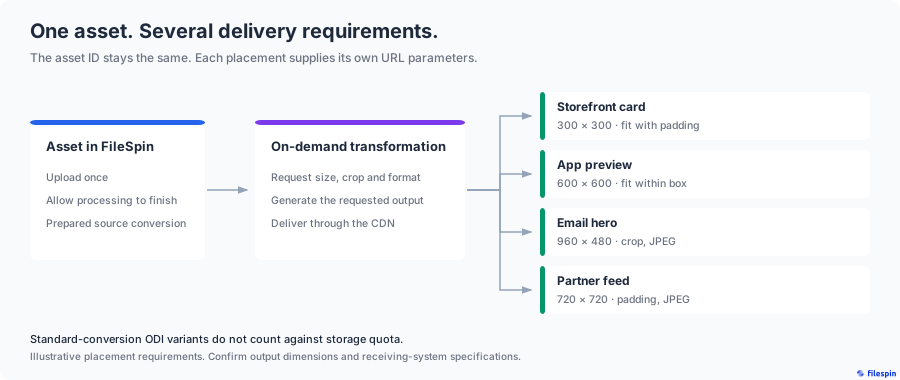
---
## 1\. Get your first transformation link
Every URL in this guide is the same shape, and the Dashboard will hand you one for your own asset. Start there rather than assembling a URL by hand.
1. Open a processed product image in the FileSpin Dashboard.
2. Choose **Get link / Embed**.
3. Ignore **Temporary download link (original file)**. That link is signed, expires in 24 hours and returns the original file — it is not a transformation URL.
4. Under **Permanent image links (resized)**, pick a size. **Small**, **Medium** and **Large** are 480×480, 1024×1024 and 2048×1536; **Custom** takes your own width and height.
5. Leave **Format** on **Auto (best for each browser)** for now. Section 4 explains what that setting does and when to override it.
6. Press **Copy link**.
You now have a working URL that looks like this:
```
https:///api/v1/assets//conversions?resize=480,480
```
That one link contains both things the rest of the guide needs:
| Part of the link | What it is | Where it comes from |
| --- | --- | --- |
| `https://` | Your account's CDN host | Your account, including a custom enterprise CDN host where one is configured |
| `/api/v1/assets//conversions` | The asset and its transformation endpoint | Fixed for that asset — you never change this part |
| `?resize=480,480` | The instruction | The only part you edit from here on |
Everything after the question mark is what the following sections change. The asset ID and host stay exactly as the Dashboard gave them to you.
The dialog also offers **Copy `` code** if you would rather start from a complete tag.
### Following along with the demo assets
The examples below use FileSpin's public demo photos on `cdn.filespin.io`, so you can open every link as written before touching your own catalogue: a landscape photo, `2e1bc0f4159343779b82923e951a9256`, for sizing, and a portrait, `3632004ce6214137b188e40e1c00af32`, for the crop comparison. When you apply the pattern for real, substitute the host and asset ID from your own copied link.
### Two conditions to check first
The image must finish processing before its normal ODI output is available. The [ODI overview](https://developers.filespin.io/image-transformations/) explains the `ON_DEMAND_IMAGE` entry in `addons_info`. An image requested immediately after upload can temporarily return a low-resolution preview; allow processing to finish before assessing quality.
These examples use public delivery URLs. ODI URLs are always public. If a custom conversion is private, the dialog offers no permanent link and points you to the **Public** switch in the **Formats** tab instead; a private conversion needs an [API key or JWT](https://developers.filespin.io/image-transformations/standard-odi-copy/#using-non-public-custom-image-conversion). Do not place an API key in browser code or a public image URL.
FileSpin normally renders ODI from its prepared Standard Image Conversion, so you do not need to export every requested delivery size yourself. Custom Image Conversions are a separate option: they are prepared and stored according to your account settings.
---
## 2\. Request the sizes your channels need
The Dashboard gave you one size. Your placements need several, and each is the same link with a different instruction after the question mark. Start with this [working demo image](https://cdn.filespin.io/api/v1/assets/2e1bc0f4159343779b82923e951a9256/conversions?resize=300,300):
```
https://cdn.filespin.io/api/v1/assets/2e1bc0f4159343779b82923e951a9256/conversions?resize=300,300
```
`resize=300,300` fits the image inside a 300-by-300-pixel box while preserving its proportions. It does not necessarily return a square. The demo source is 4:3, and this request returns 300×225 pixels.
To try another output, keep the asset path and replace the text after `?` with one of the parameter sets below. Use `&` between additional options.
Choose the transformation according to the layout:
| Placement in this example | Parameters | Intended result |
| --- | --- | --- |
| Storefront product card | `resize=300,300,fill:white` | Fit the whole product into a square with white padding |
| Mobile app preview | `resize=600,600` | Fit inside a larger box without cropping |
| Email hero | `crop=960,480,center&format=jpg` | A wide crop with an explicit JPEG format |
| Partner feed image | `resize=720,720,fill:white&format=jpg` | A padded product image in the agreed format |
These are example delivery requirements, not specifications for every app, email client or marketplace. Confirm the receiving system's requirements before choosing its output.
[Open the padded card](https://cdn.filespin.io/api/v1/assets/2e1bc0f4159343779b82923e951a9256/conversions?resize=300,300,fill:white), [app preview](https://cdn.filespin.io/api/v1/assets/2e1bc0f4159343779b82923e951a9256/conversions?resize=600,600), [email crop](https://cdn.filespin.io/api/v1/assets/2e1bc0f4159343779b82923e951a9256/conversions?crop=960,480,center&format=jpg) or [partner image](https://cdn.filespin.io/api/v1/assets/2e1bc0f4159343779b82923e951a9256/conversions?resize=720,720,fill:white&format=jpg).
The four requests were checked on the public demo asset: the outputs are 300×300, 600×450, 960×480 and 720×720 pixels respectively. All four requests use the same asset ID. If the storefront needs a larger card later, update the URL rule that constructs its image links; the existing asset can supply the new size.
For the complete syntax, see [Resize](https://developers.filespin.io/image-transformations/resize/), [Crop](https://developers.filespin.io/image-transformations/crop/) and [Format](https://developers.filespin.io/image-transformations/format/).
---
## 3\. Make the storefront responsive
Keep placement sizes in a shared image component or feed configuration. When a placement changes, update that rule and deploy it through your normal application or CMS workflow. The stored asset can remain the same.
For a website, the browser also needs to know which image sizes are available. ODI supplies the images; HTML supplies the selection hints.
This example assumes a product card displayed at 300 CSS pixels on larger screens and nearly the viewport width on screens up to 600 pixels wide. The 300, 600 and 720-pixel crops provide candidates for different display densities. Use a source large enough for the largest candidate.
```html
```
This example crops because the demo is a lifestyle photo. For product cut-outs where the whole item must stay visible, use padding instead: `resize=300,300,fill:white`, and the same for the 600 and 720 candidates.
Match `sizes` to your actual layout and replace the example alt text with a useful description of the product. The `w` descriptors must match the returned image widths. Check those widths if the source is small or delivery constraints apply.
The browser uses `srcset` and `sizes` to choose a candidate. The asset endpoint does not discover your CSS layout and choose a new width on its own. See the [HTML image element reference](https://developer.mozilla.org/en-US/docs/Web/HTML/Reference/Elements/img) for how these attributes work.
---
## 4\. Allow browser format negotiation
The responsive example deliberately omits `format`. For supported browser requests, FileSpin can choose AVIF or WebP using the `Accept` request header. AVIF delivery must be enabled in the serving environment. For ordinary JPEG delivery, the fallback is JPEG; PNG sources retain a transparency-capable fallback.
For the 300×300 demo URL above, live requests returned `image/avif` when AVIF and WebP were offered, `image/webp` when WebP was offered, and `image/jpeg` when JPEG was requested. All three returned 300×300 pixels. The output format changed while the URL and pixel dimensions stayed the same.
This is the part that works at the same URL. You do not need separate AVIF, WebP and JPEG URLs in your markup just to negotiate formats. You still need the size-selection markup from the previous section.
To check delivery, open your browser's Network panel, reload the image and inspect:
1. The image request's `Accept` header.
2. The response's `Content-Type`, such as `image/avif`, `image/webp` or `image/jpeg`.
3. The rendered dimensions and transferred bytes.
The extensionless URL alone does not tell you the returned format. When a downstream system needs a fixed format, specify it explicitly:
```
https://cdn.filespin.io/api/v1/assets/2e1bc0f4159343779b82923e951a9256/conversions?crop=960,480,center&format=jpg
```
Use an agreed format for email and partner feeds, then test it in the receiving systems. FileSpin's Campaign Link Builder also specifies JPEG for its default email-hero placement. That choice avoids depending on browser-style format negotiation in an email workflow.
---
## 5\. Choose crops deliberately
A portrait does not automatically make a good wide banner. Use the second public demo photo to compare two 600×300 crops:
```
https://cdn.filespin.io/api/v1/assets/3632004ce6214137b188e40e1c00af32/conversions?crop=600,300,center&format=jpg
https://cdn.filespin.io/api/v1/assets/3632004ce6214137b188e40e1c00af32/conversions?crop=600,300,face&format=jpg
```
| Centre crop | Face-aware crop |
| --- | --- |
|  |  |
[Open the centre crop](https://cdn.filespin.io/api/v1/assets/3632004ce6214137b188e40e1c00af32/conversions?crop=600,300,center&format=jpg) or [face-aware crop](https://cdn.filespin.io/api/v1/assets/3632004ce6214137b188e40e1c00af32/conversions?crop=600,300,face&format=jpg) to inspect the full output.
Both images are actual FileSpin outputs at 600×300 pixels. In this example, the centre crop cuts through the upper part of the face. The explicit `face` option shifts the crop upward to keep the face in frame. Only the alignment parameter changes.
Review both outputs. Smart cropping is useful when the person is away from the centre, but it cannot guarantee that every face, garment detail or brand mark stays visible. For product cutouts where the whole object matters, use proportional resizing with padding. For art-directed photography, choose an explicit alignment or crop region and inspect the result.
The Campaign Link Builder applies this same idea to selected channel placements: it constructs image URLs with placement dimensions and tracking parameters. Keep its output tied to the receiving channel's needs, and inspect tall crops rather than assuming a preset guarantees the final resolution.
---
## 6\. Check delivery before expanding
The published ODI overview describes a standard delivery envelope of **2048 pixels wide by 1536 pixels high**, with 72 PPI metadata. Keep this walkthrough inside that envelope. The Dashboard's own **Custom** size clamps to those bounds before it builds a link, which is a useful confirmation of where the ceiling sits.
**A URL accepting your dimensions is not proof of the resulting resolution.** The source matters as much as the ceiling. Requesting `resize=3000,3000` from the landscape demo asset returns HTTP 200 and a perfectly good image — at 1024×768, because `resize` fits within bounds and does not upscale, and that is the largest output this asset has to give. Nothing in the response announces the difference. Check the pixel dimensions you actually received, especially for your largest placement.
Pixel dimensions determine how much image detail you have for a screen. Changing the quality parameter does not turn a standard ODI output into an archival master or a print export. Use the original or an appropriately configured conversion when you need that output.
For a catalogue rollout:
| Check | What to verify |
| --- | --- |
| Framing | Landscape photos, portraits, transparent cutouts and group shots work in the intended placements |
| Dimensions | Actual output widths match your HTML descriptors and receiving-system requirements |
| Formats | Browser negotiation works on your CDN host; fixed-format outputs work in email and feeds |
| Access | Public and private conversion settings produce the access behaviour you intend |
| Performance | Measure both first requests and repeat requests on representative assets |
| Integration | The deployed component or feed uses the new URLs and can be rolled back |
On-demand outputs generated from Standard Image Conversion do not consume storage quota. Stored originals and Custom Image Conversions are separate, and processing and delivery remain subject to your account's terms — none of this makes the pipeline free. Assess your account's usage and commercial terms separately. A useful pilot measures image bytes, request performance and the work required to change a placement, rather than assuming a universal savings percentage.
---
## Best practices
Keep your size and crop rules in one shared place. Use a bounded set of sizes so every small layout change does not create another delivery variant. Preserve the whole product where its details matter, and use explicit smart cropping for suitable lifestyle photos.
---
## Next steps
Choose one product category and connect its card, detail view and email image to the same FileSpin assets. Check the outputs, then change one placement size through the shared URL rule. That is a small, repeatable test of ODI's value in your own catalogue.
- [ODI overview and limitations](https://developers.filespin.io/image-transformations/)
- [Resize and padding](https://developers.filespin.io/image-transformations/resize/)
- [Crop alignment](https://developers.filespin.io/image-transformations/crop/)
- [On-Demand Image Transformations: A Practical Guide](https://developers.filespin.io/guides/image-transformations/): every parameter, with recipes
- [Build repeatable workflows](https://developers.filespin.io/guides/workflow-engines/)
# Automating Addons with Event Hooks and Schema Criteria
Source: https://developers.filespin.io/guides/automating-addons/
Configure Face Recognition, Image Analysis, and Remove Background to run automatically based on asset events and custom metadata — set up entirely from the Dashboard.
If your team uploads thousands of images a week, processing each one through an AI addon by hand gets old fast. You either remember to run Face Recognition on every batch, or you accept that auto-tagging only happens for assets someone thought to process. Neither scales.
FileSpin's Automated Media Pipeline solves this. You configure each addon once in the Dashboard — which events to listen to, which content types qualify, which custom metadata patterns to match — and the platform runs the addon for you whenever an asset event fires. Upload a portrait, Face Recognition runs. Tag a product photo as an original, Remove Background fires and saves a transparent PNG. Edit metadata on a stock image, Image Analysis re-evaluates only if the criteria still match.
This guide walks through the Dashboard setup for all three addons, with examples covering the most common automation patterns. For the conceptual reference, see [Automated Media Pipeline](https://developers.filespin.io/automated-media-pipeline/).

---
## How addon automation works
Three filters decide whether an addon runs on a given asset event:
```
Asset event fires
│
▼
┌─────────────────┐
│ Event hook │ → Is the addon listening for this event type?
└─────────────────┘ (file-saved, file-data-updated)
│
▼
┌─────────────────┐
│ Content type │ → Does the asset's MIME type match?
└─────────────────┘ (image/*, image/jpeg, */*, etc.)
│
▼
┌─────────────────┐
│ Schema criteria │ → Does the asset's schema and custom data match?
└─────────────────┘ (only on file-data-updated)
│
▼
Run addon
```
Each addon is configured independently. You can have Face Recognition running on every upload, Image Analysis scoped to a "Stock Library" schema, and Remove Background firing only when a product photo is flagged as an original — all from the same upload event.
The platform also handles dedup automatically. When an addon completes, it writes a system marker to the asset's metadata (any field beginning with `_filespin_`). On any subsequent event, if the marker is present, the addon is skipped — no double-billing, no duplicate processing.
---
## Setting it up in the Dashboard
Go to **Settings → Addons** and click the gear icon next to the addon you want to automate.
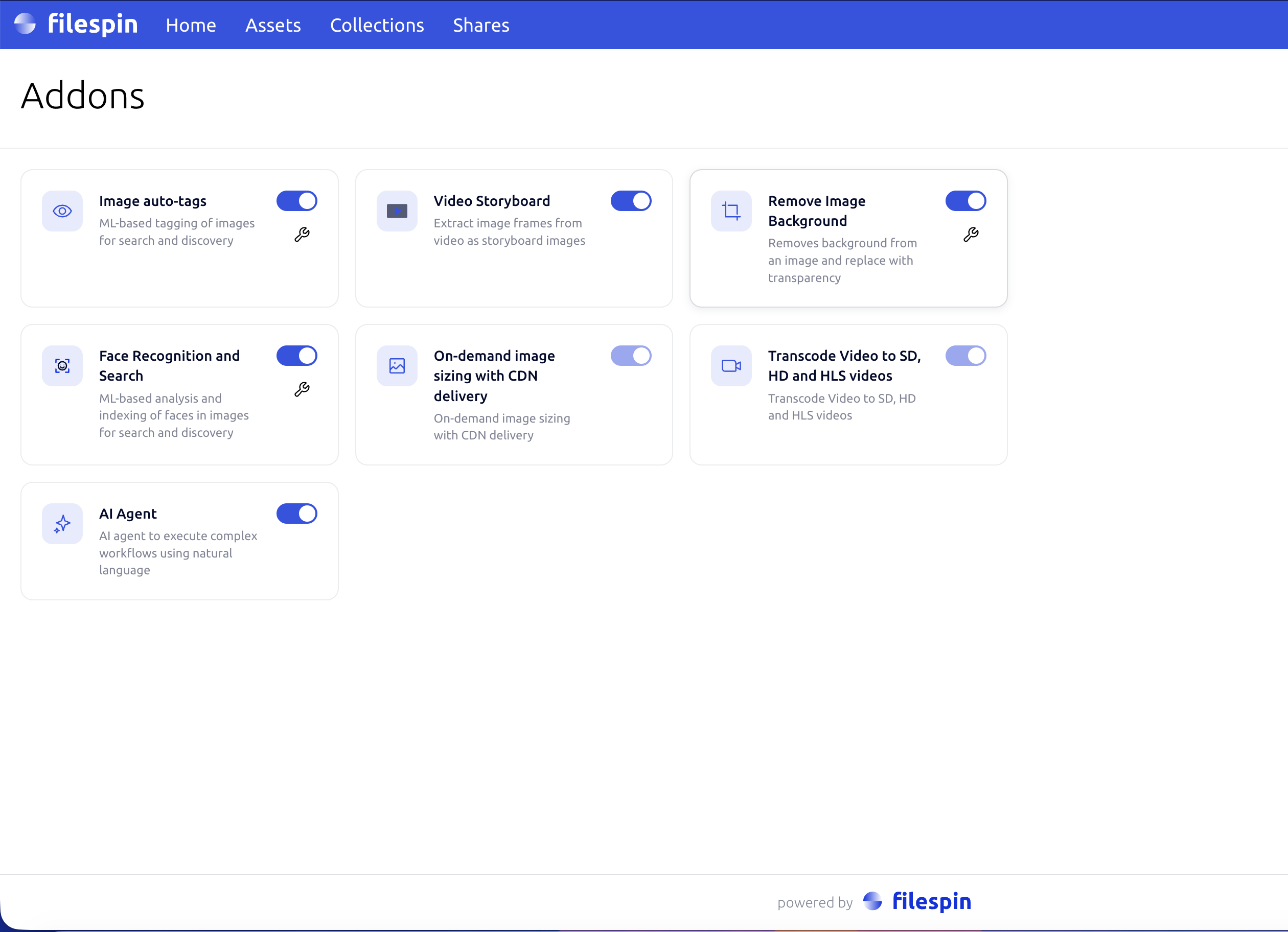
The configuration modal has three sections, in order:
1. **Event hooks** — pick which events the addon listens to.
2. **Schema criteria** — restrict the _file-data-updated_ hook to assets matching a schema or specific field values.
3. **Disposition** — addon-specific output options.
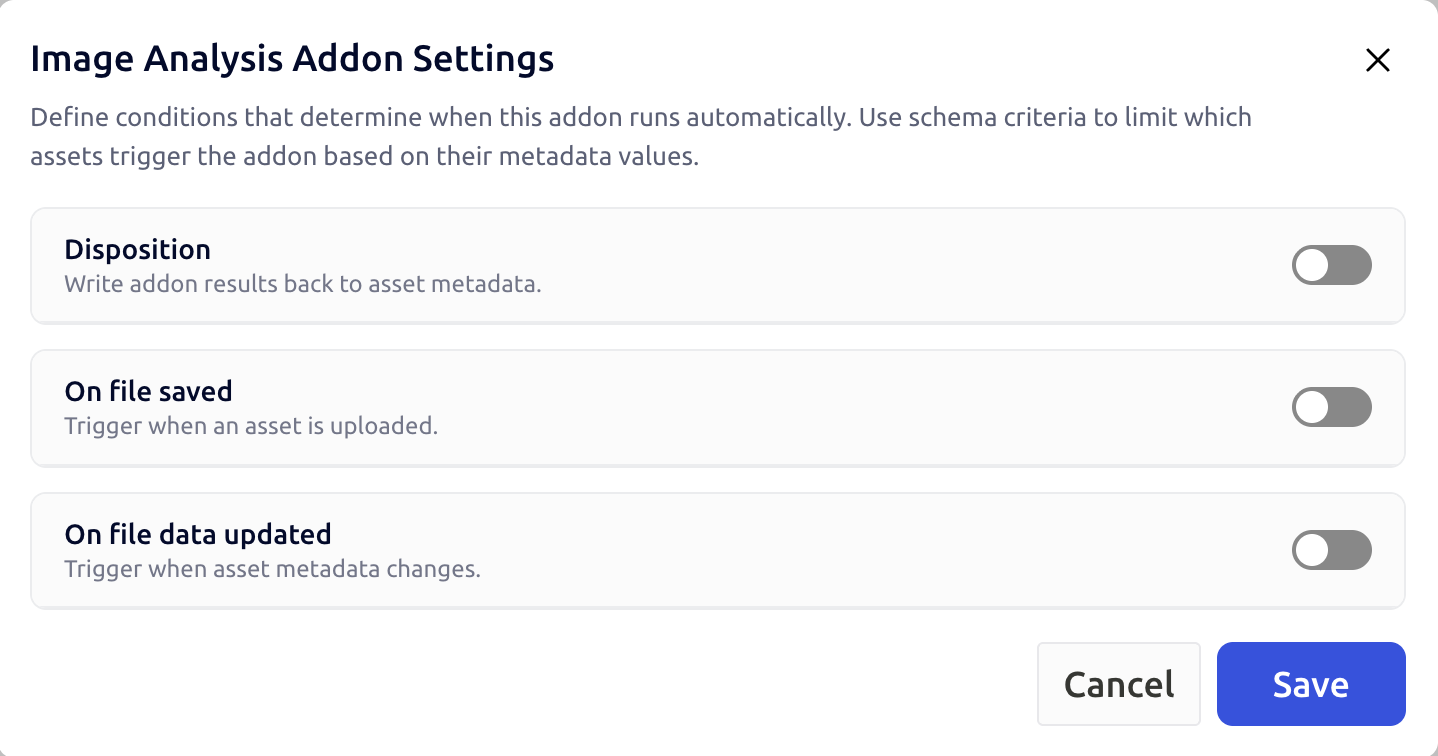
### Step 1 — Pick your events
For each event type (_file-saved_, _file-data-updated_), toggle it on if the addon should listen, and choose the content types that qualify. Most image addons want `image/*`.
A good default for most workflows:
| Event | Toggle | Content types |
| --- | --- | --- |
| _file-saved_ | On | `image/*` |
| _file-data-updated_ | On (only if you use schema criteria) | `image/*` |
### Step 2 — Add schema criteria (optional)
Schema criteria only apply to _file-data-updated_ — fresh uploads have no custom metadata yet, so criteria can't be evaluated on _file-saved_.
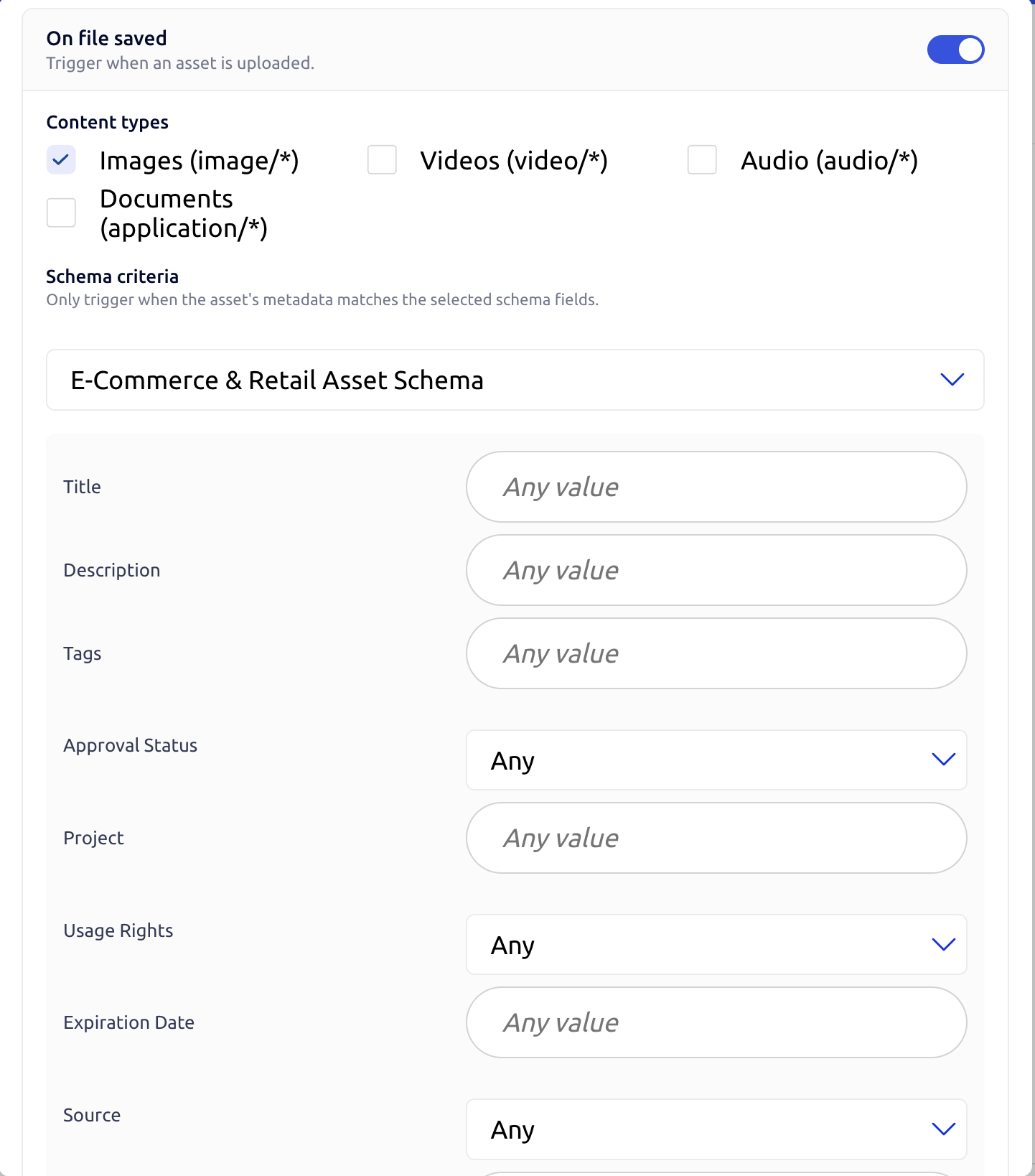
Two filters, both optional, both applied:
- **Schema** — pick a schema to restrict the addon to assets following it. Useful when you want different addons for different content types (e.g. Face Recognition on "Event Photo" assets, Remove Background on "Product Photo" assets).
- **Fields** — add one or more _key → value_ pairs. The asset's metadata must contain the key, types must match, and string matching is by substring (so `"GM"` matches `"GM-2024"` and `"BGM"`). Booleans match exactly.
Leave both empty if you want the addon to fire on every asset whose content type matches.
### Step 3 — Choose the disposition
The disposition section is where the addons differ. Each addon's options are documented inline in the Dashboard, but here's what each one means.
#### Face Recognition
Two toggles:
- **Tag asset with face count and IDs** — when on, the asset's metadata is enriched with a face count and the IDs of detected faces, which makes them searchable in the Dashboard. When off, the face index still gets built (so face search keeps working), but the asset's metadata stays clean.
- **Process derived assets** _(default off)_ — when off, FR skips system-generated derivative assets like background-removed PNGs. Leave this off unless you specifically want FR to also index faces in cut-outs (it would create duplicate entries — one from the original photo, one from the cut-out — and pollute face search results).
#### Image Analysis
A single toggle: **Process derived assets** _(default off)_. When off, IA skips system-generated derivative assets like background-removed PNGs. Leave this off unless you specifically want auto-tags on cut-outs — they tend to produce noisy labels because transparent-background images confuse general-purpose vision models.
#### Remove Background
Two output modes:
- **Add as conversion** — saves the cut-out as a named conversion on the source asset (default name: `bg_removed`). The original stays canonical; the cut-out is a sibling visible in the Dashboard and in branded share pages with signed URLs. Best when the cut-out is a deliverable, not its own asset.
- **Add as new asset** — creates a brand-new PNG asset, linked back to the source. Optionally inherit the source's custom metadata and schema assignment. Best when the cut-out needs its own ID, share permissions, or independent metadata.
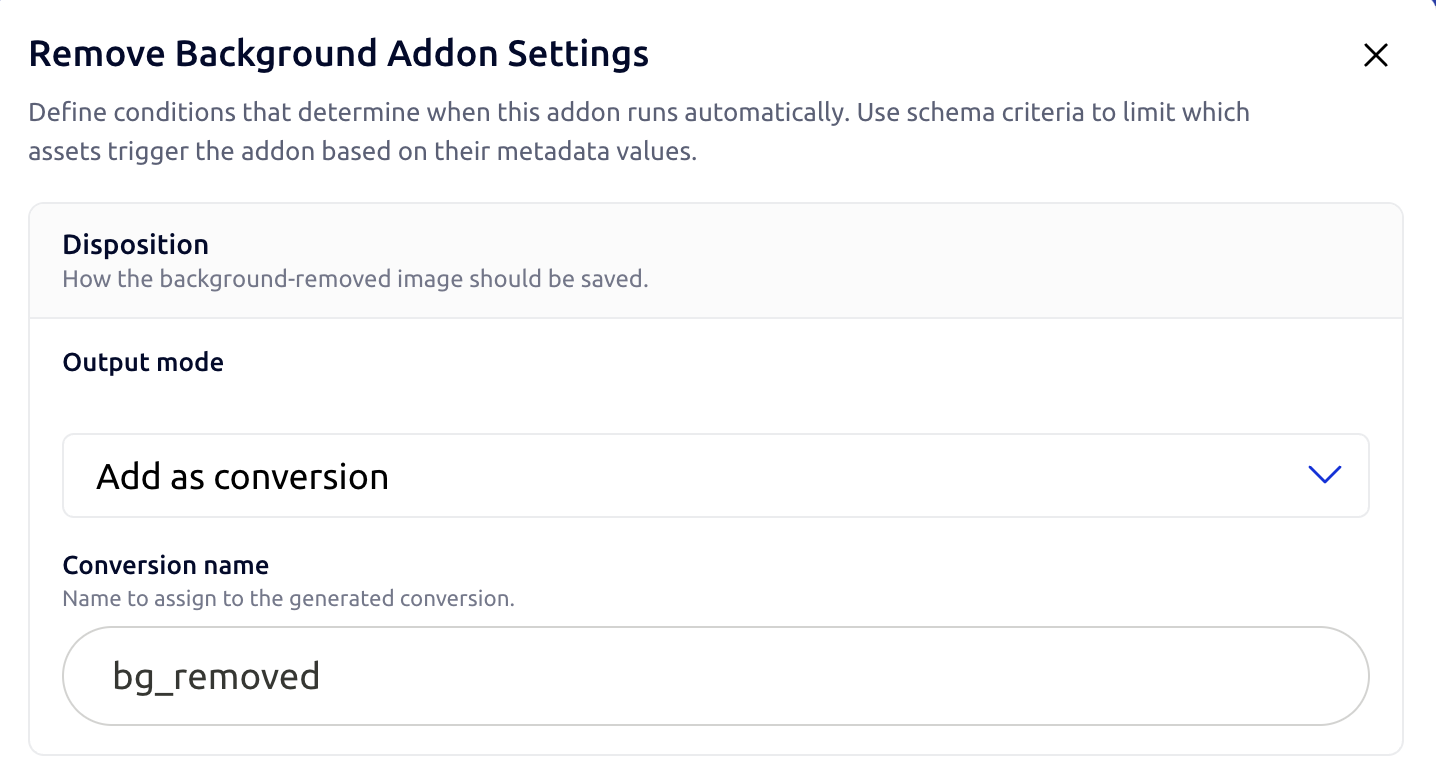
Switching modes clears the now-irrelevant fields automatically — pick _Add as conversion_ and the conversion name input appears; pick _Add as new asset_ and the inherit-metadata checkbox appears instead.
---
## Common automation patterns
### Index every face in every uploaded image
Goal: build a searchable face index from every photo on upload, regardless of how it's tagged.
| Section | Setting |
| --- | --- |
| Event hook | _file-saved_ on, content types `image/*` |
| Schema criteria | None |
| Disposition | _Tag asset with face count and IDs_ on |
### Auto-tag only assets in the Stock Library schema
Goal: run Image Analysis only when an asset is assigned to your Stock Library schema, not for press releases or working files.
| Section | Setting |
| --- | --- |
| Event hook | _file-saved_ on, content types `image/*` |
| Event hook | _file-data-updated_ on, content types `image/*` |
| Schema criteria (on _file-data-updated_) | Schema → Stock Library |
| Disposition | n/a |
The _file-saved_ hook fires on every image upload, so Image Analysis still runs immediately when an asset is created. The _file-data-updated_ hook handles the case where someone re-classifies an asset into the Stock Library schema later.
### Auto-cut backgrounds for original product photos only
Goal: when a product photo is marked as an original (not a re-upload of an existing image), automatically generate a transparent-background version.
| Section | Setting |
| --- | --- |
| Event hook | _file-data-updated_ on, content types `image/*` |
| Schema criteria | Field → `originalAsset` = `Y` |
| Disposition | Output mode → _Add as conversion_; conversion name → `bg_removed` |
The cut-out lands on the same asset as a `bg_removed` conversion, accessible in the Dashboard and in branded share pages.
### Auto-cut backgrounds and create a separate asset
Goal: same as above but the cut-out should be its own asset, not a conversion.
| Section | Setting |
| --- | --- |
| Event hook | _file-data-updated_ on, content types `image/*` |
| Schema criteria | Field → `originalAsset` = `Y` |
| Disposition | Output mode → _Add as new asset_; _Inherit metadata_ on |
The new PNG inherits the source's metadata and schema, and links back to the original. Remove Background won't loop on the new asset — the platform detects derived assets and excludes them from matching.
---
## Best practices
**Start with _file-saved_ and no criteria.** Schema criteria are useful, but they're easy to over-tune. Begin with a simple "run on every image upload" config, observe what the addon produces, then narrow down.
**Use the schema filter before fields.** Schema-level filtering is exact and fast; field matching is substring-based and easier to get wrong. If your goal is "only run on Marketing assets", point the schema filter at the Marketing schema rather than building a fields filter.
**Marker fields are platform-managed.** Anything starting with `_filespin_` is owned by FileSpin and shown read-only in the Dashboard. Don't rely on these for your own metadata — define your own fields in your schema instead.
---
## Next steps
- [Automated Media Pipeline reference](https://developers.filespin.io/automated-media-pipeline/) — what each setting does and per-addon disposition options
- [Face Recognition guide](https://developers.filespin.io/guides/face-recognition/) — face indexing, search, and pagination
- [Background Removal](https://developers.filespin.io/intro/ai/background-removal/) — manual triggering, asset-based and upload-based modes
- [Asset Schemas guide](https://developers.filespin.io/guides/asset-schemas/) — designing the schemas that drive your criteria
# Automating Media Workflows with Make, Zapier, and n8n
Source: https://developers.filespin.io/guides/workflow-engines/
How to build visual automation pipelines using FileSpin's native modules for Make, Zapier, and n8n — triggered by asset events, powered by FileSpin operations, and connected to your downstream systems.
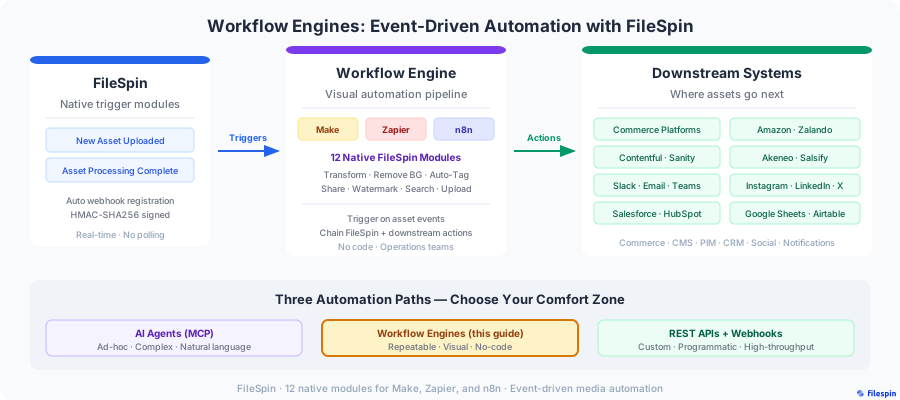
FileSpin offers three automation paths: AI agents for ad-hoc, complex workflows through natural language; workflow engines for repeatable, visual pipelines operations teams build without engineering; and REST APIs for custom, high-throughput integrations. This guide covers the second path — workflow engines.
FileSpin provides **native modules** for Make, Zapier and n8n that wrap the FileSpin REST API into drag-and-drop building blocks — real-time triggers, actions, and searches (24+ modules). Your operations team can build end-to-end media automation pipelines that react to uploads, processing completions, metadata changes, and errors — then push results to downstream systems. No code required.
---
## How it works
The architecture has three layers:
**1\. FileSpin fires a trigger event** — when an asset is uploaded or processing completes, FileSpin's native trigger modules deliver the event to your workflow engine in real time. The trigger modules handle webhook registration automatically — no manual setup needed.
**2\. The workflow engine executes a pipeline** — using FileSpin's native action modules to perform operations (search, transform, remove background, tag, share, watermark) and any other connected service modules (commerce platforms, Slack, Salesforce, etc.) for downstream actions.
**3\. Results flow to downstream systems** — transformed assets pushed to storefronts, metadata synced to PIMs, share pages delivered to stakeholders, notifications sent to teams.
This is event-driven automation. Nothing polls. Nothing waits. The moment an asset event occurs in FileSpin, your pipeline runs.
---
## Triggers: what starts your pipeline
Every workflow starts with a trigger. FileSpin's native modules include six webhook-based trigger types that fire instantly when asset events occur — no polling delays.
| Trigger | Event | Description |
| --- | --- | --- |
| **New Asset Uploaded** | `asset.created` | Fires when a new asset is uploaded via Picker, Teleport sync, or API |
| **Asset Processing Complete** | `asset.processed` | Fires when async processing finishes (thumbnails, transcoding, conversions) |
| **Addon Processing Complete** | `asset.addon-processed` | Fires when an addon completes (background removal, face indexing, auto-tagging) |
| **Asset Updated** | `asset.updated` | Fires when asset metadata is changed |
| **Asset Deleted** | `asset.deleted` | Fires when an asset is moved to trash |
| **Asset Processing Failed** | `asset.failed` | Fires when processing encounters an error |
### Which trigger to use
For most automation pipelines, **Asset Processing Complete** is the primary trigger — it fires when the asset is fully ready with all conversions and transcodes available. Use **Addon Processing Complete** when your pipeline depends on AI results (auto-tags, face recognition, background removal). Use **New Asset Uploaded** when you need to react to the upload itself before processing finishes — for immediate notifications, metadata validation, or routing logic. **Asset Processing Failed** enables error-handling workflows that alert your team or retry operations.
### Connecting your FileSpin account
All three platforms authenticate with FileSpin using **OAuth 2.0 Authorization Code** flow. When you add a FileSpin connection, the platform opens a browser window for you to log in to FileSpin and grant permissions. The platform manages token refresh automatically — no API keys or manual token handling required.
> **Tip**
>
> Create a dedicated FileSpin user account for your automation workflows with the minimum role required. This gives you a clean audit trail and precise permission control.
The trigger modules handle webhook registration behind the scenes — when you activate a scenario, the module registers a webhook with FileSpin; when you deactivate, it cleans up. No manual webhook management required.
---
## FileSpin's native modules
FileSpin provides 24+ native modules for Make, Zapier, and n8n — all available on all three platforms with identical functionality. Instead of configuring HTTP requests manually, you drag and drop FileSpin actions into your pipeline and configure them with business-friendly fields.
### Actions — asset management
| Module | Description |
| --- | --- |
| **Upload Asset from URL** | Import a file from a public URL into FileSpin |
| **Upload Asset (File)** | Upload a file directly from a previous step (binary data) |
| **Get Asset Info** | Retrieve full metadata, processing status, and conversion details for an asset |
| **Update Metadata** | Add or update custom metadata fields (supports APPEND and REPLACE modes) |
| **Delete Asset** | Move an asset to trash |
| **Get Download Link** | Generate a signed download or display URL for an asset or its conversions |
### Actions — image processing
| Module | Description |
| --- | --- |
| **Generate Marketplace Image** | Generate a resized CDN URL for marketplace listings |
| **Remove Background** | Remove image background using AI, optionally saving as a new asset with inherited metadata |
| **Generate Social Media Kit** | Generate optimised image URLs for 8 social platforms in a single step (Instagram, Facebook, Twitter, LinkedIn, YouTube, Pinterest) |
### Actions — AI and addons
| Module | Description |
| --- | --- |
| **Get Auto Tags** | Retrieve ML-generated labels with confidence scores for an image |
| **Index Faces** | Detect and index faces in an image (max 10 per image) for face search |
| **Get Face Index Status** | Check whether face indexing is complete for an asset |
| **Search by Face** | Find assets containing a specific person using a reference image |
### Actions — sharing and collections
| Module | Description |
| --- | --- |
| **Create Share Page** | Create a branded share page with download controls, approval workflow, password, and expiry |
| **Create Collection** | Create a new asset collection for organising assets by brand, campaign, or event |
| **Add to Collection** | Add one or more assets to an existing collection |
### Searches
| Module | Description |
| --- | --- |
| **Find Asset** | Search assets by keyword, content type, upload date, metadata schema, and custom field values |
| **Find Collection** | Search collections by name |
These modules cover the full asset lifecycle: ingest (upload), process (resize, remove background, auto-tag), organise (metadata, collections), distribute (share pages, download links), and search (full-text, face search). Combined with FileSpin's six triggers, you can build end-to-end automation that reacts to asset events and composes with thousands of other apps on each platform.
---
## Build your pipeline
### Common pipeline patterns
**E-commerce: New product → marketplace-ready images**
```
Trigger: Asset Processing Complete
→ Filter: check content_type is image
→ FileSpin: Generate Marketplace Image (Amazon, 1600×1600)
→ FileSpin: Generate Marketplace Image (website-hero, 1920×600)
→ FileSpin: Generate Marketplace Image (Instagram square, 1080×1080)
→ Commerce Platform: Update Product Image
→ Slack: Notify #product-images channel
```
**Events: Speaker photos → press distribution**
```
Trigger: Asset Processing Complete
→ Filter: check metadata for event tag
→ FileSpin: Update Metadata (speaker, session, event name)
→ FileSpin: Generate Social Media Kit (LinkedIn + Instagram)
→ FileSpin: Create Share Page (branded press page, expiry 1 week)
→ Email: Send share URL to press list
→ Slack: Post to #event-comms
```
**Content publishing: Asset ready → push to CMS**
```
Trigger: Asset Processing Complete
→ Filter: check metadata for status = "approved"
→ FileSpin: Generate Marketplace Image (desktop 1920×600, tablet 1024×400, mobile 640×300)
→ CMS: Create/Update Asset Entry
→ CMS: Publish Entry
```
**Brand compliance: New upload → metadata validation**
```
Trigger: New Asset Uploaded
→ FileSpin: Get Auto Tags (detect content type, categories)
→ Router:
→ IF metadata complete: FileSpin: Update Metadata (status = "approved")
→ IF metadata missing: Email: Notify uploader to complete fields
→ IF wrong format: Slack: Alert #brand-compliance
```
**Sponsor deliverables: Post-event asset distribution**
```
Trigger: Addon Processing Complete (face indexing)
→ FileSpin: Find Asset (by sponsor tag + event)
→ FileSpin: Create Share Page (branded sponsor page, password protected, approval enabled)
→ Email: Send share URL + password to sponsor contact
→ Google Sheets: Log delivery in sponsor tracking sheet
```
---
## Recipe walkthrough: E-commerce product pipeline in Make

Here's a step-by-step walkthrough of building the e-commerce product pipeline in Make:
**1\. Asset Processing Complete trigger** Add a FileSpin → Asset Processing Complete trigger module. This automatically registers a webhook with FileSpin — when an asset finishes processing, it fires.
**2\. Filter: images only** Add a filter after the trigger: `content_type` contains `image/`. This skips video and document assets.
**3\. FileSpin: Generate Marketplace Image (Amazon)** Add a FileSpin → Generate Marketplace Image module. Map the asset ID from the trigger payload. Select the "Amazon" preset, or set width and height to `1600`, crop mode to `center`, format to `webp`, quality to `90`.
**4\. FileSpin: Generate Marketplace Image (website hero)** Clone the previous module. Select the "website-hero" preset or change dimensions to `1920x600`.
**5\. FileSpin: Generate Marketplace Image (Instagram)** Clone again. Select the "Instagram square" preset or change dimensions to `1080x1080`.
**6\. Commerce platform: Update Product** Add your commerce platform module. Map the product by SKU from the trigger's custom metadata fields. Attach the generated image URLs as product images.
**7\. Slack: Send notification** Add a Slack module. Post to `#product-images` with the product name, SKU, and a summary of generated sizes.
The entire pipeline runs automatically every time a product image is processed in FileSpin.
---
## Recipe walkthrough: Event photo distribution in n8n

**1\. Asset Processing Complete node** Add a FileSpin trigger node. Select "Asset Processing Complete" as the event type. This registers a webhook with FileSpin automatically.
**2\. IF node: event assets only** Route based on whether `event_name` exists in the asset's custom metadata.
**3\. FileSpin: Update Metadata** Use the FileSpin Update Metadata node. Map speaker name, session, and event from the asset's custom metadata.
**4\. FileSpin: Create Share Page** Use the Create Share Page node. Set the title to the event name + speaker, enable approval workflow, set expiry to one week, and apply branding.
**5\. Send Email node** Send the share URL to the press distribution list pulled from a Google Sheet or Airtable base.
**6\. Slack node** Post to `#event-comms` with the share URL and a count of assets included.
---
## Pre-built recipes and building blocks
FileSpin publishes production-ready workflow templates — **pre-built recipes** — that you can import directly into Make, Zapier, or n8n and customise to your stack.
These are not black-box connectors. Every step is visible, modifiable, and composable. Deploy as-is for standard workflows or adapt them to match your exact process.
New recipes are published regularly. Check the FileSpin documentation for the latest library.
**Why recipes, not rigid connectors:**
- **You see every step.** No hidden logic. When something breaks, you know exactly where and why.
- **Your ops team builds.** Recipes run on visual platforms your operations team already knows — no engineering tickets.
- **Every stack is unique.** Combine, extend, and chain recipes to match how your team actually works.
---
## Webhook reliability
FileSpin's trigger modules are backed by enterprise-grade webhook delivery:
- **At-least-once delivery** — events are retried with exponential backoff if delivery fails, up to 8 retries over 8 hours.
- **HMAC-SHA256 signing** — every payload is cryptographically signed. The trigger modules verify signatures automatically; if you build custom webhook handlers, verify the `X-FileSpin-Signature` header to ensure the request comes from FileSpin.
- **Idempotency** — use the `delivery_id` field as a deduplication key. Your pipeline may receive the same event more than once during retries.
- **Automatic registration** — trigger modules handle webhook registration and deregistration as you activate and deactivate scenarios. No manual webhook management.
---
## Best practices
1. **Trigger on Asset Processing Complete, not New Asset Uploaded** for distribution workflows. The New Asset Uploaded trigger fires before processing is complete — conversions, transcodes, and addon results aren't available yet. Use Asset Processing Complete for pipelines that need the fully ready asset.
2. **Use filters early in the pipeline.** Not every asset event needs the full pipeline. Filter by content type, metadata values, or asset status immediately after the trigger to avoid unnecessary processing.
3. **Handle idempotency.** Network retries can deliver the same event twice. Use `delivery_id` to detect duplicates — check if you've already processed this delivery before running the pipeline.
4. **Use named presets in Generate Marketplace Image.** Presets let your ops team think in channels ("Amazon", "Instagram Story", "website-hero") instead of pixels. Define your team's presets in the FileSpin dashboard and they'll appear in the module dropdowns automatically.
5. **Use Addon Processing Complete for AI-dependent workflows.** If your pipeline depends on face recognition, background removal, or auto-tagging results, use the Addon Processing Complete trigger instead of Asset Processing Complete — it fires specifically when the addon finishes, so your pipeline only runs when those results are available.
6. **Keep pipelines modular.** Build small, focused scenarios rather than one large pipeline. A scenario that tags + shares is easier to debug than one that tags + shares + pushes to three CMSs + notifies four channels.
7. **Use Update Metadata to close the loop.** After your pipeline runs, write status back to FileSpin — mark assets as "distributed", "published", or "synced". This makes search workflows and audit pipelines possible downstream.
---
## Comparison with other DAM platforms
| Capability | FileSpin | Cloudinary | Bynder | Canto |
| --- | --- | --- | --- | --- |
| Webhook triggers (instant) | 6 events | Polling only (15-min delay) | Comment-based only | 2 events |
| Upload action | URL + File upload | URL + File upload | No | File only |
| Search action | Full-text + metadata | No | No | No |
| Metadata update | Yes (APPEND/REPLACE) | Tags only | No | No |
| Collection management | Yes | No | No | No |
| Share page creation | Yes | No | No | No |
| On-demand image resize | URL-based (instant) | URL-based | No | No |
| Authentication | OAuth 2.0 + PKCE | API Key only | OAuth 2.0 | API Key only |
---
## Next steps
- [Using FileSpin within an AI Agent](https://developers.filespin.io/guides/ai-agent-integration/) — For complex, ad-hoc workflows through natural language
- [Real-time Notifications with Webhooks](https://developers.filespin.io/guides/webhooks/) — Deep dive into webhook setup, HMAC verification, and handler code
- [Upload, Process, Deliver: The Complete Asset Lifecycle](https://developers.filespin.io/guides/asset-lifecycle/) — Understand the events in context
- [Sharing Assets with External Stakeholders](https://developers.filespin.io/guides/sharing-assets/) — Branded share pages for distribution workflows
# Using FileSpin within an AI Agent
Source: https://developers.filespin.io/guides/ai-agent-integration/
How MCP-compatible AI agents connect to FileSpin, discover a focused set of tools and workflow recipes, and execute end-to-end media operations through natural language -- setup, authentication, tool patterns, and real-world examples.

FileSpin offers three automation paths: AI agents for ad-hoc, complex workflows through natural language; workflow engines for repeatable, visual pipelines operations teams build without engineering; and REST APIs for custom, high-throughput integrations. This guide covers the first path -- AI agents.
FileSpin is an AI-native digital asset management platform used by eCommerce retailers, event producers, attractions operators, and media companies to manage, transform, and deliver assets autonomously. One of the most powerful ways to interact with FileSpin is through AI agents -- Claude, ChatGPT, Mistral or any MCP-compatible client -- that connect to the platform via the Model Context Protocol and execute complex media workflows through natural language.
Instead of learning API endpoints and building integration code, your team describes what they need: _"Tag all new arrivals by SKU, remove backgrounds, and send a review link to the buying team."_ The agent discovers FileSpin's capabilities, chains the right operations together, and executes the entire workflow end-to-end.
This guide covers the architecture, setup, available capabilities, and real-world workflow patterns so your engineering team can evaluate and integrate FileSpin's MCP server.
---
## What is the Model Context Protocol (MCP)?
MCP is an open standard that lets AI agents discover and use external tools. Instead of hard-coding API calls or building custom plugins, an MCP server advertises its capabilities -- tools and prompt templates -- and any compatible AI agent can discover and invoke them at runtime.
FileSpin's MCP server exposes the full FileSpin platform as a focused set of tools and prompt templates across **11 workflow categories**. The agent connects to FileSpin MCP, authenticates via OAuth2, and has access to every operation your FileSpin account role permits.
### Key concepts
| Concept | What it means |
| --- | --- |
| **Tools** | Atomic operations (search, upload, tag, share, transform, etc.) callable by any MCP client. |
| **Prompts** | Multi-step workflow recipes that chain tools together, registered across 11 categories. |
| **OAuth2 Authentication** | Standard OAuth2 flow. The agent authenticates as a FileSpin user and inherits that user's account role and permissions. |
| **Asset Shares** | Branded, hosted web pages for external distribution with download controls, approval workflows, and analytics. |
| **Collections** | Internal organizational groups for team collaboration and bulk operations. |
| **Addons** | Platform capabilities (face recognition, auto-tagging, background removal) that gate certain tools; checked at runtime. |
---
## How it works
When an AI agent connects to the FileSpin MCP server, the interaction follows three phases: the agent discovers available capabilities, executes a chain of tool calls to fulfill the user's request, and returns the result.

The agent handles all orchestration -- deciding which tools to call, in what order, with what parameters -- based on the user's natural language request. The MCP server translates each tool call into the corresponding FileSpin REST API request.
---
## Step 1: Configure the FileSpin MCP server
FileSpin The MCP URL: **[https://mcp.filespin.io/mcp](https://mcp.filespin.io/mcp)**
#### Claude Desktop
Add FileSpin to your Claude Desktop via Settings -> Connectors.

#### ChatGPT and other MCP clients
Any MCP-compatible client can connect to the FileSpin MCP server. Add the MCP server using standard connector option.
## Step 2: Authentication and permissions
The FileSpin MCP server uses standard **OAuth2 authentication**. When the agent connects, it authenticates through the OAuth2 flow (i.e. a broser window opes and user is asked to authenticate FileSpin MCP by logginh into FileSpin). The agent receives a token scoped to the authenticating user's FileSpin account role after successful login.
What the agent can do is determined entirely by the **FileSpin account role** of the authenticated user. If the user has read-only access, the agent can only read. If the user has full admin access, the agent can upload, tag, share, and manage assets.
This means:
- **No separate API key scoping** -- the agent inherits the user's existing permissions.
- **Audit trails** -- every action the agent takes is logged under the authenticated user's account.
- **Role-based control** -- restrict what agents can do by assigning appropriate FileSpin roles to the users who connect agents.
> **Tip**
>
> Create a dedicated FileSpin user account for your AI agent with the minimum role required for its intended workflows. This gives you a clean audit trail and precise permission control.
>
> **Note that complete purging of assets is not available via MCP.**
---
## Let the AI get you started
The quickest way to get started is to let the AI Agent such as Claude or ChatGPT guide you in using FileSpin MCP. When FileSpin MCP is added to the AI Agent, it provides the AI Agent with comprehensive information to guide you in using it. Start with the prompt:
`Help me get started with FileSpin MCP, walk me through the prompts and workflows I can do - starting with how to login, find assets and have them reviewed and finalised`
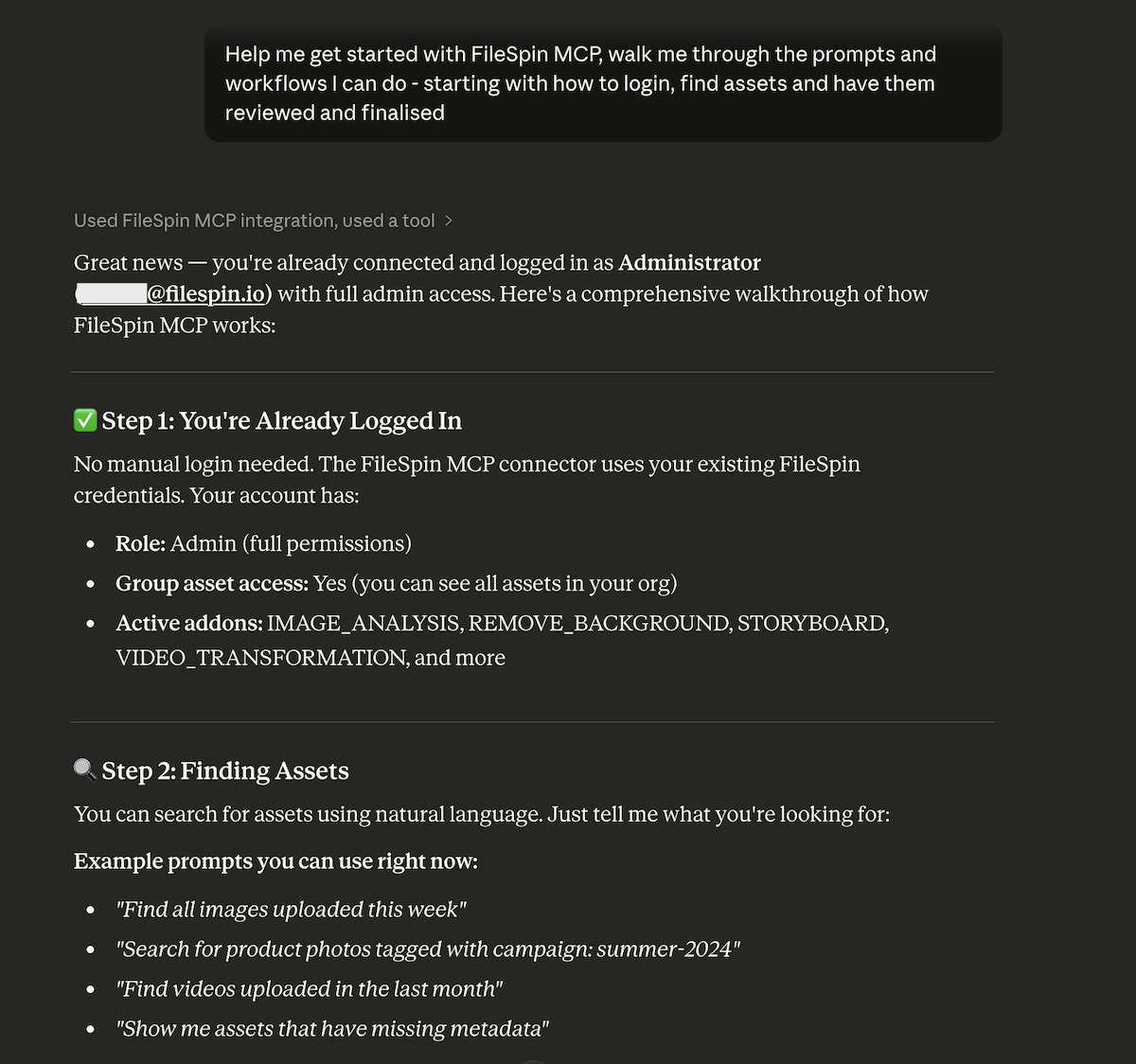
## Available tools
The FileSpin MCP server exposes a focused set of tools that agents can call directly. These are atomic operations -- the building blocks that agents compose into workflows. They are an intelligence layer on top of FileSpin REST APIs that securely mediate the AI Agent's calls to the FileSpin API.
| Category | Summary |
| --- | --- |
| **Asset management** | Search and inspect assets, upload new files, update metadata (single or bulk), discover schemas, and check account capabilities. |
| **Image transformation** | Generate on-brand image variants -- resizing, cropping, social-platform sizes, and logo or text watermarks. |
| **AI and addons** | Find related photos using face search and retrieve AI-generated labels with confidence scores. |
| **Sharing and distribution** | Create, list, and delete branded share pages; track analytics and approvals; and reuse share templates. |
| **Collections** | Create and search collections, manage included assets, and generate ZIP download links. |
| **Video** | Transcode videos, create trimmed/custom clips, and retrieve streaming URLs. |
| **Delivery** | Generate CDN view URLs and signed download URLs for assets. |
---
## Prompt templates -- pre-built workflow recipes
Prompt templates are the most powerful feature of the FileSpin MCP server. They are multi-step workflow recipes that guide the agent through complex operations. The agent discovers them automatically, and when invoked, receives a structured message that tells it exactly which tools to call and in what order.
The prompt templates are organised across **11 categories**:
### Industry-specific workflows
| Workflow | Summary |
| --- | --- |
| **E-commerce (2 prompts)** | Run end-to-end product-image workflows, including tagging, social output generation, review sharing, and marketplace-ready sizing. |
| **Events (2 prompts)** | Automate event media workflows with speaker/sponsor discovery, session tagging, social crops, and branded approval shares. |
| **Attractions (2 prompts)** | Support attraction photo operations with guest face discovery, preview watermarking, and branded gallery sharing. |
### Platform workflows
| Workflow | Summary |
| --- | --- |
| **Social Media (3 prompts)** | Generate platform-specific image sizes, apply logo watermarks, add text watermarks. |
| **AI Workflows (4 prompts)** | Face search by asset or URL, find addon-processed assets, retrieve AI auto-tags with confidence scores. |
| **Video Processing (2 prompts)** | Transcode with existing-conversion check (avoids redundant processing), create custom clips with trimming. |
| **Creative (2 prompts)** | Face-centered profile pictures at multiple sizes, responsive hero images for desktop/tablet/mobile. |
| **Branded Shares (8 prompts)** | Press kits, branded galleries, video showcases, review/approval pages, template-based shares, analytics review, approval status checks, expired share cleanup. |
| **Collections (3 prompts)** | Save search results to a collection, download collection as ZIP, update collection membership. |
| **Administration (4 prompts)** | Bulk tag photoshoot assets, audit metadata completeness, find assets needing review, standardize inconsistent metadata values. |
| **Content Creation (4 prompts)** | Save HTML reports, CSV exports, Markdown docs, and metadata CSV exports to FileSpin. |
### How prompts work
When a user says _"Process all product images from the summer shoot"_, the agent matches this to the prompt template and receives:
```
Process product images matching "summer shoot" uploaded recently:
1. Find images matching "summer shoot".
2. Discover the available metadata schema, then bulk-tag the matching assets with
campaign = "Summer Campaign", category = "product", status = "ready".
3. Generate Instagram feed and Facebook post versions using branded image transformation.
4. Create a branded review page with approvals enabled for the buying team.
Give me the share URL and a summary of assets processed.
```
The agent then executes each step, calling the appropriate tools in sequence, handling responses, and reporting back to the user.
---
## Workflow patterns
When agents compose multi-step workflows -- whether guided by prompts or working from free-form instructions -- they follow a few canonical sequences:
### Discovery first
Before operating on assets, the agent checks what addons are enabled, discovers the available metadata schemas, and searches for assets matching the user's request.
### Single-asset inspection and delivery
The agent fetches the asset's details, then returns a viewable CDN URL, a signed download URL, or a resized/cropped variant as needed.
### Metadata workflows
The agent discovers the relevant schema, then updates fields on a single asset or bulk-tags many assets at once.
### External sharing
The agent searches for the target assets (or picks up a collection), creates a branded share page, and can later pull analytics or approval status for that share.
### Video workflows
The agent inspects the asset's existing conversions, transcodes or clips as required, and returns a streaming URL.
> **Info**
>
> The agent always checks asset data before video operations to verify the asset is a video and to inspect existing conversions -- avoiding redundant transcoding.
---
## Real-world example: E-commerce product pipeline
**User prompt:** _"Tag all new arrivals by SKU, remove backgrounds, and send a review link to the buying team."_
Here's what the agent does:
1. **Discover context.** Confirms the Background Removal addon is enabled and retrieves the relevant metadata schema (fields: sku, category, status, campaign).
2. **Find assets.** Searches for recent "new arrivals" and returns 24 product images uploaded in the last 7 days.
3. **Tag with metadata.** Bulk-tags all 24 assets with category = "new-arrival", status = "pending-review", campaign = "Spring 2026".
4. **Create review share.** Creates a branded share page titled "Spring 2026 New Arrivals -- Review" with approvals and feedback enabled, expiring in seven days.
**Agent response to user:** _"Done. 24 new arrival images tagged with Spring 2026 campaign metadata. Review page with approval workflow that includes Social media versions: [https://app.filespin.io/shared/sh_abc123](https://app.filespin.io/shared/sh_abc123) -- the buying team can approve or reject each image directly."_
---
## Real-world example: Event photo distribution
**User prompt:** _"Find all photos of the keynote speaker, tag by session, and build a branded share page for the press team."_
Here's what the agent does:
1. **Face search.** Uses the speaker's headshot to find all photos of this person across the event -- returns 87 matches with high matching strictness.
2. **Tag by session.** Retrieves the event schema and bulk-tags the 87 matching assets with speaker = "Jane Smith", session = "Opening Keynote", event = "TechConf 2026".
3. **Branded press share.** Creates a share page titled "TechConf 2026 -- Jane Smith Keynote Photos" with company branding (logo from watermark, primary colour #1a73e8), feedback enabled, expiring in one week.
**Agent response:** _"Found 87 photos of Jane Smith across all event sessions via face recognition. Tagged with speaker, session, and event metadata. Press share page with Social media crops: [https://dashboard.filespin.io/shared/sh_press456](https://dashboard.filespin.io/shared/sh_press456)"_
---
## Addon availability and runtime checks
Some capabilities depend on addons being enabled on your FileSpin account. The agent always verifies addon availability before attempting addon-dependent operations by querying the account's enabled addons through the MCP server.
| Addon | Required for | Capability gated |
| --- | --- | --- |
| `FACE_RECOGNITION` | Face search across assets | Face search |
| `IMAGE_ANALYSIS` | AI auto-tagging on upload | Auto-tag retrieval |
| `BACKGROUND_REMOVAL` | AI background removal | Background removal processing |
| `ON_DEMAND_IMAGE` | Real-time image transformations | Resized/cropped variants and branded variant generation |
If an addon isn't enabled, the agent will report this to the user rather than failing silently.
---
## Best practices
1. **Create a dedicated agent user.** Set up a FileSpin user account specifically for AI agent access. Assign the appropriate role for the agent's intended workflows. This gives you a clean audit trail and precise permission control.
2. **Use prompt templates for common workflows.** Prompts encode best practices -- correct tool ordering, required checks, and sensible defaults. They're faster and more reliable than free-form instructions for repeatable operations.
3. **Check addon availability first.** Have the agent call ask which addons are available before attempting face recognition, auto-tagging, or background removal to verify the addon is enabled.
4. **Use collections for internal grouping, shares for external distribution.** Collections are for your team's organization. Shares create branded, trackable pages for external stakeholders -- with download controls, approval workflows, and analytics.
5. **Let the agent handle orchestration.** Don't try to script every tool call. Describe the outcome you want and let the agent decide which tools to chain and in what order. This is what MCP is designed for.
---
# FileSpin Teleport: Hybrid Cloud-Edge Media Processing
Source: https://developers.filespin.io/guides/teleport/
How to deploy FileSpin Teleport on your local hardware for hybrid cloud-edge media operations -- install, configure, integrate via REST APIs and hot-folder ingest, and sync to FileSpin Cloud when connected.

Cloud-only operation assumes reliable internet. For most teams -- eCommerce, agencies, publishing -- that assumption largely holds. But event venues with unreliable Wi-Fi, attractions that process and deliver media, remote sites with no connectivity, and operations with data sovereignty requirements -- cloud-only breaks down.
Teleport is FileSpin's hybrid deployment model. A single binary that runs the core media processing pipeline on your local hardware -- ingest, transform, watermark, transcode, search, deliver -- with zero internet dependency. When connected, cloud-powered features like face recognition and background removal activate in real time. Once assets sync to FileSpin Cloud, the full intelligence layer takes over: AI agents, workflow engines, extended APIs.
This guide covers the architecture, installation, local APIs, hot-folder workflows, and cloud sync -- everything your engineering team needs to deploy and integrate Teleport.
---
## Architecture: Three capability tiers
Teleport's capabilities scale with connectivity. Nothing fails when the network drops -- features degrade gracefully across three tiers.
| Tier | Connectivity | What runs | Examples |
| --- | --- | --- | --- |
| **Always Local** | None required | Ingest, transform, watermark, transcode, search, deliver, metadata, cache | Guest photo previews, social variants, jury panel streaming, field capture processing |
| **Cloud Pass-Through** | Active connection | Face recognition, background removal, shares, collections | Guest galleries linked by face across rides, branded share pages for sponsors, background-free photos on-site |
| **Cloud-Only** | After sync | AI auto-tagging, AI agents (Claude, ChatGPT, Mistral), workflow engines (Make, Zapier, n8n), extended APIs | Automated classification, natural language workflows, downstream distribution pipelines |
The Always Local tier is Teleport's foundation. It runs entirely on your hardware -- no cloud round-trip, no upload queue, no network dependency. The other two tiers add intelligence as connectivity permits, but local operations never wait for them.
---
## What Teleport exposes locally
Teleport monitors the designed hot folder for assets. It also runs a REST API server on your hardware that mirrors a subset of the FileSpin Cloud API -- the endpoints built for local operations. Your capture systems, POS, and guest apps integrate via these local endpoints at local speed.
### Hot-folder ingest
Drop files into a watched directory and Teleport processes them automatically -- no API calls required.

The file watcher detects new files, validates them, assigns an asset ID, queues them for upload, and moves them through the lifecycle. Configurable stability wait handles files still being written -- critical for network drives and large transfers.
### REST API endpoints
| Endpoint | Method | What it does |
| --- | --- | --- |
| `/api/v1/assets/new/content/original/upload` | POST | Upload an asset (multipart or binary) |
| `/api/v1/assets/search` | POST | Search assets by keyword, metadata, content type, date range |
| `/api/v1/assets/{id}/data` | GET | Get full asset metadata, custom data, and status |
| `/api/v1/assets/{id}/data/update` | POST | Update custom metadata fields |
| `/api/v1/assets/{id}/conversions` | GET | Get image conversions (resize, crop, format) |
| `/api/v1/assets/{id}/get_link` | GET | Get a signed content URL for delivery |
| `/api/v1/assets/get_link` | POST | Get signed URLs for multiple assets in one call |
| `/api/v1/assets/{id}/content/{key}/download` | GET | Download original or converted content |
| `/api/v1/assets/{id}/content/original/replace` | POST | Replace an asset's content |
| `/api/v1/assets/{id}/transcodes/{key}` | GET | Stream video transcodes |
| `/api/v1/schemas` | GET | List all cached asset schemas |
| `/api/v1/schemas/{id}` | GET | Get a single schema definition |
Authentication uses the same `X-FileSpin-Api-Key` header as the Cloud API. Teleport validates locally against your configured API key.
> **Tip**
>
> API Key validation can be optionally turned off for access from trusted clients. All cURL examples shown in this guide assume trusted client access.
### Web dashboard
Teleport includes a local web UI.
**Dashboard Home** 
## Install Teleport
Teleport is a single binary. No dependencies, no runtime, no container. Download and install as a service on Windows, Mac or Linux.
[Get in touch to start a Free Trial](https://filespin.io/)

## Hardware benchmark
Teleport includes a built-in benchmark to evaluate your hardware before deployment. Use the Performance Tests option in Teleport Web Dashboard or execute it via commandline for automated tests.
```bash
# Interactive web UI
teleport --benchmark
# CLI output (headless, for automation)
teleport --benchmark --headless --output text
```
The benchmark measures API throughput, image processing speed, file I/O performance, and video delivery -- and produces a performance score with specific latency percentiles.
## Configure Settings
### Hot folder and cache purge settings
Use the Settings page to update the hot folder settings.
| Folder | Purpose | Auto-cleaned |
| --- | --- | --- |
| `hotfolder/` | Drop files here | Yes -- moved to queued |
| `queued/` | Waiting for upload | Yes -- moved to archived or errors |
| `archived/` | Successfully uploaded | Yes -- purged on schedule |
| `archived/preserved/` | Protected from purge | No -- manual only |
| `errors/` | Failed after 30 retries | No -- review and retry |
| `cache/` | Processed images, video posters | Yes -- LRU eviction |
### Retention settings
Asset Retention Policies. Configure which assets should be retained and never purged. Add asset IDs or create metadata-based rules.

### Local-only Assets Settings
Local-only assets for total privacy control. Configure rules for assets that should be kept locally and not uploaded to FileSpin Cloud.
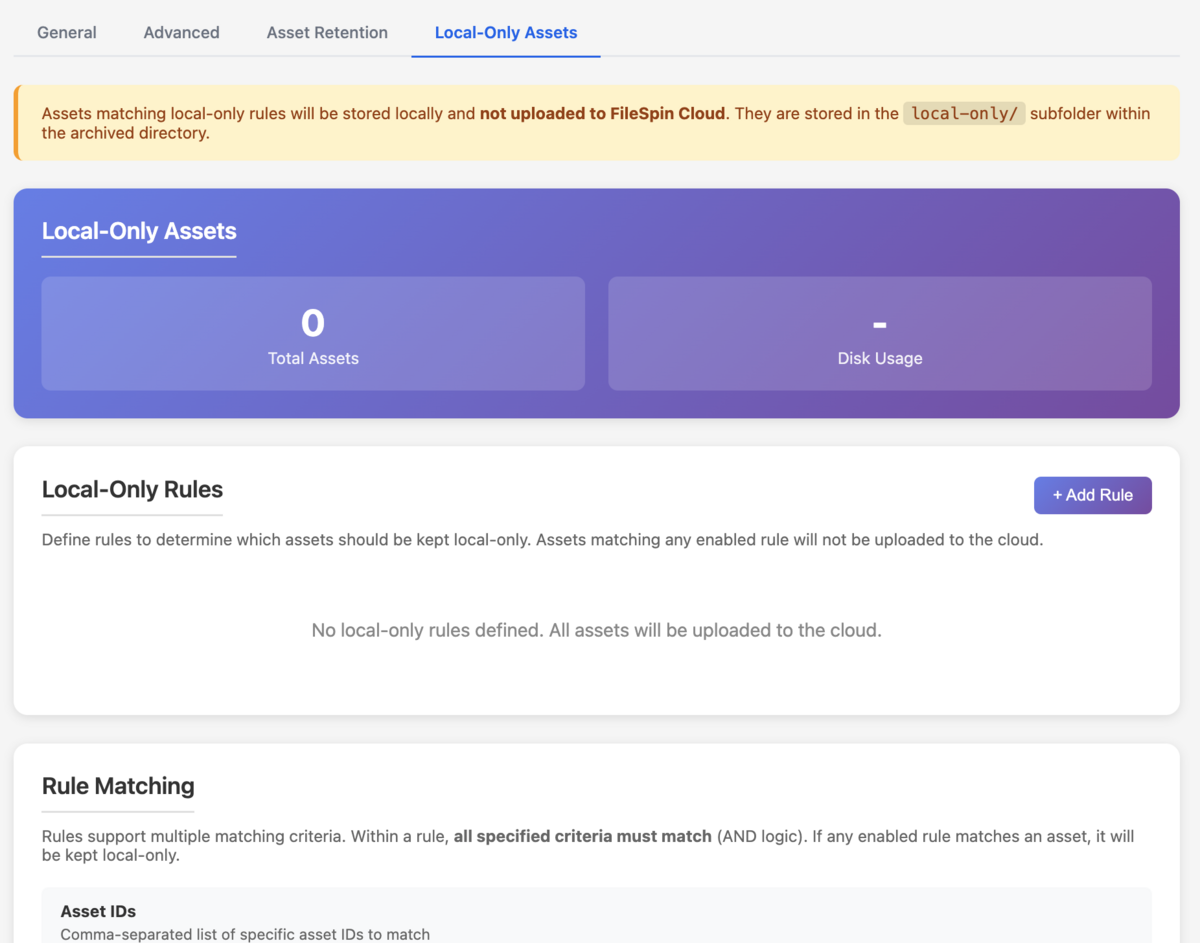
### Multi-Site Visibility via Cloud Dashboard
Cloud dashboard monitors all Teleport instances. Status, performance, and telemetry across distributed deployments.

---
## Fetch from Cloud
Fetch assets selectively from Cloud for local-first delivery. Use this to bring centrally managed assets for local delivery. Deliver event media on-site without worrying about internet connectivity.
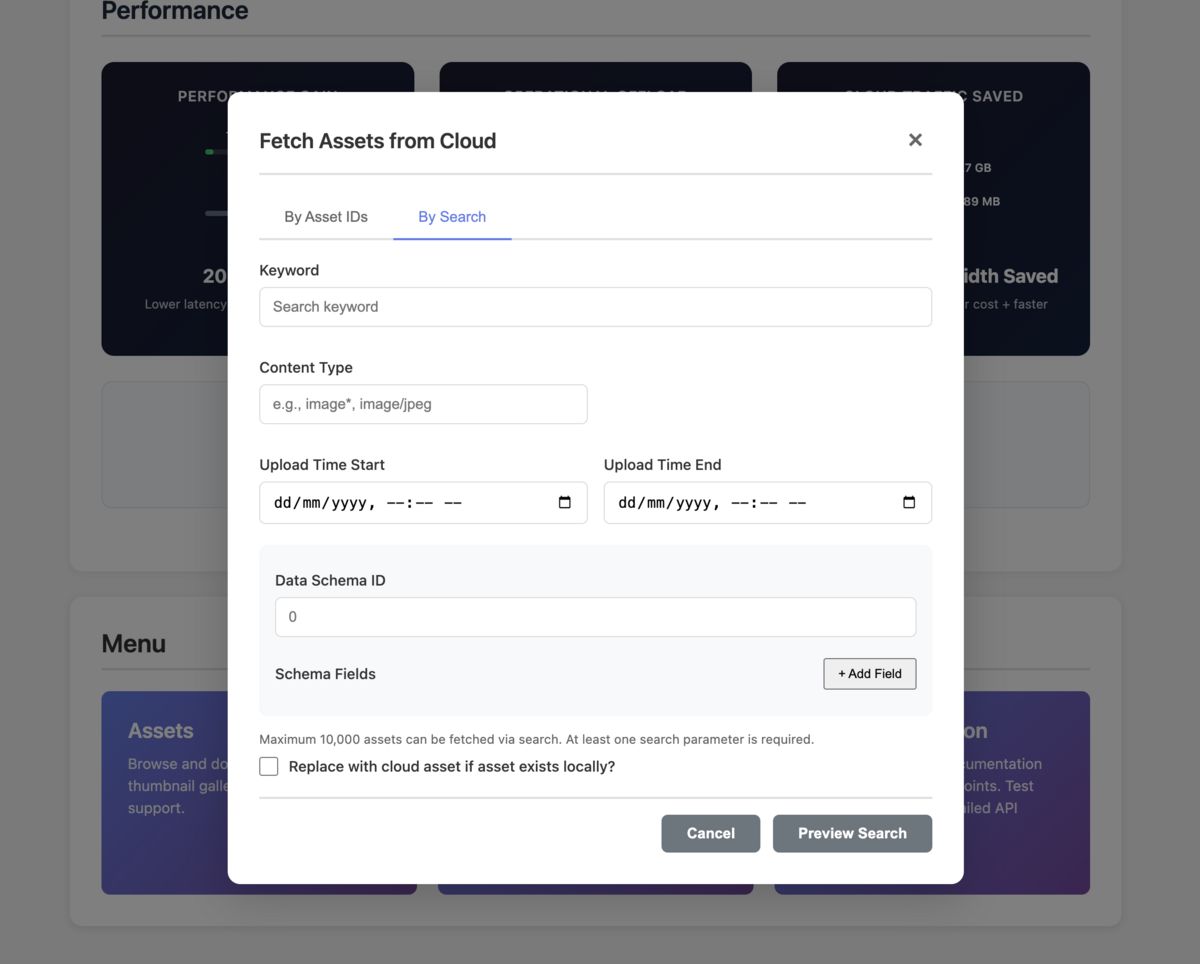
---
## Recipe walkthrough
### Event photography pipeline

A conference photography team captures thousands of images over a multi-day event. Venue Wi-Fi is unreliable. Sponsors expect same-day delivery. The social team needs platform-ready variants during sessions.
**1\. Deploy Teleport at the venue** Install Teleport on a venue server or workstation. Configure the hot folder path and FileSpin Cloud connection. Takes under 10 minutes.
**2\. Photographers dump camera cards to the hot folder** Photographers ingest directly -- drag camera card contents to the hot folder, or configure their tethering software to write to it. Teleport detects files, assigns asset IDs, and begins processing.
**3\. Generate social variants locally** Your integration calls the conversions endpoint to generate platform-ready sizes:
```bash
# Instagram square
curl "http://localhost:8080/api/v1/assets/{id}/conversions?resize=1080,1080&format=jpg" \
--output ig.jpg
# LinkedIn landscape
curl "http://localhost:8080/api/v1/assets/{id}/conversions?resize=1200,627&format=jpg" \
--output linkedin.jpg
```
All processed locally -- no upload wait, no cloud latency.
**4\. Apply event watermarks** Use the conversions endpoint with watermark parameters to brand assets before distribution.
**5\. When venue Wi-Fi connects -- cloud pass-through activates** Face recognition identifies speakers and VIPs across thousands of photos in real time. Branded share pages become available for sponsor distribution. If connectivity drops, local processing continues.
**6\. Assets sync to FileSpin Cloud** Once synced, the full automation stack activates: AI auto-tagging classifies by session, speaker, and sponsor. Make/Zapier pipelines trigger downstream distribution -- press kits, social scheduling, sponsor deliverables.
---
### Attractions guest imaging

A theme park processes millions of guest photos daily. The business runs on preview-to-purchase -- if the watermarked preview is slow, the sale is lost.
**1\. Ride capture system uploads via REST API** The capture system sends photos to Teleport's upload endpoint immediately after capture:
```bash
curl -X POST "http://localhost:8080/api/v1/assets/new/content/original/upload" \
-F "file=@ride-photo-001.jpg" \
-F "data={\"ride\":\"coaster-1\"}"
```
**2\. Generate watermarked preview locally** The guest app requests a watermarked preview via the conversions endpoint -- sub-10ms response, no cloud round-trip:
```bash
curl "http://localhost:8080/api/v1/assets/{id}/conversions?resize=800,600&watermark={params}" \
--output preview.jpg
```
Guest sees the preview the moment they step off the ride.
**3\. Face recognition links captures across the park (when connected)** At connected venues, Teleport's cloud pass-through enables face recognition in real time -- a single face search discovers photos from rides, meet-and-greets, roaming photographers, and green screen stations. Unified guest galleries drive cross-venue photo discovery and incremental sales.
**4\. Purchase triggers high-quality download** On purchase, the guest app requests the unwatermarked original via `get_link`:
```bash
curl "http://localhost:8080/api/v1/assets/{id}/get_link"
```
**5\. Selective sync to cloud** Not every guest photo needs cloud backup. Configure sync rules to upload purchased photos, flagged assets, or a configurable percentage -- typically 15–20% of total captures. The rest stays local with configurable retention.
---
### Awards festival judging

A creative awards festival runs on-site judging across multiple jury rooms. Entries include 30-second films, print campaigns, digital experiences, and case study videos. Jury panels need instant video playback and high-res image viewing -- but venue Wi-Fi collapses under load. The old way: USB drives shuttled between rooms, inconsistent playback quality, and no way to search or filter entries during deliberation.
**1\. Deploy Teleport at the venue** Install Teleport on a workstation in each jury room -- or a single server serving multiple rooms over the local network. Configure the FileSpin Cloud connection and run the benchmark to confirm playback performance meets requirements.
**2\. Fetch shortlisted entries from Cloud** Use Teleport's Fetch from Cloud feature to pre-load the shortlisted entries for each category before judging begins. Entries arrive with all metadata intact -- category, entrant, agency, brand, country. The jury room now has everything locally.
**3\. Jury browses and searches entries locally** The judging app queries Teleport's local search API to filter entries by category, subcategory, or entrant -- no internet required:
```bash
curl -X POST "http://localhost:8080/api/v1/assets/search" \
-H "Content-Type: application/json" \
-d '{"query": "", "filters": {"category": "Film Craft"}, "sort": "entrant", "size": 50}'
```
Sub-10ms response times. Judges navigate entries without waiting.
**4\. Instant video playback from local hardware** Film and case study entries stream directly from Teleport -- no buffering, no cloud round-trip:
```bash
curl "http://localhost:8080/api/v1/assets/{id}/transcodes/1080p-video.mp4"
```
For print and digital entries, the conversions endpoint serves high-res previews locally:
```bash
curl "http://localhost:8080/api/v1/assets/{id}/conversions?resize=2560,1400&format=jpg"
```
**5\. Scoring and deliberation via share pages (when connected)** When venue connectivity permits, Teleport's cloud pass-through enables [branded share pages](https://developers.filespin.io/guides/sharing-assets/) for formal scoring. Create per-category share pages with the "Confidential Review" template -- jurors approve or reject entries with notes, and the jury president tracks progress through analytics. If connectivity drops, local browsing and playback continue uninterrupted.
**6\. Sync winners and archive to Cloud** After judging concludes, sync winning entries and the full shortlist to FileSpin Cloud. The automation stack activates: AI agents assemble press kits, workflow engines trigger winner notifications, and branded share pages deliver clean originals to winners and press teams. Configure preservation rules so award entries survive local cleanup.
---
## Upgrading Teleport
### Dashboard upgrade (recommended)
When a new version is available, Teleport shows an upgrade banner on the dashboard. Click **Upgrade Now** -- Teleport backs up the database and previous binary, downloads the new version, and restarts automatically. Typically under 30 seconds of downtime.
---
## Best practices
1. **Use SSD for hot folder and staging.** File watcher performance and upload throughput scale directly with disk I/O speed. Putting hot folder and staging on the same SSD drive avoids cross-device moves.
1. **Set `file_stability_wait` for network drives.** If your hot folder is on a NAS or network share, files may still be writing when detected. A 30-second stability wait prevents partial uploads (more details are in the Operation Guide).
2. **Size the queue for your peak volume.** Default is 10,000. Event venues processing 20,000+ assets in a day should increase `queue_size` to 50,000 (more details are in the Operation Guide). Attractions with continuous capture may need more.
3. **Use preservation rules for critical assets.** Archived assets are auto-purged based on retention settings. Tag hero images, purchased guest photos, or award entries as preserved so they survive cleanup.
4. **Configure selective sync rules.** Not every locally processed asset needs cloud backup. Sync purchased photos, approved assets, or a percentage -- reduces bandwidth and cloud storage costs by 80%+.
5. **Run the benchmark before deployment.** `teleport --benchmark --headless` gives you concrete performance numbers for your specific hardware. Use the results for capacity planning and to validate that your edge hardware meets throughput requirements.
---
# Branded Share Pages — Distribution, Review, and Delivery
Source: https://developers.filespin.io/guides/sharing-assets/
How to use branded share pages to replace zip-and-email workflows — sponsor deliverables, wholesale portals, press kits, client review cycles, and guest photo delivery with approval workflows, download controls, and analytics.
Every team that works with external stakeholders hits the same bottleneck: getting the right assets to the right people in the right format, with some control over what happens next. The standard workflow — zip a folder, upload to WeTransfer, email a link, hope they download the right version — breaks down the moment you need tracking, branding, feedback, or approval.
Branded share pages replace that cycle. A share creates a branded, hosted page with a curated set of assets — configurable download options (including social media sizes), password protection, expiry dates, feedback collection, approval workflows, and full analytics on who viewed and downloaded what. No FileSpin account required for recipients.
Event teams use shares to deliver sponsor packages same-day. Wholesale teams use them as partner portals with controlled formats. Press teams use them for embargoed content with watermark protection. Attractions operators use them for guest photo discovery. And AI agents can assemble any of these from a single prompt.
This guide covers how to create and manage shares — from the Dashboard, through AI agents, or via workflow automation — plus real-world recipes for common distribution patterns.

---
## Creating shares from the Dashboard
The fastest way to create a share is directly from the FileSpin Dashboard. Select one or more assets, click **Share**, and configure the options.
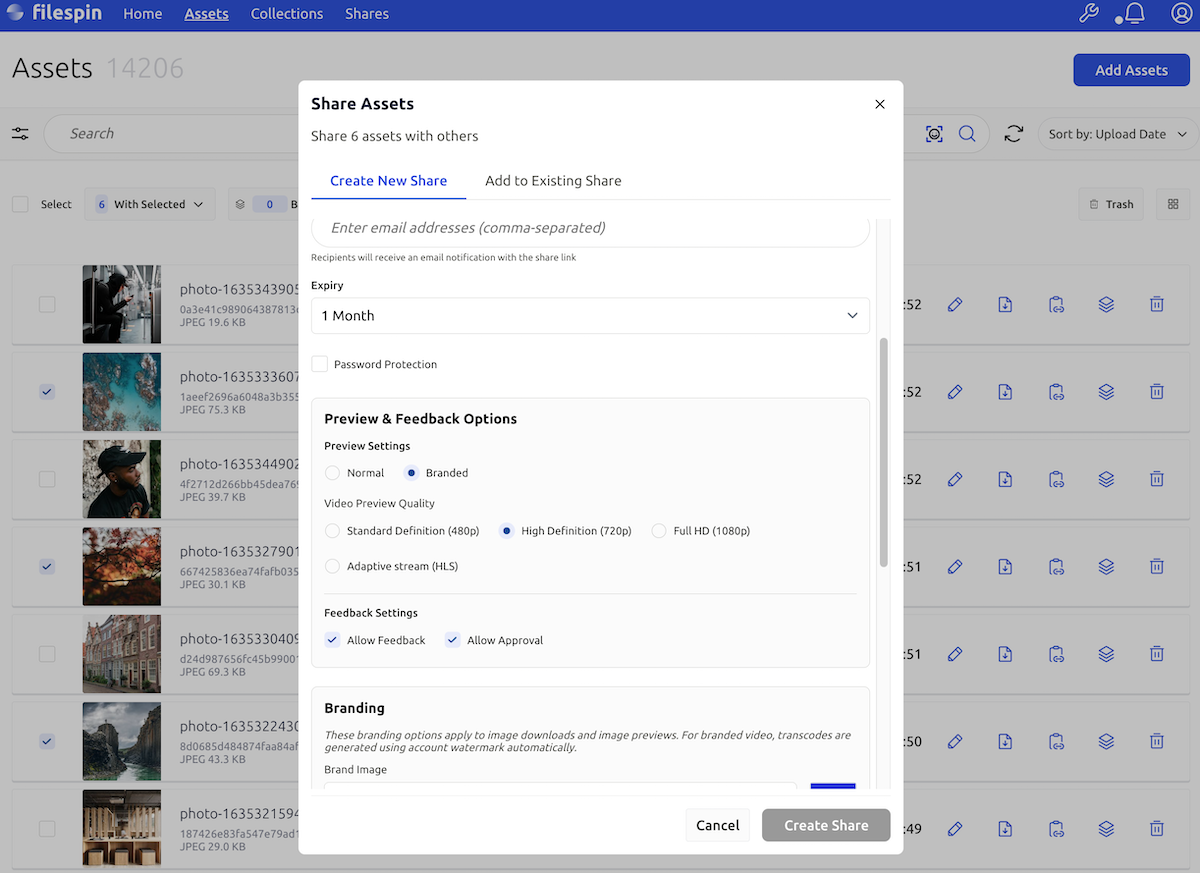
### Share settings
When creating a share, you configure:
| Setting | What it controls |
| --- | --- |
| **Title** | Display name shown on the share page |
| **Expiry** | Auto-expire date — recipients lose access after this |
| **Password** | Optional password protection for sensitive content |
| **Branding** | Logo, primary color, background color |
| **Watermark** | Overlay your watermark on all previews and downloads |
| **Download options** | Control formats — originals, ODI sizes, video transcodes |
| **Feedback** | Enable comments from reviewers |
| **Approvals** | Enable approve/reject per asset |
### The share page
Once created, you get a branded URL that recipients open directly — no login, no account, no software to install.

Recipients see a clean, branded page with your logo and colors. Depending on your settings, they can browse assets, leave comments, approve or reject individual items, and download in the formats you've made available.
---
## Creating shares with AI agents
FileSpin's MCP integration lets AI agents create shares through natural language. Instead of manually selecting assets and configuring settings, describe what you need:
> _"Find all photos tagged 'Gold Sponsor - Acme Corp' from Day 1 of the conference, create a branded share page with our event branding and password protection, and give me the link."_
The agent searches your library, filters by tags, creates the share with your branding template, and returns the URL — all from a single prompt.
Common agent-driven share workflows:
- **Sponsor delivery:** _"Create share pages for each sponsor from yesterday's event, branded with our event logo, password-protected, expiring in 30 days."_
- **Client review:** _"Share the latest hero images with the client for approval. Enable feedback and watermark everything."_
- **Press kit:** _"Assemble a press kit with the five approved product shots and the launch video. Watermark it, set a 7-day expiry."_
For setup details, see the [AI Agent Integration guide](https://developers.filespin.io/guides/ai-agent-integration/).
---
## Creating shares with workflow engines - COMING SOON
Workflow engines like Make, Zapier, and n8n can create shares automatically based on triggers — new assets uploaded, tags applied, approval status changed.
**Example: Auto-create sponsor share in Make** A Make scenario watches for assets tagged with a sponsor name. When the batch is complete (triggered by a "batch complete" tag or a scheduled check), the scenario creates a branded share page with the sponsor's assets, applies the event branding template, and sends the share URL via email to the sponsor contact.
**Example: Post-approval delivery in n8n** An n8n workflow monitors approval status. When all assets in a collection are approved, the workflow creates a clean (unwatermarked) share with high-res download options and notifies the client that final deliverables are ready.
---
## Share features
### Branding
Every share page can carry your brand identity — logo, colors, and background. Set these per share, or save them as part of a template to reuse across all your distribution workflows.
| Option | Description |
| --- | --- |
| **Logo** | Use your account watermark image or any asset from your library |
| **Primary color** | Buttons, links, and accents |
| **Background color** | Page background |
### Watermark protection
Enable watermarks to overlay your account watermark on all image and video previews and downloads. Useful during review phases — watermarks deter screenshot-based theft and signal that assets aren't final. Switch to clean downloads for final delivery.
### Download options
Control exactly what recipients can download:
| Content type | Options |
| --- | --- |
| **Images** | Original files, ODI-transformed sizes (any dimension, format), social media presets |
| **Video** | 1080p, 720p, or other available transcodes |
| **Documents** | PDF and other available formats |
With ODI (On-Demand Imaging) enabled, recipients can download images in any size — including social media dimensions — directly from the share page.
### Feedback and comments
Enable comments so reviewers provide feedback directly on shared assets. Reviewers access the share link and submit comments — no authentication required. Comments can be attached to specific assets or left at the share level. Reviewers optionally provide their name and email.
### Approval workflows
For formal review processes, enable approvals so reviewers can approve or reject individual assets with notes. The share owner sees approval status per asset — approved, rejected, or pending — along with reviewer comments and timestamps.
This powers the review-revise-deliver cycle: share watermarked assets for review, collect approvals, fix rejected items, re-share if needed, then deliver clean originals once approved.
### Analytics
Every share automatically tracks engagement.

| Metric | What it tells you |
| --- | --- |
| **Total views** | How many times the page was accessed |
| **Downloads by format** | Which formats are most popular |
| **Downloads by asset** | Which specific assets were downloaded |
| **Recent activity** | Last download events with timestamps |
| **Approval status** | Per-asset approval/rejection status and notes |
Analytics provide proof of delivery for contractual obligations, and help you understand how recipients engage with your content.
---
## Share templates
If you create shares with the same settings repeatedly, templates save time and ensure consistency. FileSpin provides 8 ready-to-use preset templates:

| Template | Downloads | Feedback | Approval | Expiry | Best for |
| --- | --- | --- | --- | --- | --- |
| Feedback & Approval | Watermarked | Yes | Yes | 14 days | Stakeholder sign-off |
| Quick Review | Clean | Yes | No | 3 days | Fast internal checks |
| Confidential Review | Watermarked | Yes | Yes | 3 days | Sensitive content |
| Client Presentation | Watermarked | Yes | No | 14 days | External presentations |
| High-Res Downloads | Full | No | No | 30 days | Final asset delivery |
| Web & Social Downloads | Optimized | No | No | 30 days | Digital campaigns |
| Video Delivery | Full | No | No | 30 days | Video distribution |
| Secure Preview | Watermarked | No | No | 7 days | Pre-release viewing |
Add any preset to your account from the Dashboard, or create custom templates with your own branding, download options, and workflow settings. Set a default template so it's pre-selected when creating new shares.
---
## Recipe: Event sponsor delivery

A multi-day conference generates thousands of photos. Each sponsor tier is contractually entitled to branded imagery delivered within 24 hours. The old way: someone manually hunts through folders, zips files, uploads to WeTransfer, and emails the link. No tracking, no branding, no proof of delivery.
**1\. Tag assets by sponsor during capture** Photographers tag assets by session and sponsor — either manually or through AI auto-tagging after upload. Search surfaces all assets tagged for a specific sponsor.
**2\. Create a branded share per sponsor** From the Dashboard, select the sponsor's assets and create a share using your event branding template. Set a password, configure download options (high-res originals plus social-ready ODI sizes for images, 1080p and 720p for video), and set an appropriate expiry.
Or let an AI agent do it: _"Find all photos tagged 'Gold Sponsor - Acme Corp' from Day 1, create a branded share page with our event branding, password-protect it, and send me the link."_
Or automate it: a Make/Zapier scenario watches for the "batch complete" tag and creates the share automatically.
**3\. Send the link to the sponsor** The sponsor receives a branded page with the event's identity, password-protected, with download options for both high-res originals and social-ready sizes. No account needed.
**4\. Track delivery and engagement** Check analytics to confirm the sponsor accessed the package — views, downloads by format, and timestamps. This is your proof of delivery for the contract.
---
## Recipe: Wholesale partner portal
An eCommerce brand needs to get product imagery to wholesale partners and buying teams — with controlled formats, no originals, and brand-compliant downloads.
**1\. Set up a wholesale template** Create a share template configured for wholesale distribution: ODI enabled so partners can download in any size they need, but originals excluded — the brand controls the maximum resolution. No feedback or approval (this is delivery, not review). 90-day expiry matches the seasonal buying cycle.
**2\. Create a share per partner for each collection** From the Dashboard, select the seasonal collection and create a share using the wholesale template. Add a password for each partner.
Or automate it: when assets in a collection are tagged "wholesale-ready," a workflow engine creates the share and emails the link to the partner contact from your CRM.
**3\. Monitor partner engagement** Analytics tell you which partners downloaded, what formats they chose, and when — useful for follow-up and forecasting. A partner who hasn't viewed the share a week after receiving it might need a nudge.
---
## Recipe: Press kit with watermark protection
A pre-launch or embargoed press kit needs watermark protection during the embargo period, then clean downloads after the announcement.
**Phase 1: Embargoed preview (watermarked)** Create a share with watermarks enabled, password protection, and feedback enabled. Journalists can preview and provide feedback, but all downloads carry the watermark — protecting against premature publication. Set the expiry to the embargo date.
**Phase 2: Post-announcement (clean downloads)** After the embargo lifts, create a new share with the same assets — this time with watermarks disabled, originals included, and a longer expiry. Delete or let the embargoed share expire. Journalists now download clean, high-res assets for publication.
An AI agent can handle the transition: _"The embargo lifted — create a clean press kit share with full downloads for the product launch assets, and revoke the embargoed share."_
---
## Recipe: Client review cycle with approvals

A creative agency sends campaign assets to a client for approval. The client needs to approve or reject individual assets with feedback, and the agency needs to track the process.
**1\. Create the review share** From the Dashboard, select the campaign assets and create a share with the "Feedback & Approval" template. Watermarks protect assets during review. The client receives a branded link — no account needed.
**2\. Client reviews and approves/rejects** The client opens the share link and approves or rejects each asset with notes. Watermarks protect assets during the review phase.
**3\. Check the results** The Dashboard shows approval status per asset, reviewer comments, and engagement analytics — did the client actually view the share? Which assets did they spend time on?
**4\. Revise and re-share** Fix rejected assets based on feedback. Create a new share with the revised assets for another round of approval.
**5\. Deliver approved assets** Once all assets are approved, create a "High-Res Downloads" share with clean (unwatermarked) originals for final delivery. The client downloads the approved assets in the formats they need.
---
## Recipe: Awards event judging

A creative awards festival receives thousands of entries across dozens of categories — film, print, digital, experiential. Jury panels need to shortlist remotely before the festival, then review and score on-site at the venue where Wi-Fi is unreliable and video entries need instant playback. The old way: USB drives passed between jury rooms, spreadsheets emailed between coordinators, and no audit trail of who scored what.
**1\. Organize entries by category** Define an [asset schema](https://developers.filespin.io/guides/asset-schemas/) for awards entries — category, subcategory, entrant, agency, brand, country, and supporting case study fields. Upload entries and assign metadata during intake. Each category becomes a collection. AI auto-tagging accelerates classification for large entry volumes.
**2\. Remote shortlisting round** Before the festival, create per-category share pages for each jury panel using the "Confidential Review" template — watermarked previews, feedback and approval enabled, password-protected, 14-day expiry. Jurors receive a branded link and score entries individually without needing a FileSpin account. Analytics track which jurors have reviewed and which haven't — useful for deadline reminders. Typically around ten percent of entries make the shortlist.
**3\. On-site judging at the venue** Deploy [Teleport](https://developers.filespin.io/guides/teleport/) at the festival venue for reliable local asset delivery. Jury rooms get instant playback of video entries and high-res image viewing from local hardware — no dependency on venue Wi-Fi. When connected, cloud pass-through enables the full share page experience with live feedback. Create fresh share pages for each jury room with just the shortlisted entries for their category.
**4\. Calibrate and award metals** Jury presidents review shortlist results in the Dashboard — approval status, reviewer comments, and engagement analytics per entry. Working from the shortlist, juries decide which entries deserve Bronze, Silver, or Gold. Create a new share page with the medal-worthy subset for final deliberation. It takes a two-thirds majority vote to be awarded.
**5\. Grand Prix selection and winner delivery** From the Gold winners, the jury selects the Grand Prix — the best in show. Create "High-Res Downloads" shares with clean originals for winners, press kits, and festival archives. Analytics provide a complete audit trail of the judging process — who viewed what, when they scored, and how the shortlist narrowed to the final winners.
Or let an AI agent handle the logistics: _"Find all Gold winners in the Film category, create a branded press kit share with our festival branding, watermarked, password-protected, expiring in 30 days — and a separate clean share for the winners with full downloads."_
---
## Programmatic access
For teams that need to create and manage shares programmatically, the full Shares API is available. The API supports everything described in this guide — creating shares, configuring branding and download options, enabling feedback and approvals, retrieving analytics, and managing templates.
---
## Best practices
1. **Use templates for consistency.** Create templates for your common workflows (sponsor delivery, wholesale portals, press kits, client review) so every share follows the same branding and settings.
2. **Set appropriate expiry dates.** 7–14 days for reviews, 30 days for deliverables, 90 days for partner portals. Don't let shares linger indefinitely.
3. **Watermark during review, not delivery.** Use watermarked downloads during the review phase to protect assets, then switch to clean downloads for final delivery.
4. **Use password protection for sensitive content.** Pre-launch materials, embargoed content, and confidential assets should be password-protected.
5. **Check analytics before following up.** Before chasing a client, check analytics to see if they've actually viewed the share. A "haven't reviewed yet" follow-up hits differently when you know they opened the page three times.
6. **Let AI agents assemble shares.** For ad-hoc distribution — "find all keynote photos, create a branded share for the press team" — an AI agent can search, filter, and create the share in a single prompt. See the [AI Agent Integration guide](https://developers.filespin.io/guides/ai-agent-integration/).
7. **Clean up expired shares.** Periodically review and delete shares that are no longer needed.
---
# Upload, Process, Deliver: The Complete Asset Lifecycle
Source: https://developers.filespin.io/guides/asset-lifecycle/
The end-to-end journey of an asset from upload to CDN delivery -- multipart upload, URL ingest, status polling, auto-processing, webhooks, and serving via CDN.

FileSpin offers three automation paths: AI agents for ad-hoc, complex workflows through natural language; workflow engines for repeatable, visual pipelines operations teams build without engineering; and REST APIs for custom, high-throughput integrations. All three paths share the same asset lifecycle described in this guide.
FileSpin is an AI-native digital asset management platform used by eCommerce retailers, event producers, attractions operators, and media companies to manage, transform, and deliver assets autonomously. Whether you're syncing product photos from a photoshoot to multiple marketplaces, processing thousands of event images for sponsor delivery, capturing guest photos at attractions, or delivering media to global audiences -- understanding the asset lifecycle is essential for building integrations that scale.
Every integration with FileSpin follows the same fundamental pattern: get content in, let FileSpin process it, then serve it to your users. This guide walks through the entire pipeline so you can build a reliable, production-ready integration from day one.
---
## How the pipeline works
When you upload a file to FileSpin, it moves through a series of stages before it's ready to serve. Understanding this pipeline is essential for building integrations that handle timing correctly and don't surprise your users with missing thumbnails or incomplete metadata.
1. **Upload** -- You send the file (or a URL to fetch it from). FileSpin returns an asset ID immediately.
2. **Storage** -- The original file is saved to cloud storage (S3 or R2). A `file-saved` webhook fires.
3. **Auto-processing** -- Based on your account settings, FileSpin generates image conversions, video transcodes, and runs any enabled addons (auto-tags, face recognition, etc.). A `file-processed` webhook fires when complete.
4. **Delivery** -- The asset and its derivatives are available via CDN URLs for fast, global delivery.
---
## Step 1: Upload an asset
FileSpin supports two upload methods: direct multipart upload and URL ingest. Choose based on where your files originate.
> **Info**
>
> For uploads from websites, use the File Picker Web Widget.
### Multipart upload (files you have)
Use this when your application has the file -- a user-uploaded photo, a generated document, or a file from your server's filesystem.
```bash
curl -X POST "https://upload.filespin.io/api/v1/assets/new/content/original/upload" \
-H "X-FileSpin-Api-Key: YOUR_API_KEY" \
-F "file=@product-photo.jpg"
```
**Response:**
```json
{
"assets": [
{
"id": "a1b2c3d4e5f6789012345678abcdef90",
"status": "NOT_READY",
"name": "product-photo.jpg",
"size": 2456789,
"checksum": "d41d8cd98f00b204e9800998ecf8427e",
"content_type": "image/jpeg"
}
]
}
```
You can upload multiple files in a single request by using `file1`, `file2`, etc. as form field names.
#### Attaching metadata at upload time
You can include custom metadata in the same upload request. This is useful when your application has context about the file (e.g. which product it belongs to, who approved it, what campaign it's for):
```bash
curl -X POST "https://upload.filespin.io/api/v1/assets/new/content/original/upload" \
-H "X-FileSpin-Api-Key: YOUR_API_KEY" \
-F "file=@product-photo.jpg" \
-F 'custom_metadata={"data": {"project": "Summer Campaign", "status": "draft"}, "data_schema_id=1"}'
```
`data_schema_id` is the optional ID of asset schema that powers custom searches and other powerful automations. See the post on Asset Schemas for more.\*
### URL ingest (files hosted elsewhere)
Use this when the file already lives at a URL -- an image on a partner's CDN, a video on a content server, or an object in an S3 bucket.
```bash
curl -X POST "https://upload.filespin.io/api/v1/assets/new/content/original/external" \
-H "X-FileSpin-Api-Key: YOUR_API_KEY" \
-H "Content-Type: application/json" \
-d '{
"name": "interview.mp4",
"key": "https://example.com/videos/interview.mp4"
}'
```
For S3 objects, use the `s3://` protocol:
```bash
curl -X POST "https://upload.filespin.io/api/v1/assets/new/content/original/external" \
-H "X-FileSpin-Api-Key: YOUR_API_KEY" \
-H "Content-Type: application/json" \
-d '{
"name": "interview.mp4",
"key": "s3://my-bucket/path/to/file.mp4"
}'
```
URL ingests are asynchronous -- FileSpin queues the download and returns a `QUEUED` status. The file will be fetched in the background.
The URL provided should allow direct downloads without any authorization. If S3 URL is provided, make sure the bucket is accessible for FileSpin (See Custom S3 Storage Setup in the docs).
---
## Step 2: Check asset status
After upload, the asset status is `NOT_READY` while the file is being saved to storage. You need to wait for it to become `OK` before performing further operations.
### Polling for readiness
```bash
curl "https://app.filespin.io/api/v1/assets/a1b2c3d4e5f6789012345678abcdef90/data" \
-H "X-FileSpin-Api-Key: YOUR_API_KEY"
```
**Response when ready:**
`status` will be `OK`
```json
{
"id": "a1b2c3d4e5f6789012345678abcdef90",
"status": "OK",
"name": "product-photo.jpg",
"size": 2456789,
"content_type": "image/jpeg",
"metadata": {
"width": 4000,
"height": 3000
},
"conversions": {},
"addons_info": {
"ON_DEMAND_IMAGE": {
"available": true
}
}
}
```
**Timing guidelines:**
| File size | Typical wait |
| --- | --- |
| Small files (< 50 MB) | A few hundred milliseconds |
| Large files (50 MB -- 1 GB) | A few seconds |
| Very large files (1 GB+) | Several seconds |
> **Warning**
>
> Always check `status` is `OK` before attempting to access the asset or trigger processing. Attempting to process a `NOT_READY` asset will fail.
### Using webhooks instead of polling
Polling works for simple integrations, but webhooks are more efficient at scale. Configure a webhook URL in your account settings to receive `file-saved` notifications automatically. See the Webhooks in Integrations docs for the complete setup.
---
## Step 3: Understand auto-processing
Once the file is saved, FileSpin automatically processes it based on your account settings. This includes:
- **Image conversions** -- Smart imaging for on-demand transformations (ODI)
- **Video transcodes** -- Multiple resolutions (360p, 480p, 720p, 1080p) and HLS adaptive streaming
- **Addons** -- Auto-tags, face recognition, etc
### Triggering processing manually
If you need specific processing that isn't enabled by default, or you want to reprocess an asset:
```bash
curl -X POST "https://app.filespin.io/api/v1/assets/a1b2c3d4e5f6789012345678abcdef90/process" \
-H "X-FileSpin-Api-Key: YOUR_API_KEY" \
-H "Content-Type: application/json" \
-d '{
"keys": ["smart_imaging", "720p-video", "1080p-video", "hls-video"]
}'
```
Refer to the [Asset Processing docs](https://developers.filespin.io/api-reference/asset-processing/asset-processing-api-introduction/) for all the valid processing keys that can be used.
For video processing, the response includes a `job_id` that you can use to track progress. Processing completion is also notified via webhooks.
---
## Step 4: Serve assets via CDN
Once processing is complete, your assets are ready for delivery through FileSpin's global CDN.
### Serving images with on-demand transformations
Once ON_DEMAND_IMAGE processing is complete (usually within a second or two), you can serve images with real-time transformations via URL parameters:
```
https://cdn.filespin.io/api/v1/assets/ASSET_ID/conversions?resize=800,600&quality=85
```
This resizes to 800x600 and compresses to quality 85 -- all on the fly, cached at the CDN edge.
See the [Image Transformations Docs](https://developers.filespin.io/image-transformations/) for the full transformation reference.
### Serving video transcodes
Video transcodes are available through the get_link API:
```bash
curl "https://app.filespin.io/api/v1/assets/ASSET_ID/get_link?key=720p-video&link_type=cdn&delivery=display" \
-H "X-FileSpin-Api-Key: YOUR_API_KEY"
```
The response includes a signed CDN URL you can use directly in a video player or embed tag:
```json
{
"url": "https://cdn.filespin.io/api/v1/assets/ASSET_ID/transcodes/720p-video.mp4?expiry=..."
}
```
For public videos, you can also construct the URL directly: `https://cdn.filespin.io/api/v1/assets/ASSET_ID/transcodes/720p-video.mp4`
### Public vs. private assets
By default, assets are private except for on-demand images. Private files require authentication to access. For public-facing content, you can make individual assets public using the set_public_access API:
```bash
curl -X POST "https://app.filespin.io/api/v1/assets/ASSET_ID/content/set_public_access" \
-H "X-FileSpin-Api-Key: YOUR_API_KEY" \
-H "Content-Type: application/json" \
-d '{
"keys": ["original", "720p-video"]
}'
```
For private assets that need temporary access (e.g. serving to authenticated users on your website), use the get_link API with signed URLs:
```bash
curl "https://app.filespin.io/api/v1/assets/ASSET_ID/get_link?key=original&expiry=3600" \
-H "X-FileSpin-Api-Key: YOUR_API_KEY"
```
This returns a signed URL valid for 3600 seconds (1 hour). FileSpin checks the signature and expiry before serving the file.
> **Images stay viewable through on-demand image URLs**
>
> A signed link protects the file it points to, such as an image's original. It doesn't make the image itself private. On-demand image URLs (`https://cdn.filespin.io/api/v1/assets/ASSET_ID/conversions?...`) are always available for image assets, can't be signed, and need no authentication. Anyone who knows the asset ID can view the image through them, up to the on-demand size limit. Image URL signing isn't supported.
>
> To restrict an image, use a non-public [custom conversion](https://developers.filespin.io/image-transformations/standard-odi-copy/#using-non-public-custom-image-conversion) and request it from your server with an API key or JWT. For video, use [signed URLs for video transcodes](https://developers.filespin.io/video-streaming/signed-url-for-video-transcodes/).
---
## Replacing asset content
Sometimes you need to update the file while keeping the same asset ID -- for example, when a designer revises a photo but you want to preserve all the metadata and the reference in your application.
```bash
curl -X POST "https://upload.filespin.io/api/v1/assets/ASSET_ID/content/original/replace" \
-H "X-FileSpin-Api-Key: YOUR_API_KEY" \
-F "file=@updated-product-photo.jpg"
```
The asset ID stays the same, but the content is replaced. All conversions and transcodes will be regenerated based on accoount settings.
---
## Error handling
### Common status values
| Status | Meaning | Action |
| --- | --- | --- |
| `OK` | Asset saved and ready | Proceed normally |
| `NOT_READY` | File is being saved | Wait and retry |
| `QUEUED` | URL ingest is queued | Wait for webhook or poll |
| `ERROR` | Processing failed | Check `errors` field in asset data |
| `ARCHIVED` | Asset is archived (read-only) | Cannot modify, only read |
### Handling errors in the asset data
When something goes wrong, the `errors` field in the asset data provides details:
```json
{
"id": "a1b2c3d4e5f6789012345678abcdef90",
"status": "ERROR",
"errors": {
"original": "Original file appears to be invalid!"
}
}
```
Warnings (non-fatal issues) are also reported:
```json
{
"errors": {
"warning": "This may be a PNG file uploaded as JPG!"
}
}
```
---
## Putting it all together
Here's a complete Python example that uploads an image, waits for it to be ready, and builds a CDN URL for serving:
```python
import requests
import time
API_KEY = "YOUR_API_KEY"
API_BASE = "https://app.filespin.io/api/v1"
UPLOAD_BASE = "https://upload.filespin.io/api/v1" # upload, ingest and replace use the upload host
CDN_BASE = "https://cdn.filespin.io/api/v1"
HEADERS = {"X-FileSpin-Api-Key": API_KEY}
# 1. Upload the file
with open("product-photo.jpg", "rb") as f:
resp = requests.post(
f"{UPLOAD_BASE}/assets/new/content/original/upload",
headers=HEADERS,
files={"file": f}
)
asset_id = resp.json()["assets"][0]["id"]
print(f"Uploaded: {asset_id}")
# 2. Wait for asset to be ready
for _ in range(30):
resp = requests.get(
f"{API_BASE}/assets/{asset_id}/data",
headers=HEADERS
)
data = resp.json()
if data["status"] == "OK":
break
time.sleep(1)
else:
raise TimeoutError("Asset did not become ready in time")
# 3. Build a CDN URL with transformations
thumbnail_url = (
f"{CDN_BASE}/assets/{asset_id}/conversions"
f"?resize=400,300&quality=80"
)
print(f"Thumbnail URL: {thumbnail_url}")
```
---
## Best practices
1. **Store the asset ID** in your application database right after upload. This is your permanent reference to the file in FileSpin.
2. **Use webhooks over polling** for production systems. Polling is fine for development, but webhooks scale better and react faster.
3. **Check status before operating** on an asset. Never assume an upload is instantly available.
4. **Use on-demand transformations** for images instead of pre-generating every size. This saves storage and processing time.
5. **Enable auto-processing for videos** in your account settings for the transcodes you regularly need, so every video upload is processed for transcodes automatically.
---
# Organizing Assets with Custom Metadata Schemas
Source: https://developers.filespin.io/guides/asset-schemas/
Designing, creating, and using asset schemas to add structured, searchable metadata to assets -- field types, naming conventions, preset templates, search integration, and best practices.

Every asset in FileSpin has core metadata -- file name, size, content type, dimensions. But real-world asset management needs more. You need to track which campaign a photo belongs to, who approved it, what product SKU it represents, or when the usage rights expire.
Asset schemas let you define structured metadata fields for your assets, with validation, search indexing, and UI rendering -- all powered by JSON Schema standard.
---
## What is an asset schema?
An asset schema is a JSON Schema definition that describes the custom metadata fields you want to attach to assets. Think of it as a form definition: it specifies the fields, their types, validation rules, and how they should be displayed and searched.
**Schema = field definitions + validation rules + search configuration + UI hints**
When you assign a schema to an asset and provide data, FileSpin:
- **Validates** the data against the schema before saving
- **Indexes** searchable fields for fast retrieval
- **Renders** form fields in dashboard using the UI hints
### Real-World Use Cases
Asset schemas solve critical metadata challenges across industries:
- **eCommerce** — Track SKU, product name, category, seasonal tags, usage rights, and approval status for every product image. Schemas enable fast search-to-shelf workflows and enforcement of channel-specific metadata before syndication to Amazon, Shopify, and marketplace partners.
- **Events & Conferences** — Capture speaker name, session ID, sponsor affiliation, and usage rights for event photography. Face recognition pairs with metadata for automatic speaker identification, and schemas enable filtered sponsor asset delivery through branded share pages.
- **Attractions & Experiences** — Tag photos with guest ID, ride, location, and timestamp. Schemas power unified guest galleries ("find all my photos") and drive preview-to-purchase revenue workflows.
- **Real Estate** — Organize property images by listing ID, room type, and status. Schemas enable automatic portal-specific format generation and off-market watermark protection.
---
## Getting started with preset schemas
FileSpin provides industry-specific preset schemas so you don't have to start from scratch. These cover the most common metadata patterns for different use cases.
### List available presets

**Available presets:**
| Preset | Fields | Best for |
| --- | --- | --- |
| Marketing | 19 | Campaign tracking, brand assets, channel distribution |
| E-Commerce & Retail | 23 | Product catalogs, SKU tracking, seasonal collections |
| Events & Conferences | 21 | Session/speaker tracking, sponsor assets |
| Attractions & Experiences | 19 | Venue management, guest photos |
| Hospitality & Travel | 20 | Hotel/venue assets, seasonal campaigns |
| Fashion & Apparel | 21 | Collections, style tracking, lookbooks |
### Using presets
Presets are available for immediate use. To apply a preset to your assets, reference the preset ID when creating a schema or assigning metadata. For example, use `ecommerce` to tag assets with product-specific fields like SKU, category, and season.
Each preset includes a set of common fields (title, description, tags, status, project, etc.) plus industry-specific fields. You can customize them after creation by building a custom schema based on the preset structure.
---
## Designing a custom schema
If presets don't fit your needs, you can design a schema from scratch. Here's the anatomy of a schema definition:
### Schema structure
```json
{
"name": {"en": "Product Assets"},
"status": "ACTIVE",
"schema": {
"$schema": "https://json-schema.org/draft/2020-12/schema",
"type": "object",
"properties": {
"product_name": {
"type": "string",
"maxLength": 200,
"filespin_properties": {
"title": {"en": "Product Name"},
"hint": {"en": "The product this asset is associated with"},
"placeholder": {"en": "e.g. Summer Hat Collection"},
"searchable": true,
"keyword_searchable": true,
"ui": {"order": 1}
}
},
"sku": {
"type": "string",
"maxLength": 50,
"filespin_properties": {
"title": {"en": "SKU"},
"searchable": false,
"keyword_searchable": false,
"ui": {"order": 2}
}
}
}
}
}
```
### Supported field types
**String fields:**
```json
"title": {
"type": "string",
"maxLength": 500
}
```
**String with format (email):**
```json
"contact_email": {
"type": "string",
"format": "email",
"maxLength": 254
}
```
**Date fields:**
```json
"expiration_date": {
"type": "string",
"format": "date"
}
```
Date values must be in `YYYY-MM-DD` format.
**Enum fields (predefined options):**
```json
"status": {
"type": "string",
"enum": ["draft", "in_review", "approved", "published", "archived"]
}
```
**Array fields (multiple values):**
```json
"tags": {
"type": "array",
"items": {"type": "string", "maxLength": 100}
}
```
**Number fields:**
```json
"price": {
"type": "number"
}
```
**Boolean fields:**
```json
"approved": {
"type": "boolean"
}
```
### FileSpin properties
Every field should include `filespin_properties` to control how it behaves in search and the UI:
```json
"filespin_properties": {
"title": {"en": "Display Label"},
"hint": {"en": "Help text shown below the field"},
"placeholder": {"en": "Placeholder text inside the input"},
"searchable": true,
"keyword_searchable": true,
"ui": {
"order": 1,
"readonly": false,
"disabled": false,
"hidden": false,
"multiline": false
}
}
```
| Property | Effect |
| --- | --- |
| `searchable` | Field is included in full-text search |
| `keyword_searchable` | Field contributes to the keyword search field |
| `ui.order` | Display order in forms (lower numbers first) |
| `ui.multiline` | Render as a text area instead of single-line input |
| `ui.hidden` | Don't show in the form |
---
## Creating a schema
Use the [Create Asset Schema](https://developers.filespin.io/api-reference/asset-schema/create-asset-schema-post/) API:
```bash
curl -X POST "https://app.filespin.io/api/v1/assetschemas" \
-H "X-FileSpin-Api-Key: YOUR_API_KEY" \
-H "Content-Type: application/json" \
-d '{
"name": {"en": "Product Assets"},
"status": "ACTIVE",
"schema": {
"$schema": "https://json-schema.org/draft/2020-12/schema",
"type": "object",
"properties": {
"product_name_txt": {
"type": "string",
"maxLength": 200,
"filespin_properties": {
"title": {"en": "Product Name"},
"searchable": true,
"keyword_searchable": true,
"ui": {"order": 1}
}
},
"sku": {
"type": "string",
"maxLength": 50,
"filespin_properties": {
"title": {"en": "SKU"},
"searchable": false,
"ui": {"order": 2}
}
},
"category": {
"type": "string",
"enum": ["clothing", "accessories", "footwear", "electronics"],
"filespin_properties": {
"title": {"en": "Category"},
"searchable": false,
"ui": {"order": 3}
}
},
"tags": {
"type": "array",
"items": {"type": "string", "maxLength": 100},
"filespin_properties": {
"title": {"en": "Tags"},
"searchable": true,
"keyword_searchable": true,
"ui": {"order": 4}
}
}
}
}
}'
```
**Response:**
```json
{
"id": 3
}
```
> **Permission required**
>
> Creating schemas requires the `SCHEMA_ADMIN` permission. Typically, only ADMIN users have this.
---
## Assigning a schema to an asset
### At upload time
Include `data_schema_id` and `custom_metadata` in the upload request:
```bash
curl -X POST "https://upload.filespin.io/api/v1/assets/new/content/original/upload" \
-H "X-FileSpin-Api-Key: YOUR_API_KEY" \
-F "file=@summer-hat.jpg" \
-F 'custom_metadata={"product_name": "Summer Straw Hat", "sku": "HAT-STR-001", "category": "accessories", "tags": ["summer", "straw", "beach"], data_schema_id=3}'
```
### After upload (update metadata)
```bash
curl -X POST "https://app.filespin.io/api/v1/assets/ASSET_ID/data/update" \
-H "X-FileSpin-Api-Key: YOUR_API_KEY" \
-H "Content-Type: application/json" \
-d '{
"data_schema_id": 3,
"data": {
"product_name": "Summer Straw Hat",
"sku": "HAT-STR-001",
"category": "accessories",
"tags": ["summer", "straw", "beach"]
},
"mode": "REPLACE"
}'
```
FileSpin validates the data against the schema before saving. If validation fails, a HTTP 400 response will be returned with useful error message.
### Using schemas with the File Picker widget
When using the File Picker widget, assign a schema via the reserved `__data_schema_id` key:
```javascript
var payload = {
"ASSET_ID": {
"product_namet": "Summer Straw Hat",
"sku": "HAT-STR-001",
"__data_schema_id": 3
}
};
```
The `__data_schema_id` key is not stored as data -- it only tells FileSpin which schema to associate.
---
## Searching by schema fields
Once assets have schema data, you can search using `schema_criteria`:
```bash
curl -X POST "https://app.filespin.io/api/v1/assets/search" \
-H "X-FileSpin-Api-Key: YOUR_API_KEY" \
-H "Content-Type: application/json" \
-d '{
"schema_criteria": {
"data_schema_id": 3,
"fields": {
"category": "accessories",
"tags": "summer"
}
}
}'
```
You can combine schema criteria with keyword search and other filters:
```bash
curl -X POST "https://app.filespin.io/api/v1/assets/search" \
-H "X-FileSpin-Api-Key: YOUR_API_KEY" \
-H "Content-Type: application/json" \
-d '{
"keyword": "hat",
"content_type": "image*",
"schema_criteria": {
"data_schema_id": 3,
"fields": {
"category": "accessories"
}
}
}'
```
See the [Search Patterns guide](https://developers.filespin.io/guides/search-patterns/) for more advanced search techniques.
---
## Updating a schema
Use the [Update Asset Schema](https://developers.filespin.io/api-reference/asset-schema/update-asset-schema-put/) API to modify schemas. You can change some things, but with restrictions to protect existing data:
### What you CAN change
- **Add new fields** -- Existing assets won't have values for these fields, which is fine
- **Increase `maxLength`** for text fields -- Makes the field accept longer values
### What you CANNOT change
- **Field types** -- Can't change a string to a number
- **Search properties** (`searchable`, `keyword_searchable`) -- Would require re-indexing
- **Remove fields** -- Would orphan existing data
- **Rename fields** -- Same as remove + add, breaks existing data
- **Decrease `minLength`** -- Would invalidate previously valid data
> **Schema versioning strategy**
>
> Since you can't change field types or search properties, plan your schema carefully before creating it. If you need incompatible changes, create a new schema and migrate assets gradually. After migration, you can deactivate the old schema by setting `status: "INACTIVE"`.
---
## Deleting a schema
Use the [Delete Asset Schema](https://developers.filespin.io/api-reference/asset-schema/delete-asset-schema-delete/) API. Schemas can be deleted directly. To deactivate a schema instead (soft-delete), set its status to `INACTIVE`:
```bash
# Delete the schema
curl -X DELETE "https://app.filespin.io/api/v1/assetschemas/3" \
-H "X-FileSpin-Api-Key: YOUR_API_KEY"
```
Alternatively, to keep the schema but prevent new assets from using it, set it to `INACTIVE`:
```bash
curl -X PUT "https://app.filespin.io/api/v1/assetschemas/3" \
-H "X-FileSpin-Api-Key: YOUR_API_KEY" \
-H "Content-Type: application/json" \
-d '{"id": 3, "status": "INACTIVE", "name": {"en": "Product Assets"}, "schema": {"$schema": "https://json-schema.org/draft/2020-12/schema", "type": "object", "properties": {}}}'
```
---
## Best practices
1. **Use presets as a starting point.** Even if they don't match your use case exactly, they demonstrate good schema design patterns and save time.
2. **Keep total metadata under 3,000 characters.** This is the storage limit per asset for custom data. Avoid storing lengthy content -- keep metadata concise and descriptive.
3. **Keep individual text fields under 1,000 characters.** This is the per-field limit for string values.
4. **Start with common fields.** Fields like title, description, tags, and status are useful in almost every schema. The presets all share 11 common fields for this reason.
5. **Use enums for controlled vocabularies.** If a field has a fixed set of valid values (status, category, region), use `enum` to enforce consistency.
6. **Configure search properties deliberately.** Making every field `searchable` and `keyword_searchable` adds indexing overhead. Only enable what you actually need to query.
---
# Face Recognition: Indexing, Searching, and Managing Face Data
Source: https://developers.filespin.io/guides/face-recognition/
Index faces in your images, find every photo of a person from one reference photo in the Dashboard, through an AI agent or with the API, and manage face data.
A conference produces thousands of photos, and the speaker's agent wants every one with the speaker in it by the end of the day. An attraction captures guests on rides, at meet-and-greets and from roaming photographers, and the guest wants all of their photos, not the three they happen to remember. File names and tags do not help with either: nobody tags a photo with the names of the people in the background.
FileSpin's Face Recognition addon indexes the faces in your images. After that, one reference photo finds every indexed image with that person in it, and the search can be narrowed with your own metadata, such as event, day or location. This guide covers turning indexing on, searching by face from the Dashboard, an AI agent and the API, and what happens to face data.
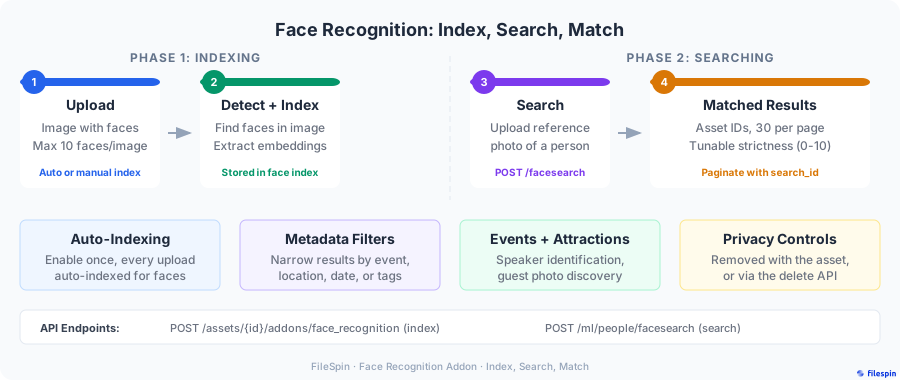
> **Availability**
>
> Face Recognition is not enabled by default. Contact [support@filespin.io](mailto:support@filespin.io) to add it to your account. Indexing an image uses AI credits.
---
## How it works
Face recognition has two halves:
- **Indexing** detects up to 10 faces in an image and stores an embedding for each: a set of numbers that describes the face, not a copy of it. The asset's `_filespin_fr_count` metadata field records how many faces were found. Indexing runs in the background.
- **Searching** takes the most prominent face in a reference photo, compares it with the indexed faces in your account and returns the matching assets. The reference photo is discarded when the search completes.
Only indexed images can be found, so indexing comes first.
---
## Step 1: Index your images
### Index automatically on upload
For most accounts, the right setup is to index every new image as it arrives. Admins and managers set this up in the Dashboard:
1. Open **Admin → Add-ons**.
2. On the **Face Recognition and Search** card, turn the addon on.
3. Select the gear icon to open the trigger settings.
4. Enable **When asset is saved** to index each new upload. **When asset metadata is updated** indexes an asset when its metadata changes instead.
5. Optionally, add schema field conditions so only relevant assets are indexed, such as assets whose `event` field is set. Narrower conditions mean fewer images processed and fewer credits used.
Leave **Process derived assets** off unless you want FileSpin-generated outputs, such as background-removed copies, indexed as well. Otherwise the same face is indexed twice.
The same trigger settings are available through the [Update Addons Settings](https://developers.filespin.io/api-reference/user/update-addons-settings-post/) API. That call replaces the account's whole addon configuration, so send every addon's current settings along with the change.
### Index images you already have
Triggers only act on new events, so images uploaded before you turned indexing on need indexing separately:
- **In the Dashboard,** the **Reprocess Assets** page (admins and managers) takes a comma-separated list of asset IDs and the addons to run on them. Tick **Face Recognition**.
- **With the API,** queue each image with [Index Faces](https://developers.filespin.io/api-reference/addons/face-recognition-post/):
```bash
curl -X POST "https://app.filespin.io/api/v1/assets/ASSET_ID/addons/face_recognition" \
-H "X-FileSpin-Api-Key: YOUR_API_KEY" \
-H "Content-Type: application/json" \
-d '{"disposition": {"update_metadata": true}}'
```
The response is HTTP 202 with an empty body: the image is queued. HTTP 409 means the asset is already indexed. [Face Index Status](https://developers.filespin.io/api-reference/addons/get-request-status-get/) reports `QUEUED`, `PROCESSING`, `DONE` or `ERROR` for about a day after the request.
To find images that are already indexed, run an [asset search](https://developers.filespin.io/guides/search-patterns/) with `"addons_criteria": ["FACE_RECOGNITION"]`, or tick **Face Recognition** under **Addons Processed** in the Dashboard filter panel.
---
## Step 2: Search by face
### In the Dashboard
When the addon is enabled, the search bar on the Assets page shows a face icon.
1. Select the face icon.
2. Take a photo with your camera, or select **Browse from files** to pick a JPEG or PNG reference photo.
3. To narrow the search, pick a schema under **Filters**, fill in the fields to match (for example, the event and day) and select **Submit**.
Matches appear in the normal asset grid with a **Face search active** pill. Keyword search, sorting and the regular filter panel are off while a face search is active. Remove the reference photo from the search bar to return to normal search.
### With an AI agent
The `search_by_face` tool on the [FileSpin MCP Server](https://developers.filespin.io/guides/ai-agent-integration/) takes the reference face in three ways: an image already in FileSpin (by asset ID), a photo shared in the conversation, or a public image URL. Photos passed in the conversation or by URL are not stored.
- _"Use asset 9f2c… as the face reference and find every photo of this person from the Lisbon summit."_
- _"Here is a photo of our keynote speaker. Find all matching photos, add them to a collection called Keynote – Day 1 and create a share page for the speaker's team."_
- _"Find all photos of this guest from today, then build a gallery share that expires in 7 days."_
The second and third prompts show where an agent earns its keep: it chains the face search with tagging, collections and [Branded Share Pages](https://developers.filespin.io/guides/sharing-assets/), which would otherwise be several manual steps.
### With the API
[Face Search](https://developers.filespin.io/api-reference/addons/face-search-post/) is a multipart form upload:
```bash
curl -X POST "https://app.filespin.io/api/v1/ml/people/facesearch" \
-H "X-FileSpin-Api-Key: YOUR_API_KEY" \
-F "image=@reference-photo.jpg" \
-F "strictness=9.5" \
-F 'filters={"event": "lisbon-summit", "day": "1 2"}'
```
```json
{
"data": {
"matches": [
"a1b2c3d4e5f6789012345678abcdef90",
"b2c3d4e5f6789012345678abcdef901a"
]
},
"page": 1,
"search_id": "eed4c602a80a4920a4a9e56b5d3ea161",
"limit_per_page": 30,
"hits": 2
}
```
| Form field | Meaning |
| --- | --- |
| `image` | Reference photo, up to 10 MB. Only the most prominent face is used. |
| `strictness` | 0 (loose) to 10 (strict). Default 9.9. |
| `filters` | JSON string of metadata fields to match, described below. |
| `limit_per_page` | 1 to 30. Default 30. |
| `extended_result` | `true` adds Asset Data for each match under `data.extended_result`. |
**Strictness** trades recall for precision. The default of 9.9 returns only close matches. If you know a person is in photos that are not being found, lower it in small steps, such as 9.5 and then 9.0, and check the extra results for look-alikes as you go.
**Filters** narrow matches by asset metadata:
- Fields are ANDed together. Field names are case-sensitive.
- Space-separated values in one field are ORed: `{"day": "1 2"}` matches day 1 or day 2.
- Fields whose names end in `Date` take an inclusive ISO 8601 range: `{"captureDate": ["2026-03-01T00:00:00Z", "2026-03-03T23:59:59Z"]}`.
- Filters need face recognition to be running from the addon's trigger settings (Step 1).
### Paging through matches
`hits` is the total number of matches. Later pages come from [Paginated Search Results](https://developers.filespin.io/api-reference/addons/retrieve-paginated-search-get/) with the `search_id`:
```bash
curl "https://app.filespin.io/api/v1/ml/people/facesearch?search_id=eed4c602a80a4920a4a9e56b5d3ea161&page=2" \
-H "X-FileSpin-Api-Key: YOUR_API_KEY"
```
The page request has its own `limit_per_page` (default 30) and `extended_result` (default `false`) parameters. They do not carry over from the first request, so send the same values on every page, or page numbers will not line up with the first page. A loop that reads every match:
```python
import math
import requests
API_BASE = "https://app.filespin.io/api/v1"
HEADERS = {"X-FileSpin-Api-Key": "YOUR_API_KEY"}
PER_PAGE = 30
with open("reference-photo.jpg", "rb") as f:
first = requests.post(
f"{API_BASE}/ml/people/facesearch",
headers=HEADERS,
files={"image": f},
data={"strictness": "9.5", "limit_per_page": str(PER_PAGE)},
).json()
matches = list(first["data"]["matches"])
for page in range(2, math.ceil(first["hits"] / PER_PAGE) + 1):
resp = requests.get(
f"{API_BASE}/ml/people/facesearch",
headers=HEADERS,
params={"search_id": first["search_id"], "page": page, "limit_per_page": PER_PAGE},
)
resp.raise_for_status()
matches.extend(resp.json()["data"]["matches"])
print(f"{len(matches)} matching assets")
```
---
## Face data and privacy
| Data | Kept? |
| --- | --- |
| Face embeddings for indexed images | Yes, until you delete them |
| Reference photos used for search | No, discarded when the search completes |
| Face count (`_filespin_fr_count`) | Yes, in the asset's metadata |
You control how long face data is kept: it stays until you delete it, in one of two ways:
- **When you delete an asset,** FileSpin deletes its face data as part of the deletion. This applies to single and bulk deletes.
- **On request,** [Delete Face Data](https://developers.filespin.io/api-reference/addons/delete-data-post/) removes the face data for up to 100 assets per call while keeping the assets themselves. Deletion is asynchronous (HTTP 202) and usually completes within seconds. This endpoint needs the admin role.
```bash
curl -X POST "https://app.filespin.io/api/v1/assets/addons/face_recognition/delete" \
-H "X-FileSpin-Api-Key: YOUR_API_KEY" \
-H "Content-Type: application/json" \
-d '{"ids": ["a1b2c3d4e5f6789012345678abcdef90", "b2c3d4e5f6789012345678abcdef901a"]}'
```
Deleting face data keeps the `_filespin_fr_count` field, so the asset still shows how many faces it had. To index the asset again later, delete its face data first: indexing an asset that is already indexed returns HTTP 409.
You decide which images are indexed and are responsible for having the right to process the faces in them. [Face Recognition Data Handling](https://developers.filespin.io/api-reference/addons/face-recognition-data-handling/) describes how FileSpin stores and protects face data.
---
## Limitations
- **10 faces per image** are indexed. In crowd shots, some faces will not be.
- **Image quality decides accuracy.** Small faces (under about 40×40 pixels), strong angles, blur and harsh lighting all reduce matches. See [Face Recognition Limitations](https://developers.filespin.io/api-reference/addons/face-recognition-limitations/).
- **One face per search.** If the reference photo has several people, only the most prominent face is used. Crop to the person you want.
- **Indexing is asynchronous.** A photo uploaded a moment ago may not be searchable yet.
---
## Best practices
1. **Index on upload, with conditions.** Automatic indexing keeps coverage complete. Schema conditions keep it to the images that need it, which keeps the credit spend proportional.
2. **Use clear reference photos.** A sharp, well-lit, front-facing photo of one person does more for results than any strictness setting.
3. **Lower strictness only when you are missing known matches.** Lower it in small steps and check what each step adds.
4. **Record the facts you will filter on at upload.** Event, day, venue and photographer in schema fields make face search filters possible. They are hard to add afterwards.
5. **Delete face data you no longer need.** When an event's photos have been delivered, delete the face data for those assets, even if you keep the images.
---
## Next steps
- [Search patterns](https://developers.filespin.io/guides/search-patterns/): combine metadata filters and paging with any search
- [Branded Share Pages](https://developers.filespin.io/guides/sharing-assets/): deliver matched photos to speakers, sponsors or guests
- [AI agent integration](https://developers.filespin.io/guides/ai-agent-integration/): chain face search with tagging, collections and shares
- [Face Recognition API reference](https://developers.filespin.io/api-reference/addons/addons-face-recognition/)
# Search Patterns and Best Practices
Source: https://developers.filespin.io/guides/search-patterns/
Find assets by keyword, file type, upload date, custom metadata and addon status, in the Dashboard, through an AI agent or with the Search API, and page through large result sets.
A DAM that cannot find things is a storage bill. Retail teams look for every approved shot of one product line, event teams for last Tuesday's keynote photos, attractions for one day's captures at one ride. The asset is almost always there. The question is whether the search can narrow to it before someone gives up and asks a colleague.
FileSpin runs the same search behind the Dashboard, the AI agent and the REST API. A filter you set in one behaves the same in the others, so a search a marketer builds in the Dashboard is the search a developer later automates. This guide covers the criteria you can combine, how paging works, and the patterns that keep result sets small enough to be useful.
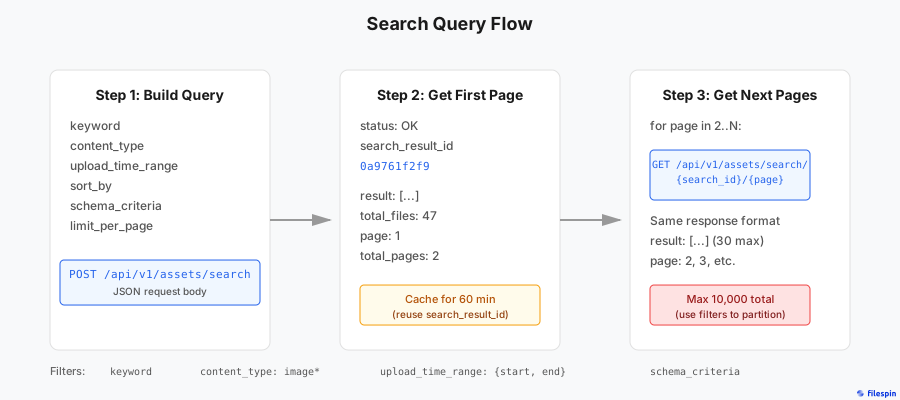
---
## What you can search on
Every search is a set of criteria. All criteria in one search are combined with AND: an asset must match every one.
| Criterion | Matches | Dashboard | API field |
| --- | --- | --- | --- |
| Keyword | Words in file names (3+ characters), image auto-tags, text found in images, the system and path an asset was imported from, and custom fields marked `keyword_searchable` (or `filespin_search_txt` on assets without a schema) | Search bar | `keyword` |
| File name | File names, with `*` as a suffix wildcard | Filter panel: File Name | `file_name` |
| File type | MIME type, with `*` wildcard (`image*`, `video*`, `application/pdf`) | Filter panel: Content Type | `content_type` |
| Upload date | Inclusive range, UTC | Filter panel: Upload Date | `upload_time_range` |
| Custom metadata | Fields from your asset schemas marked `searchable` | Filter panel: Asset Schema | `schema_criteria` |
| Addon processed | Assets an addon has processed, such as face recognition or auto-tags | Filter panel: Addons Processed | `addons_criteria` |
| File size | Inclusive range in bytes | Sort only | `file_size_range` |
| Uploaded by | One user in your user group | — | `creator_id` |
| Specific assets | Up to 100 asset IDs | — | `ids` |
| Deleted assets | Assets in the trash, not yet purged (admins only) | Deleted Assets page | `trashed` |
Custom fields only become searchable when the schema says so. Mark a field `searchable` to filter on it, and `keyword_searchable` to have the keyword box match it too. The [custom metadata schemas guide](https://developers.filespin.io/guides/asset-schemas/) covers schema design.
---
## Search in the Dashboard
The Assets page is where most people search, and it exposes most of the criteria above without writing a query.
1. **Type in the search bar** for a keyword search. Results update as you type.
2. **Open the filter panel** with the sliders icon to add file name, content type, upload date, asset status, addons processed and asset schema filters. For a schema filter, pick the schema, fill in the fields you care about and select **Submit**.
3. **Check the filter pills** above the results. Every active filter shows as a pill you can remove, with **Clear all** to start again. If a search returns fewer assets than expected, a forgotten pill is the usual reason.
4. **Sort** with the **Sort by** menu: upload date, file name, content type or file size. Select the active option again to flip between ascending and descending. The default is newest upload first.
5. **Page** through results with the pager at the bottom. You can show 12, 18 or 30 assets per page.
Deleted assets do not appear in normal searches. Admins can search them on the **Deleted Assets** page, which has its own keyword search, sorting and content-type filter.
---
## Search with an AI agent
Through the [FileSpin MCP Server](https://developers.filespin.io/guides/ai-agent-integration/), an agent turns a plain request into the same search criteria. When you use the agent inside the Dashboard, the filters it applies show up as the same pills, so you can see exactly what it searched for and adjust it by hand.
Prompts that work well name the criteria the way you would set them in the filter panel:
- _"Find all PDFs uploaded in March with 'brand guidelines' in the file name."_
- _"Show the 10 most recent images where the campaign field is spring-2026 and status is approved."_
- _"Find images older than 18 months that have never been processed for auto-tags."_
- _"List every video uploaded last week, largest first."_
Agents are good at the follow-up step that search alone does not do: tag the results, add them to a collection or build a [Branded Share Page](https://developers.filespin.io/guides/sharing-assets/) from them, in the same conversation.
---
## Search with the API
The Search API uses two calls:
1. `POST /api/v1/assets/search` runs the search and returns the first page plus a `search_result_id`.
2. `GET /api/v1/assets/search/{search_result_id}/{page}` returns later pages of the same search.
A request combines whichever criteria you need:
```bash
curl -X POST "https://app.filespin.io/api/v1/assets/search" \
-H "X-FileSpin-Api-Key: YOUR_API_KEY" \
-H "Content-Type: application/json" \
-d '{
"keyword": "summer",
"content_type": "image*",
"upload_time_range": {
"start": "2026-01-01T00:00:00Z",
"end": "2026-06-30T23:59:59Z"
},
"schema_criteria": {
"data_schema_id": 3,
"fields": {
"category": "clothing",
"status": "approved"
}
},
"sort_by": ["upload_time_range_DESC"]
}'
```
The response lists asset IDs for the first page:
```json
{
"status": "OK",
"search_result_id": "0a9761f2f9",
"result": [
"a1b2c3d4e5f6789012345678abcdef90",
"b2c3d4e5f6789012345678abcdef901a"
],
"total_files": 47,
"page": 1,
"total_pages": 2
}
```
The full parameter list is in the [Search API reference](https://developers.filespin.io/api-reference/asset-search/search-standard-options-post/).
### Keyword rules
- **OR or AND, not both.** `beach OR sunset` matches either word. `beach AND sunset` matches both. A keyword cannot mix `AND` and `OR`, and is limited to 40 words.
- **Exact phrases go in double quotes.** To match `ABC 123` as a phrase, send `"\"ABC 123\""`.
- **Quote words with special characters.** `+ - && || ! ( ) { } [ ] ^ " ~ * ? : \ /` have meaning in a query, so search for `ABC-123` as `"\"ABC-123\""`.
- **File names match on words of three or more characters.** A file called `IMG_04.jpg` will not be found by keyword `04`. Use the `file_name` criterion with a wildcard instead: `IMG_04*`.
### Custom metadata
`schema_criteria` matches values in fields your schemas mark as `searchable`. Values support the same `OR`, suffix wildcard (`john*`) and quoting rules, and number fields take a range:
```json
{
"schema_criteria": {
"data_schema_id": 42,
"fields": {
"season": "spring OR summer",
"sku": "SNK-24*",
"rating": [4, 5]
}
}
}
```
[Advanced Search Options](https://developers.filespin.io/api-reference/asset-search/advanced-search-options/) has the full syntax.
### Sorting
`sort_by` takes a list of keys, each ending in `_ASC` or `_DESC`. The keys are `upload_time_range`, `file_name`, `content_type` and `file_size_range`. The first key is the primary sort and later keys break ties. Without `sort_by`, results come newest upload first.
### Paging through results
Each page holds up to 30 asset IDs (`limit_per_page`, 1 to 30). A few rules shape any code that reads more than one page:
- **A `search_result_id` lasts 60 minutes.** It stores the search criteria, not the results: each page request runs the search again, so newly uploaded assets can appear and page contents can shift. After 60 minutes the ID returns HTTP 410. Run the search again to get a new one.
- **A search can page through 10,000 results at most.** `total_files` can be higher than what `total_pages` lets you read. Split larger result sets with narrower criteria, such as one month of `upload_time_range` at a time.
- **Pages can hold fewer IDs than `limit_per_page`.** Assets the caller cannot access are left out of the page. Count pages, not IDs.
- **Requesting a page past `total_pages` returns HTTP 400.**
So loop over `total_pages` rather than comparing the number of IDs you have collected with `total_files`:
```python
import requests
API_BASE = "https://app.filespin.io/api/v1"
HEADERS = {"X-FileSpin-Api-Key": "YOUR_API_KEY"}
first = requests.post(
f"{API_BASE}/assets/search",
headers=HEADERS,
json={"content_type": "image*", "keyword": "product"},
).json()
asset_ids = list(first["result"])
for page in range(2, first["total_pages"] + 1):
resp = requests.get(
f"{API_BASE}/assets/search/{first['search_result_id']}/{page}",
headers=HEADERS,
)
resp.raise_for_status()
asset_ids.extend(resp.json()["result"])
print(f"{len(asset_ids)} of {first['total_files']} assets read")
```
### Asset data in the results
Set `"extended_result": true` to get the full [Asset Data](https://developers.filespin.io/api/asset-data-format/) for every asset on the page, keyed by asset ID, alongside the `result` list. It saves a request per asset but makes the search slower. Use it when you are about to display or process the assets, and leave it off when you only need IDs.
### Duplicates and the trash
- `GET /api/v1/assets/{asset_id}/content/original/duplicates` returns the IDs of other assets whose original file has the same MD5 checksum, whatever their file names. See [Find Duplicates](https://developers.filespin.io/api-reference/asset-search/find-duplicates-get/).
- `"trashed": true` searches deleted assets that have not been purged yet. It needs the admin role.
---
## Best practices
1. **Start from the narrowest criterion you have.** A content type and an upload date range cut most libraries down faster than a longer keyword does.
2. **Put the facts you filter on in schema fields.** Status, campaign, SKU and season work better as `searchable` schema fields than as words in a file name. Exact values match exactly, and ranges work on numbers.
3. **Turn keyword search on deliberately.** Mark free-text fields such as descriptions `keyword_searchable` so the search bar finds them. Leave codes and statuses as plain `searchable` fields so a keyword search does not match them by accident.
4. **Sort explicitly when order matters.** Newest first is the default. If a report or export depends on order, send `sort_by` so the result does not change if the default ever does.
5. **Partition anything over 10,000 results.** Split by month or by content type and run each slice as its own search.
6. **Ask for asset data only when you use it.** `extended_result` is the right call for a page you are about to render, and wasted work for a job that only needs IDs.
---
## Next steps
- [Custom metadata schemas](https://developers.filespin.io/guides/asset-schemas/): design fields that search well
- [Face recognition](https://developers.filespin.io/guides/face-recognition/): find people by face, not keyword
- [AI agent integration](https://developers.filespin.io/guides/ai-agent-integration/): search and act on results in one conversation
- [Search API reference](https://developers.filespin.io/api-reference/asset-search/asset-search-api-introduction/)
# Real-time Notifications with Webhooks
Source: https://developers.filespin.io/guides/webhooks/
Setting up webhook callbacks, understanding event types and payloads, handling retries, and building reliable event-driven integrations.
## Why event-driven is essential for media workflows
Media teams in eCommerce, events, attractions, and real estate rely on fast asset delivery. Polling the API to check if an asset has been processed, or scanning for new uploads, wastes resources and adds latency—and in high-volume environments, it simply doesn't scale. Webhooks flip the model: instead of your application asking FileSpin "anything new?", FileSpin tells your application the moment something happens. This is essential for retail teams launching seasonal campaigns, event organizers managing thousands of submissions under deadline, attractions maximizing preview-to-purchase conversion, and real estate teams publishing listings to multiple portals instantly.
This guide covers setting up webhooks, understanding the event types and payloads, and building reliable, event-driven integrations.

---
## Why webhooks matter
Without webhooks, a typical integration polls repeatedly:

With webhooks, FileSpin pushes events to your app the moment they happen:

---
## Setting up webhooks
Webhooks are configured in your FileSpin account settings. You specify one or more callback URLs to receive POST notifications when asset events occur.
### Configure via Dashboard
1. Navigate to **Settings** in your FileSpin Dashboard
2. In the **Webhooks** section, add your callback URL (e.g., `https://your-app.com/webhooks/filespin`)
3. Save your settings
You can configure multiple webhook URLs. FileSpin will POST to all configured URLs whenever an asset event occurs.
## Webhook events
FileSpin sends webhook callbacks for the following asset lifecycle events:
| Event | When it fires | Common use case |
| --- | --- | --- |
| `file-saved` | File is stored in your storage after upload (File Picker or Upload API) | Insert new asset into your database |
| `file-processed` | Image and video conversions are processed (upload workflow or Conversion API) | Mark asset as ready, cache CDN URLs, enable in UI |
| `file-data-updated` | Custom data is attached via FileSpin.update or Update File Data API | Sync metadata changes to your application |
| `file-deleted` | Conversions, transcodes, or the original file is deleted via Delete API | Soft-delete or archive in your application |
| `file-undeleted` | Original file is undeleted via Undelete API | Restore references in your application |
| `addon-processed` | An addon has completed processing | React to addon-specific results (face recognition, background removal, etc.) |
### Event flow for a typical upload
```
Upload ──> file-saved ──> file-processed
```
1. **`file-saved`** fires when the original file is stored. At this point, the asset has core metadata (name, size, content type, dimensions) but no conversions or transcodes yet.
2. **`file-processed`** fires when all automatic processing is complete. The asset now has its generated conversions, transcodes, and addon results.
For metadata updates:
```
Update data ──> file-data-updated
```
For deletion and restoration:
```
Delete ──> file-deleted ──> Undelete ──> file-undeleted
```
---
## Webhook payload
### Standard events (file-saved, file-processed, file-data-updated, addon-processed)
For these events, the webhook payload is the [Asset Data Format](https://developers.filespin.io/api/asset-data-format/) — the same JSON structure returned by the Asset API. This includes:
```json
{
"id": "99d819953914402babbdeb68337ea6a3",
"status": "OK",
"name": "product-photo.jpg",
"size": 2456789,
"checksum": "d41d8cd98f00b204e9800998ecf8427e",
"content_type": "image/jpeg",
"creator_id": 42,
"upload_time": "2026-02-17T10:30:00Z",
"update_time": "2026-02-17T10:30:05Z",
"metadata": {
"width": 4000,
"height": 3000
},
"data": {
"product_name_txt": "Summer Straw Hat",
"sku_s": "HAT-STR-001"
},
"conversions": {
"720p-video": {
"width": 1280,
"height": 720,
"size": 716000,
"public": true
}
},
"addons_info": {
"ON_DEMAND_IMAGE": {
"available": true
}
}
}
```
On-demand image (ODI) is available for assets after they are processed the first time. Availability is indicated by the `ON_DEMAND_IMAGE` key in `addons_info`.
**Key fields to check:**
| Field | Purpose |
| --- | --- |
| `id` | The asset ID — use to match with your database records |
| `status` | Current asset status (`OK`, `NOT_READY`, `ERROR`, `ARCHIVED`) |
| `data` | Custom metadata (if a schema is assigned) |
| `conversions` | Available conversions and transcodes |
| `addons_info` | Which addons have been processed |
### Deletion events (file-deleted, file-undeleted)
These events use a different payload format:
```json
{
"event": "file-deleted",
"id": "99d819953914402babbdeb68337ea6a3",
"keys": ["deepzoom"],
"status": "OK",
"message": ""
}
```
| Field | Type | Description |
| --- | --- | --- |
| `id` | string | File ID |
| `event` | string | `file-deleted` or `file-undeleted` |
| `keys` | JSON | List of keys sent in original deletion request |
| `status` | string | `OK` if successful, `MAYBE` if uncertain (check `message`), `ERROR` if failed (see `errors`) |
| `message` | string | Additional details about status |
| `errors` | JSON | Keys that failed and error messages (when status is `ERROR`) |
**Example file-deleted with error:**
```json
{
"event": "file-deleted",
"id": "99d819953914402babbdeb68337ea6a3",
"keys": ["deepzoom"],
"status": "ERROR",
"message": "S3 Permission denied",
"errors": {
"deepzoom": "S3 Permission denied"
}
}
```
---
## Building a webhook handler
Here's a practical webhook handler that processes different events:
### Python (Flask)
```python
from flask import Flask, request, jsonify
app = Flask(__name__)
@app.route("/webhooks/filespin", methods=["POST"])
def handle_webhook():
payload = request.get_json()
# Deletion events include an "event" field
event = payload.get("event")
if event in ("file-deleted", "file-undeleted"):
handle_deletion_event(payload)
else:
handle_asset_event(payload)
return jsonify({"status": "ok"}), 200
def handle_asset_event(asset_data):
"""Handle file-saved, file-processed, file-data-updated, addon-processed."""
asset_id = asset_data["id"]
status = asset_data.get("status")
name = asset_data.get("name")
content_type = asset_data.get("content_type")
if status == "NOT_READY":
# file-saved: asset uploaded but not yet processed
print(f"New asset saved: {name} ({content_type})")
# db.assets.insert(asset_id=asset_id, name=name, status="processing")
elif status == "OK":
# file-processed: all conversions complete
conversions = asset_data.get("conversions", {})
urls = asset_data.get("urls", {})
available_formats = list(conversions.keys())
print(f"Asset processed: {asset_id}, formats: {available_formats}")
# db.assets.update(asset_id, status="ready", formats=available_formats, urls=urls)
elif status == "ERROR":
errors = asset_data.get("errors", {})
print(f"Processing failed for {asset_id}: {errors}")
# db.assets.update(asset_id, status="error", errors=errors)
def handle_deletion_event(payload):
"""Handle file-deleted and file-undeleted."""
asset_id = payload["id"]
event = payload["event"]
status = payload.get("status")
keys = payload.get("keys", [])
if event == "file-deleted":
print(f"Asset deleted: {asset_id}, keys: {keys}, status: {status}")
# db.assets.mark_deleted(asset_id)
elif event == "file-undeleted":
print(f"Asset restored: {asset_id}, keys: {keys}")
# db.assets.mark_active(asset_id)
if __name__ == "__main__":
app.run(port=5000)
```
### Node.js (Express)
```javascript
const express = require("express");
const app = express();
app.use(express.json());
app.post("/webhooks/filespin", (req, res) => {
const payload = req.body;
const event = payload.event;
if (event === "file-deleted" || event === "file-undeleted") {
handleDeletionEvent(payload);
} else {
handleAssetEvent(payload);
}
res.status(200).json({ status: "ok" });
});
function handleAssetEvent(assetData) {
const { id, status, name, content_type } = assetData;
if (status === "NOT_READY") {
console.log(`New asset saved: ${name} (${content_type})`);
// Insert into database
} else if (status === "OK") {
const formats = Object.keys(assetData.conversions || {});
console.log(`Asset processed: ${id}, formats: ${formats}`);
// Update database with URLs and formats
} else if (status === "ERROR") {
console.error(`Processing failed: ${id}`, assetData.errors);
// Log error, alert ops
}
}
function handleDeletionEvent(payload) {
const { id, event, keys, status } = payload;
if (event === "file-deleted") {
console.log(`Asset deleted: ${id}, keys: ${keys}`);
// Soft delete from your system
} else if (event === "file-undeleted") {
console.log(`Asset restored: ${id}`);
// Restore in your system
}
}
app.listen(5000);
```
---
## Retry behavior and delivery guarantees
- **At-least-once delivery** — Webhook callbacks are attempted up to **8 times** if your endpoint does not respond with an HTTP 20x code (200, 201, or 202).
- **Exponential backoff** — Retries follow a back-off algorithm that spreads attempts over an **8-hour period**.
- **Idempotency** — Your endpoint may receive the same webhook more than once. Use the `asset_id` as a key to detect and handle duplicate deliveries.
---
## Reissuing callbacks
If your endpoint was down or missed callbacks, you can reissue them for a specific time range.
### Via Dashboard
Navigate to **Dashboard > Tools** and use the reissue option.
### Via API
Send a POST request with an `ASSET_ADMIN` role API key:
```bash
curl -X POST "https://app.filespin.io/api/v1/callbacks/reissue" \
-H "X-FileSpin-Api-Key: YOUR_API_KEY" \
-H "Content-Type: application/json" \
-d '{
"start_date": "2026-02-01T00:00:00Z",
"end_date": "2026-02-07T23:59:59Z"
}'
```
**Constraints:**
- Time range is limited to a maximum of **7 days**
- Only assets belonging to the authenticated user are reissued
- Returns `202 Accepted` — the operation is asynchronous
---
## Real-world pattern: syncing assets to your application database
Here's a common pattern that you can use to keep your application's database in sync with FileSpin using webhooks.

**PYTHON**
```python
def sync_asset(payload):
event = payload.get("event")
if event in ("file-deleted", "file-undeleted"):
asset_id = payload["id"]
if event == "file-deleted":
db.execute(
"UPDATE assets SET status='deleted', deleted_at=NOW() WHERE id=%s",
(asset_id,)
)
elif event == "file-undeleted":
db.execute(
"UPDATE assets SET status='active', deleted_at=NULL WHERE id=%s",
(asset_id,)
)
return
asset_id = payload.get("id")
status = payload.get("status")
if status == "NOT_READY":
# file-saved
db.execute(
"INSERT INTO assets (id, name, content_type, status, created_at) "
"VALUES (%s, %s, %s, 'processing', NOW()) "
"ON DUPLICATE KEY UPDATE name=%s",
(asset_id, payload["name"], payload["content_type"], payload["name"])
)
elif status == "OK":
# file-processed
conversions = payload.get("conversions", {})
urls = payload.get("urls", {})
addons_info = payload.get("addons_info", {})
db.execute(
"UPDATE assets SET status='ready', conversions=%s, "
"urls=%s, addons_info=%s, updated_at=NOW() WHERE id=%s",
(
json.dumps(conversions),
json.dumps(urls),
json.dumps(addons_info),
asset_id
)
)
```
---
## Testing webhooks locally
During development, your webhook endpoint runs on `localhost`, which FileSpin can't reach. Use a tunneling tool to expose your local server:
### Using ngrok
```bash
# Start your local webhook handler
python webhook_handler.py # Runs on port 5000
# In another terminal, create a tunnel
ngrok http 5000
```
ngrok gives you a public URL like `https://abc123.ngrok.io`. Configure this as your webhook URL in FileSpin settings.
### Using cloudflared
```bash
cloudflared tunnel --url http://localhost:5000
```
> **Tip**
>
> Remember to update your webhook URL to your production endpoint before going live. Development tunnel URLs are temporary.
---
## Best practices
1. **Return 200 quickly.** Process webhook payloads asynchronously. Accept the webhook, queue the work, and return 200 immediately. If your handler takes too long, the connection may time out and trigger unnecessary retries.
2. **Handle duplicate deliveries.** Network issues can cause the same webhook to be delivered more than once. Use the `id` field to detect and skip duplicates.
3. **Log webhook payloads.** Store the raw payload for debugging. When something goes wrong, having the original webhook data is invaluable.
4. **Monitor your endpoint.** Track webhook delivery success rates. If your endpoint starts failing, you'll miss events and trigger retries.
5. **Use the reissue API for recovery.** If your endpoint was down, reissue callbacks for the affected time range rather than polling for every asset.
6. **Differentiate by status.** For standard events, use the `status` field (`NOT_READY`, `OK`, `ERROR`) to determine the event type rather than relying on separate event names in the payload.
---
# On-Demand Image Transformations: A Practical Guide
Source: https://developers.filespin.io/guides/image-transformations/
Build dynamic image URLs with resize, crop, format, quality and effects parameters, with tested recipes for responsive images, thumbnails, social cards, product images and placeholders.
Serving the same large original to a mobile thumbnail grid and a desktop hero banner wastes bandwidth. On-Demand Image (ODI) transformations let you resize, crop, convert formats, adjust quality and apply effects through URL parameters, with the results cached by the CDN.
This guide is the parameter catalogue with recipes. For a task-shaped walkthrough that starts from the Dashboard's **Get link / Embed** dialog and rolls a pattern out across a product catalogue, see [Change Product Image Sizes Without Re-Exporting](https://developers.filespin.io/guides/responsive-product-images/).
_Every example output below was checked on 26 September 2026 against the public demo asset `2e1bc0f4159343779b82923e951a9256`, a 4:3 landscape photo whose largest available output is 1024×768._
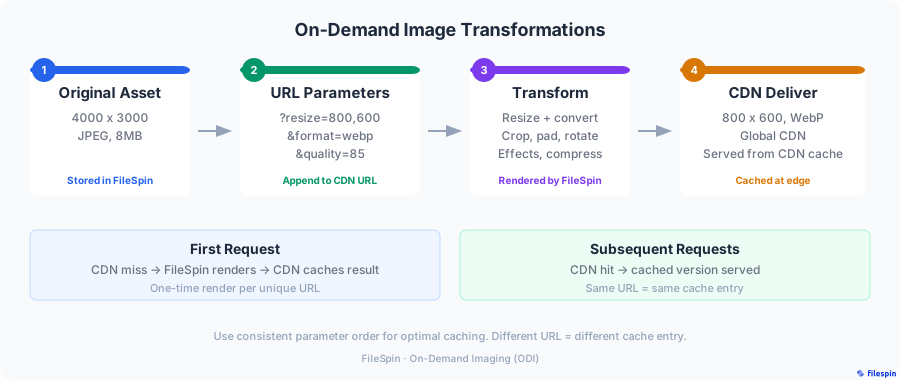
---
## How ODI works
Transformations are URL parameters on the asset's `conversions` endpoint:
```
https://cdn.filespin.io/api/v1/assets/{ASSET_ID}/conversions?resize=800,600&quality=85
```
```
Request ──> CDN cache ──(miss)──> FileSpin renders ──> CDN caches + returns
│
└──(hit)──> CDN returns cached image
```
The first request for a particular URL renders the image; later requests for the same URL are served from the CDN cache. If you use a custom FileSpin Enterprise CDN, use that host instead of `cdn.filespin.io`.
### Prerequisites
ODI needs the asset to be processed. Check the asset with the [Get Data API](https://developers.filespin.io/api-reference/assets/get-data-get/): `status` should be `OK` and `addons_info` should show `ON_DEMAND_IMAGE` as available.
```bash
curl -X GET "https://app.filespin.io/api/v1/assets/ASSET_ID/data" \
-H "X-FileSpin-Api-Key: YOUR_API_KEY"
```
```json
{
"id": "ASSET_ID",
"status": "OK",
"addons_info": {
"ON_DEMAND_IMAGE": {
"available": true
}
}
}
```
If `ON_DEMAND_IMAGE` is not yet available, the asset is still processing. Wait and check again. The [ODI overview](https://developers.filespin.io/image-transformations/) covers this and the delivery limits in more detail.
---
## Core transformations
### Resize
Fit the image inside a box without changing its aspect ratio:
```
?resize=800,600
```
Use `0` for one side to size by the other:
```
?resize=640,0 # 640 wide, height from the aspect ratio -> 640x480 on the demo asset
?resize=0,480 # 480 high, width from the aspect ratio -> 640x480 on the demo asset
```
`resize` fits within the box, so `resize=300,300` on a 4:3 image returns 300×225, not a square. To get an exact size, pad the gaps with a colour:
```
?resize=300,300,fill:white # 300x300, image centred on white
```
The fill value can be a colour name, a hex code such as `ffffff`, `transparent` or `auto`.
**Limits:** the maximum output is 2048×1536 pixels at 72 PPI, and `resize` does not upscale. Asking for more than the source can give returns the largest available size, with HTTP 200. Always check the dimensions you actually receive. [Resize reference](https://developers.filespin.io/image-transformations/resize/).
### Crop
Two forms:
```
?crop=600,300,center # width, height, alignment
?crop=150,170,200,50 # left, top, width, height (a region of the original)
```
Alignment can be `center`, `top`, `bottom`, `left`, `right` or `face`. With only `crop=width,height`, the crop centres on a detected face or feature. [Crop reference](https://developers.filespin.io/image-transformations/crop/).
### Format
```
?format=webp
?format=avif
?format=jpg
?format=png
```
When you leave `format` out, FileSpin picks the format from the browser's `Accept` header. On the demo asset, the same URL returned `image/avif`, `image/webp` or `image/jpeg` depending on what the browser offered, at the same pixel dimensions. Set `format` explicitly for email, partner feeds and any other consumer that is not a browser. [Format reference](https://developers.filespin.io/image-transformations/format/).
### Quality
Compression level from 1 to 100. The default is 90.
```
?quality=80
```
| Quality | Typical use |
| --- | --- |
| 85–90 | High-quality web photography |
| 70–85 | Product photos and general web images |
| 30–60 | Thumbnails and placeholders |
[Quality reference](https://developers.filespin.io/image-transformations/quality/).
### Background colour
Set the background for transparent images, for example when converting a PNG cut-out to JPEG:
```
?bgcolor=ffffff&format=jpg
```
Hex colour without the `#`. [Background colour reference](https://developers.filespin.io/image-transformations/background-color/).
### Trim
Remove a uniform border. The value is a colour tolerance:
```
?trim=10
```
[Trim reference](https://developers.filespin.io/image-transformations/trim/).
### Rotate and flip
```
?rotate=90 # 90, 180 or 270
?flip=h # mirror horizontally
?flip=v # mirror vertically
```
[Rotate reference](https://developers.filespin.io/image-transformations/rotate/) · [Flip reference](https://developers.filespin.io/image-transformations/flip/).
### Effects
```
?effects=grayscale
?effects=blur:5
?effects=roundcorner:30
?effects=grayscale,roundcorner:30 # combine with commas
```
[Effects reference](https://developers.filespin.io/image-transformations/effects/).
### Watermarks
Image and text watermarks (`watermark=` and `text_wm=`) take a source and placement values. See the [Watermark](https://developers.filespin.io/image-transformations/watermark/) and [Text Watermark](https://developers.filespin.io/image-transformations/text-watermark/) references for the syntax, and check the output on your own account before relying on it.
---
## Common recipes
Replace `ASSET_ID` with your asset's ID. The output sizes are from the demo asset.
### Recipe 1: Responsive hero image
Offer several widths and let the browser choose. Leave `format` out so each browser gets AVIF, WebP or JPEG:
```html
```
The `w` descriptors must match the widths you actually get back. A source smaller than 1440 pixels wide returns its largest size for the 1440 candidate, so adjust the list to your sources.
### Recipe 2: Square thumbnail grid
`resize` alone does not give squares. Crop, or pad:
```
?crop=300,300,center # fills the square, trims the edges
?resize=300,300,fill:white # keeps the whole image, pads to a square
```
### Recipe 3: Social media card
Open Graph images are usually 1200×630. Pad to the exact size with a fixed format:
```html
```
Returns 1200×630. Use `crop=1200,630,center` instead if you would rather fill the card and trim the edges.
### Recipe 4: E-commerce product image
White square, whole product visible:
```
?resize=800,800,fill:white&quality=85
```
### Recipe 5: Low-quality placeholder (LQIP)
A tiny, blurred placeholder to show while the full image lazy-loads:
```
?resize=40,0&quality=30&effects=blur:5&format=jpg
```
Returns 40×30 on the demo asset.
### Recipe 6: Download button
Make the browser save the file instead of displaying it:
```
?resize=2048,0&format=jpg&delivery=download&dl_prefix=product
```
The response carries `Content-Disposition: attachment; filename=product.jpg`. [Downloadable URL reference](https://developers.filespin.io/image-transformations/downloadable-url/).
---
## Public and private images
ODI URLs are public: anyone with the URL can load the image, and image URLs can't be signed. To keep an image private, use a non-public [custom conversion](https://developers.filespin.io/image-transformations/standard-odi-copy/#using-non-public-custom-image-conversion) and request it with an API key (server side) or a JWT. Never put an API key in a browser or in a public image URL.
- [Get Link API](https://developers.filespin.io/api-reference/assets/link-type-object-storage-get/): ask FileSpin for a ready-made link for a given conversion key (`key`), link type (`link_type=cdn` or `object_storage`) and delivery mode (`delivery=display` or `download`).
---
## Performance tips
1. **Keep URL patterns consistent.** The CDN caches by URL, so `?resize=800,600&quality=80` and `?quality=80&resize=800,600` are separate cache entries even though they return the same image. Build image URLs in one shared helper.
2. **Use a small, fixed set of sizes** (for example 320, 640, 1024 and 1440) rather than arbitrary pixel values. Every distinct URL is another render and another cache entry.
3. **Let format negotiation work.** Leave `format` out for browser delivery. Set it only for email, feeds and other non-browser consumers.
4. **Prefer resize to crop for responsive layouts.** Resize keeps the whole image; crop discards part of it. Crop when a placement needs a fixed aspect ratio, and check the result, especially with `face` alignment.
5. **Pre-warm images you know will be popular.** The [CDN Prefetch API](https://developers.filespin.io/api-reference/cdn/prefetch-post/) primes the cache before a launch.
---
## Quick reference
| Transformation | Parameter | Example |
| --- | --- | --- |
| Resize | `resize=w,h` | `resize=800,600` |
| Resize and pad | `resize=w,h,fill:colour` | `resize=300,300,fill:white` |
| Crop (aligned) | `crop=w,h,align` | `crop=600,300,center` |
| Crop (region) | `crop=left,top,w,h` | `crop=150,170,200,50` |
| Format | `format=fmt` | `format=webp` |
| Quality | `quality=1–100` | `quality=80` |
| Background colour | `bgcolor=hex` | `bgcolor=ffffff` |
| Trim | `trim=tolerance` | `trim=10` |
| Rotate | `rotate=deg` | `rotate=90` |
| Flip | `flip=h` or `flip=v` | `flip=h` |
| Effects | `effects=name[:value]` | `effects=blur:5` |
| Download | `delivery=download&dl_prefix=name` | `delivery=download&dl_prefix=product` |
---
## Next steps
- [Change Product Image Sizes Without Re-Exporting](https://developers.filespin.io/guides/responsive-product-images/): the Dashboard-first walkthrough with responsive markup and a catalogue rollout checklist.
- [Asset lifecycle](https://developers.filespin.io/guides/asset-lifecycle/): make sure image processing has finished before using ODI.
- [Sharing assets](https://developers.filespin.io/guides/sharing-assets/): share images with people outside your account.
- [ODI overview and limitations](https://developers.filespin.io/image-transformations/): the full reference.
# Reviewing and Replacing Assets with Errors
Source: https://developers.filespin.io/guides/reviewing-assets/
Steps to resolve upload errors and replace failed assets in the FileSpin Dashboard.
Sometimes an upload fails when internet connection fails midway or invalid image or a video is uploaded that cannot be processed. Follow these steps to resolve such errors.
1. Review the asset in the Dashboard to check the possible error.
You can also open the asset in Detail view by clicking on the asset thumbnail. The error details are shown in the Core tab.
2. Click on **Replace Content** option to replace the asset file with a valid file. Once the new file is uploaded, thumbnail and other conversions will be automatically processed.
3. After allowing some time for processing to complete, verify all is well by refreshing the page and checking the asset again.
# Administrator Tools for Asset Links and CDN Cache Management
Source: https://developers.filespin.io/guides/asset-links-cdn/
How administrators can use Dashboard tools to get asset links, manage CDN cache, and reprocess assets.
If you are logged in as an Administrator, you can use the Tools menu option to:-
1. **Get Asset Links**: Use this form to get a set of URLs for assets, say, 720p video URLs or originals. You can specify whether the links should be downloadable or for display, set an expiry, etc
2. **CDN Prefetch/Purge**: Use this form to submit a set of URLs for CDN Prefetch (cache warming), or CDN Purge
3. **Reprocess Assets**: Use this form to reprocess assets to create newer conversions or re-generate conversions to apply new watermark, etc
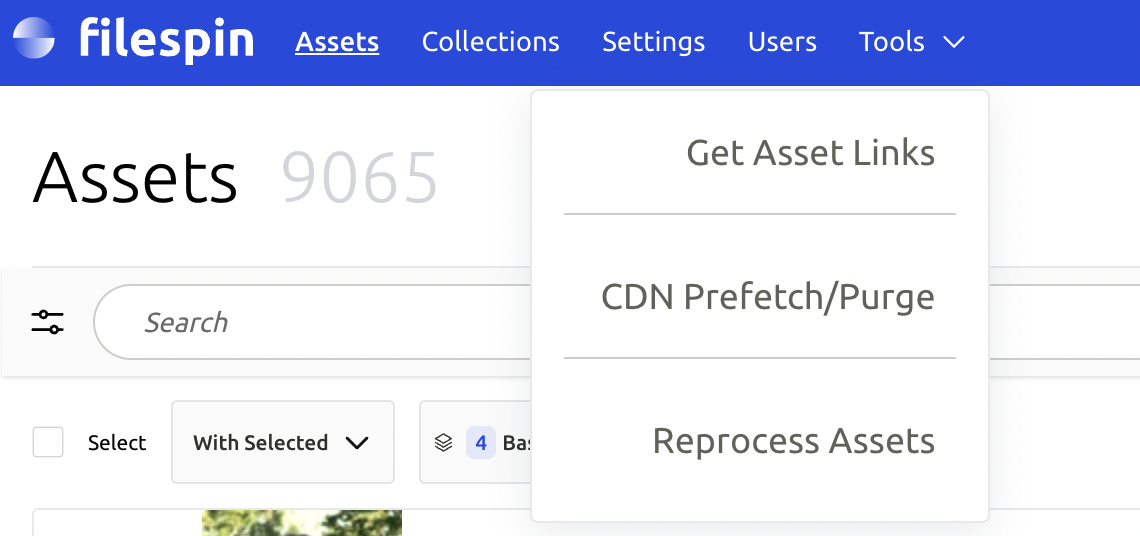
# Downloading Assets Programmatically
Source: https://developers.filespin.io/guides/downloading-assets/
Best practices for downloading asset content using the `/get_link` endpoint for superior performance and reliability.
For downloading asset content, the `/get_link` endpoint is the highly recommended and architecturally superior method. It provides significantly better performance and reliability compared to the `/download` endpoint, especially at scale or during peak traffic times, it allows global delivery optimizations and is secure as the download URL expiry can be set and API Key is not needed for download.
The process is a simple two-step flow:
1. Make a `GET` request to the `/get_link` endpoint for a specific asset.
2. Receive a secure URL in the JSON response and use this URL to download the file directly.
**Why You Should Use** `/get_link`
While it may seem like two steps, this workflow is intentionally designed for resilience and speed.
- **Isolates API from heavy lifting**: Our core API servers are optimized for high-speed metadata transactions (creating assets, search, etc.). Streaming large files via the `/download` endpoint is resource-intensive and is **intentionally throttled** during high traffic to protect the platform's overall stability. The `/get_link` method completely avoids this bottleneck.
- **Leverages scalable cloud storage**: The generated URL points directly to the asset in a massively scalable cloud object storage service. These systems are designed for high-throughput, resilient file delivery across the globe, which is far more efficient than proxying the download through an application server.
- **Superior performance**: The total time for the two-request process is consistently lower than a single `/download` request, especially for larger files.
1. The first call (`/get_link`) is an extremely fast metadata call.
2. The second call (downloading from the URL) is a direct, high-speed transfer from a dedicated file-serving network.
In summary, using the `/get_link` workflow is the industry best practice and the most robust and scalable way to download files from the FileSpin platform.
# Common Causes for Upload Failures in the Browser
Source: https://developers.filespin.io/guides/upload-failures/
Troubleshoot upload failures in the browser when using the FileSpin File Picker.
These are some of common causes and solutions for upload failures in the browser when using File Picker.
### Upload failed because:
1. There is no internet!
2. You loaded the html file using `file://` protocol in the web browser by opening via your file system instead of `http://`
3. You provided incorrect `uploadKey` when initialising the Picker
4. Your account settings do not allow uploads from the domain you are uploading from
### Developer Tip:
To test uploads from your computer, you must load the picker via `http` protocol in a browser. Here's how you can do that if you have python installed in your computer.
1. Place the `index.html` containing the picker embed code in a folder
2. Open a terminal window and change to the folder above
3. Run `python -m http.server`
4. Visit `http://localhost:8000/index.html`
# Frequently Asked Questions
Source: https://developers.filespin.io/guides/faq/
Common questions about FileSpin — file limits, storage, supported formats, browsers and devices.
### Is there a limit on how many files can be uploaded into my account?
It's unlimited for all accounts. We do not limit the number of files that can be uploaded into your account.
### Where are the files stored and how secure are our files with FileSpin.io?
Once user uploads a file using the FileSpin.io File Picker at your website, FileSpin.io securely stores the file in the Storage you have configured. If we cannot access your storage, we will store the file in our storage which you can access at any time.
All file transfers into and out of our servers are via secure protocols (HTTPS, SFTP).
### What are the file formats that can be uploaded using FileSpin.io File Picker?
FileSpin.io File Picker by default allows any file to be uploaded. You can configure the File Picker while deploying it to your website to limit uploads to specific formats such as JPG and PNG.
### Are there any file size limits for uploads, image processing and video conversion?
| File | Limit |
| --- | --- |
| File uploads | No limit |
| On-demand images and Custom conversions | By default FileSpin will handle upto 30 MB Maximum size for source image. For image processing of files larger than 30 MB, please contact us to setup large image handling options. |
| Video transcoding | No limit |
### What are the source image formats supported?
We support most standard and raw formats:-
| Type | Formats |
| --- | --- |
| Standard image formats supported | jpg, png, bmp, tiff, gif, and many more |
| RAW Formats supported | raf, cr2, iiq, mos, raw, rw2, tif, fff, 3fr, nef and many more |
### What are the source video formats supported?
| Type | Format |
| --- | --- |
| Source file formats supported | 3GP, AAC, AVI, FLV, MOV, MPEG-2, MP4, WMV and many more |
| Transcode output formats supported | H.264/MP4 and HLS formats suitable for Web, iOS and Android devices |
### What are the supported web browsers and devices?
| Type | Support |
| --- | --- |
| Supported Web Browsers | IE8 and above, all versions of Chrome, Firefox, Safari and Opera |
| Devices specific support | Android, iOS, Windows mobile browsers |
 ```
The following sections describe all the image transformations supported.
### ODI URLs are public
Anyone with an ODI URL can load the image. ODI URLs can't be signed or restricted to signed-in users. To restrict who can load an image, use a non-public [Custom Conversion](https://developers.filespin.io/image-transformations/standard-odi-copy/#using-non-public-custom-image-conversion), which needs an API key or a JWT.
The [Get Link](https://developers.filespin.io/api-reference/assets/link-type-object-storage-get/) API doesn't change this. Its links for image conversions aren't a way to restrict who can see an image, so don't use them to protect images. Signed display links are supported for [video transcodes](https://developers.filespin.io/video-streaming/signed-url-for-video-transcodes/) only.
### ODI Limitations
- On-demand image (ODI) is available for assets after they are processed. Availability of ODI for an asset is indicated with the _ON_DEMAND_IMAGE_ key in _addons_info_. See [Asset Data Format](https://developers.filespin.io/api/asset-data-format/) for more info.
- For large images and cloud files, FileSpin would return a low-resolution thumbnail image if ODI is requested immediately after upload. A short expiration time will be returned in HTTP response header in this case. The ODI URL will be updated with the normal ODI image after the file is processed, usually under 2 seconds.
- Note that ODI image has a maximum resolution of 2048x1536 and 72 PPI. If the original image has a larger resolution and higher PPI, ODI will be of lower quality than the original. Hence, ODI should not be used for purposes where original image quality is required.
### Showing an updated thumbnail
ODI responses are cached by the CDN and by browsers. When an asset's thumbnail changes, an ODI URL that was already used keeps returning the previous image for a while, **up to about 2 days**. A thumbnail changes when you:
- upload a custom thumbnail ([Upload Custom Thumbnail](https://developers.filespin.io/api-reference/assets/upload-asset-thumbnail-post/))
- set one from a video's storyboard ([Set Thumbnail from Storyboard](https://developers.filespin.io/api-reference/assets/set-asset-thumbnail-from-storyboard-post/))
- go back to the automatic one ([Revert Custom Thumbnail](https://developers.filespin.io/api-reference/assets/revert-asset-thumbnail-post/))
- replace the asset's file
To show the current thumbnail straight away, add the thumbnail's version to the URL as `v`:
`https://cdn.filespin.io/api/v1/assets/{ASSET_ID}/conversions?resize=200,200&v={VERSION}`
`{VERSION}` is `addons_info.ON_DEMAND_IMAGE.version` from [Get Data](https://developers.filespin.io/api-reference/assets/get-data-get/). It goes up every time the thumbnail changes, so a URL built with the current version always shows the current thumbnail.
```html
```
The following sections describe all the image transformations supported.
### ODI URLs are public
Anyone with an ODI URL can load the image. ODI URLs can't be signed or restricted to signed-in users. To restrict who can load an image, use a non-public [Custom Conversion](https://developers.filespin.io/image-transformations/standard-odi-copy/#using-non-public-custom-image-conversion), which needs an API key or a JWT.
The [Get Link](https://developers.filespin.io/api-reference/assets/link-type-object-storage-get/) API doesn't change this. Its links for image conversions aren't a way to restrict who can see an image, so don't use them to protect images. Signed display links are supported for [video transcodes](https://developers.filespin.io/video-streaming/signed-url-for-video-transcodes/) only.
### ODI Limitations
- On-demand image (ODI) is available for assets after they are processed. Availability of ODI for an asset is indicated with the _ON_DEMAND_IMAGE_ key in _addons_info_. See [Asset Data Format](https://developers.filespin.io/api/asset-data-format/) for more info.
- For large images and cloud files, FileSpin would return a low-resolution thumbnail image if ODI is requested immediately after upload. A short expiration time will be returned in HTTP response header in this case. The ODI URL will be updated with the normal ODI image after the file is processed, usually under 2 seconds.
- Note that ODI image has a maximum resolution of 2048x1536 and 72 PPI. If the original image has a larger resolution and higher PPI, ODI will be of lower quality than the original. Hence, ODI should not be used for purposes where original image quality is required.
### Showing an updated thumbnail
ODI responses are cached by the CDN and by browsers. When an asset's thumbnail changes, an ODI URL that was already used keeps returning the previous image for a while, **up to about 2 days**. A thumbnail changes when you:
- upload a custom thumbnail ([Upload Custom Thumbnail](https://developers.filespin.io/api-reference/assets/upload-asset-thumbnail-post/))
- set one from a video's storyboard ([Set Thumbnail from Storyboard](https://developers.filespin.io/api-reference/assets/set-asset-thumbnail-from-storyboard-post/))
- go back to the automatic one ([Revert Custom Thumbnail](https://developers.filespin.io/api-reference/assets/revert-asset-thumbnail-post/))
- replace the asset's file
To show the current thumbnail straight away, add the thumbnail's version to the URL as `v`:
`https://cdn.filespin.io/api/v1/assets/{ASSET_ID}/conversions?resize=200,200&v={VERSION}`
`{VERSION}` is `addons_info.ON_DEMAND_IMAGE.version` from [Get Data](https://developers.filespin.io/api-reference/assets/get-data-get/). It goes up every time the thumbnail changes, so a URL built with the current version always shows the current thumbnail.
```html
 ```
> **Info**
>
> - `v` is optional. URLs without it keep working exactly as before.
> - `v` must be a whole number. It only selects which cached copy is served; it does not change the image. Other values are ignored.
> - Already published URLs without `v` (websites, emails) pick up the new thumbnail once the cached copies expire.
```
> **Info**
>
> - `v` is optional. URLs without it keep working exactly as before.
> - `v` must be a whole number. It only selects which cached copy is served; it does not change the image. Other values are ignored.
> - Already published URLs without `v` (websites, emails) pick up the new thumbnail once the cached copies expire.
 ```
This example crops because the demo is a lifestyle photo. For product cut-outs where the whole item must stay visible, use padding instead: `resize=300,300,fill:white`, and the same for the 600 and 720 candidates.
Match `sizes` to your actual layout and replace the example alt text with a useful description of the product. The `w` descriptors must match the returned image widths. Check those widths if the source is small or delivery constraints apply.
The browser uses `srcset` and `sizes` to choose a candidate. The asset endpoint does not discover your CSS layout and choose a new width on its own. See the [HTML image element reference](https://developer.mozilla.org/en-US/docs/Web/HTML/Reference/Elements/img) for how these attributes work.
---
## 4\. Allow browser format negotiation
The responsive example deliberately omits `format`. For supported browser requests, FileSpin can choose AVIF or WebP using the `Accept` request header. AVIF delivery must be enabled in the serving environment. For ordinary JPEG delivery, the fallback is JPEG; PNG sources retain a transparency-capable fallback.
For the 300×300 demo URL above, live requests returned `image/avif` when AVIF and WebP were offered, `image/webp` when WebP was offered, and `image/jpeg` when JPEG was requested. All three returned 300×300 pixels. The output format changed while the URL and pixel dimensions stayed the same.
This is the part that works at the same URL. You do not need separate AVIF, WebP and JPEG URLs in your markup just to negotiate formats. You still need the size-selection markup from the previous section.
To check delivery, open your browser's Network panel, reload the image and inspect:
1. The image request's `Accept` header.
2. The response's `Content-Type`, such as `image/avif`, `image/webp` or `image/jpeg`.
3. The rendered dimensions and transferred bytes.
The extensionless URL alone does not tell you the returned format. When a downstream system needs a fixed format, specify it explicitly:
```
https://cdn.filespin.io/api/v1/assets/2e1bc0f4159343779b82923e951a9256/conversions?crop=960,480,center&format=jpg
```
Use an agreed format for email and partner feeds, then test it in the receiving systems. FileSpin's Campaign Link Builder also specifies JPEG for its default email-hero placement. That choice avoids depending on browser-style format negotiation in an email workflow.
---
## 5\. Choose crops deliberately
A portrait does not automatically make a good wide banner. Use the second public demo photo to compare two 600×300 crops:
```
https://cdn.filespin.io/api/v1/assets/3632004ce6214137b188e40e1c00af32/conversions?crop=600,300,center&format=jpg
https://cdn.filespin.io/api/v1/assets/3632004ce6214137b188e40e1c00af32/conversions?crop=600,300,face&format=jpg
```
| Centre crop | Face-aware crop |
| --- | --- |
|  |  |
[Open the centre crop](https://cdn.filespin.io/api/v1/assets/3632004ce6214137b188e40e1c00af32/conversions?crop=600,300,center&format=jpg) or [face-aware crop](https://cdn.filespin.io/api/v1/assets/3632004ce6214137b188e40e1c00af32/conversions?crop=600,300,face&format=jpg) to inspect the full output.
Both images are actual FileSpin outputs at 600×300 pixels. In this example, the centre crop cuts through the upper part of the face. The explicit `face` option shifts the crop upward to keep the face in frame. Only the alignment parameter changes.
Review both outputs. Smart cropping is useful when the person is away from the centre, but it cannot guarantee that every face, garment detail or brand mark stays visible. For product cutouts where the whole object matters, use proportional resizing with padding. For art-directed photography, choose an explicit alignment or crop region and inspect the result.
The Campaign Link Builder applies this same idea to selected channel placements: it constructs image URLs with placement dimensions and tracking parameters. Keep its output tied to the receiving channel's needs, and inspect tall crops rather than assuming a preset guarantees the final resolution.
---
## 6\. Check delivery before expanding
The published ODI overview describes a standard delivery envelope of **2048 pixels wide by 1536 pixels high**, with 72 PPI metadata. Keep this walkthrough inside that envelope. The Dashboard's own **Custom** size clamps to those bounds before it builds a link, which is a useful confirmation of where the ceiling sits.
**A URL accepting your dimensions is not proof of the resulting resolution.** The source matters as much as the ceiling. Requesting `resize=3000,3000` from the landscape demo asset returns HTTP 200 and a perfectly good image — at 1024×768, because `resize` fits within bounds and does not upscale, and that is the largest output this asset has to give. Nothing in the response announces the difference. Check the pixel dimensions you actually received, especially for your largest placement.
Pixel dimensions determine how much image detail you have for a screen. Changing the quality parameter does not turn a standard ODI output into an archival master or a print export. Use the original or an appropriately configured conversion when you need that output.
For a catalogue rollout:
| Check | What to verify |
| --- | --- |
| Framing | Landscape photos, portraits, transparent cutouts and group shots work in the intended placements |
| Dimensions | Actual output widths match your HTML descriptors and receiving-system requirements |
| Formats | Browser negotiation works on your CDN host; fixed-format outputs work in email and feeds |
| Access | Public and private conversion settings produce the access behaviour you intend |
| Performance | Measure both first requests and repeat requests on representative assets |
| Integration | The deployed component or feed uses the new URLs and can be rolled back |
On-demand outputs generated from Standard Image Conversion do not consume storage quota. Stored originals and Custom Image Conversions are separate, and processing and delivery remain subject to your account's terms — none of this makes the pipeline free. Assess your account's usage and commercial terms separately. A useful pilot measures image bytes, request performance and the work required to change a placement, rather than assuming a universal savings percentage.
---
## Best practices
Keep your size and crop rules in one shared place. Use a bounded set of sizes so every small layout change does not create another delivery variant. Preserve the whole product where its details matter, and use explicit smart cropping for suitable lifestyle photos.
---
## Next steps
Choose one product category and connect its card, detail view and email image to the same FileSpin assets. Check the outputs, then change one placement size through the shared URL rule. That is a small, repeatable test of ODI's value in your own catalogue.
- [ODI overview and limitations](https://developers.filespin.io/image-transformations/)
- [Resize and padding](https://developers.filespin.io/image-transformations/resize/)
- [Crop alignment](https://developers.filespin.io/image-transformations/crop/)
- [On-Demand Image Transformations: A Practical Guide](https://developers.filespin.io/guides/image-transformations/): every parameter, with recipes
- [Build repeatable workflows](https://developers.filespin.io/guides/workflow-engines/)
```
This example crops because the demo is a lifestyle photo. For product cut-outs where the whole item must stay visible, use padding instead: `resize=300,300,fill:white`, and the same for the 600 and 720 candidates.
Match `sizes` to your actual layout and replace the example alt text with a useful description of the product. The `w` descriptors must match the returned image widths. Check those widths if the source is small or delivery constraints apply.
The browser uses `srcset` and `sizes` to choose a candidate. The asset endpoint does not discover your CSS layout and choose a new width on its own. See the [HTML image element reference](https://developer.mozilla.org/en-US/docs/Web/HTML/Reference/Elements/img) for how these attributes work.
---
## 4\. Allow browser format negotiation
The responsive example deliberately omits `format`. For supported browser requests, FileSpin can choose AVIF or WebP using the `Accept` request header. AVIF delivery must be enabled in the serving environment. For ordinary JPEG delivery, the fallback is JPEG; PNG sources retain a transparency-capable fallback.
For the 300×300 demo URL above, live requests returned `image/avif` when AVIF and WebP were offered, `image/webp` when WebP was offered, and `image/jpeg` when JPEG was requested. All three returned 300×300 pixels. The output format changed while the URL and pixel dimensions stayed the same.
This is the part that works at the same URL. You do not need separate AVIF, WebP and JPEG URLs in your markup just to negotiate formats. You still need the size-selection markup from the previous section.
To check delivery, open your browser's Network panel, reload the image and inspect:
1. The image request's `Accept` header.
2. The response's `Content-Type`, such as `image/avif`, `image/webp` or `image/jpeg`.
3. The rendered dimensions and transferred bytes.
The extensionless URL alone does not tell you the returned format. When a downstream system needs a fixed format, specify it explicitly:
```
https://cdn.filespin.io/api/v1/assets/2e1bc0f4159343779b82923e951a9256/conversions?crop=960,480,center&format=jpg
```
Use an agreed format for email and partner feeds, then test it in the receiving systems. FileSpin's Campaign Link Builder also specifies JPEG for its default email-hero placement. That choice avoids depending on browser-style format negotiation in an email workflow.
---
## 5\. Choose crops deliberately
A portrait does not automatically make a good wide banner. Use the second public demo photo to compare two 600×300 crops:
```
https://cdn.filespin.io/api/v1/assets/3632004ce6214137b188e40e1c00af32/conversions?crop=600,300,center&format=jpg
https://cdn.filespin.io/api/v1/assets/3632004ce6214137b188e40e1c00af32/conversions?crop=600,300,face&format=jpg
```
| Centre crop | Face-aware crop |
| --- | --- |
|  |  |
[Open the centre crop](https://cdn.filespin.io/api/v1/assets/3632004ce6214137b188e40e1c00af32/conversions?crop=600,300,center&format=jpg) or [face-aware crop](https://cdn.filespin.io/api/v1/assets/3632004ce6214137b188e40e1c00af32/conversions?crop=600,300,face&format=jpg) to inspect the full output.
Both images are actual FileSpin outputs at 600×300 pixels. In this example, the centre crop cuts through the upper part of the face. The explicit `face` option shifts the crop upward to keep the face in frame. Only the alignment parameter changes.
Review both outputs. Smart cropping is useful when the person is away from the centre, but it cannot guarantee that every face, garment detail or brand mark stays visible. For product cutouts where the whole object matters, use proportional resizing with padding. For art-directed photography, choose an explicit alignment or crop region and inspect the result.
The Campaign Link Builder applies this same idea to selected channel placements: it constructs image URLs with placement dimensions and tracking parameters. Keep its output tied to the receiving channel's needs, and inspect tall crops rather than assuming a preset guarantees the final resolution.
---
## 6\. Check delivery before expanding
The published ODI overview describes a standard delivery envelope of **2048 pixels wide by 1536 pixels high**, with 72 PPI metadata. Keep this walkthrough inside that envelope. The Dashboard's own **Custom** size clamps to those bounds before it builds a link, which is a useful confirmation of where the ceiling sits.
**A URL accepting your dimensions is not proof of the resulting resolution.** The source matters as much as the ceiling. Requesting `resize=3000,3000` from the landscape demo asset returns HTTP 200 and a perfectly good image — at 1024×768, because `resize` fits within bounds and does not upscale, and that is the largest output this asset has to give. Nothing in the response announces the difference. Check the pixel dimensions you actually received, especially for your largest placement.
Pixel dimensions determine how much image detail you have for a screen. Changing the quality parameter does not turn a standard ODI output into an archival master or a print export. Use the original or an appropriately configured conversion when you need that output.
For a catalogue rollout:
| Check | What to verify |
| --- | --- |
| Framing | Landscape photos, portraits, transparent cutouts and group shots work in the intended placements |
| Dimensions | Actual output widths match your HTML descriptors and receiving-system requirements |
| Formats | Browser negotiation works on your CDN host; fixed-format outputs work in email and feeds |
| Access | Public and private conversion settings produce the access behaviour you intend |
| Performance | Measure both first requests and repeat requests on representative assets |
| Integration | The deployed component or feed uses the new URLs and can be rolled back |
On-demand outputs generated from Standard Image Conversion do not consume storage quota. Stored originals and Custom Image Conversions are separate, and processing and delivery remain subject to your account's terms — none of this makes the pipeline free. Assess your account's usage and commercial terms separately. A useful pilot measures image bytes, request performance and the work required to change a placement, rather than assuming a universal savings percentage.
---
## Best practices
Keep your size and crop rules in one shared place. Use a bounded set of sizes so every small layout change does not create another delivery variant. Preserve the whole product where its details matter, and use explicit smart cropping for suitable lifestyle photos.
---
## Next steps
Choose one product category and connect its card, detail view and email image to the same FileSpin assets. Check the outputs, then change one placement size through the shared URL rule. That is a small, repeatable test of ODI's value in your own catalogue.
- [ODI overview and limitations](https://developers.filespin.io/image-transformations/)
- [Resize and padding](https://developers.filespin.io/image-transformations/resize/)
- [Crop alignment](https://developers.filespin.io/image-transformations/crop/)
- [On-Demand Image Transformations: A Practical Guide](https://developers.filespin.io/guides/image-transformations/): every parameter, with recipes
- [Build repeatable workflows](https://developers.filespin.io/guides/workflow-engines/)
 ```
The `w` descriptors must match the widths you actually get back. A source smaller than 1440 pixels wide returns its largest size for the 1440 candidate, so adjust the list to your sources.
### Recipe 2: Square thumbnail grid
`resize` alone does not give squares. Crop, or pad:
```
?crop=300,300,center # fills the square, trims the edges
?resize=300,300,fill:white # keeps the whole image, pads to a square
```
### Recipe 3: Social media card
Open Graph images are usually 1200×630. Pad to the exact size with a fixed format:
```html
```
Returns 1200×630. Use `crop=1200,630,center` instead if you would rather fill the card and trim the edges.
### Recipe 4: E-commerce product image
White square, whole product visible:
```
?resize=800,800,fill:white&quality=85
```
### Recipe 5: Low-quality placeholder (LQIP)
A tiny, blurred placeholder to show while the full image lazy-loads:
```
?resize=40,0&quality=30&effects=blur:5&format=jpg
```
Returns 40×30 on the demo asset.
### Recipe 6: Download button
Make the browser save the file instead of displaying it:
```
?resize=2048,0&format=jpg&delivery=download&dl_prefix=product
```
The response carries `Content-Disposition: attachment; filename=product.jpg`. [Downloadable URL reference](https://developers.filespin.io/image-transformations/downloadable-url/).
---
## Public and private images
ODI URLs are public: anyone with the URL can load the image, and image URLs can't be signed. To keep an image private, use a non-public [custom conversion](https://developers.filespin.io/image-transformations/standard-odi-copy/#using-non-public-custom-image-conversion) and request it with an API key (server side) or a JWT. Never put an API key in a browser or in a public image URL.
- [Get Link API](https://developers.filespin.io/api-reference/assets/link-type-object-storage-get/): ask FileSpin for a ready-made link for a given conversion key (`key`), link type (`link_type=cdn` or `object_storage`) and delivery mode (`delivery=display` or `download`).
---
## Performance tips
1. **Keep URL patterns consistent.** The CDN caches by URL, so `?resize=800,600&quality=80` and `?quality=80&resize=800,600` are separate cache entries even though they return the same image. Build image URLs in one shared helper.
2. **Use a small, fixed set of sizes** (for example 320, 640, 1024 and 1440) rather than arbitrary pixel values. Every distinct URL is another render and another cache entry.
3. **Let format negotiation work.** Leave `format` out for browser delivery. Set it only for email, feeds and other non-browser consumers.
4. **Prefer resize to crop for responsive layouts.** Resize keeps the whole image; crop discards part of it. Crop when a placement needs a fixed aspect ratio, and check the result, especially with `face` alignment.
5. **Pre-warm images you know will be popular.** The [CDN Prefetch API](https://developers.filespin.io/api-reference/cdn/prefetch-post/) primes the cache before a launch.
---
## Quick reference
| Transformation | Parameter | Example |
| --- | --- | --- |
| Resize | `resize=w,h` | `resize=800,600` |
| Resize and pad | `resize=w,h,fill:colour` | `resize=300,300,fill:white` |
| Crop (aligned) | `crop=w,h,align` | `crop=600,300,center` |
| Crop (region) | `crop=left,top,w,h` | `crop=150,170,200,50` |
| Format | `format=fmt` | `format=webp` |
| Quality | `quality=1–100` | `quality=80` |
| Background colour | `bgcolor=hex` | `bgcolor=ffffff` |
| Trim | `trim=tolerance` | `trim=10` |
| Rotate | `rotate=deg` | `rotate=90` |
| Flip | `flip=h` or `flip=v` | `flip=h` |
| Effects | `effects=name[:value]` | `effects=blur:5` |
| Download | `delivery=download&dl_prefix=name` | `delivery=download&dl_prefix=product` |
---
## Next steps
- [Change Product Image Sizes Without Re-Exporting](https://developers.filespin.io/guides/responsive-product-images/): the Dashboard-first walkthrough with responsive markup and a catalogue rollout checklist.
- [Asset lifecycle](https://developers.filespin.io/guides/asset-lifecycle/): make sure image processing has finished before using ODI.
- [Sharing assets](https://developers.filespin.io/guides/sharing-assets/): share images with people outside your account.
- [ODI overview and limitations](https://developers.filespin.io/image-transformations/): the full reference.
```
The `w` descriptors must match the widths you actually get back. A source smaller than 1440 pixels wide returns its largest size for the 1440 candidate, so adjust the list to your sources.
### Recipe 2: Square thumbnail grid
`resize` alone does not give squares. Crop, or pad:
```
?crop=300,300,center # fills the square, trims the edges
?resize=300,300,fill:white # keeps the whole image, pads to a square
```
### Recipe 3: Social media card
Open Graph images are usually 1200×630. Pad to the exact size with a fixed format:
```html
```
Returns 1200×630. Use `crop=1200,630,center` instead if you would rather fill the card and trim the edges.
### Recipe 4: E-commerce product image
White square, whole product visible:
```
?resize=800,800,fill:white&quality=85
```
### Recipe 5: Low-quality placeholder (LQIP)
A tiny, blurred placeholder to show while the full image lazy-loads:
```
?resize=40,0&quality=30&effects=blur:5&format=jpg
```
Returns 40×30 on the demo asset.
### Recipe 6: Download button
Make the browser save the file instead of displaying it:
```
?resize=2048,0&format=jpg&delivery=download&dl_prefix=product
```
The response carries `Content-Disposition: attachment; filename=product.jpg`. [Downloadable URL reference](https://developers.filespin.io/image-transformations/downloadable-url/).
---
## Public and private images
ODI URLs are public: anyone with the URL can load the image, and image URLs can't be signed. To keep an image private, use a non-public [custom conversion](https://developers.filespin.io/image-transformations/standard-odi-copy/#using-non-public-custom-image-conversion) and request it with an API key (server side) or a JWT. Never put an API key in a browser or in a public image URL.
- [Get Link API](https://developers.filespin.io/api-reference/assets/link-type-object-storage-get/): ask FileSpin for a ready-made link for a given conversion key (`key`), link type (`link_type=cdn` or `object_storage`) and delivery mode (`delivery=display` or `download`).
---
## Performance tips
1. **Keep URL patterns consistent.** The CDN caches by URL, so `?resize=800,600&quality=80` and `?quality=80&resize=800,600` are separate cache entries even though they return the same image. Build image URLs in one shared helper.
2. **Use a small, fixed set of sizes** (for example 320, 640, 1024 and 1440) rather than arbitrary pixel values. Every distinct URL is another render and another cache entry.
3. **Let format negotiation work.** Leave `format` out for browser delivery. Set it only for email, feeds and other non-browser consumers.
4. **Prefer resize to crop for responsive layouts.** Resize keeps the whole image; crop discards part of it. Crop when a placement needs a fixed aspect ratio, and check the result, especially with `face` alignment.
5. **Pre-warm images you know will be popular.** The [CDN Prefetch API](https://developers.filespin.io/api-reference/cdn/prefetch-post/) primes the cache before a launch.
---
## Quick reference
| Transformation | Parameter | Example |
| --- | --- | --- |
| Resize | `resize=w,h` | `resize=800,600` |
| Resize and pad | `resize=w,h,fill:colour` | `resize=300,300,fill:white` |
| Crop (aligned) | `crop=w,h,align` | `crop=600,300,center` |
| Crop (region) | `crop=left,top,w,h` | `crop=150,170,200,50` |
| Format | `format=fmt` | `format=webp` |
| Quality | `quality=1–100` | `quality=80` |
| Background colour | `bgcolor=hex` | `bgcolor=ffffff` |
| Trim | `trim=tolerance` | `trim=10` |
| Rotate | `rotate=deg` | `rotate=90` |
| Flip | `flip=h` or `flip=v` | `flip=h` |
| Effects | `effects=name[:value]` | `effects=blur:5` |
| Download | `delivery=download&dl_prefix=name` | `delivery=download&dl_prefix=product` |
---
## Next steps
- [Change Product Image Sizes Without Re-Exporting](https://developers.filespin.io/guides/responsive-product-images/): the Dashboard-first walkthrough with responsive markup and a catalogue rollout checklist.
- [Asset lifecycle](https://developers.filespin.io/guides/asset-lifecycle/): make sure image processing has finished before using ODI.
- [Sharing assets](https://developers.filespin.io/guides/sharing-assets/): share images with people outside your account.
- [ODI overview and limitations](https://developers.filespin.io/image-transformations/): the full reference.