Using FileSpin within an AI Agent
How MCP-compatible AI agents connect to FileSpin, discover a focused set of tools and workflow recipes, and execute end-to-end media operations through natural language -- setup, authentication, tool patterns, and real-world examples.

FileSpin offers three automation paths: AI agents for ad-hoc, complex workflows through natural language; workflow engines for repeatable, visual pipelines operations teams build without engineering; and REST APIs for custom, high-throughput integrations. This guide covers the first path -- AI agents.
FileSpin is an AI-native digital asset management platform used by eCommerce retailers, event producers, attractions operators, and media companies to manage, transform, and deliver assets autonomously. One of the most powerful ways to interact with FileSpin is through AI agents -- Claude, ChatGPT, Mistral or any MCP-compatible client -- that connect to the platform via the Model Context Protocol and execute complex media workflows through natural language.
Instead of learning API endpoints and building integration code, your team describes what they need: "Tag all new arrivals by SKU, remove backgrounds, and send a review link to the buying team." The agent discovers FileSpin's capabilities, chains the right operations together, and executes the entire workflow end-to-end.
This guide covers the architecture, setup, available capabilities, and real-world workflow patterns so your engineering team can evaluate and integrate FileSpin's MCP server.
What is the Model Context Protocol (MCP)?
MCP is an open standard that lets AI agents discover and use external tools. Instead of hard-coding API calls or building custom plugins, an MCP server advertises its capabilities -- tools and prompt templates -- and any compatible AI agent can discover and invoke them at runtime.
FileSpin's MCP server exposes the full FileSpin platform as a focused set of tools and prompt templates across 11 workflow categories. The agent connects to FileSpin MCP, authenticates via OAuth2, and has access to every operation your FileSpin account role permits.
Key concepts
| Concept | What it means |
|---|---|
| Tools | Atomic operations (search, upload, tag, share, transform, etc.) callable by any MCP client. |
| Prompts | Multi-step workflow recipes that chain tools together, registered across 11 categories. |
| OAuth2 Authentication | Standard OAuth2 flow. The agent authenticates as a FileSpin user and inherits that user's account role and permissions. |
| Asset Shares | Branded, hosted web pages for external distribution with download controls, approval workflows, and analytics. |
| Collections | Internal organizational groups for team collaboration and bulk operations. |
| Addons | Platform capabilities (face recognition, auto-tagging, background removal) that gate certain tools; checked at runtime. |
How it works
When an AI agent connects to the FileSpin MCP server, the interaction follows three phases: the agent discovers available capabilities, executes a chain of tool calls to fulfill the user's request, and returns the result.

The agent handles all orchestration -- deciding which tools to call, in what order, with what parameters -- based on the user's natural language request. The MCP server translates each tool call into the corresponding FileSpin REST API request.
Step 1: Configure the FileSpin MCP server
FileSpin The MCP URL: https://mcp.filespin.io/mcp
Claude Desktop
Add FileSpin to your Claude Desktop via Settings -> Connectors.

ChatGPT and other MCP clients
Any MCP-compatible client can connect to the FileSpin MCP server. Add the MCP server using standard connector option.
Step 2: Authentication and permissions
The FileSpin MCP server uses standard OAuth2 authentication. When the agent connects, it authenticates through the OAuth2 flow (i.e. a broser window opes and user is asked to authenticate FileSpin MCP by logginh into FileSpin). The agent receives a token scoped to the authenticating user's FileSpin account role after successful login.
What the agent can do is determined entirely by the FileSpin account role of the authenticated user. If the user has read-only access, the agent can only read. If the user has full admin access, the agent can upload, tag, share, and manage assets.
This means:
- No separate API key scoping -- the agent inherits the user's existing permissions.
- Audit trails -- every action the agent takes is logged under the authenticated user's account.
- Role-based control -- restrict what agents can do by assigning appropriate FileSpin roles to the users who connect agents.
Create a dedicated FileSpin user account for your AI agent with the minimum role required for its intended workflows. This gives you a clean audit trail and precise permission control.
Note that complete purging of assets is not available via MCP.
Let the AI get you started
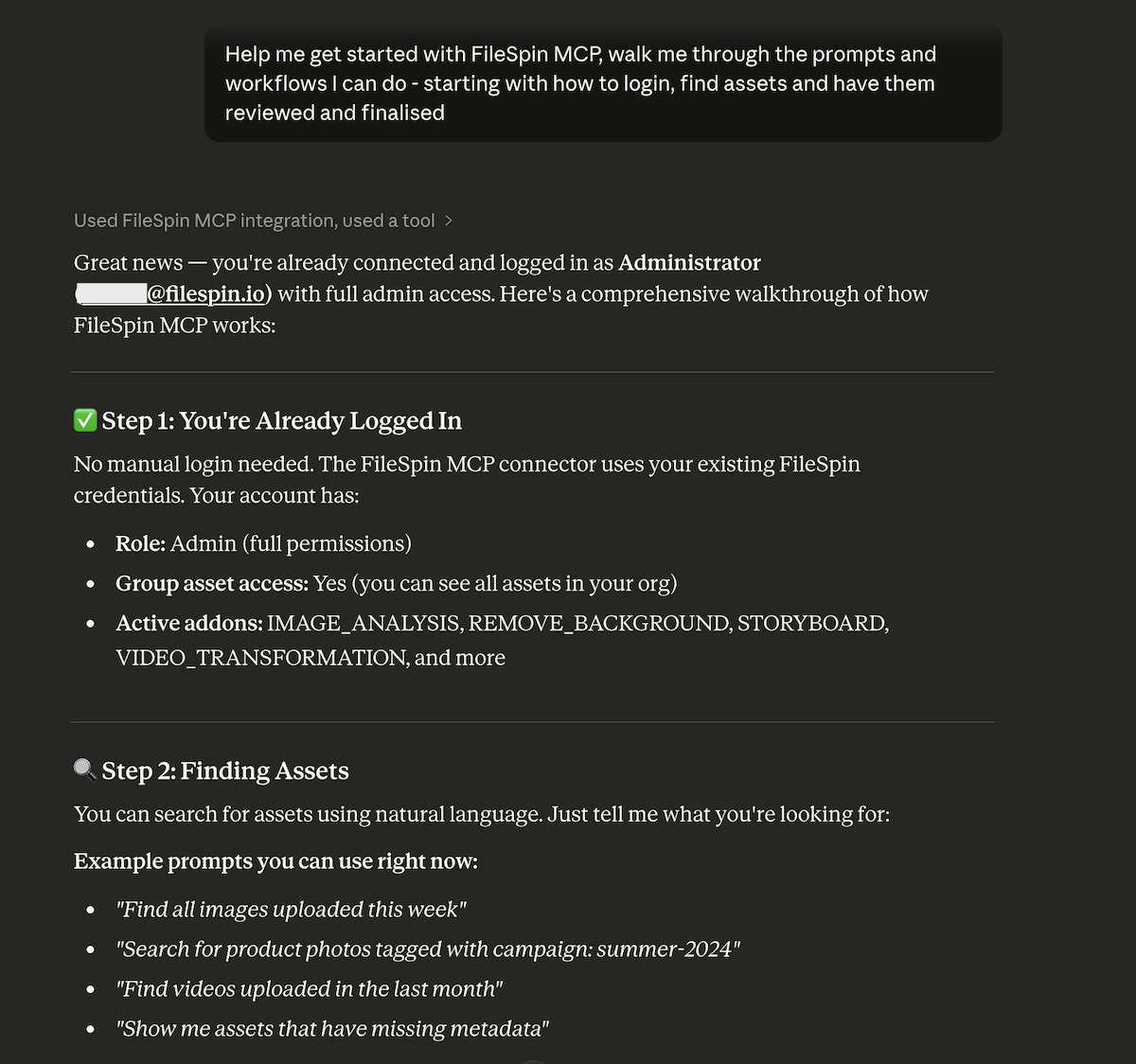
The quickest way to get started is to let the AI Agent such as Claude or ChatGPT guide you in using FileSpin MCP. When FileSpin MCP is added to the AI Agent, it provides the AI Agent with comprehensive information to guide you in using it. Start with the prompt:
Help me get started with FileSpin MCP, walk me through the prompts and workflows I can do - starting with how to login, find assets and have them reviewed and finalised
Available tools
The FileSpin MCP server exposes a focused set of tools that agents can call directly. These are atomic operations -- the building blocks that agents compose into workflows. They are an intelligence layer on top of FileSpin REST APIs that securely mediate the AI Agent's calls to the FileSpin API.
| Category | Summary |
|---|---|
| Asset management | Search and inspect assets, upload new files, update metadata (single or bulk), discover schemas, and check account capabilities. |
| Image transformation | Generate on-brand image variants -- resizing, cropping, social-platform sizes, and logo or text watermarks. |
| AI and addons | Find related photos using face search and retrieve AI-generated labels with confidence scores. |
| Sharing and distribution | Create, list, and delete branded share pages; track analytics and approvals; and reuse share templates. |
| Collections | Create and search collections, manage included assets, and generate ZIP download links. |
| Video | Transcode videos, create trimmed/custom clips, and retrieve streaming URLs. |
| Delivery | Generate CDN view URLs and signed download URLs for assets. |
Prompt templates -- pre-built workflow recipes
Prompt templates are the most powerful feature of the FileSpin MCP server. They are multi-step workflow recipes that guide the agent through complex operations. The agent discovers them automatically, and when invoked, receives a structured message that tells it exactly which tools to call and in what order.
The prompt templates are organised across 11 categories:
Industry-specific workflows
| Workflow | Summary |
|---|---|
| E-commerce (2 prompts) | Run end-to-end product-image workflows, including tagging, social output generation, review sharing, and marketplace-ready sizing. |
| Events (2 prompts) | Automate event media workflows with speaker/sponsor discovery, session tagging, social crops, and branded approval shares. |
| Attractions (2 prompts) | Support attraction photo operations with guest face discovery, preview watermarking, and branded gallery sharing. |
Platform workflows
| Workflow | Summary |
|---|---|
| Social Media (3 prompts) | Generate platform-specific image sizes, apply logo watermarks, add text watermarks. |
| AI Workflows (4 prompts) | Face search by asset or URL, find addon-processed assets, retrieve AI auto-tags with confidence scores. |
| Video Processing (2 prompts) | Transcode with existing-conversion check (avoids redundant processing), create custom clips with trimming. |
| Creative (2 prompts) | Face-centered profile pictures at multiple sizes, responsive hero images for desktop/tablet/mobile. |
| Branded Shares (8 prompts) | Press kits, branded galleries, video showcases, review/approval pages, template-based shares, analytics review, approval status checks, expired share cleanup. |
| Collections (3 prompts) | Save search results to a collection, download collection as ZIP, update collection membership. |
| Administration (4 prompts) | Bulk tag photoshoot assets, audit metadata completeness, find assets needing review, standardize inconsistent metadata values. |
| Content Creation (4 prompts) | Save HTML reports, CSV exports, Markdown docs, and metadata CSV exports to FileSpin. |
How prompts work
When a user says "Process all product images from the summer shoot", the agent matches this to the prompt template and receives:
Process product images matching "summer shoot" uploaded recently:

1. Find images matching "summer shoot".
2. Discover the available metadata schema, then bulk-tag the matching assets with
   campaign = "Summer Campaign", category = "product", status = "ready".
3. Generate Instagram feed and Facebook post versions using branded image transformation.
4. Create a branded review page with approvals enabled for the buying team.

Give me the share URL and a summary of assets processed.
The agent then executes each step, calling the appropriate tools in sequence, handling responses, and reporting back to the user.
Workflow patterns
When agents compose multi-step workflows -- whether guided by prompts or working from free-form instructions -- they follow a few canonical sequences:
Discovery first
Before operating on assets, the agent checks what addons are enabled, discovers the available metadata schemas, and searches for assets matching the user's request.
Single-asset inspection and delivery
The agent fetches the asset's details, then returns a viewable CDN URL, a signed download URL, or a resized/cropped variant as needed.
Metadata workflows
The agent discovers the relevant schema, then updates fields on a single asset or bulk-tags many assets at once.
External sharing
The agent searches for the target assets (or picks up a collection), creates a branded share page, and can later pull analytics or approval status for that share.
Video workflows
The agent inspects the asset's existing conversions, transcodes or clips as required, and returns a streaming URL.
The agent always checks asset data before video operations to verify the asset is a video and to inspect existing conversions -- avoiding redundant transcoding.
Real-world example: E-commerce product pipeline
User prompt: "Tag all new arrivals by SKU, remove backgrounds, and send a review link to the buying team."
Here's what the agent does:
- Discover context. Confirms the Background Removal addon is enabled and retrieves the relevant metadata schema (fields: sku, category, status, campaign).
- Find assets. Searches for recent "new arrivals" and returns 24 product images uploaded in the last 7 days.
- Tag with metadata. Bulk-tags all 24 assets with category = "new-arrival", status = "pending-review", campaign = "Spring 2026".
- Create review share. Creates a branded share page titled "Spring 2026 New Arrivals -- Review" with approvals and feedback enabled, expiring in seven days.
Agent response to user: "Done. 24 new arrival images tagged with Spring 2026 campaign metadata. Review page with approval workflow that includes Social media versions: https://app.filespin.io/shared/sh_abc123 -- the buying team can approve or reject each image directly."
Real-world example: Event photo distribution
User prompt: "Find all photos of the keynote speaker, tag by session, and build a branded share page for the press team."
Here's what the agent does:
- Face search. Uses the speaker's headshot to find all photos of this person across the event -- returns 87 matches with high matching strictness.
- Tag by session. Retrieves the event schema and bulk-tags the 87 matching assets with speaker = "Jane Smith", session = "Opening Keynote", event = "TechConf 2026".
- Branded press share. Creates a share page titled "TechConf 2026 -- Jane Smith Keynote Photos" with company branding (logo from watermark, primary colour #1a73e8), feedback enabled, expiring in one week.
Agent response: "Found 87 photos of Jane Smith across all event sessions via face recognition. Tagged with speaker, session, and event metadata. Press share page with Social media crops: https://dashboard.filespin.io/shared/sh_press456"
Addon availability and runtime checks
Some capabilities depend on addons being enabled on your FileSpin account. The agent always verifies addon availability before attempting addon-dependent operations by querying the account's enabled addons through the MCP server.
| Addon | Required for | Capability gated |
|---|---|---|
FACE_RECOGNITION | Face search across assets | Face search |
IMAGE_ANALYSIS | AI auto-tagging on upload | Auto-tag retrieval |
BACKGROUND_REMOVAL | AI background removal | Background removal processing |
ON_DEMAND_IMAGE | Real-time image transformations | Resized/cropped variants and branded variant generation |
If an addon isn't enabled, the agent will report this to the user rather than failing silently.
Best practices
-
Create a dedicated agent user. Set up a FileSpin user account specifically for AI agent access. Assign the appropriate role for the agent's intended workflows. This gives you a clean audit trail and precise permission control.
-
Use prompt templates for common workflows. Prompts encode best practices -- correct tool ordering, required checks, and sensible defaults. They're faster and more reliable than free-form instructions for repeatable operations.
-
Check addon availability first. Have the agent call ask which addons are available before attempting face recognition, auto-tagging, or background removal to verify the addon is enabled.
-
Use collections for internal grouping, shares for external distribution. Collections are for your team's organization. Shares create branded, trackable pages for external stakeholders -- with download controls, approval workflows, and analytics.
-
Let the agent handle orchestration. Don't try to script every tool call. Describe the outcome you want and let the agent decide which tools to chain and in what order. This is what MCP is designed for.