Automating Addons with Event Hooks and Schema Criteria
Configure Face Recognition, Image Analysis, and Remove Background to run automatically based on asset events and custom metadata — set up entirely from the Dashboard.
If your team uploads thousands of images a week, processing each one through an AI addon by hand gets old fast. You either remember to run Face Recognition on every batch, or you accept that auto-tagging only happens for assets someone thought to process. Neither scales.
FileSpin's Automated Media Pipeline solves this. You configure each addon once in the Dashboard — which events to listen to, which content types qualify, which custom metadata patterns to match — and the platform runs the addon for you whenever an asset event fires. Upload a portrait, Face Recognition runs. Tag a product photo as an original, Remove Background fires and saves a transparent PNG. Edit metadata on a stock image, Image Analysis re-evaluates only if the criteria still match.
This guide walks through the Dashboard setup for all three addons, with examples covering the most common automation patterns. For the conceptual reference, see Automated Media Pipeline.

How addon automation works
Three filters decide whether an addon runs on a given asset event:
Asset event fires
       │
       ▼
┌─────────────────┐
│ Event hook      │  → Is the addon listening for this event type?
└─────────────────┘     (file-saved, file-data-updated)
       │
       ▼
┌─────────────────┐
│ Content type    │  → Does the asset's MIME type match?
└─────────────────┘     (image/*, image/jpeg, */*, etc.)
       │
       ▼
┌─────────────────┐
│ Schema criteria │  → Does the asset's schema and custom data match?
└─────────────────┘     (only on file-data-updated)
       │
       ▼
   Run addon
Each addon is configured independently. You can have Face Recognition running on every upload, Image Analysis scoped to a "Stock Library" schema, and Remove Background firing only when a product photo is flagged as an original — all from the same upload event.
The platform also handles dedup automatically. When an addon completes, it writes a system marker to the asset's metadata (any field beginning with _filespin_). On any subsequent event, if the marker is present, the addon is skipped — no double-billing, no duplicate processing.
Setting it up in the Dashboard
Go to Settings → Addons and click the gear icon next to the addon you want to automate.
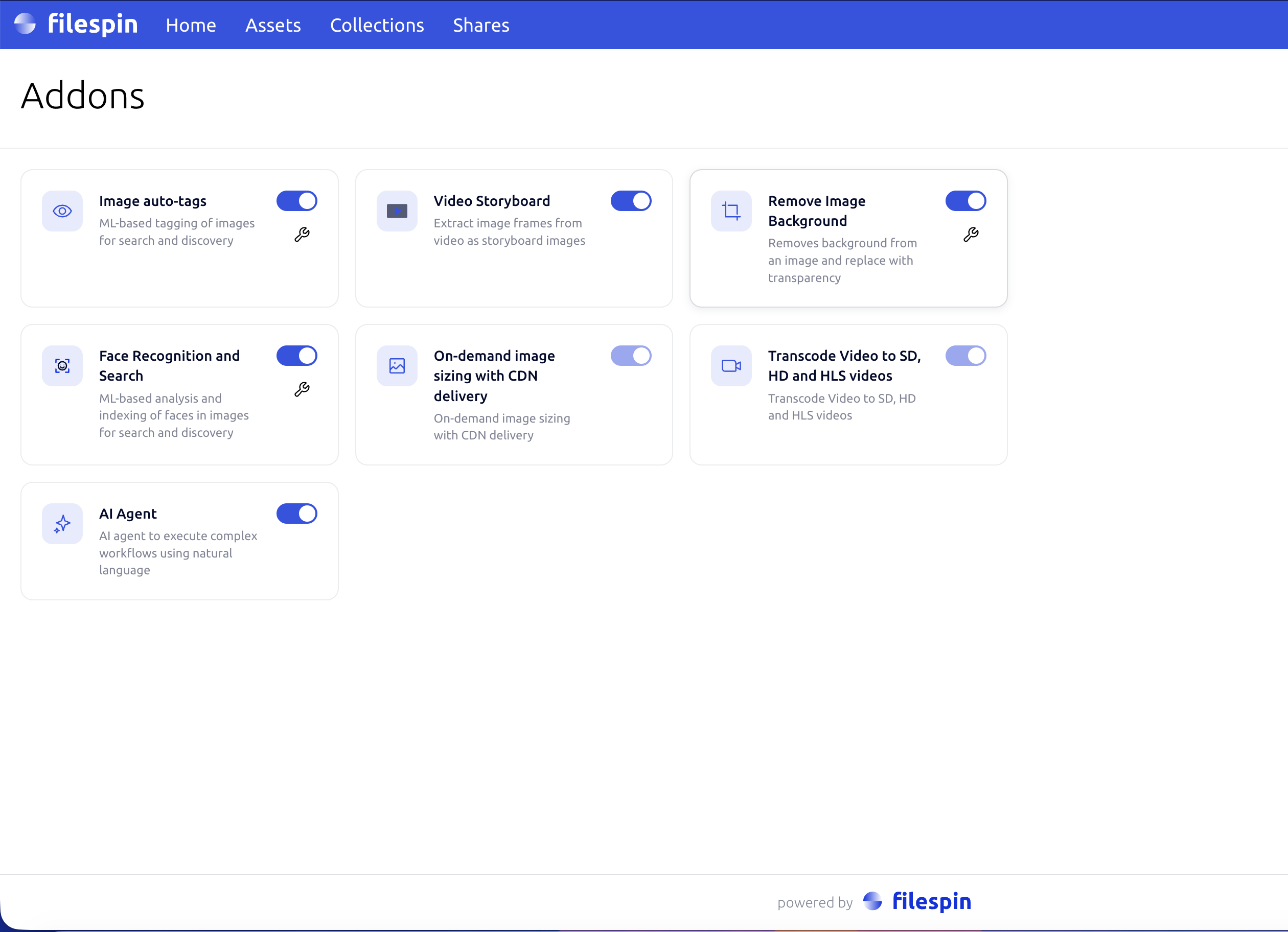
The configuration modal has three sections, in order:
- Event hooks — pick which events the addon listens to.
- Schema criteria — restrict the file-data-updated hook to assets matching a schema or specific field values.
- Disposition — addon-specific output options.
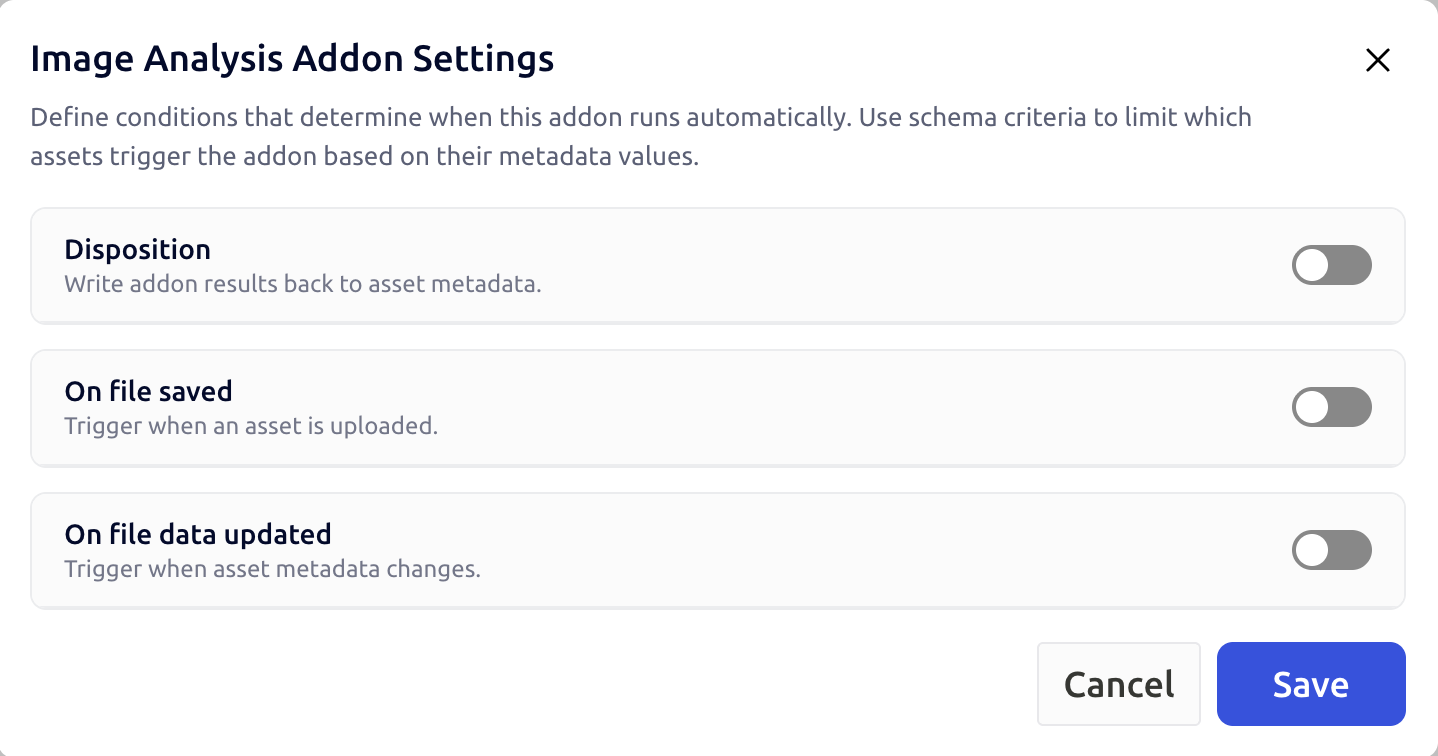
Step 1 — Pick your events
For each event type (file-saved, file-data-updated), toggle it on if the addon should listen, and choose the content types that qualify. Most image addons want image/*.
A good default for most workflows:
| Event | Toggle | Content types |
|---|---|---|
| file-saved | On | image/* |
| file-data-updated | On (only if you use schema criteria) | image/* |
Step 2 — Add schema criteria (optional)
Schema criteria only apply to file-data-updated — fresh uploads have no custom metadata yet, so criteria can't be evaluated on file-saved.
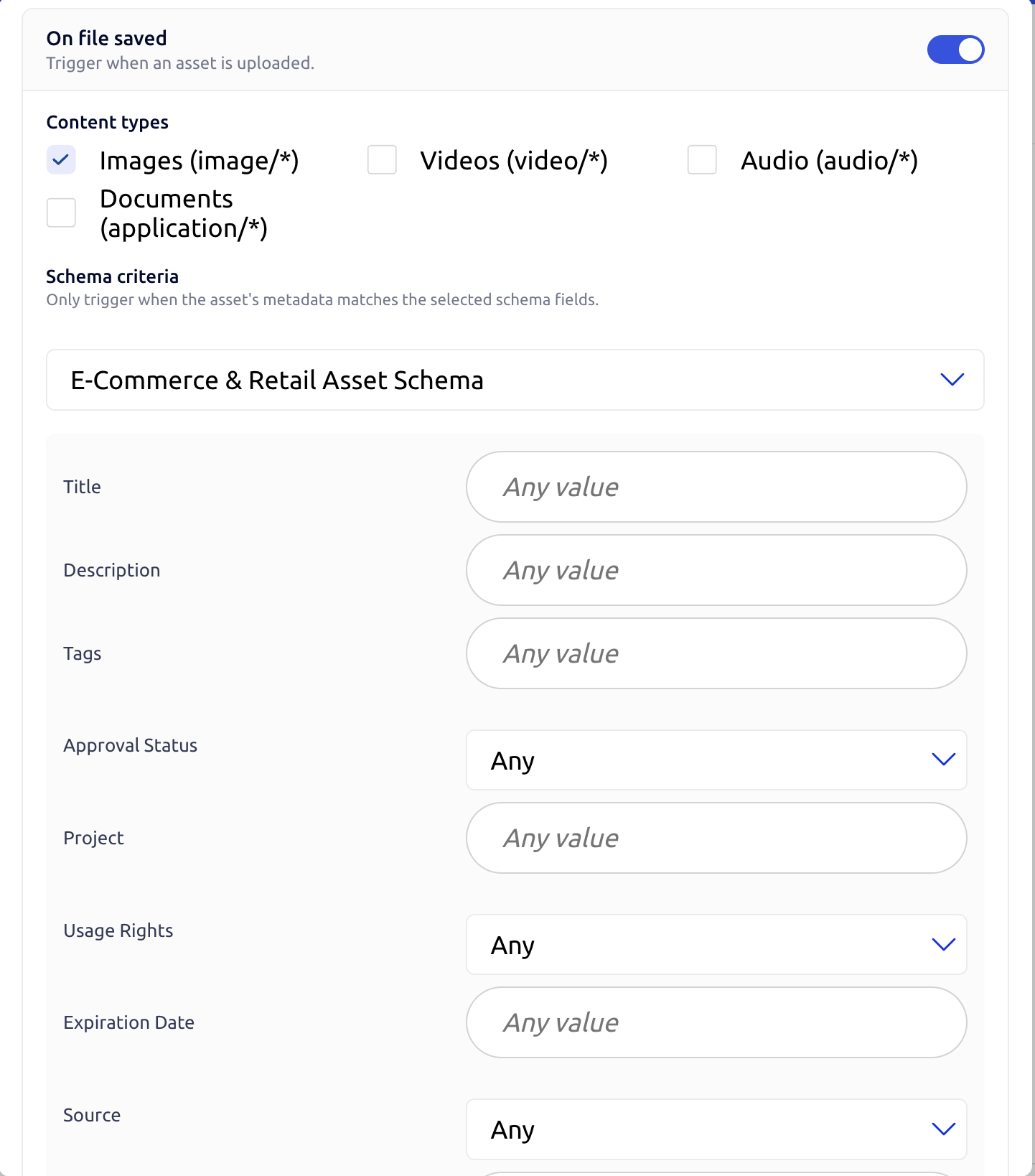
Two filters, both optional, both applied:
- Schema — pick a schema to restrict the addon to assets following it. Useful when you want different addons for different content types (e.g. Face Recognition on "Event Photo" assets, Remove Background on "Product Photo" assets).
- Fields — add one or more key → value pairs. The asset's metadata must contain the key, types must match, and string matching is by substring (so
"GM"matches"GM-2024"and"BGM"). Booleans match exactly.
Leave both empty if you want the addon to fire on every asset whose content type matches.
Step 3 — Choose the disposition
The disposition section is where the addons differ. Each addon's options are documented inline in the Dashboard, but here's what each one means.
Face Recognition
Two toggles:
- Tag asset with face count and IDs — when on, the asset's metadata is enriched with a face count and the IDs of detected faces, which makes them searchable in the Dashboard. When off, the face index still gets built (so face search keeps working), but the asset's metadata stays clean.
- Process derived assets (default off) — when off, FR skips system-generated derivative assets like background-removed PNGs. Leave this off unless you specifically want FR to also index faces in cut-outs (it would create duplicate entries — one from the original photo, one from the cut-out — and pollute face search results).
Image Analysis
A single toggle: Process derived assets (default off). When off, IA skips system-generated derivative assets like background-removed PNGs. Leave this off unless you specifically want auto-tags on cut-outs — they tend to produce noisy labels because transparent-background images confuse general-purpose vision models.
Remove Background
Two output modes:
- Add as conversion — saves the cut-out as a named conversion on the source asset (default name:
bg_removed). The original stays canonical; the cut-out is a sibling visible in the Dashboard and in branded share pages with signed URLs. Best when the cut-out is a deliverable, not its own asset. - Add as new asset — creates a brand-new PNG asset, linked back to the source. Optionally inherit the source's custom metadata and schema assignment. Best when the cut-out needs its own ID, share permissions, or independent metadata.
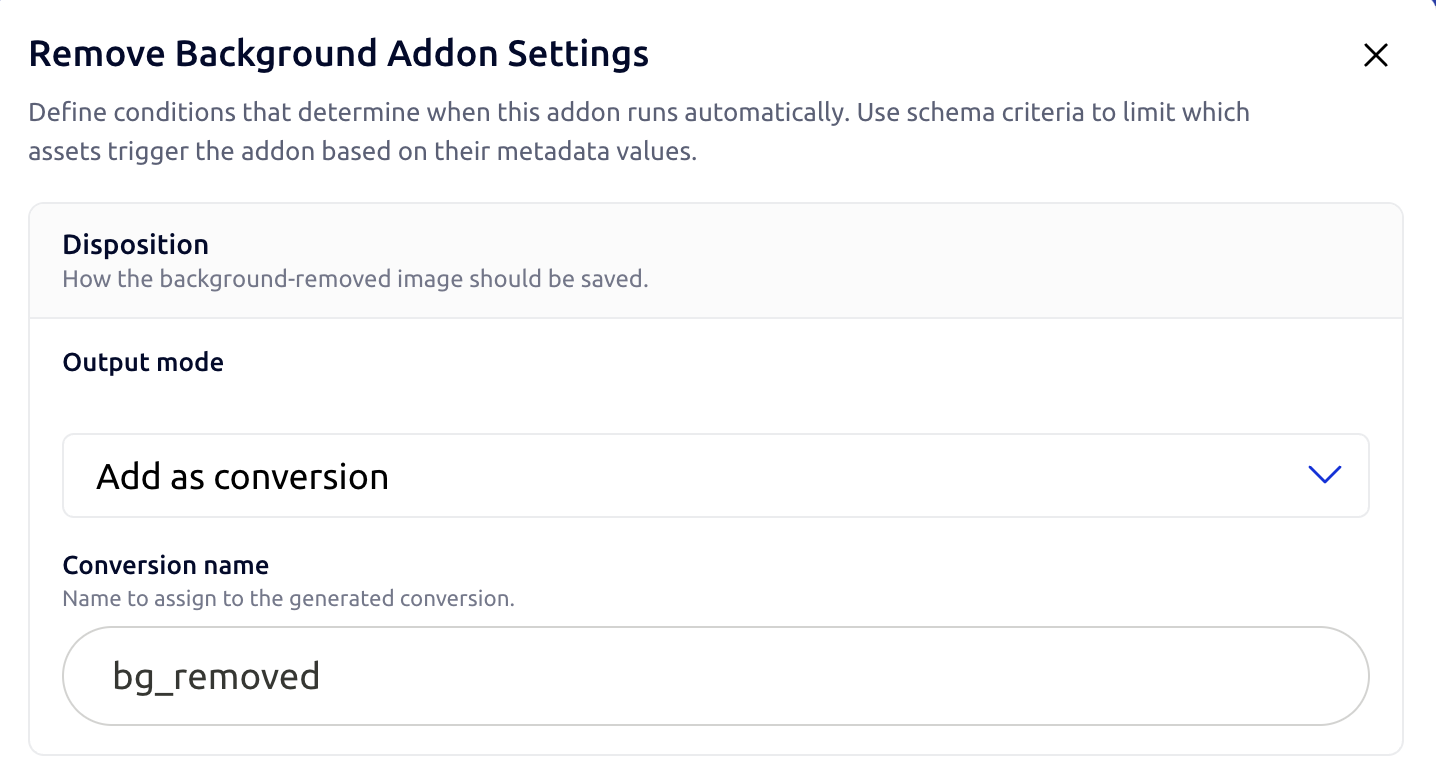
Switching modes clears the now-irrelevant fields automatically — pick Add as conversion and the conversion name input appears; pick Add as new asset and the inherit-metadata checkbox appears instead.
Common automation patterns
Index every face in every uploaded image
Goal: build a searchable face index from every photo on upload, regardless of how it's tagged.
| Section | Setting |
|---|---|
| Event hook | file-saved on, content types image/* |
| Schema criteria | None |
| Disposition | Tag asset with face count and IDs on |
Auto-tag only assets in the Stock Library schema
Goal: run Image Analysis only when an asset is assigned to your Stock Library schema, not for press releases or working files.
| Section | Setting |
|---|---|
| Event hook | file-saved on, content types image/* |
| Event hook | file-data-updated on, content types image/* |
| Schema criteria (on file-data-updated) | Schema → Stock Library |
| Disposition | n/a |
The file-saved hook fires on every image upload, so Image Analysis still runs immediately when an asset is created. The file-data-updated hook handles the case where someone re-classifies an asset into the Stock Library schema later.
Auto-cut backgrounds for original product photos only
Goal: when a product photo is marked as an original (not a re-upload of an existing image), automatically generate a transparent-background version.
| Section | Setting |
|---|---|
| Event hook | file-data-updated on, content types image/* |
| Schema criteria | Field → originalAsset = Y |
| Disposition | Output mode → Add as conversion; conversion name → bg_removed |
The cut-out lands on the same asset as a bg_removed conversion, accessible in the Dashboard and in branded share pages.
Auto-cut backgrounds and create a separate asset
Goal: same as above but the cut-out should be its own asset, not a conversion.
| Section | Setting |
|---|---|
| Event hook | file-data-updated on, content types image/* |
| Schema criteria | Field → originalAsset = Y |
| Disposition | Output mode → Add as new asset; Inherit metadata on |
The new PNG inherits the source's metadata and schema, and links back to the original. Remove Background won't loop on the new asset — the platform detects derived assets and excludes them from matching.
Best practices
Start with file-saved and no criteria. Schema criteria are useful, but they're easy to over-tune. Begin with a simple "run on every image upload" config, observe what the addon produces, then narrow down.
Use the schema filter before fields. Schema-level filtering is exact and fast; field matching is substring-based and easier to get wrong. If your goal is "only run on Marketing assets", point the schema filter at the Marketing schema rather than building a fields filter.
Marker fields are platform-managed. Anything starting with _filespin_ is owned by FileSpin and shown read-only in the Dashboard. Don't rely on these for your own metadata — define your own fields in your schema instead.
Next steps
- Automated Media Pipeline reference — what each setting does and per-addon disposition options
- Face Recognition guide — face indexing, search, and pagination
- Background Removal — manual triggering, asset-based and upload-based modes
- Asset Schemas guide — designing the schemas that drive your criteria