Branded Share Pages — Distribution, Review, and Delivery
How to use branded share pages to replace zip-and-email workflows — sponsor deliverables, wholesale portals, press kits, client review cycles, and guest photo delivery with approval workflows, download controls, and analytics.
Every team that works with external stakeholders hits the same bottleneck: getting the right assets to the right people in the right format, with some control over what happens next. The standard workflow — zip a folder, upload to WeTransfer, email a link, hope they download the right version — breaks down the moment you need tracking, branding, feedback, or approval.
Branded share pages replace that cycle. A share creates a branded, hosted page with a curated set of assets — configurable download options (including social media sizes), password protection, expiry dates, feedback collection, approval workflows, and full analytics on who viewed and downloaded what. No FileSpin account required for recipients.
Event teams use shares to deliver sponsor packages same-day. Wholesale teams use them as partner portals with controlled formats. Press teams use them for embargoed content with watermark protection. Attractions operators use them for guest photo discovery. And AI agents can assemble any of these from a single prompt.
This guide covers how to create and manage shares — from the Dashboard, through AI agents, or via workflow automation — plus real-world recipes for common distribution patterns.

Creating shares from the Dashboard
The fastest way to create a share is directly from the FileSpin Dashboard. Select one or more assets, click Share, and configure the options.
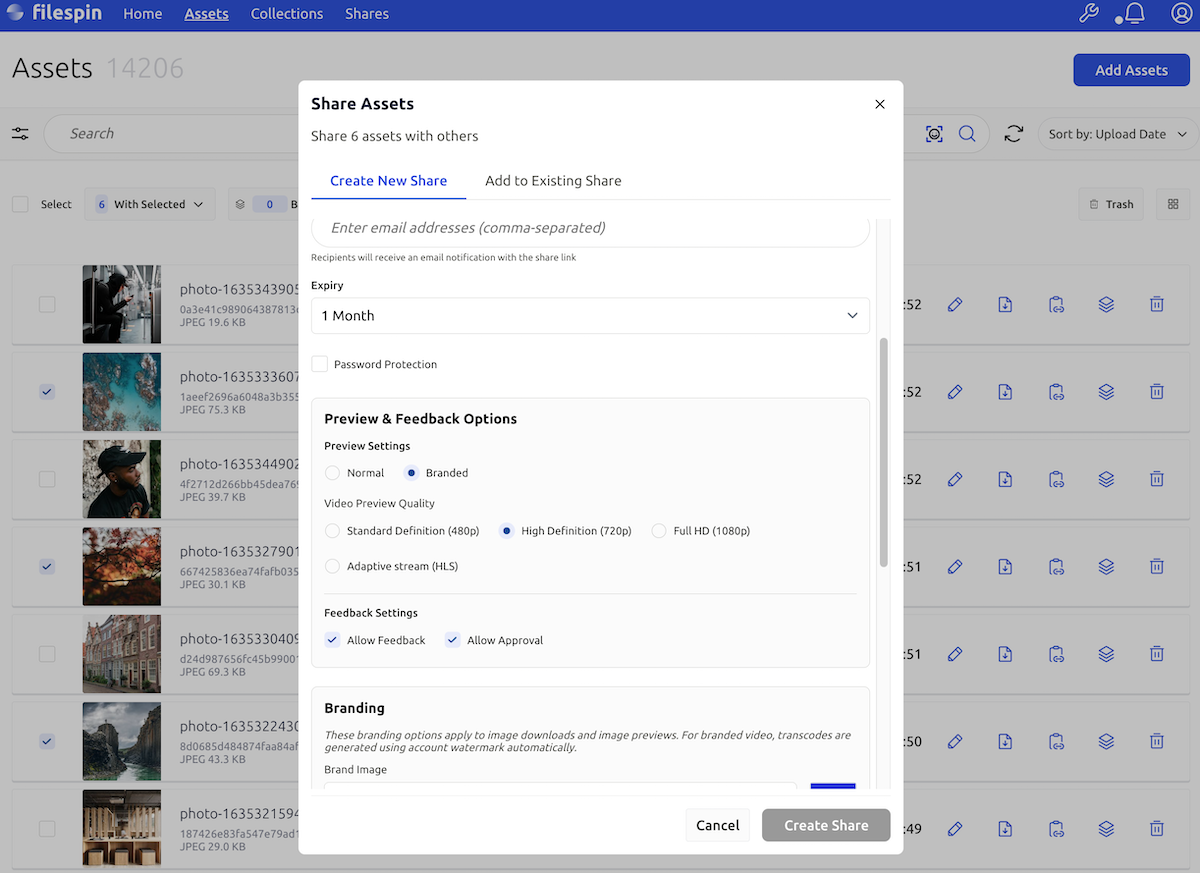
Share settings
When creating a share, you configure:
| Setting | What it controls |
|---|---|
| Title | Display name shown on the share page |
| Expiry | Auto-expire date — recipients lose access after this |
| Password | Optional password protection for sensitive content |
| Branding | Logo, primary color, background color |
| Watermark | Overlay your watermark on all previews and downloads |
| Download options | Control formats — originals, ODI sizes, video transcodes |
| Feedback | Enable comments from reviewers |
| Approvals | Enable approve/reject per asset |
The share page
Once created, you get a branded URL that recipients open directly — no login, no account, no software to install.

Recipients see a clean, branded page with your logo and colors. Depending on your settings, they can browse assets, leave comments, approve or reject individual items, and download in the formats you've made available.
Creating shares with AI agents
FileSpin's MCP integration lets AI agents create shares through natural language. Instead of manually selecting assets and configuring settings, describe what you need:
"Find all photos tagged 'Gold Sponsor - Acme Corp' from Day 1 of the conference, create a branded share page with our event branding and password protection, and give me the link."
The agent searches your library, filters by tags, creates the share with your branding template, and returns the URL — all from a single prompt.
Common agent-driven share workflows:
- Sponsor delivery: "Create share pages for each sponsor from yesterday's event, branded with our event logo, password-protected, expiring in 30 days."
- Client review: "Share the latest hero images with the client for approval. Enable feedback and watermark everything."
- Press kit: "Assemble a press kit with the five approved product shots and the launch video. Watermark it, set a 7-day expiry."
For setup details, see the AI Agent Integration guide.
Creating shares with workflow engines - COMING SOON
Workflow engines like Make, Zapier, and n8n can create shares automatically based on triggers — new assets uploaded, tags applied, approval status changed.
Example: Auto-create sponsor share in Make A Make scenario watches for assets tagged with a sponsor name. When the batch is complete (triggered by a "batch complete" tag or a scheduled check), the scenario creates a branded share page with the sponsor's assets, applies the event branding template, and sends the share URL via email to the sponsor contact.
Example: Post-approval delivery in n8n An n8n workflow monitors approval status. When all assets in a collection are approved, the workflow creates a clean (unwatermarked) share with high-res download options and notifies the client that final deliverables are ready.
Share features
Branding
Every share page can carry your brand identity — logo, colors, and background. Set these per share, or save them as part of a template to reuse across all your distribution workflows.
| Option | Description |
|---|---|
| Logo | Use your account watermark image or any asset from your library |
| Primary color | Buttons, links, and accents |
| Background color | Page background |
Watermark protection
Enable watermarks to overlay your account watermark on all image and video previews and downloads. Useful during review phases — watermarks deter screenshot-based theft and signal that assets aren't final. Switch to clean downloads for final delivery.
Download options
Control exactly what recipients can download:
| Content type | Options |
|---|---|
| Images | Original files, ODI-transformed sizes (any dimension, format), social media presets |
| Video | 1080p, 720p, or other available transcodes |
| Documents | PDF and other available formats |
With ODI (On-Demand Imaging) enabled, recipients can download images in any size — including social media dimensions — directly from the share page.
Feedback and comments
Enable comments so reviewers provide feedback directly on shared assets. Reviewers access the share link and submit comments — no authentication required. Comments can be attached to specific assets or left at the share level. Reviewers optionally provide their name and email.
Approval workflows
For formal review processes, enable approvals so reviewers can approve or reject individual assets with notes. The share owner sees approval status per asset — approved, rejected, or pending — along with reviewer comments and timestamps.
This powers the review-revise-deliver cycle: share watermarked assets for review, collect approvals, fix rejected items, re-share if needed, then deliver clean originals once approved.
Analytics
Every share automatically tracks engagement.

| Metric | What it tells you |
|---|---|
| Total views | How many times the page was accessed |
| Downloads by format | Which formats are most popular |
| Downloads by asset | Which specific assets were downloaded |
| Recent activity | Last download events with timestamps |
| Approval status | Per-asset approval/rejection status and notes |
Analytics provide proof of delivery for contractual obligations, and help you understand how recipients engage with your content.
Share templates
If you create shares with the same settings repeatedly, templates save time and ensure consistency. FileSpin provides 8 ready-to-use preset templates:

| Template | Downloads | Feedback | Approval | Expiry | Best for |
|---|---|---|---|---|---|
| Feedback & Approval | Watermarked | Yes | Yes | 14 days | Stakeholder sign-off |
| Quick Review | Clean | Yes | No | 3 days | Fast internal checks |
| Confidential Review | Watermarked | Yes | Yes | 3 days | Sensitive content |
| Client Presentation | Watermarked | Yes | No | 14 days | External presentations |
| High-Res Downloads | Full | No | No | 30 days | Final asset delivery |
| Web & Social Downloads | Optimized | No | No | 30 days | Digital campaigns |
| Video Delivery | Full | No | No | 30 days | Video distribution |
| Secure Preview | Watermarked | No | No | 7 days | Pre-release viewing |
Add any preset to your account from the Dashboard, or create custom templates with your own branding, download options, and workflow settings. Set a default template so it's pre-selected when creating new shares.
Recipe: Event sponsor delivery

A multi-day conference generates thousands of photos. Each sponsor tier is contractually entitled to branded imagery delivered within 24 hours. The old way: someone manually hunts through folders, zips files, uploads to WeTransfer, and emails the link. No tracking, no branding, no proof of delivery.
1. Tag assets by sponsor during capture Photographers tag assets by session and sponsor — either manually or through AI auto-tagging after upload. Search surfaces all assets tagged for a specific sponsor.
2. Create a branded share per sponsor From the Dashboard, select the sponsor's assets and create a share using your event branding template. Set a password, configure download options (high-res originals plus social-ready ODI sizes for images, 1080p and 720p for video), and set an appropriate expiry.
Or let an AI agent do it: "Find all photos tagged 'Gold Sponsor - Acme Corp' from Day 1, create a branded share page with our event branding, password-protect it, and send me the link."
Or automate it: a Make/Zapier scenario watches for the "batch complete" tag and creates the share automatically.
3. Send the link to the sponsor The sponsor receives a branded page with the event's identity, password-protected, with download options for both high-res originals and social-ready sizes. No account needed.
4. Track delivery and engagement Check analytics to confirm the sponsor accessed the package — views, downloads by format, and timestamps. This is your proof of delivery for the contract.
Recipe: Wholesale partner portal
An eCommerce brand needs to get product imagery to wholesale partners and buying teams — with controlled formats, no originals, and brand-compliant downloads.
1. Set up a wholesale template Create a share template configured for wholesale distribution: ODI enabled so partners can download in any size they need, but originals excluded — the brand controls the maximum resolution. No feedback or approval (this is delivery, not review). 90-day expiry matches the seasonal buying cycle.
2. Create a share per partner for each collection From the Dashboard, select the seasonal collection and create a share using the wholesale template. Add a password for each partner.
Or automate it: when assets in a collection are tagged "wholesale-ready," a workflow engine creates the share and emails the link to the partner contact from your CRM.
3. Monitor partner engagement Analytics tell you which partners downloaded, what formats they chose, and when — useful for follow-up and forecasting. A partner who hasn't viewed the share a week after receiving it might need a nudge.
Recipe: Press kit with watermark protection
A pre-launch or embargoed press kit needs watermark protection during the embargo period, then clean downloads after the announcement.
Phase 1: Embargoed preview (watermarked) Create a share with watermarks enabled, password protection, and feedback enabled. Journalists can preview and provide feedback, but all downloads carry the watermark — protecting against premature publication. Set the expiry to the embargo date.
Phase 2: Post-announcement (clean downloads) After the embargo lifts, create a new share with the same assets — this time with watermarks disabled, originals included, and a longer expiry. Delete or let the embargoed share expire. Journalists now download clean, high-res assets for publication.
An AI agent can handle the transition: "The embargo lifted — create a clean press kit share with full downloads for the product launch assets, and revoke the embargoed share."
Recipe: Client review cycle with approvals

A creative agency sends campaign assets to a client for approval. The client needs to approve or reject individual assets with feedback, and the agency needs to track the process.
1. Create the review share From the Dashboard, select the campaign assets and create a share with the "Feedback & Approval" template. Watermarks protect assets during review. The client receives a branded link — no account needed.
2. Client reviews and approves/rejects The client opens the share link and approves or rejects each asset with notes. Watermarks protect assets during the review phase.
3. Check the results The Dashboard shows approval status per asset, reviewer comments, and engagement analytics — did the client actually view the share? Which assets did they spend time on?
4. Revise and re-share Fix rejected assets based on feedback. Create a new share with the revised assets for another round of approval.
5. Deliver approved assets Once all assets are approved, create a "High-Res Downloads" share with clean (unwatermarked) originals for final delivery. The client downloads the approved assets in the formats they need.
Recipe: Awards event judging

A creative awards festival receives thousands of entries across dozens of categories — film, print, digital, experiential. Jury panels need to shortlist remotely before the festival, then review and score on-site at the venue where Wi-Fi is unreliable and video entries need instant playback. The old way: USB drives passed between jury rooms, spreadsheets emailed between coordinators, and no audit trail of who scored what.
1. Organize entries by category Define an asset schema for awards entries — category, subcategory, entrant, agency, brand, country, and supporting case study fields. Upload entries and assign metadata during intake. Each category becomes a collection. AI auto-tagging accelerates classification for large entry volumes.
2. Remote shortlisting round Before the festival, create per-category share pages for each jury panel using the "Confidential Review" template — watermarked previews, feedback and approval enabled, password-protected, 14-day expiry. Jurors receive a branded link and score entries individually without needing a FileSpin account. Analytics track which jurors have reviewed and which haven't — useful for deadline reminders. Typically around ten percent of entries make the shortlist.
3. On-site judging at the venue Deploy Teleport at the festival venue for reliable local asset delivery. Jury rooms get instant playback of video entries and high-res image viewing from local hardware — no dependency on venue Wi-Fi. When connected, cloud pass-through enables the full share page experience with live feedback. Create fresh share pages for each jury room with just the shortlisted entries for their category.
4. Calibrate and award metals Jury presidents review shortlist results in the Dashboard — approval status, reviewer comments, and engagement analytics per entry. Working from the shortlist, juries decide which entries deserve Bronze, Silver, or Gold. Create a new share page with the medal-worthy subset for final deliberation. It takes a two-thirds majority vote to be awarded.
5. Grand Prix selection and winner delivery From the Gold winners, the jury selects the Grand Prix — the best in show. Create "High-Res Downloads" shares with clean originals for winners, press kits, and festival archives. Analytics provide a complete audit trail of the judging process — who viewed what, when they scored, and how the shortlist narrowed to the final winners.
Or let an AI agent handle the logistics: "Find all Gold winners in the Film category, create a branded press kit share with our festival branding, watermarked, password-protected, expiring in 30 days — and a separate clean share for the winners with full downloads."
Programmatic access
For teams that need to create and manage shares programmatically, the full Shares API is available. The API supports everything described in this guide — creating shares, configuring branding and download options, enabling feedback and approvals, retrieving analytics, and managing templates. See the API Reference for details.
Best practices
-
Use templates for consistency. Create templates for your common workflows (sponsor delivery, wholesale portals, press kits, client review) so every share follows the same branding and settings.
-
Set appropriate expiry dates. 7–14 days for reviews, 30 days for deliverables, 90 days for partner portals. Don't let shares linger indefinitely.
-
Watermark during review, not delivery. Use watermarked downloads during the review phase to protect assets, then switch to clean downloads for final delivery.
-
Use password protection for sensitive content. Pre-launch materials, embargoed content, and confidential assets should be password-protected.
-
Check analytics before following up. Before chasing a client, check analytics to see if they've actually viewed the share. A "haven't reviewed yet" follow-up hits differently when you know they opened the page three times.
-
Let AI agents assemble shares. For ad-hoc distribution — "find all keynote photos, create a branded share for the press team" — an AI agent can search, filter, and create the share in a single prompt. See the AI Agent Integration guide.
-
Clean up expired shares. Periodically review and delete shares that are no longer needed.