Automating Media Workflows with Make, Zapier, and n8n
How to build visual automation pipelines using FileSpin's native modules for Make, Zapier, and n8n — triggered by asset events, powered by FileSpin operations, and connected to your downstream systems.
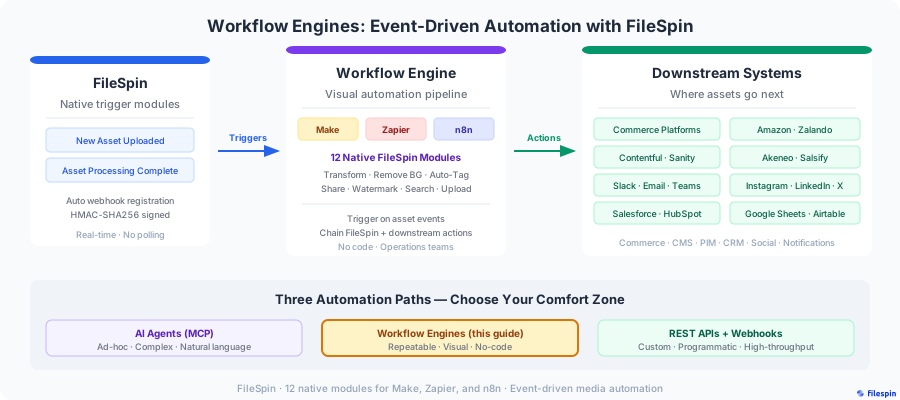
FileSpin offers three automation paths: AI agents for ad-hoc, complex workflows through natural language; workflow engines for repeatable, visual pipelines operations teams build without engineering; and REST APIs for custom, high-throughput integrations. This guide covers the second path — workflow engines.
FileSpin provides native modules for Make, Zapier and n8n that wrap the FileSpin REST API into drag-and-drop building blocks — real-time triggers, actions, and searches (24+ modules). Your operations team can build end-to-end media automation pipelines that react to uploads, processing completions, metadata changes, and errors — then push results to downstream systems. No code required.
How it works
The architecture has three layers:
1. FileSpin fires a trigger event — when an asset is uploaded or processing completes, FileSpin's native trigger modules deliver the event to your workflow engine in real time. The trigger modules handle webhook registration automatically — no manual setup needed.
2. The workflow engine executes a pipeline — using FileSpin's native action modules to perform operations (search, transform, remove background, tag, share, watermark) and any other connected service modules (commerce platforms, Slack, Salesforce, etc.) for downstream actions.
3. Results flow to downstream systems — transformed assets pushed to storefronts, metadata synced to PIMs, share pages delivered to stakeholders, notifications sent to teams.
This is event-driven automation. Nothing polls. Nothing waits. The moment an asset event occurs in FileSpin, your pipeline runs.
Triggers: what starts your pipeline
Every workflow starts with a trigger. FileSpin's native modules include six webhook-based trigger types that fire instantly when asset events occur — no polling delays.
| Trigger | Event | Description |
|---|---|---|
| New Asset Uploaded | asset.created | Fires when a new asset is uploaded via Picker, Teleport sync, or API |
| Asset Processing Complete | asset.processed | Fires when async processing finishes (thumbnails, transcoding, conversions) |
| Addon Processing Complete | asset.addon-processed | Fires when an addon completes (background removal, face indexing, auto-tagging) |
| Asset Updated | asset.updated | Fires when asset metadata is changed |
| Asset Deleted | asset.deleted | Fires when an asset is moved to trash |
| Asset Processing Failed | asset.failed | Fires when processing encounters an error |
Which trigger to use
For most automation pipelines, Asset Processing Complete is the primary trigger — it fires when the asset is fully ready with all conversions and transcodes available. Use Addon Processing Complete when your pipeline depends on AI results (auto-tags, face recognition, background removal). Use New Asset Uploaded when you need to react to the upload itself before processing finishes — for immediate notifications, metadata validation, or routing logic. Asset Processing Failed enables error-handling workflows that alert your team or retry operations.
Connecting your FileSpin account
All three platforms authenticate with FileSpin using OAuth 2.0 Authorization Code flow. When you add a FileSpin connection, the platform opens a browser window for you to log in to FileSpin and grant permissions. The platform manages token refresh automatically — no API keys or manual token handling required.
Create a dedicated FileSpin user account for your automation workflows with the minimum role required. This gives you a clean audit trail and precise permission control.
The trigger modules handle webhook registration behind the scenes — when you activate a scenario, the module registers a webhook with FileSpin; when you deactivate, it cleans up. No manual webhook management required.
FileSpin's native modules
FileSpin provides 24+ native modules for Make, Zapier, and n8n — all available on all three platforms with identical functionality. Instead of configuring HTTP requests manually, you drag and drop FileSpin actions into your pipeline and configure them with business-friendly fields.
Actions — asset management
| Module | Description |
|---|---|
| Upload Asset from URL | Import a file from a public URL into FileSpin |
| Upload Asset (File) | Upload a file directly from a previous step (binary data) |
| Get Asset Info | Retrieve full metadata, processing status, and conversion details for an asset |
| Update Metadata | Add or update custom metadata fields (supports APPEND and REPLACE modes) |
| Delete Asset | Move an asset to trash |
| Get Download Link | Generate a signed download or display URL for an asset or its conversions |
Actions — image processing
| Module | Description |
|---|---|
| Generate Marketplace Image | Generate a resized CDN URL for marketplace listings |
| Remove Background | Remove image background using AI, optionally saving as a new asset with inherited metadata |
| Generate Social Media Kit | Generate optimised image URLs for 8 social platforms in a single step (Instagram, Facebook, Twitter, LinkedIn, YouTube, Pinterest) |
Actions — AI and addons
| Module | Description |
|---|---|
| Get Auto Tags | Retrieve ML-generated labels with confidence scores for an image |
| Index Faces | Detect and index faces in an image (max 10 per image) for face search |
| Get Face Index Status | Check whether face indexing is complete for an asset |
| Search by Face | Find assets containing a specific person using a reference image |
Actions — sharing and collections
| Module | Description |
|---|---|
| Create Share Page | Create a branded share page with download controls, approval workflow, password, and expiry |
| Create Collection | Create a new asset collection for organising assets by brand, campaign, or event |
| Add to Collection | Add one or more assets to an existing collection |
Searches
| Module | Description |
|---|---|
| Find Asset | Search assets by keyword, content type, upload date, metadata schema, and custom field values |
| Find Collection | Search collections by name |
These modules cover the full asset lifecycle: ingest (upload), process (resize, remove background, auto-tag), organise (metadata, collections), distribute (share pages, download links), and search (full-text, face search). Combined with FileSpin's six triggers, you can build end-to-end automation that reacts to asset events and composes with thousands of other apps on each platform.
Build your pipeline
Common pipeline patterns
E-commerce: New product → marketplace-ready images
Trigger: Asset Processing Complete
  → Filter: check content_type is image
  → FileSpin: Generate Marketplace Image (Amazon, 1600×1600)
  → FileSpin: Generate Marketplace Image (website-hero, 1920×600)
  → FileSpin: Generate Marketplace Image (Instagram square, 1080×1080)
  → Commerce Platform: Update Product Image
  → Slack: Notify #product-images channel
Events: Speaker photos → press distribution
Trigger: Asset Processing Complete
  → Filter: check metadata for event tag
  → FileSpin: Update Metadata (speaker, session, event name)
  → FileSpin: Generate Social Media Kit (LinkedIn + Instagram)
  → FileSpin: Create Share Page (branded press page, expiry 1 week)
  → Email: Send share URL to press list
  → Slack: Post to #event-comms
Content publishing: Asset ready → push to CMS
Trigger: Asset Processing Complete
  → Filter: check metadata for status = "approved"
  → FileSpin: Generate Marketplace Image (desktop 1920×600, tablet 1024×400, mobile 640×300)
  → CMS: Create/Update Asset Entry
  → CMS: Publish Entry
Brand compliance: New upload → metadata validation
Trigger: New Asset Uploaded
  → FileSpin: Get Auto Tags (detect content type, categories)
  → Router:
    → IF metadata complete: FileSpin: Update Metadata (status = "approved")
    → IF metadata missing: Email: Notify uploader to complete fields
    → IF wrong format: Slack: Alert #brand-compliance
Sponsor deliverables: Post-event asset distribution
Trigger: Addon Processing Complete (face indexing)
  → FileSpin: Find Asset (by sponsor tag + event)
  → FileSpin: Create Share Page (branded sponsor page, password protected, approval enabled)
  → Email: Send share URL + password to sponsor contact
  → Google Sheets: Log delivery in sponsor tracking sheet
Recipe walkthrough: E-commerce product pipeline in Make

Here's a step-by-step walkthrough of building the e-commerce product pipeline in Make:
1. Asset Processing Complete trigger Add a FileSpin → Asset Processing Complete trigger module. This automatically registers a webhook with FileSpin — when an asset finishes processing, it fires.
2. Filter: images only
Add a filter after the trigger: content_type contains image/. This skips video and document assets.
3. FileSpin: Generate Marketplace Image (Amazon)
Add a FileSpin → Generate Marketplace Image module. Map the asset ID from the trigger payload. Select the "Amazon" preset, or set width and height to 1600, crop mode to center, format to webp, quality to 90.
4. FileSpin: Generate Marketplace Image (website hero)
Clone the previous module. Select the "website-hero" preset or change dimensions to 1920x600.
5. FileSpin: Generate Marketplace Image (Instagram)
Clone again. Select the "Instagram square" preset or change dimensions to 1080x1080.
6. Commerce platform: Update Product Add your commerce platform module. Map the product by SKU from the trigger's custom metadata fields. Attach the generated image URLs as product images.
7. Slack: Send notification
Add a Slack module. Post to #product-images with the product name, SKU, and a summary of generated sizes.
The entire pipeline runs automatically every time a product image is processed in FileSpin.
Recipe walkthrough: Event photo distribution in n8n

1. Asset Processing Complete node Add a FileSpin trigger node. Select "Asset Processing Complete" as the event type. This registers a webhook with FileSpin automatically.
2. IF node: event assets only
Route based on whether event_name exists in the asset's custom metadata.
3. FileSpin: Update Metadata Use the FileSpin Update Metadata node. Map speaker name, session, and event from the asset's custom metadata.
4. FileSpin: Create Share Page Use the Create Share Page node. Set the title to the event name + speaker, enable approval workflow, set expiry to one week, and apply branding.
5. Send Email node Send the share URL to the press distribution list pulled from a Google Sheet or Airtable base.
6. Slack node
Post to #event-comms with the share URL and a count of assets included.
Pre-built recipes and building blocks
FileSpin publishes production-ready workflow templates — pre-built recipes — that you can import directly into Make, Zapier, or n8n and customise to your stack.
These are not black-box connectors. Every step is visible, modifiable, and composable. Deploy as-is for standard workflows or adapt them to match your exact process.
New recipes are published regularly. Check the FileSpin documentation for the latest library.
Why recipes, not rigid connectors:
- You see every step. No hidden logic. When something breaks, you know exactly where and why.
- Your ops team builds. Recipes run on visual platforms your operations team already knows — no engineering tickets.
- Every stack is unique. Combine, extend, and chain recipes to match how your team actually works.
Webhook reliability
FileSpin's trigger modules are backed by enterprise-grade webhook delivery:
- At-least-once delivery — events are retried with exponential backoff if delivery fails, up to 8 retries over 8 hours.
- HMAC-SHA256 signing — every payload is cryptographically signed. The trigger modules verify signatures automatically; if you build custom webhook handlers, verify the
X-FileSpin-Signatureheader to ensure the request comes from FileSpin. - Idempotency — use the
delivery_idfield as a deduplication key. Your pipeline may receive the same event more than once during retries. - Automatic registration — trigger modules handle webhook registration and deregistration as you activate and deactivate scenarios. No manual webhook management.
Best practices
-
Trigger on Asset Processing Complete, not New Asset Uploaded for distribution workflows. The New Asset Uploaded trigger fires before processing is complete — conversions, transcodes, and addon results aren't available yet. Use Asset Processing Complete for pipelines that need the fully ready asset.
-
Use filters early in the pipeline. Not every asset event needs the full pipeline. Filter by content type, metadata values, or asset status immediately after the trigger to avoid unnecessary processing.
-
Handle idempotency. Network retries can deliver the same event twice. Use
delivery_idto detect duplicates — check if you've already processed this delivery before running the pipeline. -
Use named presets in Generate Marketplace Image. Presets let your ops team think in channels ("Amazon", "Instagram Story", "website-hero") instead of pixels. Define your team's presets in the FileSpin dashboard and they'll appear in the module dropdowns automatically.
-
Use Addon Processing Complete for AI-dependent workflows. If your pipeline depends on face recognition, background removal, or auto-tagging results, use the Addon Processing Complete trigger instead of Asset Processing Complete — it fires specifically when the addon finishes, so your pipeline only runs when those results are available.
-
Keep pipelines modular. Build small, focused scenarios rather than one large pipeline. A scenario that tags + shares is easier to debug than one that tags + shares + pushes to three CMSs + notifies four channels.
-
Use Update Metadata to close the loop. After your pipeline runs, write status back to FileSpin — mark assets as "distributed", "published", or "synced". This makes search workflows and audit pipelines possible downstream.
Comparison with other DAM platforms
| Capability | FileSpin | Cloudinary | Bynder | Canto |
|---|---|---|---|---|
| Webhook triggers (instant) | 6 events | Polling only (15-min delay) | Comment-based only | 2 events |
| Upload action | URL + File upload | URL + File upload | No | File only |
| Search action | Full-text + metadata | No | No | No |
| Metadata update | Yes (APPEND/REPLACE) | Tags only | No | No |
| Collection management | Yes | No | No | No |
| Share page creation | Yes | No | No | No |
| On-demand image resize | URL-based (instant) | URL-based | No | No |
| Authentication | OAuth 2.0 + PKCE | API Key only | OAuth 2.0 | API Key only |
Next steps
- Using FileSpin within an AI Agent — For complex, ad-hoc workflows through natural language
- Real-time Notifications with Webhooks — Deep dive into webhook setup, HMAC verification, and handler code
- Upload, Process, Deliver: The Complete Asset Lifecycle — Understand the events in context
- Sharing Assets with External Stakeholders — Branded share pages for distribution workflows