FileSpin Teleport: Hybrid Cloud-Edge Media Processing
How to deploy FileSpin Teleport on your local hardware for hybrid cloud-edge media operations -- install, configure, integrate via REST APIs and hot-folder ingest, and sync to FileSpin Cloud when connected.

Cloud-only operation assumes reliable internet. For most teams -- eCommerce, agencies, publishing -- that assumption largely holds. But event venues with unreliable Wi-Fi, attractions that process and deliver media, remote sites with no connectivity, and operations with data sovereignty requirements -- cloud-only breaks down.
Teleport is FileSpin's hybrid deployment model. A single binary that runs the core media processing pipeline on your local hardware -- ingest, transform, watermark, transcode, search, deliver -- with zero internet dependency. When connected, cloud-powered features like face recognition and background removal activate in real time. Once assets sync to FileSpin Cloud, the full intelligence layer takes over: AI agents, workflow engines, extended APIs.
This guide covers the architecture, installation, local APIs, hot-folder workflows, and cloud sync -- everything your engineering team needs to deploy and integrate Teleport.
Architecture: Three capability tiers
Teleport's capabilities scale with connectivity. Nothing fails when the network drops -- features degrade gracefully across three tiers.
| Tier | Connectivity | What runs | Examples |
|---|---|---|---|
| Always Local | None required | Ingest, transform, watermark, transcode, search, deliver, metadata, cache | Guest photo previews, social variants, jury panel streaming, field capture processing |
| Cloud Pass-Through | Active connection | Face recognition, background removal, shares, collections | Guest galleries linked by face across rides, branded share pages for sponsors, background-free photos on-site |
| Cloud-Only | After sync | AI auto-tagging, AI agents (Claude, ChatGPT, Mistral), workflow engines (Make, Zapier, n8n), extended APIs | Automated classification, natural language workflows, downstream distribution pipelines |
The Always Local tier is Teleport's foundation. It runs entirely on your hardware -- no cloud round-trip, no upload queue, no network dependency. The other two tiers add intelligence as connectivity permits, but local operations never wait for them.
What Teleport exposes locally
Teleport monitors the designed hot folder for assets. It also runs a REST API server on your hardware that mirrors a subset of the FileSpin Cloud API -- the endpoints built for local operations. Your capture systems, POS, and guest apps integrate via these local endpoints at local speed.
Hot-folder ingest
Drop files into a watched directory and Teleport processes them automatically -- no API calls required.

The file watcher detects new files, validates them, assigns an asset ID, queues them for upload, and moves them through the lifecycle. Configurable stability wait handles files still being written -- critical for network drives and large transfers.
REST API endpoints
| Endpoint | Method | What it does |
|---|---|---|
/api/v1/assets/new/content/original/upload | POST | Upload an asset (multipart or binary) |
/api/v1/assets/search | POST | Search assets by keyword, metadata, content type, date range |
/api/v1/assets/{id}/data | GET | Get full asset metadata, custom data, and status |
/api/v1/assets/{id}/data/update | POST | Update custom metadata fields |
/api/v1/assets/{id}/conversions | GET | Get image conversions (resize, crop, format) |
/api/v1/assets/{id}/get_link | GET | Get a signed content URL for delivery |
/api/v1/assets/get_link | POST | Get signed URLs for multiple assets in one call |
/api/v1/assets/{id}/content/{key}/download | GET | Download original or converted content |
/api/v1/assets/{id}/content/original/replace | POST | Replace an asset's content |
/api/v1/assets/{id}/transcodes/{key} | GET | Stream video transcodes |
/api/v1/schemas | GET | List all cached asset schemas |
/api/v1/schemas/{id} | GET | Get a single schema definition |
Authentication uses the same X-FileSpin-Api-Key header as the Cloud API. Teleport validates locally against your configured API key.
API Key validation can be optionally turned off for access from trusted clients. All cURL examples shown in this guide assume trusted client access.
Web dashboard
Teleport includes a local web UI.
Dashboard Home

Install Teleport
Teleport is a single binary. No dependencies, no runtime, no container. Download and install as a service on Windows, Mac or Linux.
Get in touch to start a Free Trial

Hardware benchmark
Teleport includes a built-in benchmark to evaluate your hardware before deployment. Use the Performance Tests option in Teleport Web Dashboard or execute it via commandline for automated tests.
# Interactive web UI
teleport --benchmark

# CLI output (headless, for automation)
teleport --benchmark --headless --output text
The benchmark measures API throughput, image processing speed, file I/O performance, and video delivery -- and produces a performance score with specific latency percentiles.
Configure Settings
Hot folder and cache purge settings
Use the Settings page to update the hot folder settings.
| Folder | Purpose | Auto-cleaned |
|---|---|---|
hotfolder/ | Drop files here | Yes -- moved to queued |
queued/ | Waiting for upload | Yes -- moved to archived or errors |
archived/ | Successfully uploaded | Yes -- purged on schedule |
archived/preserved/ | Protected from purge | No -- manual only |
errors/ | Failed after 30 retries | No -- review and retry |
cache/ | Processed images, video posters | Yes -- LRU eviction |
Retention settings
Asset Retention Policies. Configure which assets should be retained and never purged. Add asset IDs or create metadata-based rules.

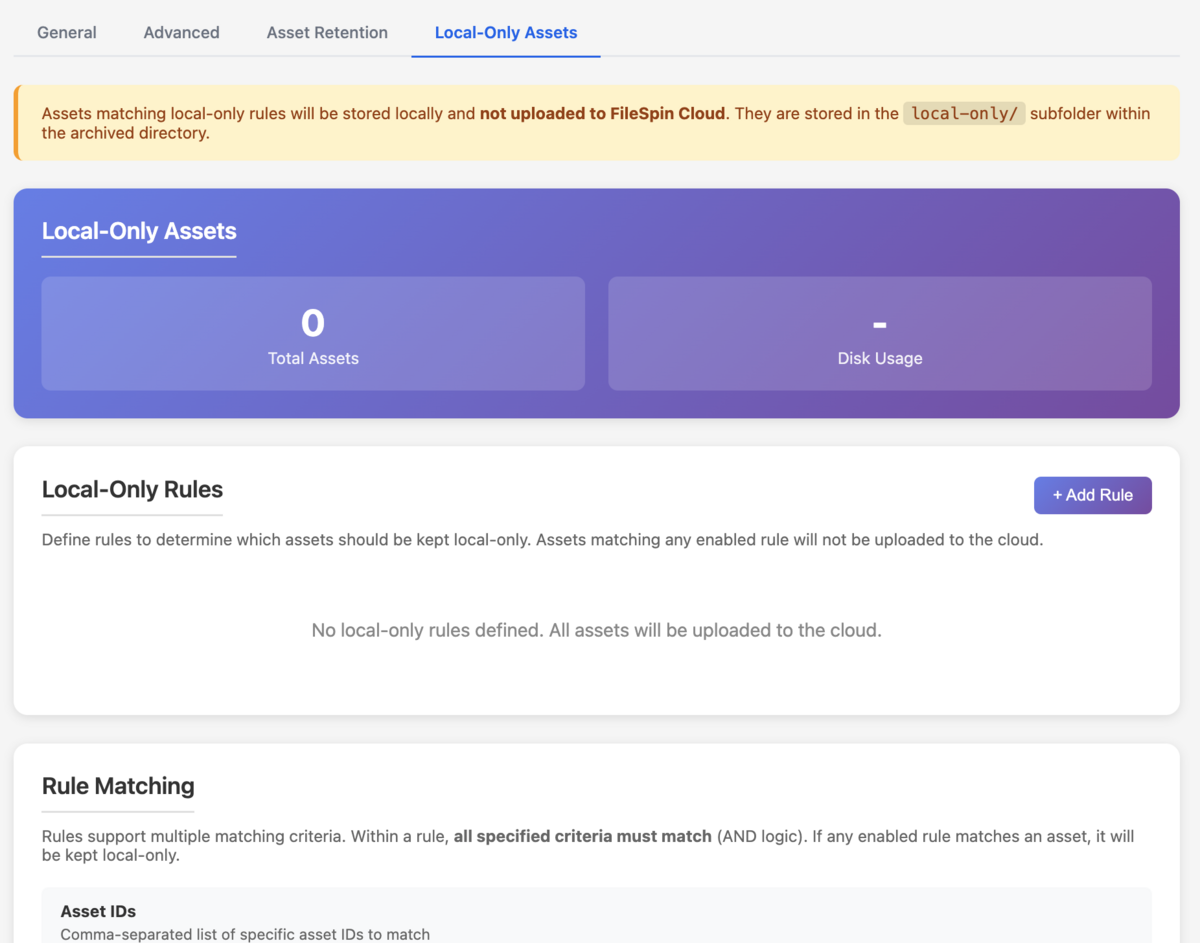
Local-only Assets Settings
Local-only assets for total privacy control. Configure rules for assets that should be kept locally and not uploaded to FileSpin Cloud.
Multi-Site Visibility via Cloud Dashboard
Cloud dashboard monitors all Teleport instances. Status, performance, and telemetry across distributed deployments.

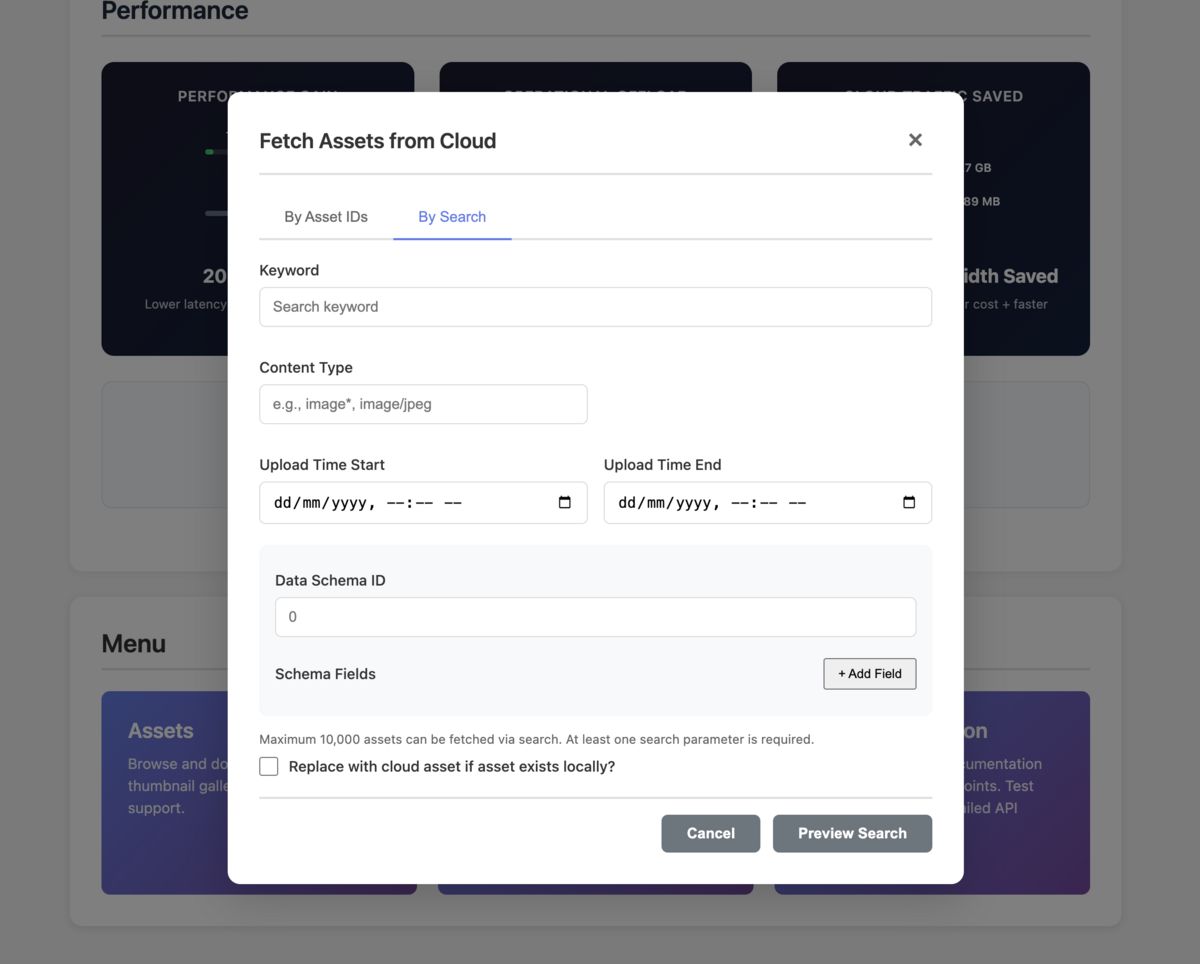
Fetch from Cloud
Fetch assets selectively from Cloud for local-first delivery. Use this to bring centrally managed assets for local delivery. Deliver event media on-site without worrying about internet connectivity.
Recipe walkthrough
Event photography pipeline

A conference photography team captures thousands of images over a multi-day event. Venue Wi-Fi is unreliable. Sponsors expect same-day delivery. The social team needs platform-ready variants during sessions.
1. Deploy Teleport at the venue Install Teleport on a venue server or workstation. Configure the hot folder path and FileSpin Cloud connection. Takes under 10 minutes.
2. Photographers dump camera cards to the hot folder Photographers ingest directly -- drag camera card contents to the hot folder, or configure their tethering software to write to it. Teleport detects files, assigns asset IDs, and begins processing.
3. Generate social variants locally Your integration calls the conversions endpoint to generate platform-ready sizes:
# Instagram square
curl "http://localhost:8080/api/v1/assets/{id}/conversions?resize=1080,1080&format=jpg" \
  --output ig.jpg

# LinkedIn landscape
curl "http://localhost:8080/api/v1/assets/{id}/conversions?resize=1200,627&format=jpg" \
  --output linkedin.jpg
All processed locally -- no upload wait, no cloud latency.
4. Apply event watermarks Use the conversions endpoint with watermark parameters to brand assets before distribution.
5. When venue Wi-Fi connects -- cloud pass-through activates Face recognition identifies speakers and VIPs across thousands of photos in real time. Branded share pages become available for sponsor distribution. If connectivity drops, local processing continues.
6. Assets sync to FileSpin Cloud Once synced, the full automation stack activates: AI auto-tagging classifies by session, speaker, and sponsor. Make/Zapier pipelines trigger downstream distribution -- press kits, social scheduling, sponsor deliverables.
Attractions guest imaging

A theme park processes millions of guest photos daily. The business runs on preview-to-purchase -- if the watermarked preview is slow, the sale is lost.
1. Ride capture system uploads via REST API The capture system sends photos to Teleport's upload endpoint immediately after capture:
curl -X POST "http://localhost:8080/api/v1/assets/new/content/original/upload" \
  -F "file=@ride-photo-001.jpg" \
  -F "data={\"ride\":\"coaster-1\"}"
2. Generate watermarked preview locally The guest app requests a watermarked preview via the conversions endpoint -- sub-10ms response, no cloud round-trip:
curl "http://localhost:8080/api/v1/assets/{id}/conversions?resize=800,600&watermark={params}" \
  --output preview.jpg
Guest sees the preview the moment they step off the ride.
3. Face recognition links captures across the park (when connected) At connected venues, Teleport's cloud pass-through enables face recognition in real time -- a single face search discovers photos from rides, meet-and-greets, roaming photographers, and green screen stations. Unified guest galleries drive cross-venue photo discovery and incremental sales.
4. Purchase triggers high-quality download
On purchase, the guest app requests the unwatermarked original via get_link:
curl "http://localhost:8080/api/v1/assets/{id}/get_link"
5. Selective sync to cloud Not every guest photo needs cloud backup. Configure sync rules to upload purchased photos, flagged assets, or a configurable percentage -- typically 15–20% of total captures. The rest stays local with configurable retention.
Awards festival judging

A creative awards festival runs on-site judging across multiple jury rooms. Entries include 30-second films, print campaigns, digital experiences, and case study videos. Jury panels need instant video playback and high-res image viewing -- but venue Wi-Fi collapses under load. The old way: USB drives shuttled between rooms, inconsistent playback quality, and no way to search or filter entries during deliberation.
1. Deploy Teleport at the venue Install Teleport on a workstation in each jury room -- or a single server serving multiple rooms over the local network. Configure the FileSpin Cloud connection and run the benchmark to confirm playback performance meets requirements.
2. Fetch shortlisted entries from Cloud Use Teleport's Fetch from Cloud feature to pre-load the shortlisted entries for each category before judging begins. Entries arrive with all metadata intact -- category, entrant, agency, brand, country. The jury room now has everything locally.
3. Jury browses and searches entries locally The judging app queries Teleport's local search API to filter entries by category, subcategory, or entrant -- no internet required:
curl -X POST "http://localhost:8080/api/v1/assets/search" \
  -H "Content-Type: application/json" \
  -d '{"query": "", "filters": {"category": "Film Craft"}, "sort": "entrant", "size": 50}'
Sub-10ms response times. Judges navigate entries without waiting.
4. Instant video playback from local hardware Film and case study entries stream directly from Teleport -- no buffering, no cloud round-trip:
curl "http://localhost:8080/api/v1/assets/{id}/transcodes/1080p-video.mp4"
For print and digital entries, the conversions endpoint serves high-res previews locally:
curl "http://localhost:8080/api/v1/assets/{id}/conversions?resize=2560,1400&format=jpg"
5. Scoring and deliberation via share pages (when connected) When venue connectivity permits, Teleport's cloud pass-through enables branded share pages for formal scoring. Create per-category share pages with the "Confidential Review" template -- jurors approve or reject entries with notes, and the jury president tracks progress through analytics. If connectivity drops, local browsing and playback continue uninterrupted.
6. Sync winners and archive to Cloud After judging concludes, sync winning entries and the full shortlist to FileSpin Cloud. The automation stack activates: AI agents assemble press kits, workflow engines trigger winner notifications, and branded share pages deliver clean originals to winners and press teams. Configure preservation rules so award entries survive local cleanup.
Upgrading Teleport
Dashboard upgrade (recommended)
When a new version is available, Teleport shows an upgrade banner on the dashboard. Click Upgrade Now -- Teleport backs up the database and previous binary, downloads the new version, and restarts automatically. Typically under 30 seconds of downtime.
Best practices
-
Use SSD for hot folder and staging. File watcher performance and upload throughput scale directly with disk I/O speed. Putting hot folder and staging on the same SSD drive avoids cross-device moves.
- Set
file_stability_waitfor network drives. If your hot folder is on a NAS or network share, files may still be writing when detected. A 30-second stability wait prevents partial uploads (more details are in the Operation Guide).
- Set
-
Size the queue for your peak volume. Default is 10,000. Event venues processing 20,000+ assets in a day should increase
queue_sizeto 50,000 (more details are in the Operation Guide). Attractions with continuous capture may need more. -
Use preservation rules for critical assets. Archived assets are auto-purged based on retention settings. Tag hero images, purchased guest photos, or award entries as preserved so they survive cleanup.
-
Configure selective sync rules. Not every locally processed asset needs cloud backup. Sync purchased photos, approved assets, or a percentage -- reduces bandwidth and cloud storage costs by 80%+.
-
Run the benchmark before deployment.
teleport --benchmark --headlessgives you concrete performance numbers for your specific hardware. Use the results for capacity planning and to validate that your edge hardware meets throughput requirements.