Face Recognition: Indexing, Searching, and Managing Face Data
Index faces in your images, find every photo of a person from one reference photo in the Dashboard, through an AI agent or with the API, and manage face data.
A conference produces thousands of photos, and the speaker's agent wants every one with the speaker in it by the end of the day. An attraction captures guests on rides, at meet-and-greets and from roaming photographers, and the guest wants all of their photos, not the three they happen to remember. File names and tags do not help with either: nobody tags a photo with the names of the people in the background.
FileSpin's Face Recognition addon indexes the faces in your images. After that, one reference photo finds every indexed image with that person in it, and the search can be narrowed with your own metadata, such as event, day or location. This guide covers turning indexing on, searching by face from the Dashboard, an AI agent and the API, and what happens to face data.
Face Recognition is not enabled by default. Contact support@filespin.io to add it to your account. Indexing an image uses AI credits.
How it works
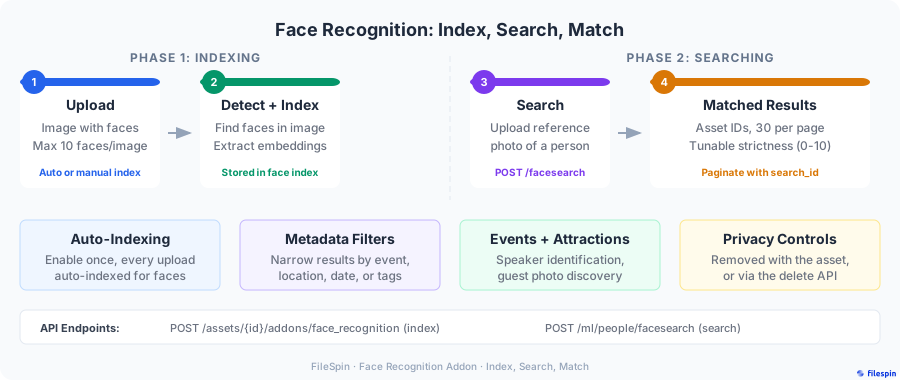
Face recognition has two halves:
- Indexing detects up to 10 faces in an image and stores an embedding for each: a set of numbers that describes the face, not a copy of it. The asset's
_filespin_fr_countmetadata field records how many faces were found. Indexing runs in the background. - Searching takes the most prominent face in a reference photo, compares it with the indexed faces in your account and returns the matching assets. The reference photo is discarded when the search completes.
Only indexed images can be found, so indexing comes first.
Step 1: Index your images
Index automatically on upload
For most accounts, the right setup is to index every new image as it arrives. Admins and managers set this up in the Dashboard:
- Open Admin → Add-ons.
- On the Face Recognition and Search card, turn the addon on.
- Select the gear icon to open the trigger settings.
- Enable When asset is saved to index each new upload. When asset metadata is updated indexes an asset when its metadata changes instead.
- Optionally, add schema field conditions so only relevant assets are indexed, such as assets whose
eventfield is set. Narrower conditions mean fewer images processed and fewer credits used.
Leave Process derived assets off unless you want FileSpin-generated outputs, such as background-removed copies, indexed as well. Otherwise the same face is indexed twice.
The same trigger settings are available through the Update Addons Settings API. That call replaces the account's whole addon configuration, so send every addon's current settings along with the change.
Index images you already have
Triggers only act on new events, so images uploaded before you turned indexing on need indexing separately:
- In the Dashboard, the Reprocess Assets page (admins and managers) takes a comma-separated list of asset IDs and the addons to run on them. Tick Face Recognition.
- With the API, queue each image with Index Faces:
curl -X POST "https://app.filespin.io/api/v1/assets/ASSET_ID/addons/face_recognition" \
  -H "X-FileSpin-Api-Key: YOUR_API_KEY" \
  -H "Content-Type: application/json" \
  -d '{"disposition": {"update_metadata": true}}'
The response is HTTP 202 with an empty body: the image is queued. HTTP 409 means the asset is already indexed. Face Index Status reports QUEUED, PROCESSING, DONE or ERROR for about a day after the request.
To find images that are already indexed, run an asset search with "addons_criteria": ["FACE_RECOGNITION"], or tick Face Recognition under Addons Processed in the Dashboard filter panel.
Step 2: Search by face
In the Dashboard
When the addon is enabled, the search bar on the Assets page shows a face icon.
- Select the face icon.
- Take a photo with your camera, or select Browse from files to pick a JPEG or PNG reference photo.
- To narrow the search, pick a schema under Filters, fill in the fields to match (for example, the event and day) and select Submit.
Matches appear in the normal asset grid with a Face search active pill. Keyword search, sorting and the regular filter panel are off while a face search is active. Remove the reference photo from the search bar to return to normal search.
With an AI agent
The search_by_face tool on the FileSpin MCP Server takes the reference face in three ways: an image already in FileSpin (by asset ID), a photo shared in the conversation, or a public image URL. Photos passed in the conversation or by URL are not stored.
- "Use asset 9f2c… as the face reference and find every photo of this person from the Lisbon summit."
- "Here is a photo of our keynote speaker. Find all matching photos, add them to a collection called Keynote – Day 1 and create a share page for the speaker's team."
- "Find all photos of this guest from today, then build a gallery share that expires in 7 days."
The second and third prompts show where an agent earns its keep: it chains the face search with tagging, collections and Branded Share Pages, which would otherwise be several manual steps.
With the API
Face Search is a multipart form upload:
curl -X POST "https://app.filespin.io/api/v1/ml/people/facesearch" \
  -H "X-FileSpin-Api-Key: YOUR_API_KEY" \
  -F "image=@reference-photo.jpg" \
  -F "strictness=9.5" \
  -F 'filters={"event": "lisbon-summit", "day": "1 2"}'
{
  "data": {
    "matches": [
      "a1b2c3d4e5f6789012345678abcdef90",
      "b2c3d4e5f6789012345678abcdef901a"
    ]
  },
  "page": 1,
  "search_id": "eed4c602a80a4920a4a9e56b5d3ea161",
  "limit_per_page": 30,
  "hits": 2
}
| Form field | Meaning |
|---|---|
image | Reference photo, up to 10 MB. Only the most prominent face is used. |
strictness | 0 (loose) to 10 (strict). Default 9.9. |
filters | JSON string of metadata fields to match, described below. |
limit_per_page | 1 to 30. Default 30. |
extended_result | true adds Asset Data for each match under data.extended_result. |
Strictness trades recall for precision. The default of 9.9 returns only close matches. If you know a person is in photos that are not being found, lower it in small steps, such as 9.5 and then 9.0, and check the extra results for look-alikes as you go.
Filters narrow matches by asset metadata:
- Fields are ANDed together. Field names are case-sensitive.
- Space-separated values in one field are ORed:
{"day": "1 2"}matches day 1 or day 2. - Fields whose names end in
Datetake an inclusive ISO 8601 range:{"captureDate": ["2026-03-01T00:00:00Z", "2026-03-03T23:59:59Z"]}. - Filters need face recognition to be running from the addon's trigger settings (Step 1).
Paging through matches
hits is the total number of matches. Later pages come from Paginated Search Results with the search_id:
curl "https://app.filespin.io/api/v1/ml/people/facesearch?search_id=eed4c602a80a4920a4a9e56b5d3ea161&page=2" \
  -H "X-FileSpin-Api-Key: YOUR_API_KEY"
The page request has its own limit_per_page (default 30) and extended_result (default false) parameters. They do not carry over from the first request, so send the same values on every page, or page numbers will not line up with the first page. A loop that reads every match:
import math
import requests

API_BASE = "https://app.filespin.io/api/v1"
HEADERS = {"X-FileSpin-Api-Key": "YOUR_API_KEY"}
PER_PAGE = 30

with open("reference-photo.jpg", "rb") as f:
    first = requests.post(
        f"{API_BASE}/ml/people/facesearch",
        headers=HEADERS,
        files={"image": f},
        data={"strictness": "9.5", "limit_per_page": str(PER_PAGE)},
    ).json()

matches = list(first["data"]["matches"])
for page in range(2, math.ceil(first["hits"] / PER_PAGE) + 1):
    resp = requests.get(
        f"{API_BASE}/ml/people/facesearch",
        headers=HEADERS,
        params={"search_id": first["search_id"], "page": page, "limit_per_page": PER_PAGE},
    )
    resp.raise_for_status()
    matches.extend(resp.json()["data"]["matches"])

print(f"{len(matches)} matching assets")
Face data and privacy
| Data | Kept? |
|---|---|
| Face embeddings for indexed images | Yes, until you delete them |
| Reference photos used for search | No, discarded when the search completes |
Face count (_filespin_fr_count) | Yes, in the asset's metadata |
You control how long face data is kept: it stays until you delete it, in one of two ways:
- When you delete an asset, FileSpin deletes its face data as part of the deletion. This applies to single and bulk deletes.
- On request, Delete Face Data removes the face data for up to 100 assets per call while keeping the assets themselves. Deletion is asynchronous (HTTP 202) and usually completes within seconds. This endpoint needs the admin role.
curl -X POST "https://app.filespin.io/api/v1/assets/addons/face_recognition/delete" \
  -H "X-FileSpin-Api-Key: YOUR_API_KEY" \
  -H "Content-Type: application/json" \
  -d '{"ids": ["a1b2c3d4e5f6789012345678abcdef90", "b2c3d4e5f6789012345678abcdef901a"]}'
Deleting face data keeps the _filespin_fr_count field, so the asset still shows how many faces it had. To index the asset again later, delete its face data first: indexing an asset that is already indexed returns HTTP 409.
You decide which images are indexed and are responsible for having the right to process the faces in them. Face Recognition Data Handling describes how FileSpin stores and protects face data.
Limitations
- 10 faces per image are indexed. In crowd shots, some faces will not be.
- Image quality decides accuracy. Small faces (under about 40×40 pixels), strong angles, blur and harsh lighting all reduce matches. See Face Recognition Limitations.
- One face per search. If the reference photo has several people, only the most prominent face is used. Crop to the person you want.
- Indexing is asynchronous. A photo uploaded a moment ago may not be searchable yet.
Best practices
-
Index on upload, with conditions. Automatic indexing keeps coverage complete. Schema conditions keep it to the images that need it, which keeps the credit spend proportional.
-
Use clear reference photos. A sharp, well-lit, front-facing photo of one person does more for results than any strictness setting.
-
Lower strictness only when you are missing known matches. Lower it in small steps and check what each step adds.
-
Record the facts you will filter on at upload. Event, day, venue and photographer in schema fields make face search filters possible. They are hard to add afterwards.
-
Delete face data you no longer need. When an event's photos have been delivered, delete the face data for those assets, even if you keep the images.
Next steps
- Search patterns: combine metadata filters and paging with any search
- Branded Share Pages: deliver matched photos to speakers, sponsors or guests
- AI agent integration: chain face search with tagging, collections and shares
- Face Recognition API reference