FileSpin for Adobe: Help and Support
How to use the FileSpin plugin in Photoshop, InDesign and Premiere Pro to bring assets from FileSpin into your work and save it back, plus fixes for common problems and how to contact support.
The FileSpin plugin connects your FileSpin library to Adobe Photoshop, InDesign and Premiere Pro. Search your assets, open or place them in the app you're working in, and save your work back to FileSpin with its metadata, without downloading and uploading files by hand.
The plugin works the same way in all three apps. Where an app does something differently, this guide says so.
Need help? Email support@filespin.io. See Contact support for what to include.
Install the plugin
Install it from the Adobe Creative Cloud Marketplace: in the Creative Cloud desktop app, open the plugins marketplace, search for FileSpin, and select Get. Each app has its own listing, so install it for each app you use.
If your company manages Creative Cloud centrally, your IT team can deploy the plugin to everyone through the Adobe Admin Console. Then there's nothing to install yourself.
Open the panel
| App | Where to find it |
|---|---|
| Photoshop | Plugins → FileSpin → Media Connector |
| InDesign | Plug-Ins → FileSpin → Media Connector |
| Premiere Pro | Window → UXP Plugins → FileSpin |
The panel's tab is called Media Connector. If you close it, open it again from the same menu.
Sign in
You need a FileSpin account.
- In the panel, select Sign in to FileSpin. A FileSpin page opens in your browser.
- If the app asks whether FileSpin may open a web page, select Allow.
- Sign in to FileSpin if asked. Check the page shows the same code as the panel, then select Allow.
- Go back to the app. The panel updates by itself and shows your assets.
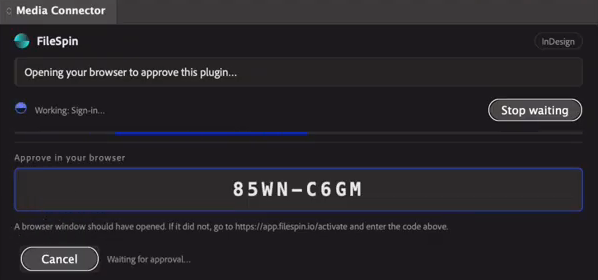
If the browser didn't open, go to app.filespin.io/activate and type the code shown in the panel.
You stay signed in on this computer until you sign out. To sign out, select Sign out at the top of the panel.
Find assets
Find assets lists your library. Type in the search box to find assets by name. Use * as a wildcard, for example banner*.
Select Filters to narrow the list:
- Kind: the types of file to show, for example Photoshop documents or Images in Photoshop, or Footage or Audio in Premiere Pro.
- Uploaded: when the asset was added (any time, the last 7 or 30 days, or the last year).
- Sort: newest or oldest first, name A–Z or Z–A, or largest first.
- Search metadata in: search the fields of one of your metadata schemas.
- Reset filters goes back to everything the app can open.
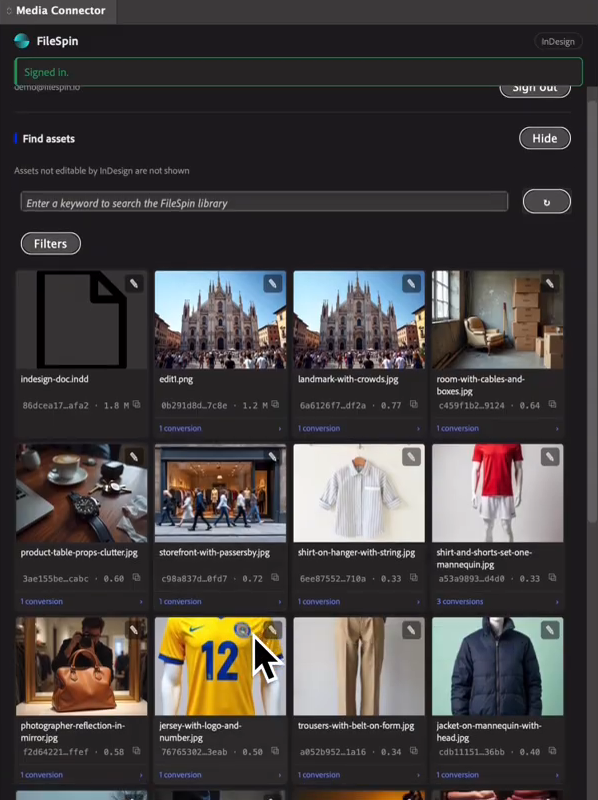
Each tile shows the file's name, its FileSpin asset ID and its size. Select the ID to copy it.
The panel only lists files the app can open. It also hides assets FileSpin is still processing. Everything else stays in FileSpin.
| App | Files it lists |
|---|---|
| Photoshop | PSD and PSB; images (JPEG, PNG, GIF, TIFF, BMP, WebP, HEIC, AVIF, SVG, EXR); camera raw files |
| InDesign | InDesign documents (INDD, INDT, INDB, IDML); PDF, EPS and Illustrator files; images, including PSD |
| Premiere Pro | Projects (PRPROJ), AAF and Motion Graphics templates; footage; audio; graphics and stills; SRT and VTT captions |
Bring an asset into your work
Double-click a tile, or select the ✎ button on it. What happens depends on the app:
| App | With a document or project open | With nothing open |
|---|---|---|
| Photoshop | The asset is placed into your document as a Smart Object layer. A large image is scaled down to fit the canvas, and the full-size original stays inside the layer. | The asset opens as a new document. |
| InDesign | The asset is placed into the selected frame, or into a new frame. The panel then embeds it in the layout, so it doesn't rely on a downloaded file. | InDesign documents open. Other files can't be placed until a layout is open. |
| Premiere Pro | The file is imported into the Project panel. A project file adds its sequences to your project. | A project file asks where to save it, then opens. Footage needs a project open first. |
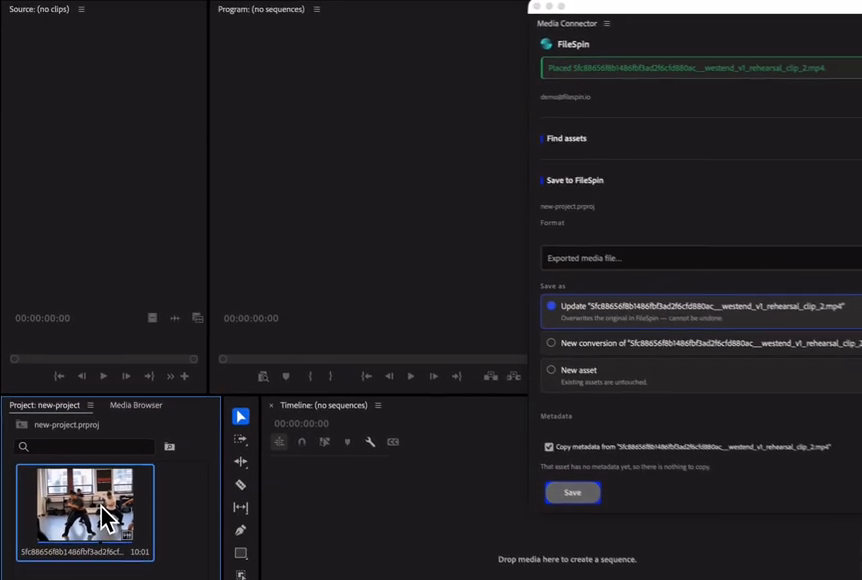
With nothing open, the app's own documents (PSD in Photoshop, INDD in InDesign) open as working files, not as a picture inside another document. They open as untitled copies, so the first time you save on your computer, the app asks where to put the file.
Conversions
FileSpin keeps copies of an asset in other sizes and formats, called conversions. Select an asset, then select Conversions under the grid (or the conversion count on its tile) to see them with a preview of each. Choose one to bring that version into the app instead of the original. The panel lists only the conversions the app can open.
If you brought in a conversion, Save conversion saves your changes back into that conversion, and the asset's original isn't touched. To overwrite the original, bring in the original instead.
Save to FileSpin
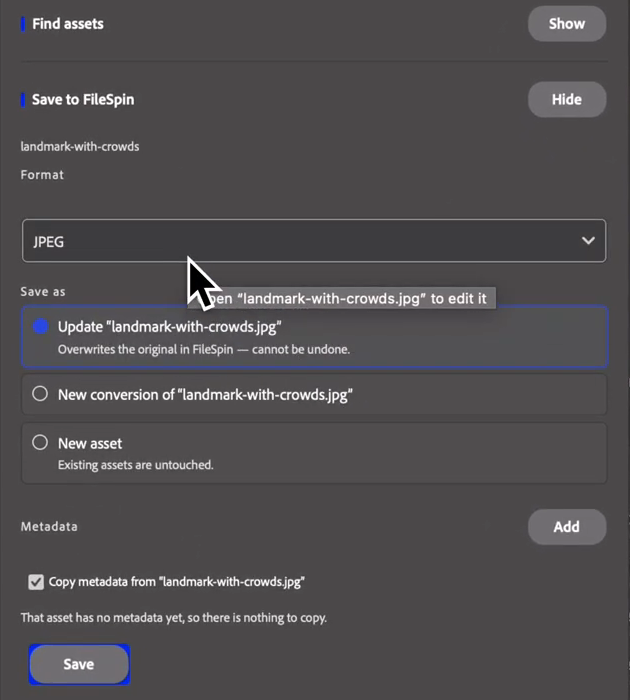
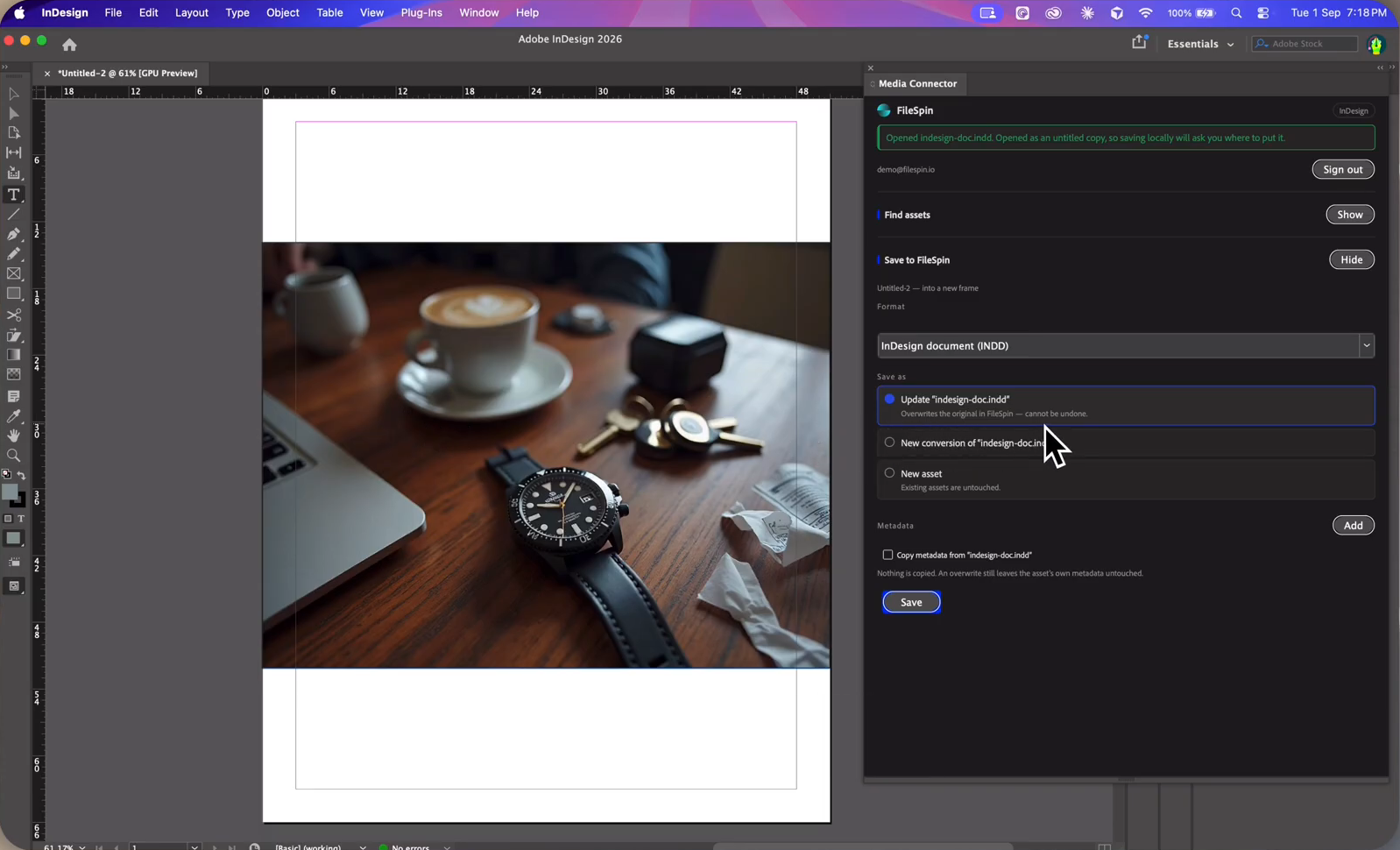
Open Save to FileSpin in the panel. Choose a Format, then choose what to save it as:
| Save as | What it does |
|---|---|
| Update | Overwrites the asset in FileSpin with your work. This can't be undone. After you select Save, the button changes to Confirm overwrite. Select it to go ahead. |
| New conversion of | Adds your work to the asset as a conversion, for example a web version. The asset's original, name and metadata stay as they are. Type a conversion name (lowercase letters, numbers, - and _, up to 30 characters), or the name of an existing conversion to replace it. |
| New asset | Uploads your work as a new asset. Name it in the field that appears. Existing assets aren't changed. |
Update and New conversion act on the asset your work came from: the one you last brought into the app. If you haven't brought one in, they act on the asset selected in the grid. The option names the asset, so you can check before you save.
What each app saves
| App | Formats |
|---|---|
| Photoshop | PNG, JPEG or PSD |
| InDesign | PDF or InDesign document (INDD) |
| Premiere Pro | Exported media file… (a file you've already exported) or Project file (.prproj) |
Premiere Pro doesn't render from the panel. Export your sequence as you normally do, then choose Exported media file… and pick the file. To save the project itself, save it in Premiere Pro first.
Metadata
When you save, the panel offers Copy metadata from the asset you brought in, ticked by default:
- With Update, the asset keeps its metadata. Any fields you edit are changed.
- With New asset, the new asset gets the same fields.
- If you untick it, nothing is copied. An update still never erases the asset's own metadata.
Select Add next to Metadata to fill in or change fields. The fields come from your account's metadata schemas.
To save, your FileSpin role must allow you to add assets. To update an asset or add a conversion, you must be able to edit that asset.
Before you update an asset
Updating an asset replaces its file, and FileSpin then makes its conversions again from the new file. Conversions that were added by hand are removed. The confirmation message tells you how many. To keep them, save as a New conversion or a New asset instead.
Fix common problems
| What you see | What to do |
|---|---|
| The panel isn't in the menu | Check the plugin is installed for this app in the Creative Cloud desktop app, then restart the app. In Premiere Pro, look under Window → UXP Plugins. |
| The browser didn't open when you signed in | Go to app.filespin.io/activate and type the code shown in the panel. If the app asked whether FileSpin may open a web page, choose Allow. |
| The sign-in code expired | The code lasts 10 minutes. Select Cancel, then Sign in to FileSpin to get a new one. |
| Signed out — please sign in again. | Your sign-in ended, for example after a password change. Sign in again. |
| An asset is missing from the list | The panel lists only files this app can open, and only assets FileSpin has finished processing. Check Kind in Filters, or look in FileSpin. |
| In InDesign, an image can't be placed | Open or create a layout first. With nothing open, InDesign can only open InDesign documents. |
| In Premiere Pro, the save option asks for a file | The panel doesn't render. Export your sequence first, then choose the exported file. |
| This project has not been saved yet — save it first. | Save the Premiere Pro project, then save it to FileSpin. |
| A message says your role can't do this | Your FileSpin role can't add or edit that asset. Ask your FileSpin account admin. |
| The panel is stuck on Working | Select Stop waiting. Anything already sent finishes in the background. |
| A saved file doesn't appear yet | New files take a few seconds to process in FileSpin. Search again in a moment. |
Your data
- The plugin signs in with FileSpin's own sign-in page. It never sees your password.
- Your sign-in is kept in the Adobe app's encrypted plugin storage on your computer, and removed when you sign out.
- In Photoshop and InDesign, the plugin records the FileSpin asset's ID inside the document, so the panel knows which asset to update when you save again.
- Files go only between the Adobe app and your FileSpin account. Your work is uploaded only when you select a save button.
Contact support
Email support@filespin.io. To help us answer quickly, include:
- the email address you use to sign in to FileSpin,
- which app you were using (Photoshop, InDesign or Premiere Pro) and its version,
- what you were doing and the message you saw,
- the asset's name or ID, if the problem is with one asset.
We never ask for your password.