Search Patterns and Best Practices
Find assets by keyword, file type, upload date, custom metadata and addon status, in the Dashboard, through an AI agent or with the Search API, and page through large result sets.
A DAM that cannot find things is a storage bill. Retail teams look for every approved shot of one product line, event teams for last Tuesday's keynote photos, attractions for one day's captures at one ride. The asset is almost always there. The question is whether the search can narrow to it before someone gives up and asks a colleague.
FileSpin runs the same search behind the Dashboard, the AI agent and the REST API. A filter you set in one behaves the same in the others, so a search a marketer builds in the Dashboard is the search a developer later automates. This guide covers the criteria you can combine, how paging works, and the patterns that keep result sets small enough to be useful.
What you can search on
Every search is a set of criteria. All criteria in one search are combined with AND: an asset must match every one.
| Criterion | Matches | Dashboard | API field |
|---|---|---|---|
| Keyword | Words in file names (3+ characters), image auto-tags, text found in images, the system and path an asset was imported from, and custom fields marked keyword_searchable (or filespin_search_txt on assets without a schema) | Search bar | keyword |
| File name | File names, with * as a suffix wildcard | Filter panel: File Name | file_name |
| File type | MIME type, with * wildcard (image*, video*, application/pdf) | Filter panel: Content Type | content_type |
| Upload date | Inclusive range, UTC | Filter panel: Upload Date | upload_time_range |
| Custom metadata | Fields from your asset schemas marked searchable | Filter panel: Asset Schema | schema_criteria |
| Addon processed | Assets an addon has processed, such as face recognition or auto-tags | Filter panel: Addons Processed | addons_criteria |
| File size | Inclusive range in bytes | Sort only | file_size_range |
| Uploaded by | One user in your user group | — | creator_id |
| Specific assets | Up to 100 asset IDs | — | ids |
| Deleted assets | Assets in the trash, not yet purged (admins only) | Deleted Assets page | trashed |
Custom fields only become searchable when the schema says so. Mark a field searchable to filter on it, and keyword_searchable to have the keyword box match it too. The custom metadata schemas guide covers schema design.
Search in the Dashboard
The Assets page is where most people search, and it exposes most of the criteria above without writing a query.
- Type in the search bar for a keyword search. Results update as you type.
- Open the filter panel with the sliders icon to add file name, content type, upload date, asset status, addons processed and asset schema filters. For a schema filter, pick the schema, fill in the fields you care about and select Submit.
- Check the filter pills above the results. Every active filter shows as a pill you can remove, with Clear all to start again. If a search returns fewer assets than expected, a forgotten pill is the usual reason.
- Sort with the Sort by menu: upload date, file name, content type or file size. Select the active option again to flip between ascending and descending. The default is newest upload first.
- Page through results with the pager at the bottom. You can show 12, 18 or 30 assets per page.
Deleted assets do not appear in normal searches. Admins can search them on the Deleted Assets page, which has its own keyword search, sorting and content-type filter.
Search with an AI agent
Through the FileSpin MCP Server, an agent turns a plain request into the same search criteria. When you use the agent inside the Dashboard, the filters it applies show up as the same pills, so you can see exactly what it searched for and adjust it by hand.
Prompts that work well name the criteria the way you would set them in the filter panel:
- "Find all PDFs uploaded in March with 'brand guidelines' in the file name."
- "Show the 10 most recent images where the campaign field is spring-2026 and status is approved."
- "Find images older than 18 months that have never been processed for auto-tags."
- "List every video uploaded last week, largest first."
Agents are good at the follow-up step that search alone does not do: tag the results, add them to a collection or build a Branded Share Page from them, in the same conversation.
Search with the API
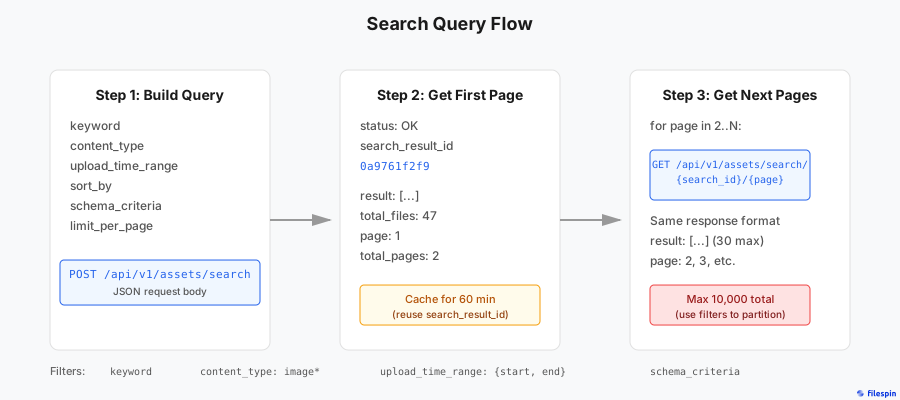
The Search API uses two calls:
POST /api/v1/assets/searchruns the search and returns the first page plus asearch_result_id.GET /api/v1/assets/search/{search_result_id}/{page}returns later pages of the same search.
A request combines whichever criteria you need:
curl -X POST "https://app.filespin.io/api/v1/assets/search" \
  -H "X-FileSpin-Api-Key: YOUR_API_KEY" \
  -H "Content-Type: application/json" \
  -d '{
    "keyword": "summer",
    "content_type": "image*",
    "upload_time_range": {
      "start": "2026-01-01T00:00:00Z",
      "end": "2026-06-30T23:59:59Z"
    },
    "schema_criteria": {
      "data_schema_id": 3,
      "fields": {
        "category": "clothing",
        "status": "approved"
      }
    },
    "sort_by": ["upload_time_range_DESC"]
  }'
The response lists asset IDs for the first page:
{
  "status": "OK",
  "search_result_id": "0a9761f2f9",
  "result": [
    "a1b2c3d4e5f6789012345678abcdef90",
    "b2c3d4e5f6789012345678abcdef901a"
  ],
  "total_files": 47,
  "page": 1,
  "total_pages": 2
}
The full parameter list is in the Search API reference.
Keyword rules
- OR or AND, not both.
beach OR sunsetmatches either word.beach AND sunsetmatches both. A keyword cannot mixANDandOR, and is limited to 40 words. - Exact phrases go in double quotes. To match
ABC 123as a phrase, send"\"ABC 123\"". - Quote words with special characters.
+ - && || ! ( ) { } [ ] ^ " ~ * ? : \ /have meaning in a query, so search forABC-123as"\"ABC-123\"". - File names match on words of three or more characters. A file called
IMG_04.jpgwill not be found by keyword04. Use thefile_namecriterion with a wildcard instead:IMG_04*.
Custom metadata
schema_criteria matches values in fields your schemas mark as searchable. Values support the same OR, suffix wildcard (john*) and quoting rules, and number fields take a range:
{
  "schema_criteria": {
    "data_schema_id": 42,
    "fields": {
      "season": "spring OR summer",
      "sku": "SNK-24*",
      "rating": [4, 5]
    }
  }
}
Advanced Search Options has the full syntax.
Sorting
sort_by takes a list of keys, each ending in _ASC or _DESC. The keys are upload_time_range, file_name, content_type and file_size_range. The first key is the primary sort and later keys break ties. Without sort_by, results come newest upload first.
Paging through results
Each page holds up to 30 asset IDs (limit_per_page, 1 to 30). A few rules shape any code that reads more than one page:
- A
search_result_idlasts 60 minutes. It stores the search criteria, not the results: each page request runs the search again, so newly uploaded assets can appear and page contents can shift. After 60 minutes the ID returns HTTP 410. Run the search again to get a new one. - A search can page through 10,000 results at most.
total_filescan be higher than whattotal_pageslets you read. Split larger result sets with narrower criteria, such as one month ofupload_time_rangeat a time. - Pages can hold fewer IDs than
limit_per_page. Assets the caller cannot access are left out of the page. Count pages, not IDs. - Requesting a page past
total_pagesreturns HTTP 400.
So loop over total_pages rather than comparing the number of IDs you have collected with total_files:
import requests

API_BASE = "https://app.filespin.io/api/v1"
HEADERS = {"X-FileSpin-Api-Key": "YOUR_API_KEY"}

first = requests.post(
    f"{API_BASE}/assets/search",
    headers=HEADERS,
    json={"content_type": "image*", "keyword": "product"},
).json()

asset_ids = list(first["result"])
for page in range(2, first["total_pages"] + 1):
    resp = requests.get(
        f"{API_BASE}/assets/search/{first['search_result_id']}/{page}",
        headers=HEADERS,
    )
    resp.raise_for_status()
    asset_ids.extend(resp.json()["result"])

print(f"{len(asset_ids)} of {first['total_files']} assets read")
Asset data in the results
Set "extended_result": true to get the full Asset Data for every asset on the page, keyed by asset ID, alongside the result list. It saves a request per asset but makes the search slower. Use it when you are about to display or process the assets, and leave it off when you only need IDs.
Duplicates and the trash
GET /api/v1/assets/{asset_id}/content/original/duplicatesreturns the IDs of other assets whose original file has the same MD5 checksum, whatever their file names. See Find Duplicates."trashed": truesearches deleted assets that have not been purged yet. It needs the admin role.
Best practices
-
Start from the narrowest criterion you have. A content type and an upload date range cut most libraries down faster than a longer keyword does.
-
Put the facts you filter on in schema fields. Status, campaign, SKU and season work better as
searchableschema fields than as words in a file name. Exact values match exactly, and ranges work on numbers. -
Turn keyword search on deliberately. Mark free-text fields such as descriptions
keyword_searchableso the search bar finds them. Leave codes and statuses as plainsearchablefields so a keyword search does not match them by accident. -
Sort explicitly when order matters. Newest first is the default. If a report or export depends on order, send
sort_byso the result does not change if the default ever does. -
Partition anything over 10,000 results. Split by month or by content type and run each slice as its own search.
-
Ask for asset data only when you use it.
extended_resultis the right call for a page you are about to render, and wasted work for a job that only needs IDs.
Next steps
- Custom metadata schemas: design fields that search well
- Face recognition: find people by face, not keyword
- AI agent integration: search and act on results in one conversation
- Search API reference