FileSpin for Canva: Help and Support
How to use the FileSpin app in Canva to add images and videos from FileSpin to your designs and save designs back, plus fixes for common problems and how to contact support.
The FileSpin app connects your FileSpin library to the Canva editor. Browse and search your assets and collections, add images and videos to a design, and save the finished design back to FileSpin, without downloading and uploading files by hand.
Need help? Email support@filespin.io. See Contact support for what to include.
Get started
You need a FileSpin account. If you don't have one, select Create an account on the FileSpin sign-in page.
- In the Canva editor, open Apps, search for FileSpin, and open it.
- Select Connect FileSpin.
- Sign in to FileSpin in the window that opens, then select Authorize.
The panel then shows your FileSpin assets. You stay connected until you disconnect.
Add images and videos
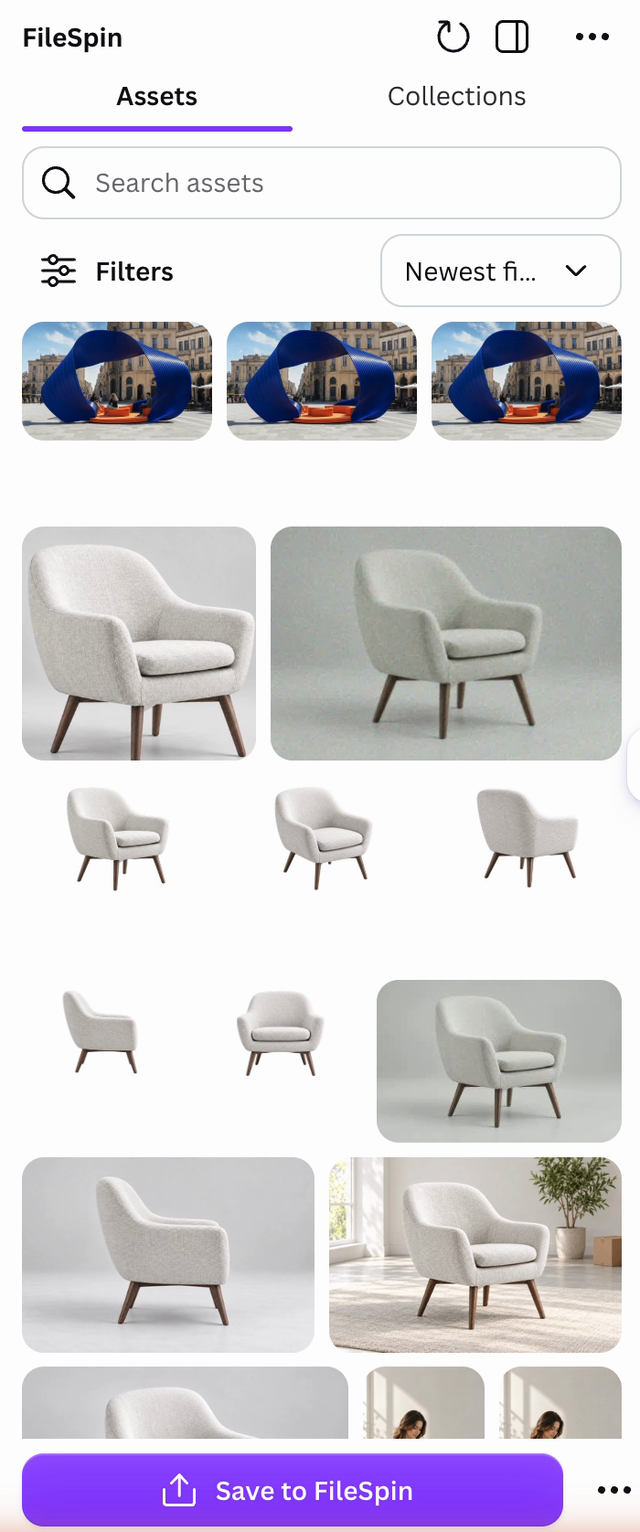
- Assets lists everything in your library that Canva can use. Select an image to add it to your design, or drag it onto the page.
- Search finds assets by name and metadata.
- Sort orders the list by newest, oldest, name or size.
- Filters narrow the list by file name, file type, upload date, generated assets and metadata schema.
- Collections lists your FileSpin collections. Open one to add its images and videos.
Asset details
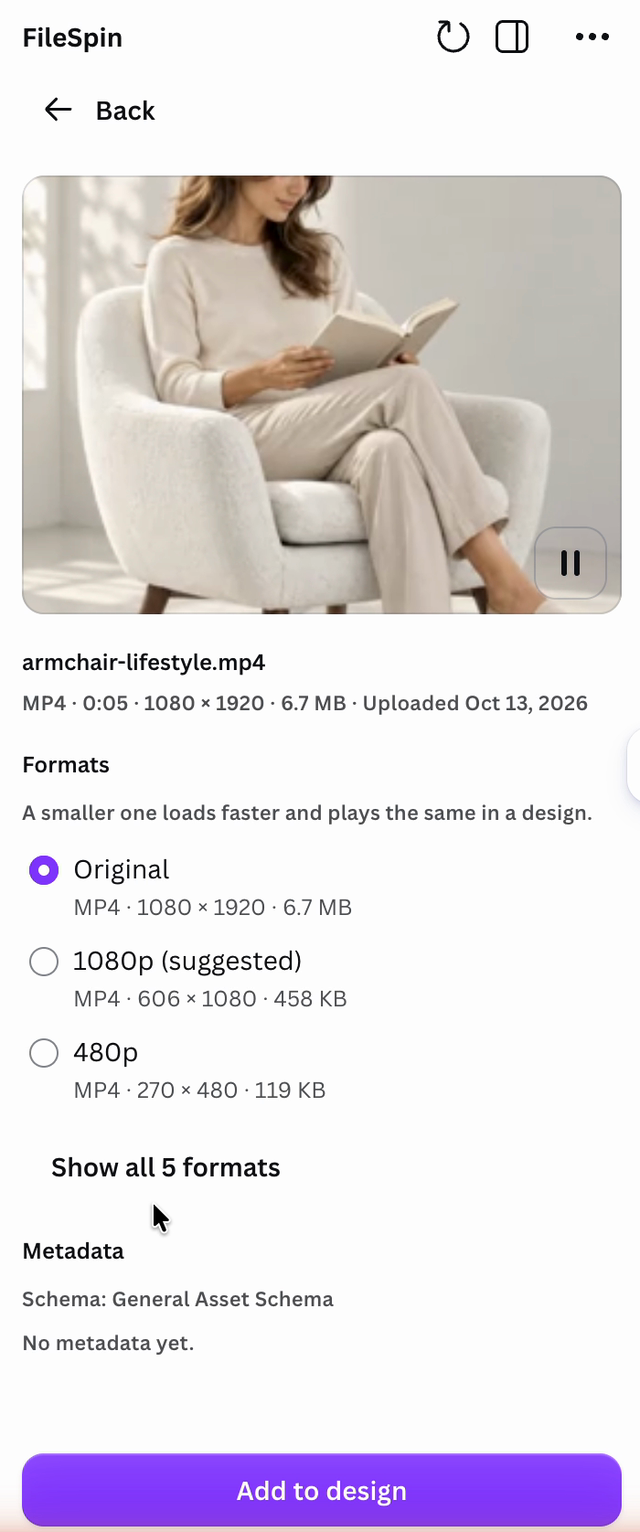
Select a video, or the eye button on an image, to open its details:
- a larger preview. Select Play to watch a video before you add it;
- the asset's Formats: the original and the other files FileSpin keeps for it, such as smaller copies of a video (1080p, 720p, 480p) or a background-removed image. Pick one, then select Add to design;
- the asset's metadata.
For a video, a smaller format is suggested: it loads faster and plays the same in a design. Formats Canva can't take (over Canva's 50 MB image or 100 MB video limit, or a file type Canva doesn't support) are listed but can't be picked.
Save a design to FileSpin
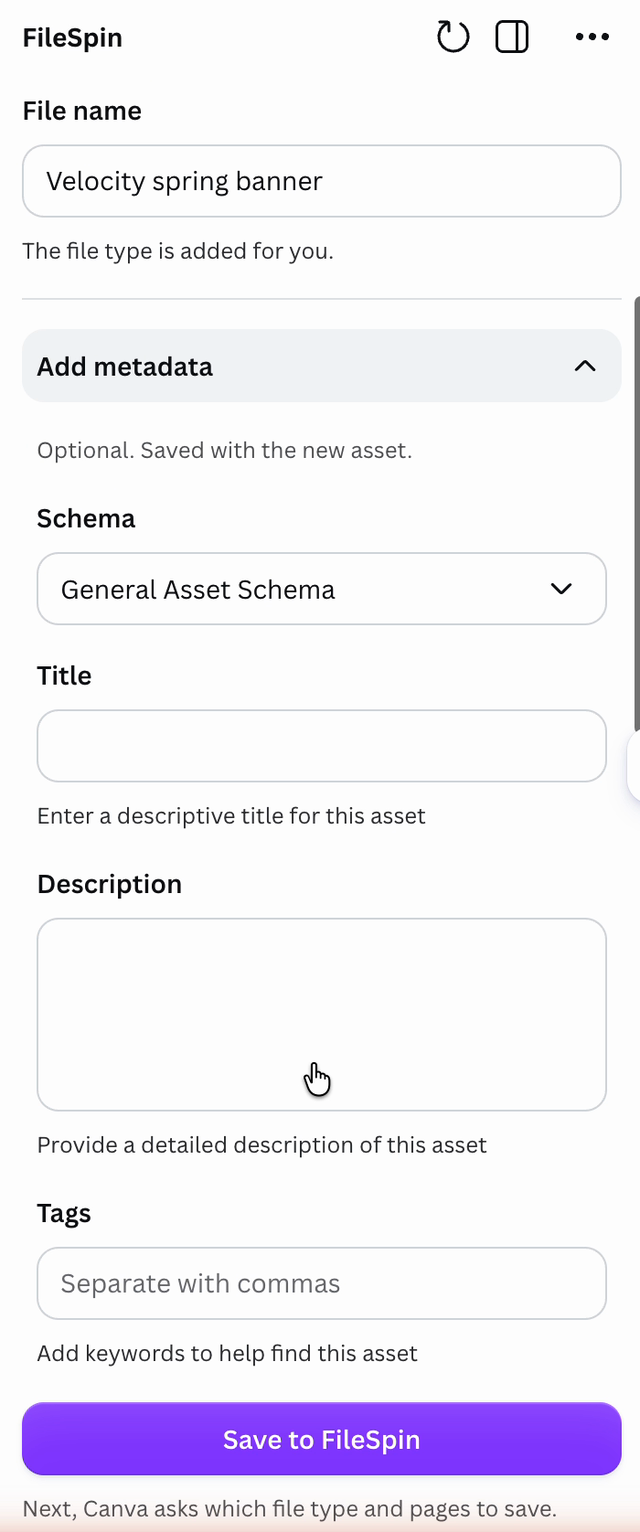
Select Save to FileSpin at the bottom of the panel and choose how to save:
| Option | What it does |
|---|---|
| New asset | Adds the design to your library as a new file. Name it in File name. |
| Conversion of an asset | Adds the design next to an existing image, for example as its Canva version. The original image stays as it is. |
| Replace an asset's file | The design becomes the asset's file. Use an image or PDF for an image asset, and an MP4 for a video. The asset keeps its name and metadata. If version history is on in FileSpin, the old file is kept as a previous version. |
For a conversion or a replacement, the panel suggests the asset you added last. Select it to choose a different asset.
Metadata: open Add metadata (new asset) or Edit metadata (existing asset) to fill in the asset's fields. Choose a schema, then fill in its fields. Editing an existing asset's metadata needs edit rights in FileSpin.
Then Canva asks which file type and pages to save.
What the app lists
Only files Canva can import are listed:
- Images: JPEG, PNG, WebP, HEIC and SVG.
- Videos: MP4, MOV, WebM and other common video types.
Other files, such as PSD, TIFF, RAW, GIF and PDF, stay in FileSpin but are not listed. Canva limits images to 50 MB and videos to 100 MB from an app. Larger files show Canva's "too large" message.
To save designs, your FileSpin role must allow you to add assets. To replace a file or add a conversion, you must be able to edit that asset.
Disconnect
Select the ⋯ button next to Save to FileSpin, then Disconnect FileSpin. Canva forgets your FileSpin sign-in and the app can no longer read or change your assets. Designs you saved stay in FileSpin.
Fix common problems
| What you see | What to do |
|---|---|
| FileSpin needs your permission | You selected Deny on the sign-in page. Select Try again, then Authorize. |
| Couldn't connect to FileSpin | Select Try again. If it keeps happening, check that you can sign in to FileSpin at dashboard.filespin.io, then contact support. |
| An asset is missing from the list | Check its file type in What the app lists. Collections may also contain files Canva can't use. |
| "Couldn't add ..." when adding an asset | The asset may have been deleted, or it is no longer shared with you. Select the refresh button at the top of the panel. |
| "... is too large for Canva" | Open the asset's details and pick a smaller format. |
| Saving fails with a permission message | Your FileSpin role can't add or edit that asset. Ask your FileSpin account admin. |
| A saved design doesn't appear yet | New files take a few seconds to appear. Previews of a replaced file update within a minute. |
Contact support
Email support@filespin.io. To help us answer quickly, include:
- the email address you use to sign in to FileSpin,
- what you were doing and the message you saw,
- the asset's name, if the problem is with one asset.
We never ask for your password.