On-Demand Image Transformations: A Practical Guide
Build dynamic image URLs with resize, crop, format, quality and effects parameters, with tested recipes for responsive images, thumbnails, social cards, product images and placeholders.
Serving the same large original to a mobile thumbnail grid and a desktop hero banner wastes bandwidth. On-Demand Image (ODI) transformations let you resize, crop, convert formats, adjust quality and apply effects through URL parameters, with the results cached by the CDN.
This guide is the parameter catalogue with recipes. For a task-shaped walkthrough that starts from the Dashboard's Get link / Embed dialog and rolls a pattern out across a product catalogue, see Change Product Image Sizes Without Re-Exporting.
Every example output below was checked on 26 September 2026 against the public demo asset 2e1bc0f4159343779b82923e951a9256, a 4:3 landscape photo whose largest available output is 1024×768.
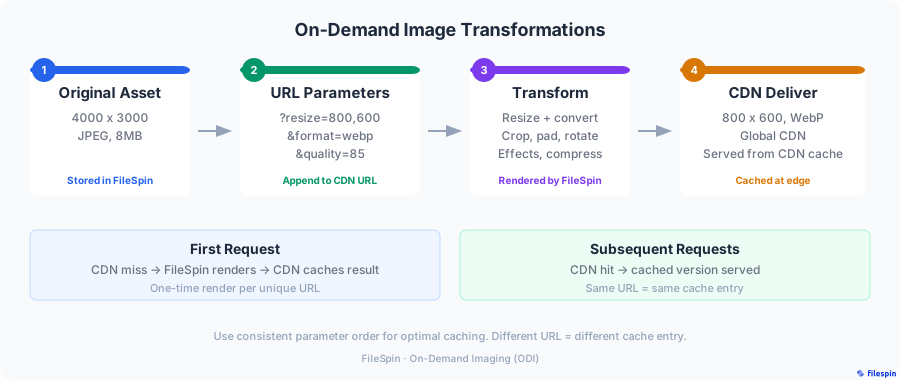
How ODI works
Transformations are URL parameters on the asset's conversions endpoint:
https://cdn.filespin.io/api/v1/assets/{ASSET_ID}/conversions?resize=800,600&quality=85
Request ──> CDN cache ──(miss)──> FileSpin renders ──> CDN caches + returns
                │
                └──(hit)──> CDN returns cached image
The first request for a particular URL renders the image; later requests for the same URL are served from the CDN cache. If you use a custom FileSpin Enterprise CDN, use that host instead of cdn.filespin.io.
Prerequisites
ODI needs the asset to be processed. Check the asset with the Get Data API: status should be OK and addons_info should show ON_DEMAND_IMAGE as available.
curl -X GET "https://app.filespin.io/api/v1/assets/ASSET_ID/data" \
  -H "X-FileSpin-Api-Key: YOUR_API_KEY"
{
  "id": "ASSET_ID",
  "status": "OK",
  "addons_info": {
    "ON_DEMAND_IMAGE": {
      "available": true
    }
  }
}
If ON_DEMAND_IMAGE is not yet available, the asset is still processing. Wait and check again. The ODI overview covers this and the delivery limits in more detail.
Core transformations
Resize
Fit the image inside a box without changing its aspect ratio:
?resize=800,600
Use 0 for one side to size by the other:
?resize=640,0     # 640 wide, height from the aspect ratio  -> 640x480 on the demo asset
?resize=0,480     # 480 high, width from the aspect ratio   -> 640x480 on the demo asset
resize fits within the box, so resize=300,300 on a 4:3 image returns 300×225, not a square. To get an exact size, pad the gaps with a colour:
?resize=300,300,fill:white # 300x300, image centred on white
The fill value can be a colour name, a hex code such as ffffff, transparent or auto.
Limits: the maximum output is 2048×1536 pixels at 72 PPI, and resize does not upscale. Asking for more than the source can give returns the largest available size, with HTTP 200. Always check the dimensions you actually receive. Resize reference.
Crop
Two forms:
?crop=600,300,center          # width, height, alignment
?crop=150,170,200,50          # left, top, width, height (a region of the original)
Alignment can be center, top, bottom, left, right or face. With only crop=width,height, the crop centres on a detected face or feature. Crop reference.
Format
?format=webp
?format=avif
?format=jpg
?format=png
When you leave format out, FileSpin picks the format from the browser's Accept header. On the demo asset, the same URL returned image/avif, image/webp or image/jpeg depending on what the browser offered, at the same pixel dimensions. Set format explicitly for email, partner feeds and any other consumer that is not a browser. Format reference.
Quality
Compression level from 1 to 100. The default is 90.
?quality=80
| Quality | Typical use |
|---|---|
| 85–90 | High-quality web photography |
| 70–85 | Product photos and general web images |
| 30–60 | Thumbnails and placeholders |
Background colour
Set the background for transparent images, for example when converting a PNG cut-out to JPEG:
?bgcolor=ffffff&format=jpg
Hex colour without the #. Background colour reference.
Trim
Remove a uniform border. The value is a colour tolerance:
?trim=10
Rotate and flip
?rotate=90        # 90, 180 or 270
?flip=h           # mirror horizontally
?flip=v           # mirror vertically
Rotate reference · Flip reference.
Effects
?effects=grayscale
?effects=blur:5
?effects=roundcorner:30
?effects=grayscale,roundcorner:30     # combine with commas
Watermarks
Image and text watermarks (watermark= and text_wm=) take a source and placement values. See the Watermark and Text Watermark references for the syntax, and check the output on your own account before relying on it.
Common recipes
Replace ASSET_ID with your asset's ID. The output sizes are from the demo asset.
Recipe 1: Responsive hero image
Offer several widths and let the browser choose. Leave format out so each browser gets AVIF, WebP or JPEG:
<img
  src="https://cdn.filespin.io/api/v1/assets/ASSET_ID/conversions?resize=1024,0&quality=80"
  srcset="
    https://cdn.filespin.io/api/v1/assets/ASSET_ID/conversions?resize=640,0&quality=80 640w,
    https://cdn.filespin.io/api/v1/assets/ASSET_ID/conversions?resize=1024,0&quality=80 1024w,
    https://cdn.filespin.io/api/v1/assets/ASSET_ID/conversions?resize=1440,0&quality=80 1440w
  "
  sizes="100vw"
  alt="Describe the image"
/>
The w descriptors must match the widths you actually get back. A source smaller than 1440 pixels wide returns its largest size for the 1440 candidate, so adjust the list to your sources.
Recipe 2: Square thumbnail grid
resize alone does not give squares. Crop, or pad:
?crop=300,300,center                    # fills the square, trims the edges
?resize=300,300,fill:white              # keeps the whole image, pads to a square
Recipe 3: Social media card
Open Graph images are usually 1200×630. Pad to the exact size with a fixed format:
<meta property="og:image"
  content="https://cdn.filespin.io/api/v1/assets/ASSET_ID/conversions?resize=1200,630,fill:white&format=jpg&quality=85" />
Returns 1200×630. Use crop=1200,630,center instead if you would rather fill the card and trim the edges.
Recipe 4: E-commerce product image
White square, whole product visible:
?resize=800,800,fill:white&quality=85
Recipe 5: Low-quality placeholder (LQIP)
A tiny, blurred placeholder to show while the full image lazy-loads:
?resize=40,0&quality=30&effects=blur:5&format=jpg
Returns 40×30 on the demo asset.
Recipe 6: Download button
Make the browser save the file instead of displaying it:
?resize=2048,0&format=jpg&delivery=download&dl_prefix=product
The response carries Content-Disposition: attachment; filename=product.jpg. Downloadable URL reference.
Signed URLs and Secure ODI
Never put an API key in a browser or in a public image URL. For private conversions, and for accounts with Secure ODI enabled, image URLs carry expiry, accessId and signature parameters. The signature covers the whole query string, including the transformation parameters. Decide the final size, crop and format first, then sign; changing any parameter afterwards needs a new signature.
- Signed URL reference: how to build and sign the URL.
- Secure ODI: require signatures on every transformation, so nobody can generate arbitrary variants of your images.
- Get Link API: ask FileSpin for a ready-made link for a given conversion key (
key), link type (link_type=cdnorobject_storage) and delivery mode (delivery=displayordownload).
Performance tips
- Keep URL patterns consistent. The CDN caches by URL, so
?resize=800,600&quality=80and?quality=80&resize=800,600are separate cache entries even though they return the same image. Build image URLs in one shared helper. - Use a small, fixed set of sizes (for example 320, 640, 1024 and 1440) rather than arbitrary pixel values. Every distinct URL is another render and another cache entry.
- Let format negotiation work. Leave
formatout for browser delivery. Set it only for email, feeds and other non-browser consumers. - Prefer resize to crop for responsive layouts. Resize keeps the whole image; crop discards part of it. Crop when a placement needs a fixed aspect ratio, and check the result, especially with
facealignment. - Pre-warm images you know will be popular. The CDN Prefetch API primes the cache before a launch.
Quick reference
| Transformation | Parameter | Example |
|---|---|---|
| Resize | resize=w,h | resize=800,600 |
| Resize and pad | resize=w,h,fill:colour | resize=300,300,fill:white |
| Crop (aligned) | crop=w,h,align | crop=600,300,center |
| Crop (region) | crop=left,top,w,h | crop=150,170,200,50 |
| Format | format=fmt | format=webp |
| Quality | quality=1–100 | quality=80 |
| Background colour | bgcolor=hex | bgcolor=ffffff |
| Trim | trim=tolerance | trim=10 |
| Rotate | rotate=deg | rotate=90 |
| Flip | flip=h or flip=v | flip=h |
| Effects | effects=name[:value] | effects=blur:5 |
| Download | delivery=download&dl_prefix=name | delivery=download&dl_prefix=product |
| Signed access | expiry, accessId, signature | Signed URL |
Next steps
- Change Product Image Sizes Without Re-Exporting: the Dashboard-first walkthrough with responsive markup and a catalogue rollout checklist.
- Asset lifecycle: make sure image processing has finished before using ODI.
- Sharing assets: share images with people outside your account.
- ODI overview and limitations: the full reference.